
What is Google Lens, and how does it work? Google Lens is a visual search tool that lets you look up information by pointing your phone camera at something. It analyzes the image and shows relevant results right away.
You can use it on Android or iPhone to scan what’s around you. Try translating a menu in another language or identifying a plant you don’t recognize. Here’s how to open Lens and run your first visual search.

What exactly is Google Lens?
How does an app know what your camera sees without you typing a word? Google Lens uses artificial intelligence and neural networks to search by image alone. Google announced Lens at Google I/O in 2017. It started as a standalone app and was later built into the Android camera app.
When you point the camera at something, the software divides the image into regions. It identifies shapes, lines, and colors to pick out objects from the background. Point your phone at a flowerpot on a garden table, and Lens can tell the flower, the pot, and the table apart.
Lens then compares what it sees with billions of images in Google Images. It looks for patterns that match your photo and shows the most relevant results. With Google Lens, you can show Google what you’re looking for without having to describe it.
Lens also considers context, such as where you took the photo. If you scan a menu at a restaurant, it can use that location to better translate the names of dishes. Dark or blurry photos make recognition less reliable, so use good lighting and hold your phone steady.
What can you do with Google Lens?
By comparing your image with billions of others in Google’s database, Lens can recognize many of the things around you. Here are some ways to use it:
Point the camera at a menu to translate text on the spot. You can also copy text from a printed document and paste it directly into a message or note.
See a dog you don’t recognize or an unfamiliar flower in the garden? Use your camera to identify the breed or species.
Scan a tricky equation for homework help. Lens shows you the steps so you can work through the problem yourself.
If you spot a rugged Mobigear case or a piece of furniture you like, take a photo to find similar products and see where they’re available.
When you scan a phone case, check what it’s made from. Lens searches by appearance, so two cases that look alike can feel very different. A clear case shows off your phone’s original design. TPU offers flexibility, grip, and shock absorption, while silicone feels soft and adds grip. Hard plastic mainly protects against scratches and minor bumps, so consider another material if you often drop your phone.
Check how a rugged-looking case is built, since a photo may not show the details. Hybrid cases combine a soft inner layer with a hard outer shell. Raised edges help keep the screen and camera from touching surfaces, and reinforced corners reduce the impact of corner drops. Slim cases add little bulk but offer less protection, so choose one if you rarely drop your phone.
Scan a QR code on a poster to open a webpage, or scan a product barcode to look up more information about it.
How does Google Lens work on different devices?
Say you spot a desk lamp you like at work and want to know where to get it. How you start the search depends on whether you’re using your phone or computer. Google Lens is built into different apps on different devices.
| Device | Where to find it | How it works |
|---|---|---|
| Android | Camera app or Google app | Google Lens is often built into your phone’s camera app. If you don’t see it there, open the Google app and tap the camera icon on the right side of the search bar. You can also use Google Photos to search with pictures you’ve already taken. |
| iPhone | Google app or Google Photos | Apple’s built-in Camera app doesn’t have this feature. Open the Google app and tap the camera icon in the search bar. For existing pictures, use Google Photos. If you don’t have the Google app, you can download it for free from the App Store. |
| Desktop computer | Google Chrome | You can also search with Google Lens on your computer. In Chrome, right-click an image on a website and select “Search with Google Lens.” Drag to select just the part you want to look up, such as a lamp in a larger photo. The results appear in a panel on the right. You can also upload a PNG or JPG screenshot. |

How to download and open Google Lens
With your phone in hand, you can get started with your first visual search in a few seconds.
-
1
To get Google Lens, download the regular Google app from the App Store on iPhone or the Play Store on Android, then open it. You don’t need a separate app.
-
2
In the Google app, tap the camera icon at the right end of the search bar.
-
3
Give the app permission to use your camera. Google Lens then opens a live view. If you see a dark edge, your phone case may be sitting crooked and covering part of the lens. When fitting a flexible case, start at one corner and press it into place around the phone so the cutout lines up with the camera.
-
4
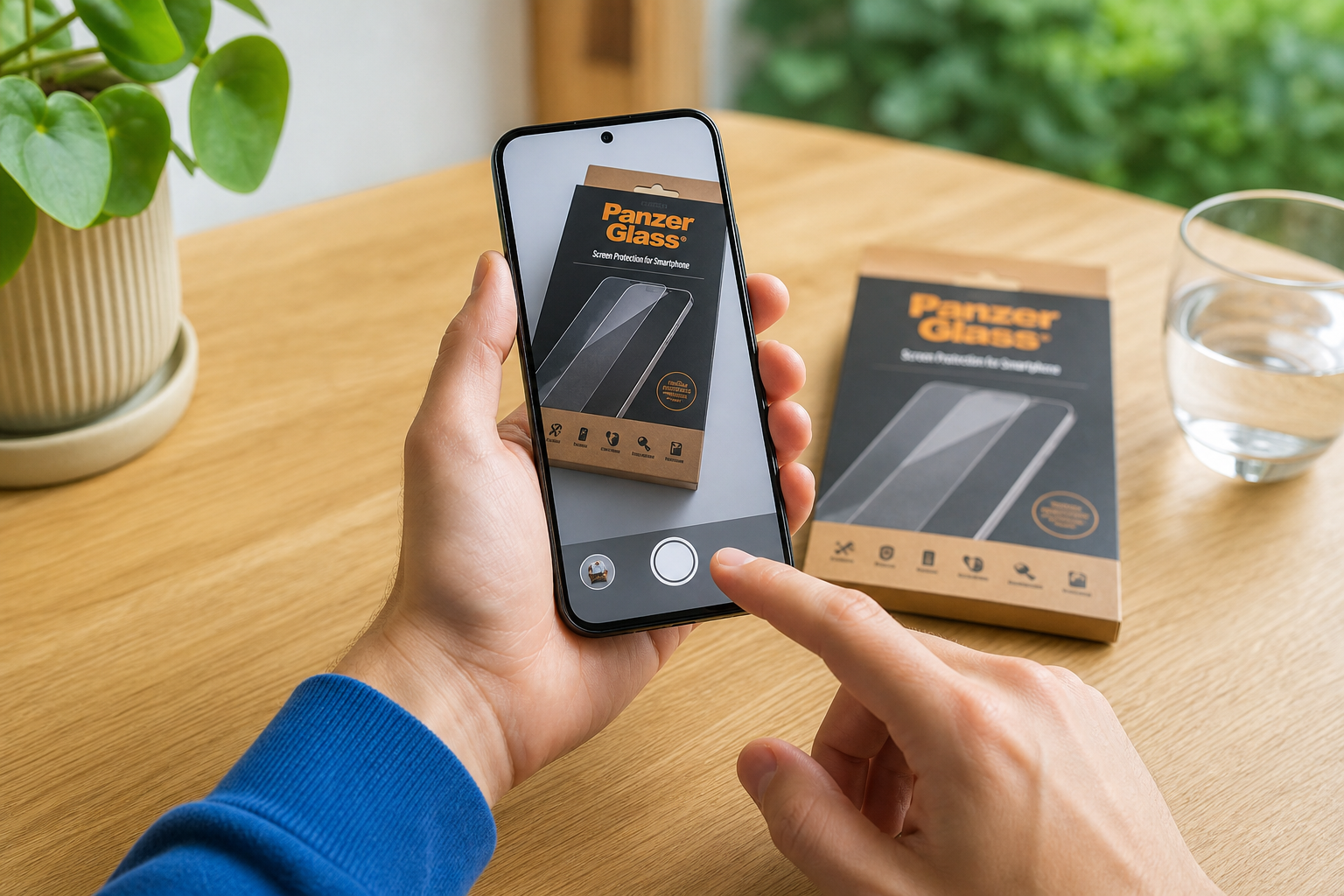
Point your camera at an object, such as a box for a PanzerGlass screen protector on your desk. Use good lighting and hold your phone steady. Lens can pick up more detail under a desk lamp than in a dark corner. To search with an existing image, tap the photo library icon and choose a picture.
-
5
Select the part of the image you want Lens to analyze, such as the text or a product. Then choose an action at the bottom of the screen, such as “Translate,” “Copy,” or “Search.”
Frequently asked questions about Google Lens
How do I download Google Lens?
Google Lens is built into the free Google app, so you don’t need a separate download. After you install the app, tap the camera icon on the right side of the search bar to open Lens. On many Android phones, Lens is already in the built-in camera app.
How do I open Google Lens on my phone?
Open the Google app and tap the camera icon on the right side of the search bar. On iPhone, you can use Lens in the Google app or Google Photos. It isn’t part of Apple’s built-in Camera app. On Android, you can often find Lens in the camera app or in the Google widget on your home screen.
What can I use Google Lens for?
Google Lens lets you look up information by pointing your camera at something. You can translate or copy text, identify plants and animals, look up products, and scan QR codes or barcodes. Lens can also help with homework by walking you through a math problem step by step.
Does Google Lens work offline?
Some Google Lens features work offline. You can translate text without an internet connection if you download the language packs in the app first. You’ll need an internet connection to identify objects and see shopping results.
Is Google Lens free?
Google Lens is free to use, with no subscription or hidden charges. If you search over a cellular connection, it uses data from your plan. On Wi-Fi, it doesn’t use your cellular data.
Can I use Google Lens on my computer?
Yes, you can use Google Lens in Chrome. Right-click an image and select “Search with Google Lens.” You can also upload a PNG or JPG screenshot.
Can I use Google Lens with a photo I’ve already taken?
Yes. Open the picture in Google Photos and tap the Lens icon, or choose a picture from your gallery in the Google app. That’s handy if you took a screenshot of a product you saw online.
How do I get better results with Google Lens?
Google Lens works best in good light when you hold the camera steady. If the picture is busy, select just the part you want to look up, such as the text on a menu. If the edge of your phone case covers part of the lens, it can darken a corner of the image and make recognition harder. Check that the camera cutout is clear.
When did Google Lens come out?
Google announced Lens at Google I/O in 2017. It started as a standalone app and was later integrated into the Android camera app and the Google app.
Open the Google app and scan something on your desk to see how quickly visual search works. If you often use Lens while you’re out and about, a sturdy case can help protect your phone. Browse our full range of accessories at directcases.com to find one that fits.