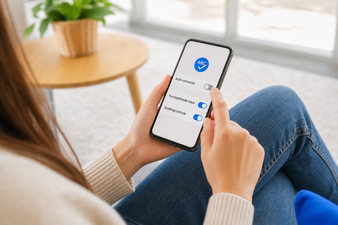
Signal’s Note to Self feature lets you send a message to yourself. Open the app, search for your profile name or type “Note to Self” in the search bar, and open the conversation. This gives you a private chat where you can quickly send yourself text, files, and links.
The chat syncs between your phone and computer through linked devices. Signal protects it with end-to-end encryption, so only the devices involved should be able to read the contents in transit. You can use it as an encrypted clipboard for notes you want to access on several devices.
How do I open a chat with myself in Signal?
Where do you find Note to Self among your regular conversations? If you have an active Signal account, setting up your personal chat for the first time takes only a few seconds.
-
1
Start a new conversation
Open Signal on your device. Tap the pencil icon to open the new chat screen.
-
2
Find Note to Self
Type “Note to Self” in the search bar if your phone is set to English. If it doesn’t come up, search for your own profile name.
-
3
Send your first note
Open the chat and type a short word or an emoji. Tap the arrow or paper airplane icon to send it. After you send this test message, the chat appears in your conversation list.
You now have a private space in the app. Unlike in regular conversations with other people, you can keep editing messages in your personal notes. Press and hold a message you’ve sent, choose the edit option, and update the text.
That makes the chat a digital notepad you can keep updating. Start messages with keywords you’ll recognize, such as “TRAVEL” or “IDEA.” That makes your saved notes easier to find later.
Note to Self on different operating systems
In 2026, about 2.3 million people in the Netherlands use Signal. Your personal chat works much the same way on Apple and Android devices, although a few things look different.
Signal uses the same end-to-end encryption on both platforms. Your saved links, documents, and lists get the same protection on iPhone as they do on Android.
| Action or feature | Android | iOS (iPhone & iPad) |
|---|---|---|
| Start a new chat | With a round pencil icon on a colored background. | With a transparent square icon containing a small pencil. |
| Search in the app | The search field is visible above your conversation list. | You may need to swipe down briefly to reveal the search bar. |
| Open chat options | Press and hold a chat to open an action menu at the top. | Swipe right on a chat or press and hold it to open a floating menu. |
App updates can occasionally change the appearance of menus or icons. The feature stays linked to your account, and a change to the interface won’t erase your saved notes or files.
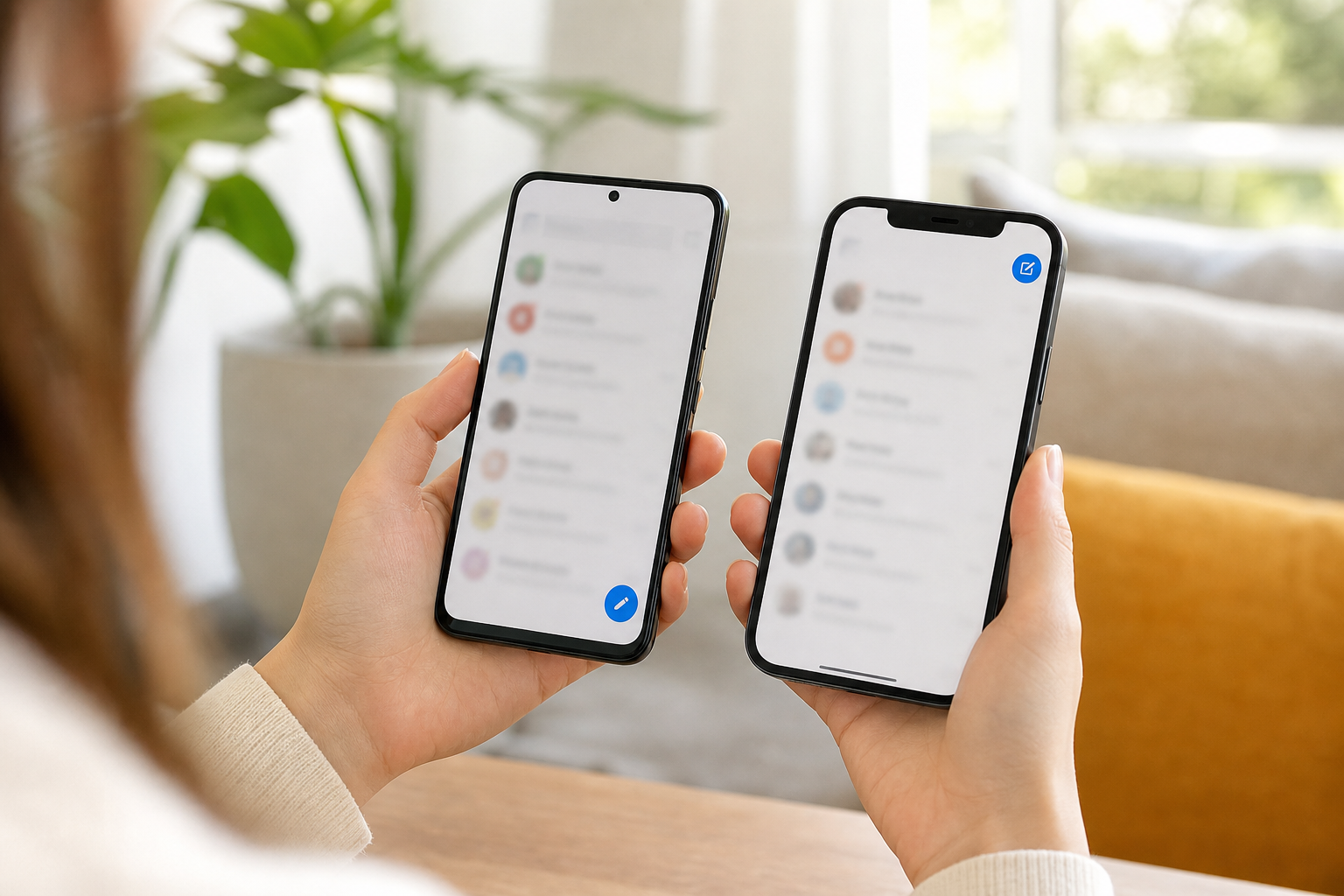
Where do I find Note to Self on Android and iOS?
You’re at the store and want to pull up a list you saved in Signal. Where you tap to open the feature for the first time depends on your phone.
On Android, start a new conversation from your chat list and search for Note to Self, Notitie aan jezelf if your app is in Dutch, or your own profile name. On an iPhone or iPad, start a new message from the same list and search for your personal chat. Button placement and appearance can vary by app version.
Once you’ve used the chat, you can find it the same way on both platforms. Type “Note to Self” in the search bar at the top, and the conversation appears in the results.
Make more of your personal Signal chat
You can use this private chat for more than short notes. A few habits can help you keep track of what you save. Note to Self is for your own use. It isn’t designed for sharing with a group or the public.
Use consistent categories: Choose labels or hashtags such as #idea or #groceries. Add a date to time-sensitive notes. You can use the search bar to find a specific note later.
Save tasks and reminders: Send yourself a short message about something you don’t want to forget, such as TO DO – call the doctor. Signal won’t remind you automatically, so add important appointments to your calendar or task app too.
Collect photos on site: If you take photos for a renovation or work project, send them to your personal chat as you go. A phone case from a brand such as PanzerGlass or Mobigear can help protect your phone if it slips out of your hand during the job.
Set messages to disappear: Turn on disappearing messages for short-lived details such as where you parked or a Wi-Fi password, so old messages don’t clutter the chat.
Delete sensitive information: Avoid sending full passwords, PINs, or recovery phrases to Signal, even for temporary storage. Use a password manager for those details, and choose Delete message when you no longer need a temporary code.
Keep messages short: Send separate messages by topic instead of adding all your tasks to one long message. That makes them easier to read, especially on a small phone screen.
Can I send myself files, photos, and voice messages?
Signal handles media in your personal chat the same way it does in any other conversation. You can use this end-to-end encrypted chat to keep media temporarily or open it on a linked device.
Send files: Attach documents and other files that meet Signal’s file size limits. Check that the entire file downloaded to your computer. Use a separate archive for long-term storage.
Send photos and videos: Add photos and videos to your chat as media or files. If you’re moving a file from your phone to your computer, check that the download is complete and that the file opens properly.
Record a voice message: Use the microphone button when you can’t type. If you record something important on the go, add it to the chat as text later so you can find it through search.
How do I pin my chat to the top of the list?
Want to save something quickly without searching for your notes each time?
-
1
Open your chat list
Go to the main conversation list in Signal.
-
2
On iOS
On an iPhone, swipe partway to the right on the Note to Self chat. Tap the pin icon that appears.
-
3
On Android
Press and hold the chat until a menu appears. Select “Pin chat.”
Your personal chat stays at the top of the list once you pin it, even as new messages come in from other people.

Do messages I send myself sync to my computer?
For the roughly 60% of users who open the app at least once a week, it can be helpful to switch to a larger screen. A message you send yourself in Signal can also be available on your computer. Use linked devices to connect Signal Desktop to the Signal account on your phone.
You can use the chat as a digital clipboard. If you read an interesting article on your phone, copy the link to your personal chat. Then open the same link on your laptop to pick up where you left off. You can transfer files this way too, such as a photo you took with your phone that you want to open on your computer.
After linking, check that new messages and attachments are available on your computer. How they sync can vary by platform and app version. Send a short test message to Note to Self before transferring an important document.
On a newly linked computer, you might not have your full chat history. Signal treats syncing, restoring chat history, and backups separately. If an older link or file is only on your phone, open it there and send it to your personal chat again after linking your computer.
An encrypted backup can help with recovery. You should still check what’s available on your linked computer. Signal highlighted encrypted backups in 2025, so keep your recovery information somewhere safe. Download important files to your computer and verify that they open in full. Keep another copy of any documents you need to store long term.
Frequently asked questions
What are the drawbacks of Signal?
Signal isn’t a full note-taking app or a permanent place to store files. Note to Self is useful for a temporary link or photo, but keep important documents in a separate, secure backup. Messages don’t trigger automatic reminders. There’s also no automatic cloud backup. If you lose your device without a local backup, you’ll lose the files you’ve saved.
Why use Signal instead of WhatsApp?
Signal doesn’t collect metadata about exactly whom you talk to, when, or where. Other services often store data to build profiles. Signal uses end-to-end encryption by default for all messages and attachments, so you can share a file between your phone and laptop without anyone reading it in transit.
Why are people switching to Signal?
More people want control over their personal data. In the Netherlands, Signal grew to about 2.3 million users in 2026, with daily use rising to 900,000 people that year. That means more of your contacts may already be there.
Is Signal still safe?
Yes. Signal protects chats with end-to-end encryption so only the devices involved can read the contents in transit. Protect your device as well. Turn on screen lock and hide notification previews. Use a password manager for passwords and PINs instead of sending them to yourself in a chat.
Can I use WhatsApp and Signal on the same phone?
Yes. You can install both apps on the same phone. Using them side by side is common. In 2026, 93% of Signal users in the Netherlands also had WhatsApp on their phones. You can keep your group conversations in one app and save personal notes and sensitive files in Signal.
With Note to Self, you can use Signal as a private digital clipboard that syncs across your devices. Open the app, search for your own name, send a test message, and pin the chat. Looking for reliable accessories for your phone? Browse the current selection at directcases.com.