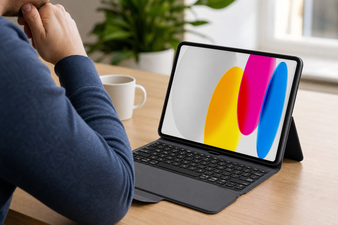
Before you connect a Bluetooth keyboard to your iPad or Samsung tablet, get the keyboard ready and put it in pairing mode.
Before you start: charge and turn on the keyboard
Make sure your keyboard has enough charge before pairing it.
Charge the keyboard with the included USB-C or Micro-USB cable. The charging light comes on when the keyboard is receiving power.
Set the power switch to ON.
Make sure Bluetooth is enabled on your tablet.
Disconnect the keyboard from other devices if needed.
Turn on pairing mode
How you turn on pairing mode depends on your keyboard.
Connect button. This small, separate button is often next to the power switch or at the top of the keyboard. Press and hold it for 3 seconds.
No separate button? Try Fn + C. Hold both keys down for 3 seconds until the light starts flashing. If you let go too soon, nothing will happen.
Fn + the Bluetooth key. Look for a key marked with the Bluetooth symbol. Hold down Fn and the Bluetooth key for a few seconds.
A flashing blue or white light usually means pairing mode is active.
Have a Mobigear keyboard cover? Look for a key with the Bluetooth symbol or a separate Connect button to see which method your keyboard uses.
How to connect a Bluetooth keyboard to your iPad
Pair your Bluetooth keyboard from the same iPad menu you use for your AirPods. You don’t need an app or extra software.
-
1
Turn on the keyboard.
Make sure the keyboard has enough charge, then turn it on with the power button.
-
2
Put the keyboard in pairing mode.
Press and hold the Connect button for a few seconds until the light starts flashing. The keyboard is now in pairing mode.
No separate button? Try Fn + the Bluetooth key. Hold both keys down for 3 seconds until the light starts flashing. -
3
Open Bluetooth settings on your iPad.
Go to Settings > Bluetooth and make sure Bluetooth is on.
-
4
Select “Bluetooth Keyboard.”
Wait for the keyboard’s name to appear under “Other Devices.” Tap the name to connect.
-
5
Enter a pairing code if prompted.
Does your iPad ask for a four- or six-digit code? Type the code on the physical keyboard instead of on your iPad screen, then press Enter.
-
6
Check the connection.
You can use the keyboard once it shows as connected under “My Devices.” Open Notes and try typing a few words.
How to connect a keyboard to your Samsung tablet
Use your Samsung tablet’s Bluetooth settings to connect your keyboard. Follow the steps below.
-
1
Turn on the keyboard.
Make sure the keyboard has enough charge, then turn it on with the power button.
-
2
Put the keyboard in pairing mode.
Press and hold the Connect button for a few seconds until the light starts flashing. The keyboard is now in pairing mode.
No separate button? Try Fn + the Bluetooth key. Hold both keys down for 3 seconds until the light starts flashing. -
3
Open Bluetooth settings on your Samsung tablet.
Go to Settings > Connections > Bluetooth and turn on Bluetooth.
-
4
Tap “Scan” if you don’t see your keyboard.
Your Samsung tablet may not scan again automatically. If the keyboard still doesn’t appear after scanning, check that its light is still flashing.
-
5
Select “Bluetooth Keyboard” and tap “Pair.”
Does your Samsung tablet ask for a code? Type the digits on the physical keyboard instead of on the tablet screen, then press Enter.
-
6
Check the connection.
You can use the keyboard once it shows as “Connected.” Open a notes app and try typing a few words.
Why won’t my wireless keyboard connect?
Common causes include an inactive pairing mode, an old Bluetooth connection getting in the way, or an incomplete pairing process.
Can’t see your keyboard in your tablet’s Bluetooth menu? First, check whether the indicator light is flashing. If it isn’t, turn pairing mode back on with the Connect button, Fn + C, or Fn and the Bluetooth key. Still can’t see the keyboard? On your tablet, turn Bluetooth off and back on, then try again.
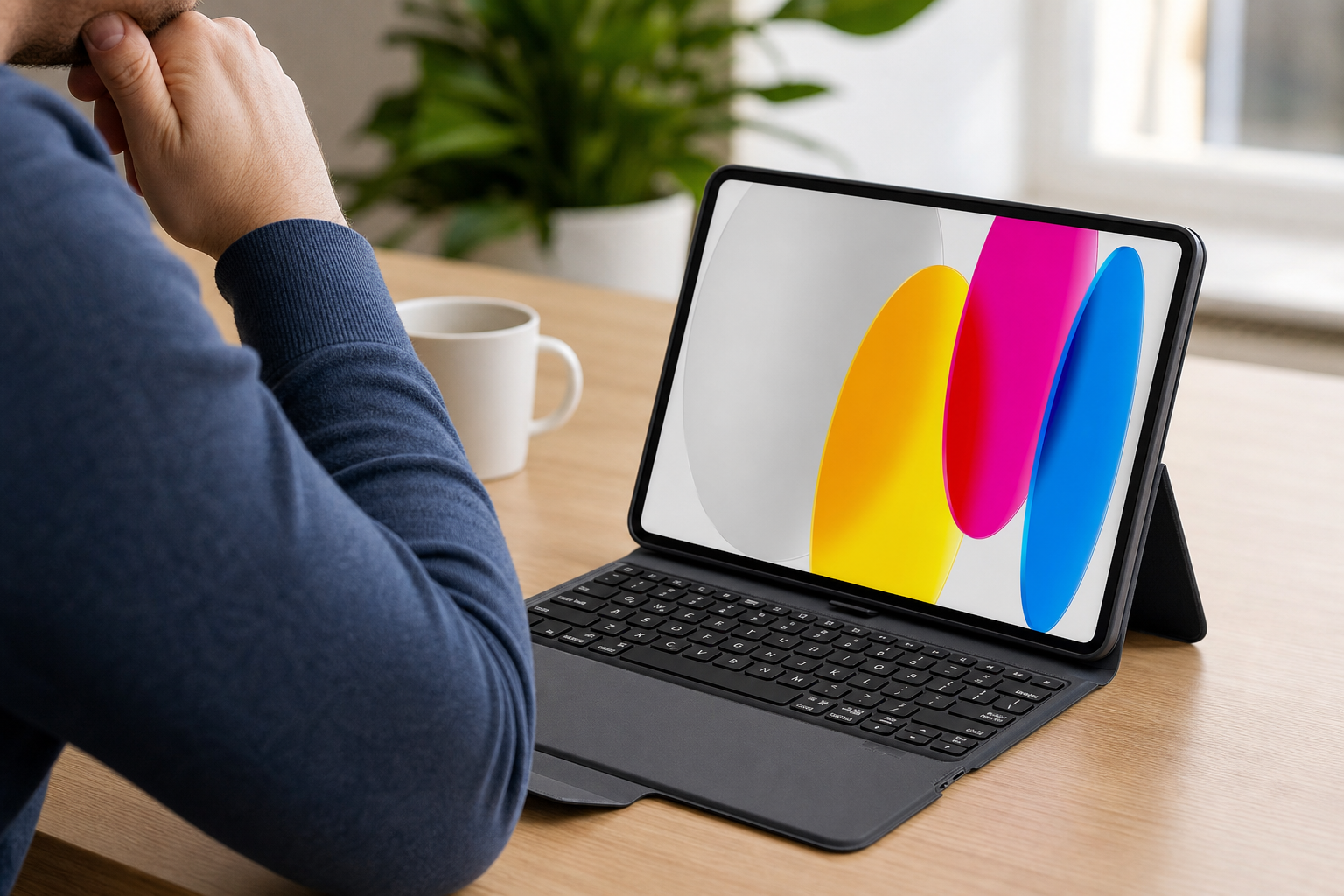
Still having trouble? See our guide to common Bluetooth keyboard problems for troubleshooting steps and tips to get your keyboard working again.
Frequently asked questions
How do I set up a wireless keyboard?
Charge the keyboard, turn it on, put it in pairing mode, and connect it in your tablet’s Bluetooth settings. A Bluetooth keyboard doesn’t need special software or an app. To set it up, simply pair it.
Do I have to pair the keyboard every time?
Pair the keyboard again only after resetting or unpairing it, or when using it with a different tablet. Your tablet normally remembers the keyboard, so you can just turn it on.
How long should I charge the keyboard before using it for the first time?
Charge the keyboard for 1 to 2 hours before you first use it. The charging light turns off or changes color when the battery is full. If the battery is nearly empty when you start pairing, the connection often drops before pairing is complete. It’s worth waiting a little.
You now know how to pair a Bluetooth keyboard with your iPad or Samsung tablet and what to do if it won’t connect. Time to replace your keyboard? Browse our keyboard covers for iPad or Samsung Galaxy Tab to find one that fits your tablet.