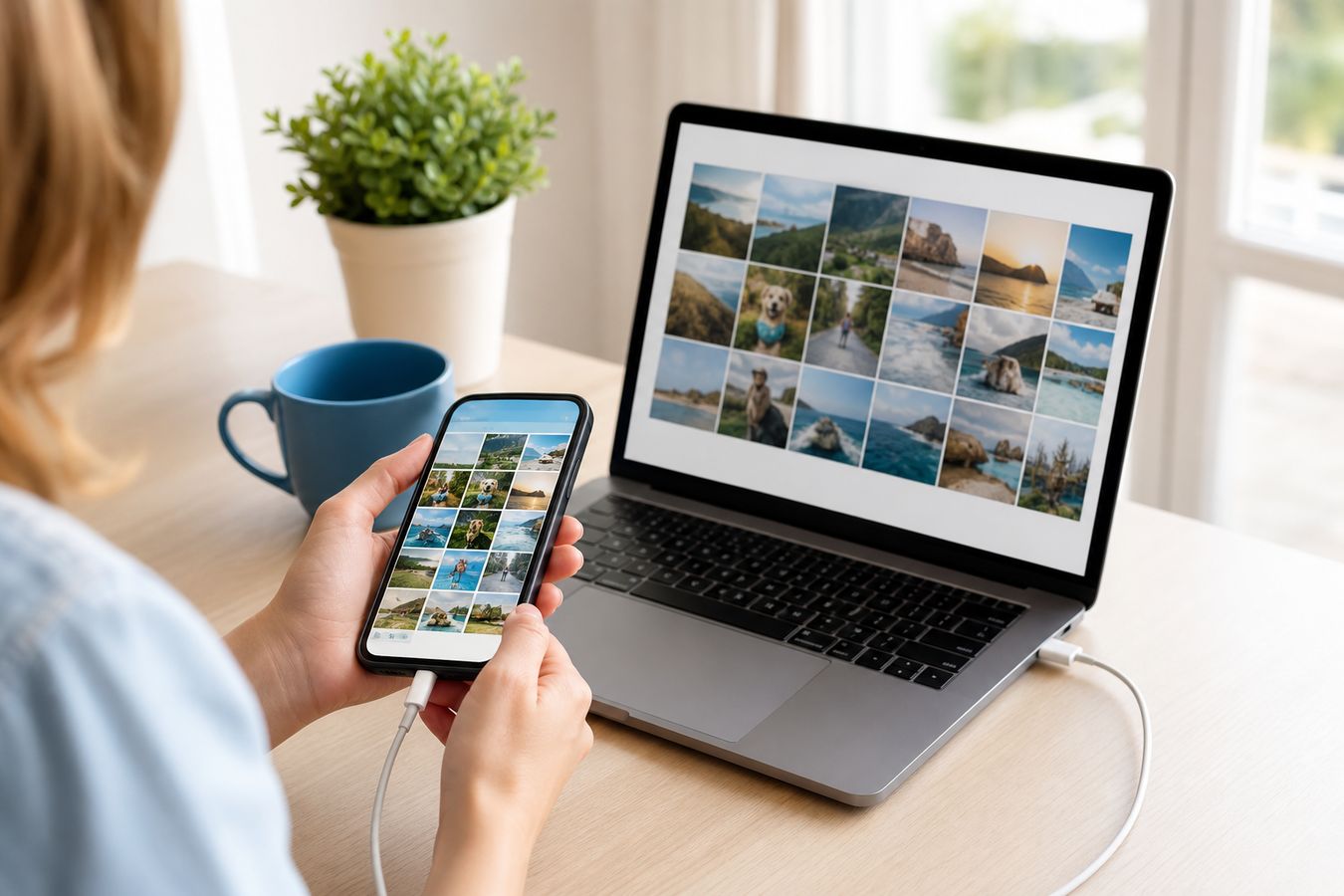
You can transfer photos and videos from your iPhone to a Windows PC in two ways. Connect a data cable to import them with the Windows Photos app, or download them wirelessly through iCloud.
Should you transfer iPhone photos by USB or through the cloud?
A USB cable is usually the fastest way to transfer iPhone photos to your PC.
It's suitable for large batches, including thousands of files at a time, and works without an internet connection. You need the original files on your phone. Use a data cable, since a charge-only cable can't transfer photos.
Is Optimize iPhone Storage turned on? The originals may be stored only in iCloud, so a USB import may fail or skip photos. Download the originals to your iPhone first or use iCloud.
Don't have a suitable cable? With iCloud Photos, your files can sync automatically in the background through iCloud for Windows. Check your internet speed and available cloud storage.
| Method | Main benefit | What you need |
|---|---|---|
| USB cable | Transfer thousands of files locally in less time | Original files on your device and a data cable |
| Wireless (iCloud) | Automatic background syncing | Internet access and enough cloud storage |
If you only need a few vacation photos, downloading them from iCloud.com is simpler than installing an app. Syncing doesn't create a separate backup. When you delete a photo from iCloud Photos, it disappears from your other synced devices too.
Use a cable to copy your entire camera roll at once. Use the cloud if you want new photos to show up automatically on your Windows PC. Keep a separate local copy and check the files before deleting any photos.
How do I transfer photos by USB with File Explorer or the Photos app?
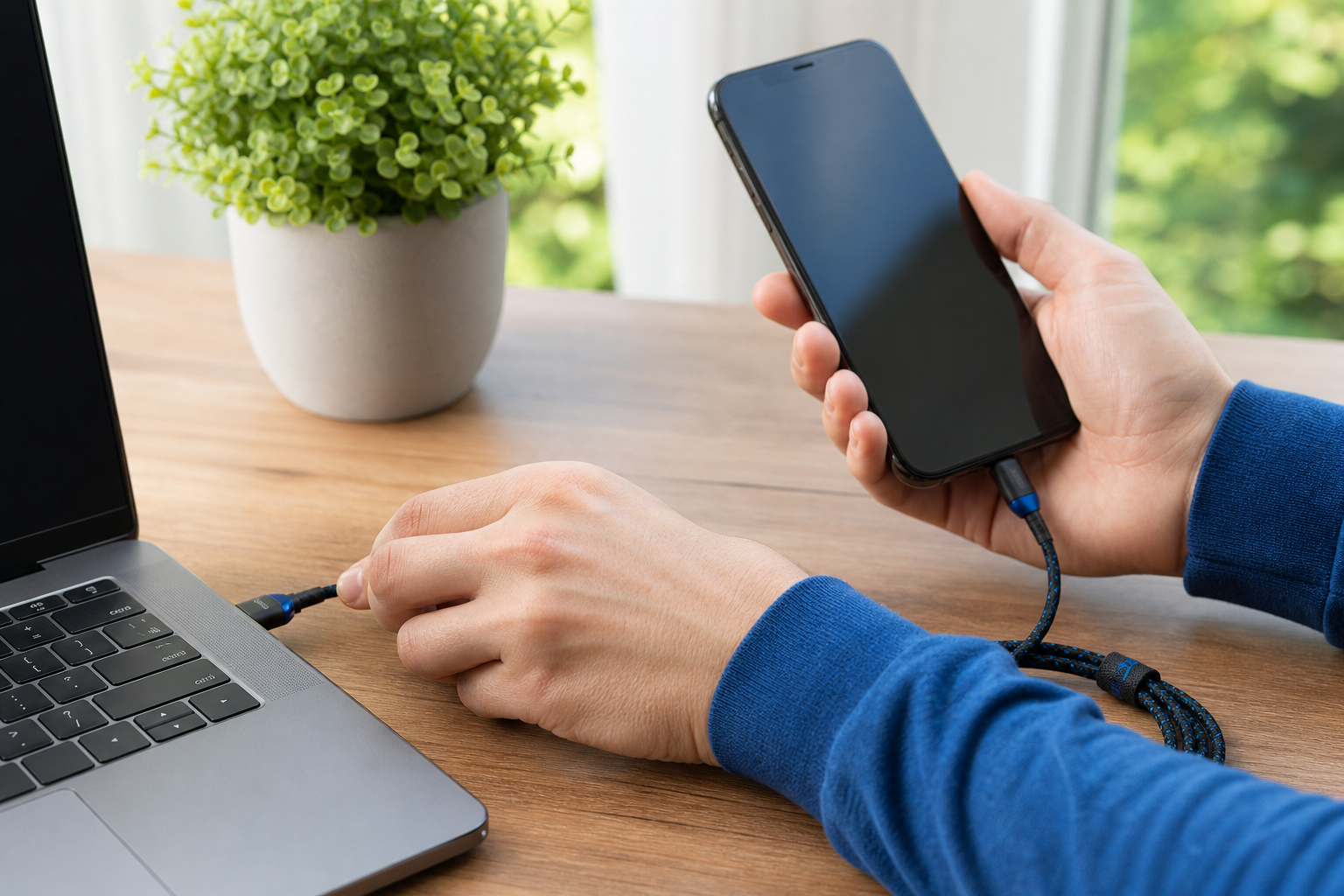
For a local transfer to a Windows PC, Apple recommends connecting with a suitable USB cable and importing your files directly on the computer.
-
1
Always use a data cable, such as one from Mobigear. A basic charging cable often carries power only. That can prevent a connection or interrupt a transfer.
Choose connectors that fit your iPhone and your PC's USB port. Check that the cable supports data transfer and fits securely at both ends.
Choose a cable specifically rated for data transfer. Plug it directly into your PC and avoid using a USB hub if you're having connection issues.
Check that your phone case isn't blocking the cable during the transfer.
-
2
Unlock your iPhone with your passcode and confirm the “Trust This Computer?” prompt. Windows can't access your iPhone until you grant permission.
If the prompt doesn't appear, disconnect the cable, unlock your iPhone again, and reconnect it.
-
3
Open the Photos app in Windows. Select “Import” and choose the connected device. Select your photos and a destination folder, then start the import.
Install or update the Apple Devices app if Windows prompts you to. Import large collections in smaller batches, such as one trip at a time.
-
4
Prefer to copy the files yourself? In Windows File Explorer, open “This PC” and select “Internal Storage” on your Apple iPhone. Open the DCIM folder to copy and paste individual photos.
DCIM contains subfolders with photos and videos. Open them to select the files you want.
Use Copy instead of Cut. Open a few photos and play some videos before deleting the originals.
-
5
Check whether Optimize iPhone Storage is enabled. Your iPhone may keep only previews while the originals are in iCloud. A cable transfer may then fail or skip photos. Download the original photos to your iPhone before copying them.
Blurry thumbnails on your iPhone aren't full photo files. Seeing them doesn't guarantee you can import the photos over USB.
If your full photo library won't fit on your iPhone, download the originals to your PC through iCloud.

How can I transfer photos from my iPhone to my PC without a cable?
You can transfer photos and videos without a cable using iCloud for Windows or iCloud in your browser. Use the app for automatic syncing and your browser for occasional downloads.
-
1
To turn on iCloud Photos on your iPhone, open Settings, tap your name, then tap iCloud and Photos. Make sure you have enough iCloud storage and wait for your photos to upload.
-
2
Download the official iCloud for Windows app from the Microsoft Store. It automatically syncs files wirelessly between your iPhone and PC.
-
3
Sign in with the same Apple Account as on your iPhone and turn on Photos in iCloud settings. New photos will automatically appear in the iCloud Photos folder on your PC. Download them to keep a separate local copy.
-
4
Use iCloud in your browser for occasional downloads. Sign in with your Apple Account, select the files you want, and download them directly to the Downloads folder on your PC.
-
5
Check that the downloaded photos open and the videos play without an internet connection. Keep important files outside the iCloud Photos folder too. Deletions in iCloud carry over to linked devices.
Is Optimize iPhone Storage turned on? The original photos may be stored only in iCloud while your iPhone displays smaller previews. You can download the full files through iCloud. A USB transfer can't retrieve originals that aren't on the iPhone.
If you already use Google Photos for backups, download the photos from Google Photos in your PC browser. AirDrop only works between Apple devices, so you can't use it with a Windows PC.
Why won't my copied HEIC photos open in Windows?
Older versions of Windows and many apps don't support these formats by default. Photos you've just copied may therefore be unreadable on your PC. Check the file extension if Windows won't open them.
iPhones often save images in the space-saving HEIF format, usually with the .heic file extension. They use HEVC for videos. This saves storage on your device.
If you get an error when opening a .heic photo, the file may still be intact. First try opening it with an up-to-date photo or video app.
To prevent this with future photos, open Settings on your iPhone, tap Camera, then tap Formats. Select “Most Compatible.”
Your phone will save new photos as JPEGs and new videos in H.264. The setting doesn't affect existing photos or videos.
Already downloaded a folder full of HEIC files you can't open? Keep the originals until you've checked that the new copies open. When downloading through iCloud.com in your browser, you can choose to save compatible JPEG or H.264 versions.
Sign in with your Apple Account, open Photos, and choose “Most Compatible” when downloading. That saves you from having to install extra software.
Choose JPEG for photos you want to open in older apps. Keep the originals as well, since conversion can use more storage and change some of the original file properties.
Frequently asked questions
Why can't I transfer photos from my iPhone to my PC?
A faulty cable or a missed security prompt is a common cause. If your USB cable only delivers power, Windows won't recognize your iPhone. Make sure the iPhone is unlocked and that you've confirmed the “Trust This Computer?” prompt.
Why aren't my iPhone photos showing up on my PC?
Your photos are probably in the cloud rather than on your phone. When Optimize iPhone Storage is on, Apple keeps the original files online to save space on the device. File Explorer won't show those files. Download the photos to your device first or use iCloud for Windows.
How do I copy photos from my iPhone to a USB flash drive?
The safest way is to copy the files through your computer. Plugging a USB flash drive directly into your phone often doesn't work with the usual methods. First copy your photos to your Windows PC's drive with a data cable. Then plug in the USB flash drive and drag the files onto it.
With the right settings and a suitable cable, you can get your iPhone photos onto your PC quickly. Use a cable for large batches or iCloud for syncing. This can help you avoid interrupted transfers and keep your photos backed up. Check directcases.com if you need a compatible data cable.