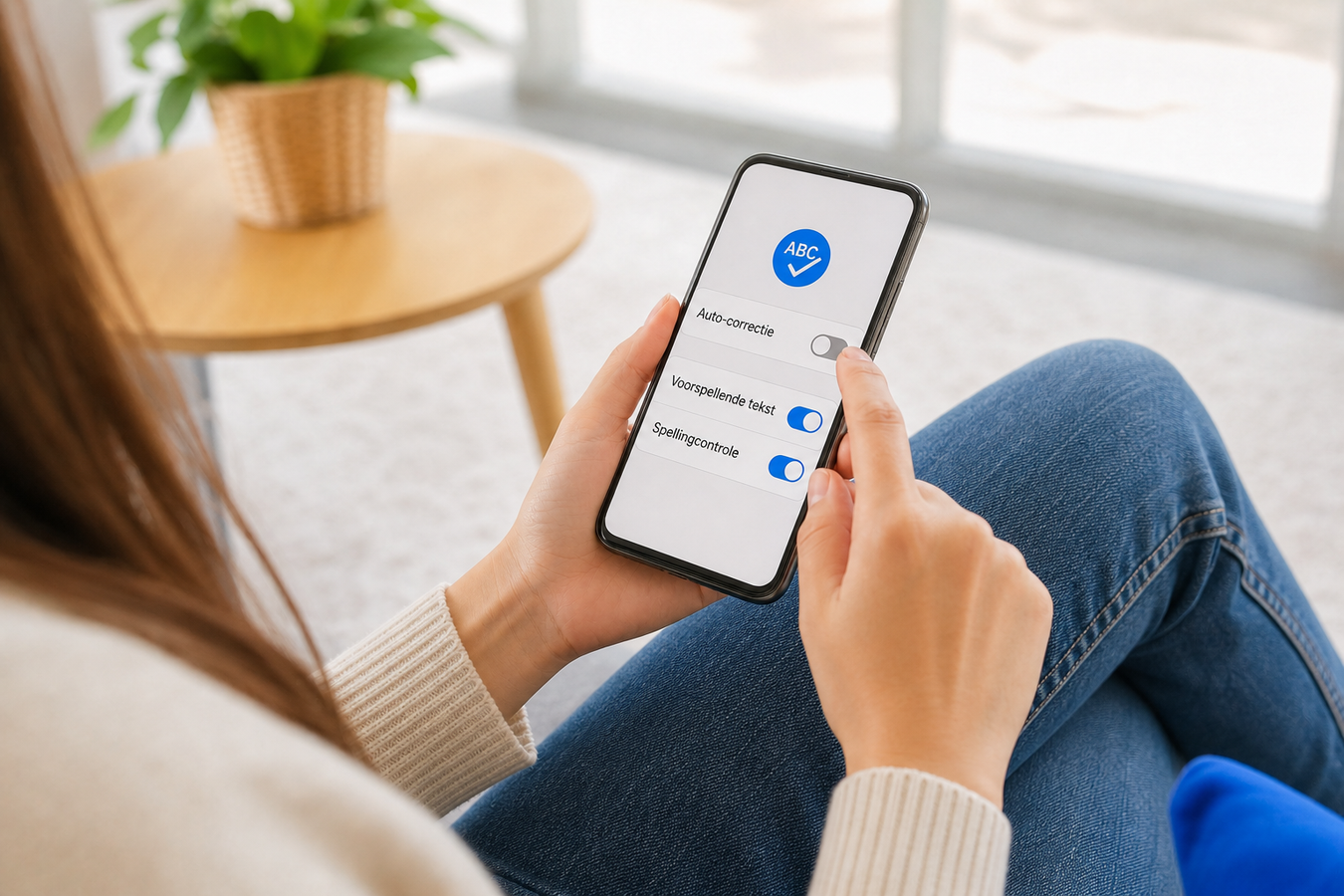
To turn off autocorrect on a smartphone or tablet, open your device settings. On an iPhone or iPad, go to General, then Keyboard, and switch off Auto-Correction. On Android, open System or General management, select the keyboard you use, and turn off automatic correction. The steps on a Windows tablet can vary by operating system version.

What's the difference between autocorrect and predictive text?
Why turn one feature off and leave the other on? Autocorrect uses a built-in dictionary to fix misspelled words as you type. It can get names, abbreviations, and technical terms wrong if they aren't in the dictionary. Autocomplete works much like predictive text: your phone suggests what to type next, and you decide whether to use it.
The built-in spell checker marks potential errors with a red dotted line and leaves your words as typed. Many people keep spell check and word suggestions on when they turn off autocorrect. Text shortcuts serve a different purpose: they expand a short code you choose into a full word or phrase.
How do I turn off autocorrect on my iPhone?
Auto-Correction is on by default on iPhone and iPad. The keyboard settings can be easy to miss, even if you know your device well. Here's how to stop it from changing words automatically.
-
1
Open Settings. Look for the gray gear icon on your Home Screen.
-
2
Scroll down and tap General.
-
3
Choose Keyboard from the list.
-
4
Under All Keyboards, find Auto-Correction. Tap the green switch. When it turns gray, Auto-Correction is off.
Apps that use the iOS keyboard will stop changing your words automatically. If a particular app still changes words, check that app's own settings.
In the same menu, you can also turn off Predictive Text and Check Spelling. This hides the suggestions above the keyboard and removes the red dotted lines under possible misspellings. Those tools then leave what you type alone.
You can also turn off Auto-Capitalization here if you want to decide when to use a capital letter after a period or question mark or at the start of a new sentence.
How do I turn off autocorrect on an Android phone?
You type a quick message in dialect and your phone changes it to standard English. You can adjust how it corrects your words. The steps depend on your Android device and the on-screen keyboard you use, such as Gboard or Samsung Keyboard.
-
1
Open your device settings and look for System or General management. The menu name varies by Android manufacturer.
-
2
Choose the language option or tap the name of your keyboard. If you use Gboard or Samsung Keyboard, look for the text correction options in that keyboard's settings.
-
3
For a quicker route, tap the small gear in the keyboard toolbar while you type. This opens keyboard settings straight from your chat.
How do I turn off autocorrect on my Samsung phone?
You can adjust how the default Samsung Keyboard corrects text. If it changes more words than you'd like, follow these steps:
-
1
Open Settings, scroll down to General management, and tap it.
-
2
Select Samsung Keyboard settings. This is where you can change how the keyboard works.
-
3
Go to the smart typing section, sometimes labeled Intelligent typing. This is where you manage word suggestions.
-
4
Turn off Auto replace. Tap the name of the setting to turn the feature on or off for individual languages.
Samsung's per-language setting is useful if you write work emails in English and chat informally in Dutch. You can turn off automatic correction in Dutch and leave it on in English.
When you turn off Auto replace, the keyboard stops changing your words automatically. You can still tap a word in the suggestion bar above the keyboard.
How do I turn off autocorrect in Gboard on Android?
Many Android phones and tablets use Gboard, Google's keyboard. It checks what you're typing as you go and can sometimes correct more words than you'd like. You can adjust this in its settings.
-
1
Open Settings, go to System or General management, and choose Keyboard or On-screen keyboard.
-
2
Select Gboard to open its settings.
-
3
Tap Text correction.
-
4
Turn off Auto-correction.
If you're already typing a message, tap the small gear in the suggestion bar above the keys. This opens Gboard settings, where you can go straight to Text correction.
Once you turn off Auto-correction, Gboard stops correcting words automatically. To keep red dotted lines or word suggestions, check that the spell check and predictive text options you want are still on under Text correction. You can adjust them separately.
How do I turn off autocorrect in WhatsApp?
Where do you turn off automatic word replacement in your chats?
WhatsApp uses the keyboard on your iPhone, iPad, or Android phone. There is no autocorrect setting in WhatsApp itself. To stop automatic corrections in chats, change your keyboard settings as follows:
-
1
Leave WhatsApp and open your phone's Settings app.
-
2
Find your keyboard settings using the steps for your phone earlier in the article.
-
3
On iPhone or iPad, go to General > Keyboard. On Android with Gboard, go to System > Keyboard > Gboard > Text correction.
-
4
If you use Samsung Keyboard, go to General management > Samsung Keyboard settings > the smart typing section.
-
5
Turn off autocorrect using the switch in your keyboard settings.
-
6
Open WhatsApp again. The words you type should now stay as entered.
Want to keep suggestions above your keyboard? Leave predictive text or autocomplete enabled and turn off autocorrect. That way you can choose whether to tap a suggested word.
How do I add my own words so they aren't corrected?
Many people know their way around a smartphone without ever setting up a personal dictionary. If your phone keeps changing the same abbreviations, brand names, or technical terms, you can keep autocorrect on.
Enter the words you use often so your phone keeps them as typed. Here's how:
On iPhone or iPad: Go to Settings > General > Keyboard > Text Replacement. Tap the plus sign in the upper-right corner and add your word.
On Android (Gboard): Open Settings > Dictionary > Personal dictionary. Choose your language and tap the plus sign to add your term.
To create shortcuts: On iPhone or iPad, use the Shortcut field to enter an abbreviation for your word. When you type it, the saved brand name or technical term appears. In Gboard, add your words to the personal dictionary.
Try it in a notes app to see whether the word stays as you typed it. You can adjust spell check and automatic replacement separately in your keyboard settings.
Frequently asked questions
How do I turn off autocorrect on Android?
Open Settings, go to System or General management, and select the keyboard you use. In Gboard, switch off Auto-correction under Text correction. In Samsung Keyboard, turn off Auto replace in the smart typing section.
How do I turn off autocorrect on my iPhone?
Open Settings, tap General, choose Keyboard, and switch off Auto-Correction. The switch turns gray, and iOS stops replacing words automatically.
How do I turn off spell check?
Turn off Check Spelling on iPhone or the spell check option on Android in your keyboard settings. This removes the red dotted line under words your phone doesn't recognize in its built-in dictionary.
Can I turn off autocorrect in WhatsApp?
WhatsApp has no autocorrect setting of its own. It uses your phone's keyboard, so change the setting on your iPhone or Android device instead.
Can I turn autocorrect back on later?
Yes. Open the same keyboard settings and turn the switch back on whenever you want.
Where is autocorrect on a Windows tablet?
Look in the Windows input or typing settings. The exact path depends on your version of Windows. Start under Time & language in Settings.
Can I add my own words?
Yes. Add technical terms or names manually to keep your keyboard from changing them. Use Text Replacement in iPhone settings or add the words to your personal dictionary on Android.
With a few taps in your iPhone or Android settings, you can control whether your keyboard changes words automatically. If you still hit the wrong keys, take a look at a thin screen protector to preserve touch sensitivity, or browse other phone accessories at directcases.com.