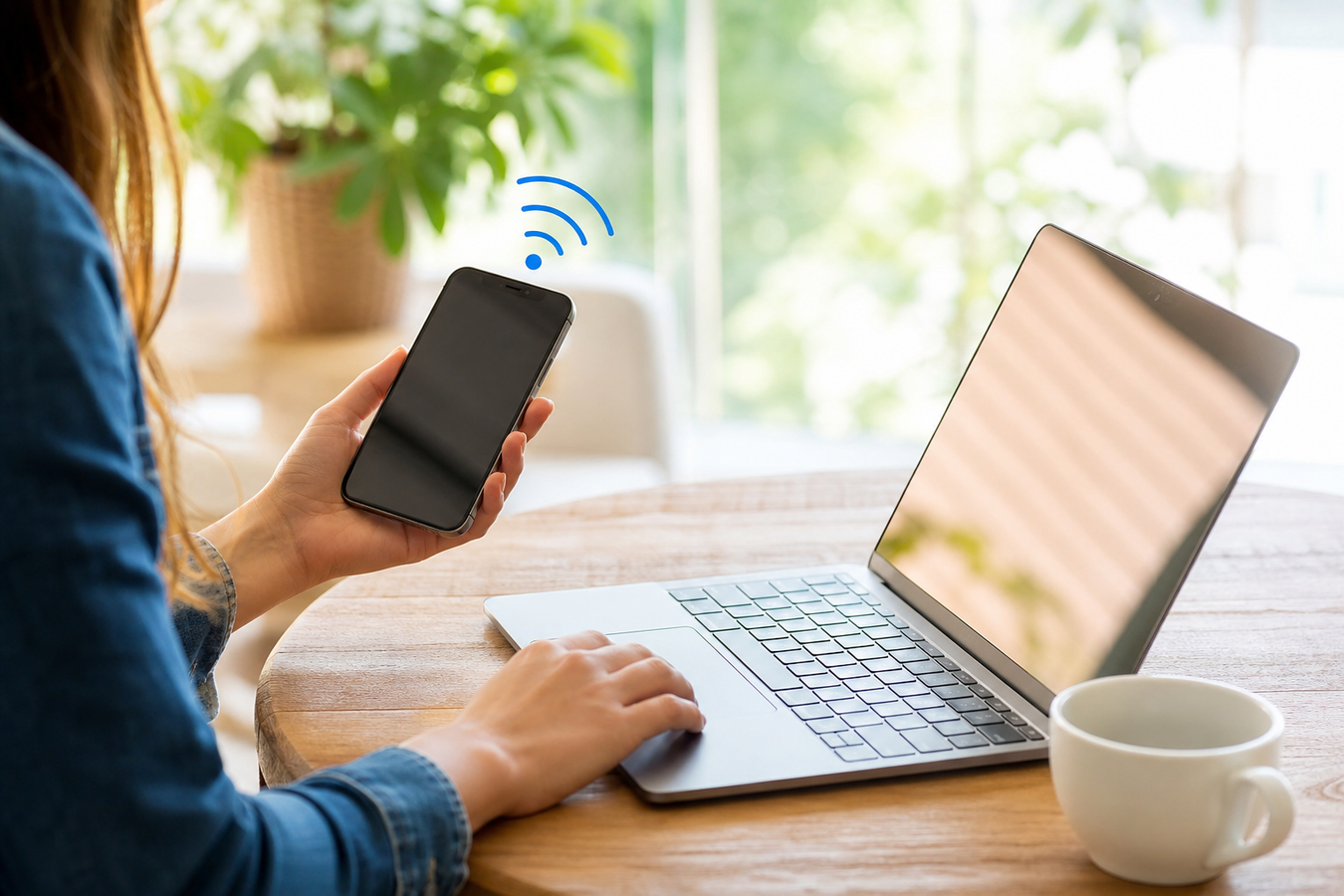
You can set up a mobile hotspot on your phone to share your mobile data connection with your laptop or tablet. Turn on the hotspot in your phone settings. Then select your phone's network on your laptop or tablet and enter the password.
How do I turn my phone into a Wi-Fi hotspot?
A mobile hotspot lets your phone act as a router. It shares your 4G or 5G data connection over a local wireless network that you can join from another device.
You don't need any extra apps or software. Most recent iPhones and Android phones have this feature built in. You'll need an active data plan with a SIM or eSIM. A hotspot can connect several devices at once. If your phone supports hotspots and you have enough mobile data, turn on the feature in Settings. Your other devices can then join it just like they join your home Wi-Fi network.
How to set up Personal Hotspot on an iPhone
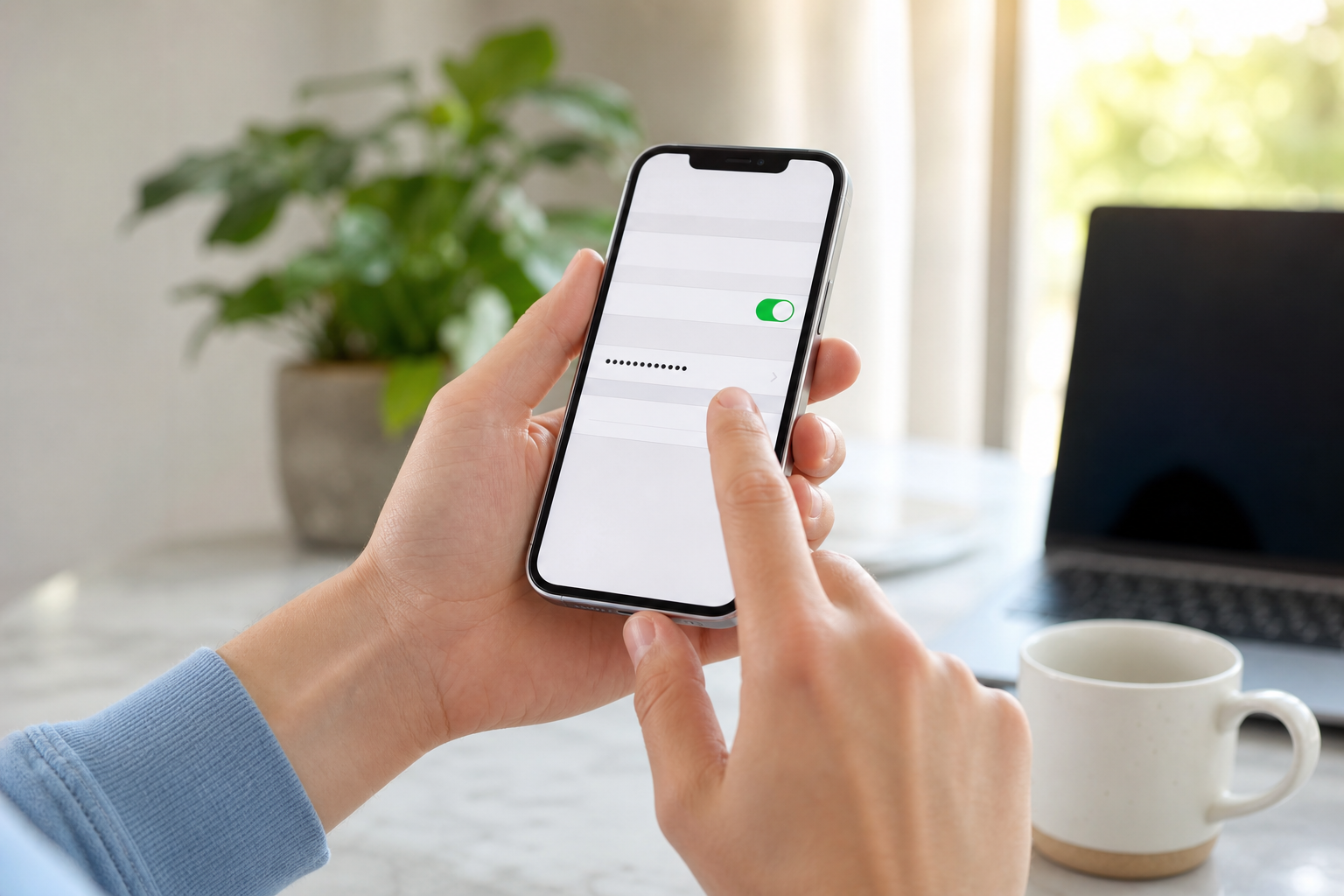
Apple explains that other devices can find your iPhone over Wi-Fi when you enable hotspot access in iOS. Here's how to turn it on in three steps.
-
1
Open Settings from your Home Screen and tap Personal Hotspot. If you don't see it there, look under Cellular.
-
2
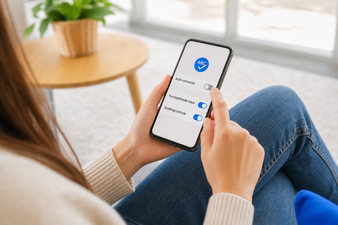
Turn on Allow Others to Join. Your iPhone then broadcasts a Wi-Fi signal.
-
3
Tap Wi-Fi Password and choose a password. Once the hotspot is on, nearby devices can see your iPhone's name in their Wi-Fi list. Use a strong password to keep strangers from connecting and using your mobile data.
How to turn on a mobile hotspot on Android or Samsung Galaxy
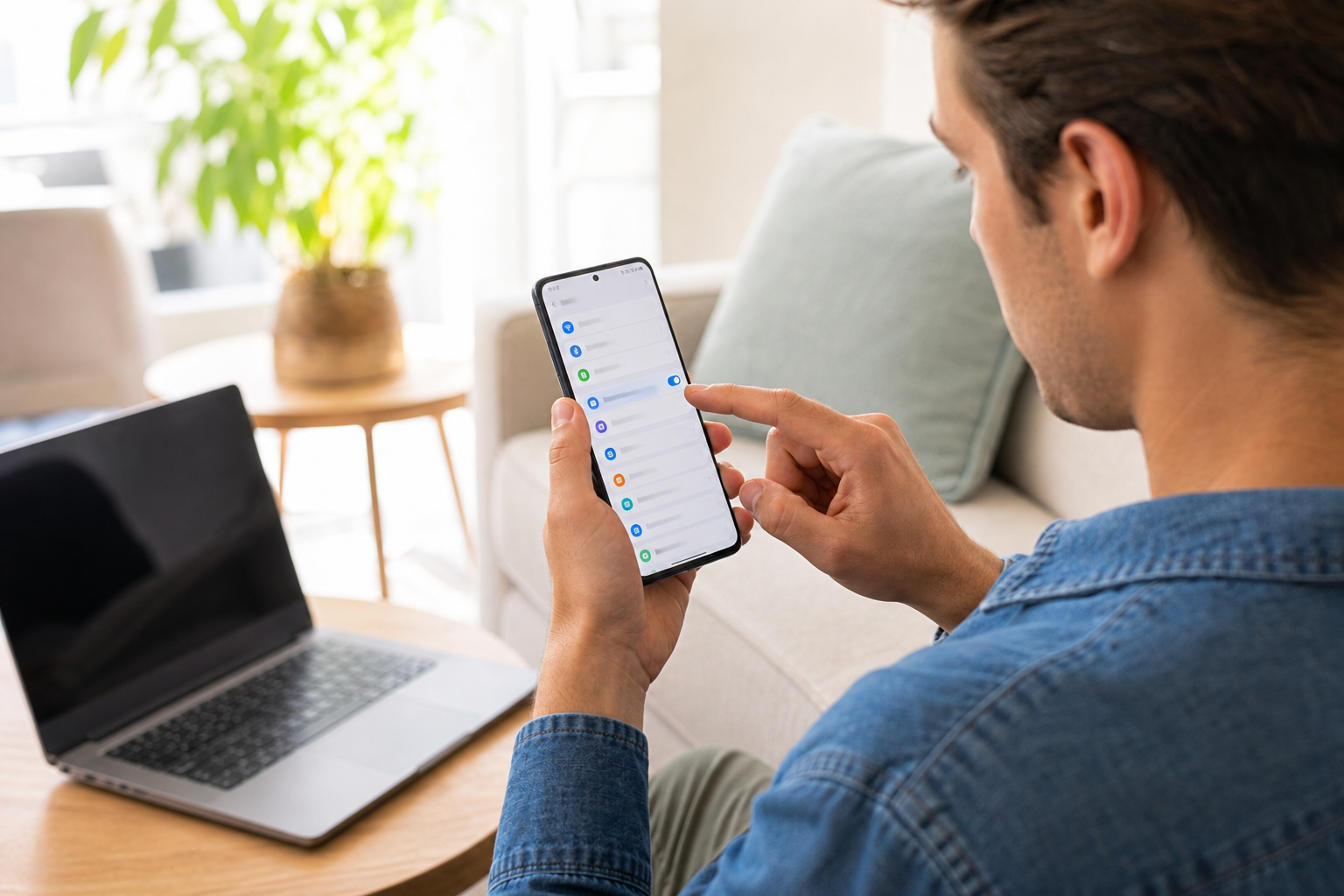
If the public Wi-Fi keeps dropping on the train, you can share the connection from your Android phone or Samsung Galaxy with your laptop. Menu names can vary by brand, but the steps are similar.
-
1
Open Settings on your phone. On most Android phones, tap Network & internet. On a Samsung Galaxy, tap Connections.
-
2
Find Hotspot & tethering on Android or Mobile Hotspot on Samsung Galaxy. Turn on the hotspot to start sharing your mobile data connection.
-
3
In the same screen, change the network name (SSID). The default may be a name like ‘AndroidAP’ or ‘Galaxy S23’. Pick a name you'll recognize in your laptop's Wi-Fi list and set a strong password.
How do I connect my laptop to my phone's hotspot?
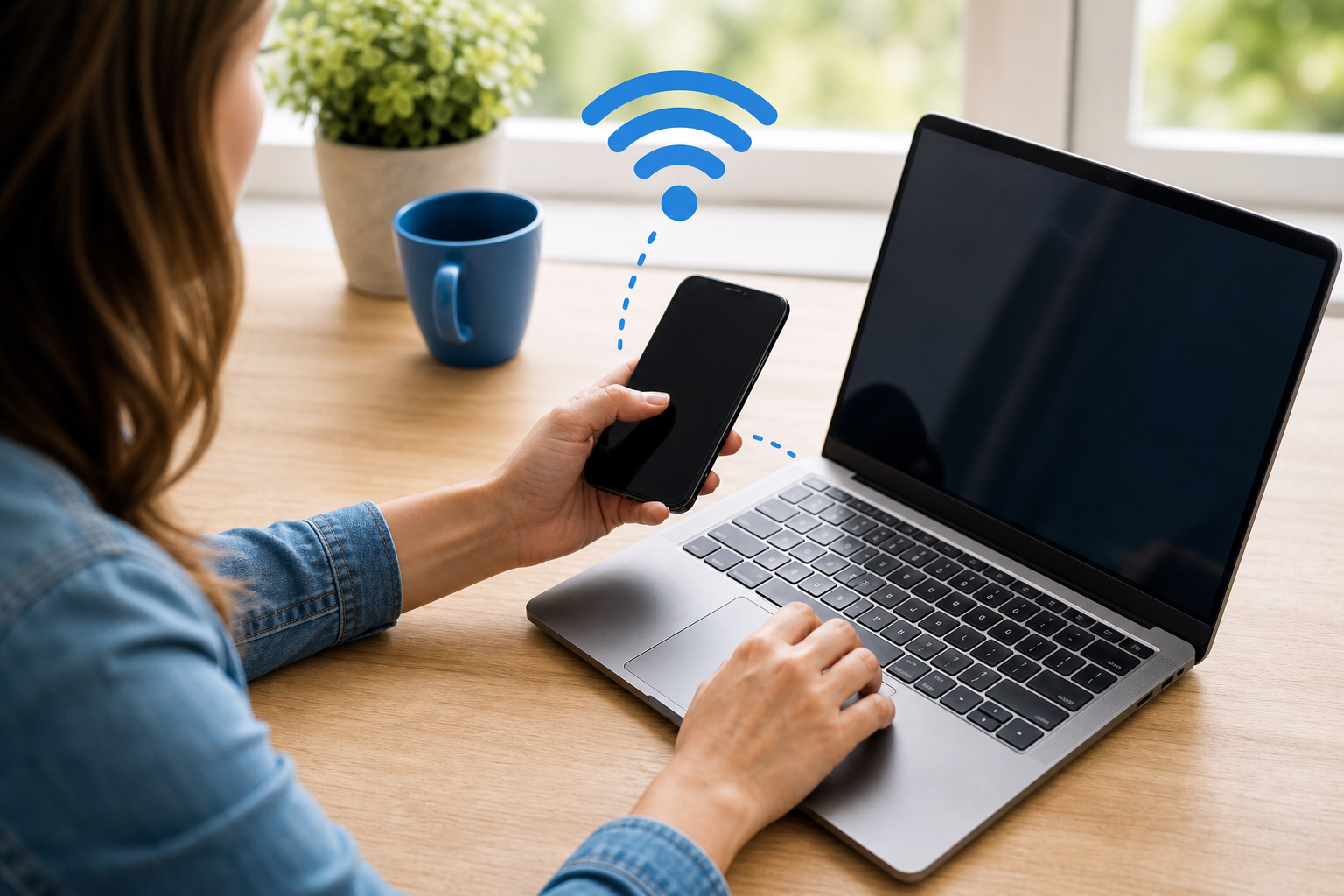
You can connect your laptop, tablet, or smart device to your hotspot the same way you join your home Wi-Fi. How well the connection works depends on the mobile signal where you are.
-
1
First, turn on Wi-Fi on the laptop, tablet, or smart device you want to connect.
-
2
Open the list of available Wi-Fi networks on your laptop. Look for your phone's network name (SSID). It may take a few seconds to appear.
-
3
Select your network and enter the password. Once you're connected, open a web page to test your internet connection. A weak mobile signal can make the connection slower or less reliable. If that happens, move your phone to an open spot with better reception.
How to set a secure hotspot password
When you turn on a hotspot, your phone broadcasts a network that nearby devices can see. If you leave it open, other people can connect and use up your data allowance.
Check the password in your hotspot settings and set a strong hotspot password. Choose a unique combination of letters, numbers, and symbols, and share it only with people you trust.
Select WPA2/WPA3 in your hotspot settings if it's available. It offers better protection than an open network.
Change the network name (SSID). Leave out personal information such as your first or last name. A generic name gives away less about who uses the network.
Turn off the hotspot when you're done to prevent unauthorized connections and unnecessary background data use.
Battery use: Wi-Fi hotspot or USB tethering?
Why does your battery drain so quickly when you're online?
Sharing your connection over Wi-Fi uses power because your phone keeps the mobile connection active while broadcasting a Wi-Fi signal.
Using a hotspot can drain the battery quickly and heat up your phone, especially if your laptop stays connected for a long time. For longer sessions, use USB tethering or plug in a power bank. If your phone gets very warm, open the case or remove it temporarily and let the phone cool down. Avoid cases that block air vents. A sturdy phone case can help protect it from drops on the go.
If you're working for several hours, consider tethering with a USB cable. Use a data cable to connect your phone directly to your laptop. The connection is often more reliable than a Wi-Fi hotspot, and the laptop can charge your phone at the same time.
Bluetooth tethering uses less power but is slower. Use it for light tasks such as checking email or browsing a few web pages.
If you prefer using a wireless hotspot, plug a Mobilize or Cygnett power bank into your phone to keep the battery from running out.
| Method | Main benefit | Drawback | Battery use |
|---|---|---|---|
| Wi-Fi hotspot | Move around freely | Phone may overheat | High, drains the battery quickly |
| USB tethering | Stable connection and charging from your laptop | Requires a cable | Lower, with charging from your laptop |
Frequently asked questions
How do I set up a Wi-Fi hotspot?
To set up a Wi-Fi hotspot, turn on Personal Hotspot or Mobile Hotspot in your phone settings and choose a password.
How can I use my phone as a Wi-Fi hotspot?
Once you turn on the hotspot, your phone broadcasts a Wi-Fi signal. Other devices can join using the password you set.
How do I share my phone's internet connection?
Turn on your hotspot to share your mobile data over Wi-Fi, or use a USB cable to tether your phone to your laptop.
How many devices can connect at once?
It depends on your phone and operating system. Connect only the devices you're using, since each additional device can use more data and drain the battery faster.
Will my hotspot stay on when my screen locks?
Locking your screen usually doesn't interrupt the hotspot. If you're having connection problems, check your phone's power-saving settings.
Why does my hotspot keep disconnecting?
Installing software updates regularly can improve hotspot stability and compatibility. Check your mobile signal and turn off the hotspot when you're done.
With the right settings, you can turn your iPhone or Android phone into a secure mobile hotspot in seconds. To keep your phone charged on the go, browse charging cables and power banks at directcases.com.