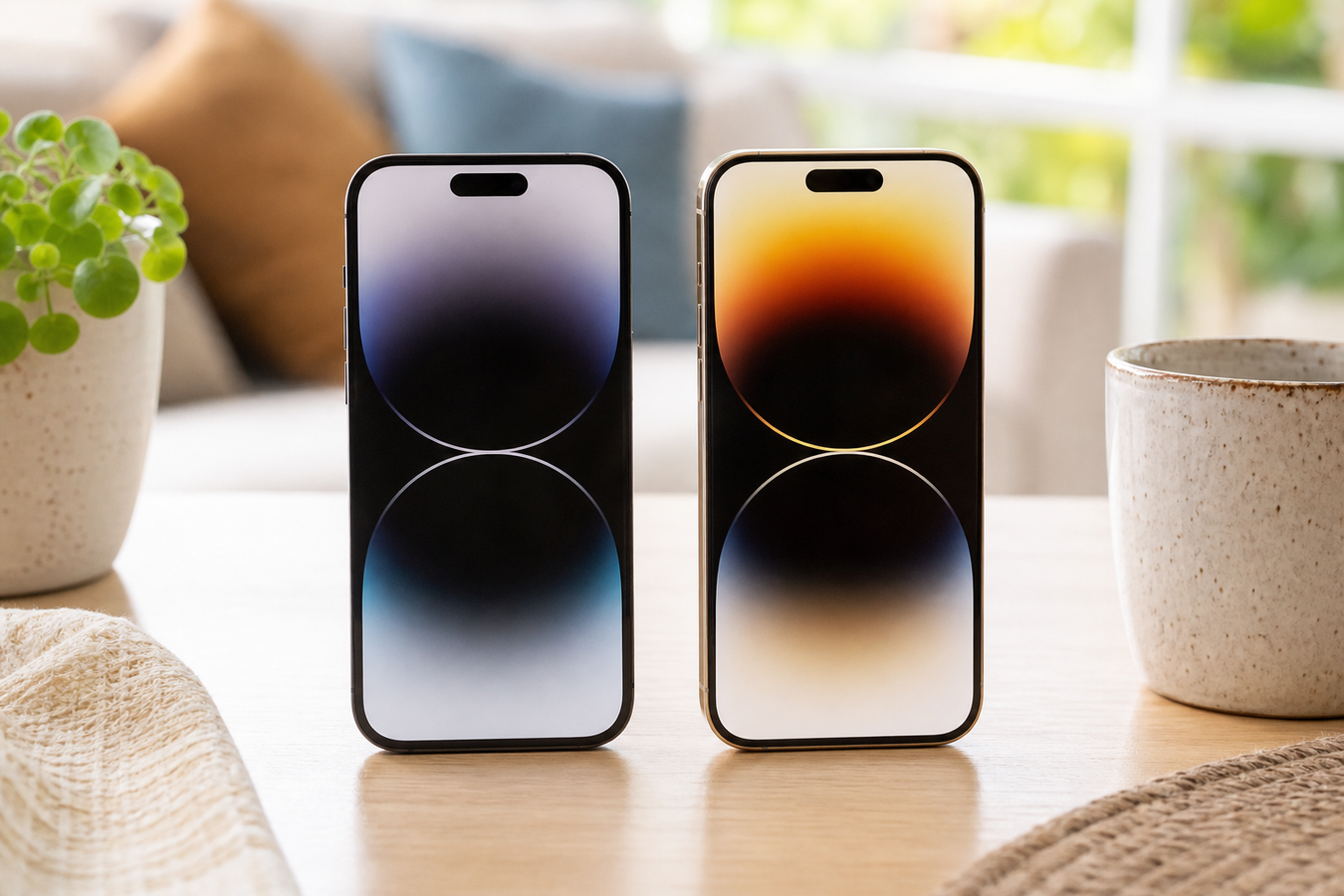
Want to transfer data to a new iPhone wirelessly? Place your old and new devices next to each other, turn on Wi-Fi and Bluetooth, and choose Quick Start when it appears on screen. This copies your apps, photos, and passwords directly to your new phone without a computer.
Once your new phone arrives, you’ll want to start using it right away. Quick Start usually works without trouble, but the connection can occasionally drop. Checking the battery and network settings first helps prevent interruptions and keeps your data safe during the transfer.
What should you check before you start?
How can you keep the transfer from stopping halfway through or showing an error? Run through this checklist before you put the devices side by side.
Check that Wi-Fi and Bluetooth are on on your old iPhone. The phones use these connections to communicate wirelessly.
Charge both devices. Copying data uses a lot of power, and you don’t want either phone to shut down during the transfer. If you’re unsure about the battery level, connect both phones to chargers.
Make sure you know the passcode for your current iPhone. You’ll need to enter it to authorize the transfer to the new device.
Check whether an iOS update is available for your old phone. Running the latest software on both phones reduces the chance of the transfer getting stuck.
Set aside time for the transfer. How long it takes depends in part on how much data you’re moving. You won’t be able to use the phones for other tasks in the meantime.
How do you transfer data wirelessly with Quick Start?
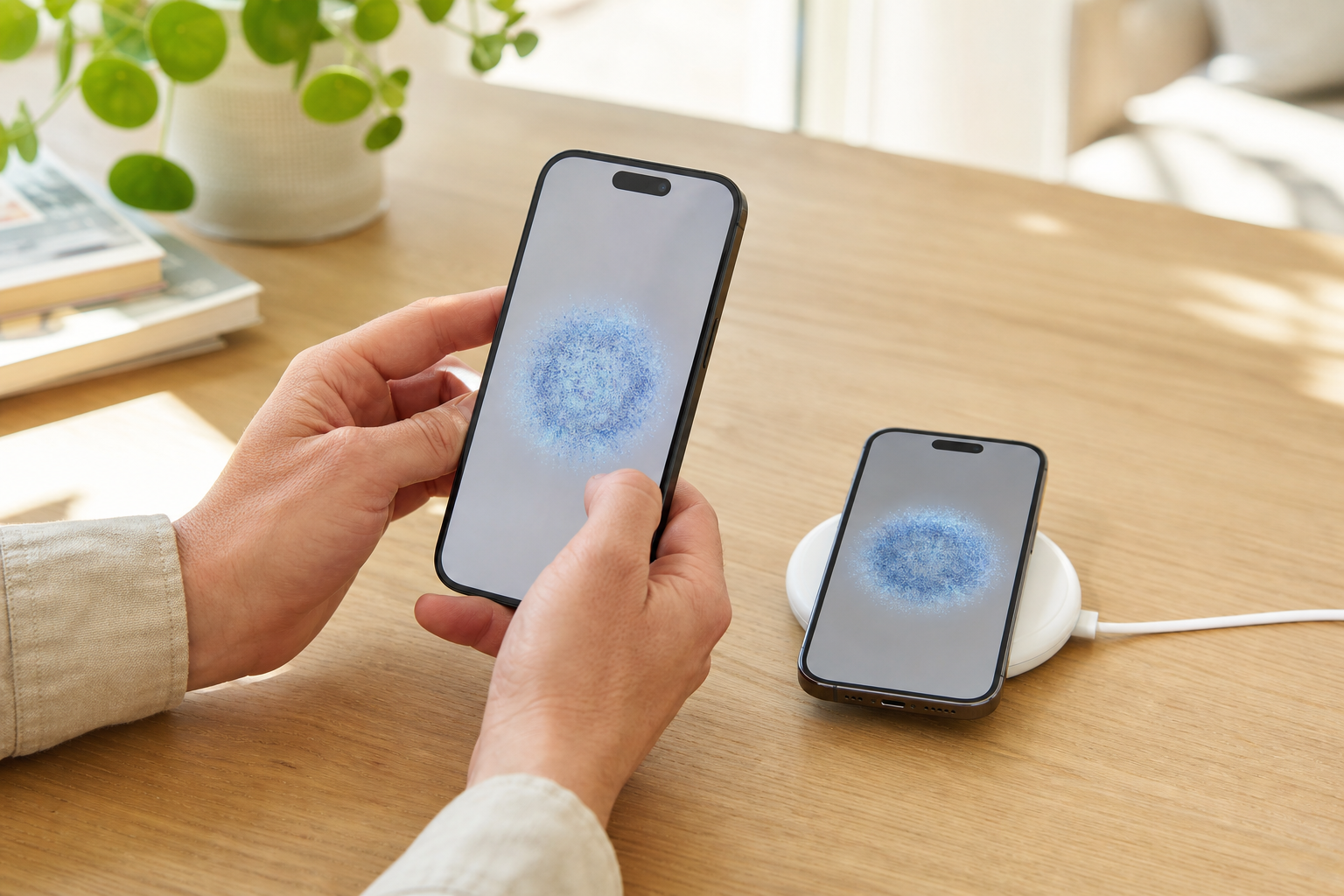
Apple recommends keeping the devices close together during a wireless transfer. Set your old and new phones side by side on a table and follow these steps.
-
1
Turn on your new phone.
Unlock your old iPhone and place it right next to the new one. Wait for the Quick Start screen to appear on your old phone, then confirm your Apple Account.
-
2
Scan the blue animation.
A moving blue pattern appears on your new iPhone. Point the camera on your old iPhone at the screen to scan the animation and securely pair the devices. Then enter your old device’s passcode on the new phone.
-
3
Choose “Transfer from iPhone.”
Complete the Face ID setup. When you reach the data transfer screen, tap “Transfer from iPhone” to start copying your data.
-
4
Wait for the transfer and protect your phone.
Leave both devices alone while the transfer runs. You can set the new iPhone on a wireless charger, such as a MagSafe charger. You can also use the wait to put on a screen protector or a new case.
Should I insert my SIM card before or after the transfer?
The transfer is finished, but once you leave the house, you find you have no signal or your music won’t play through your car speakers. Check your network and security settings as part of setting up the phone.
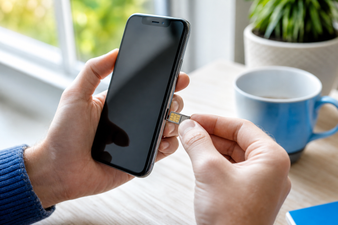
If you use a physical SIM card, insert it before turning on your new iPhone. That gives the phone immediate access to the mobile network.
Use a digital SIM? You can transfer an eSIM during Quick Start. The profiles download securely over Wi-Fi.
Run through a short checklist once the transfer is done. Sign back in to your banking apps and DigiD manually, as those sessions end automatically.
Set up security apps such as Google Authenticator again. For security reasons, these codes rarely transfer automatically to a new device.
Pair your Bluetooth devices again. Your car or smart speaker sees your new iPhone as a different device, so you’ll need to set up the connection again.
What should I do if the wireless transfer fails or gets stuck?
If the screen freezes or the connection suddenly drops, try the steps below. You can usually resolve these problems yourself.
-
1
Restore a dropped connection:
Move the phones closer together. Check that your Wi-Fi connection is stable and pause other activities that use a lot of bandwidth on the same network, such as TV streaming.
-
2
Stuck on “Preparing Update” or the Apple logo:
Force restart your new iPhone. When it starts up again, install the required iOS update before transferring any data. After the update, erase the new iPhone in Settings and start the transfer again. This helps avoid interruptions caused by software compatibility issues.
-
3
Low battery:
Connect both iPhones to chargers.
How do you transfer data wirelessly using an iCloud backup?
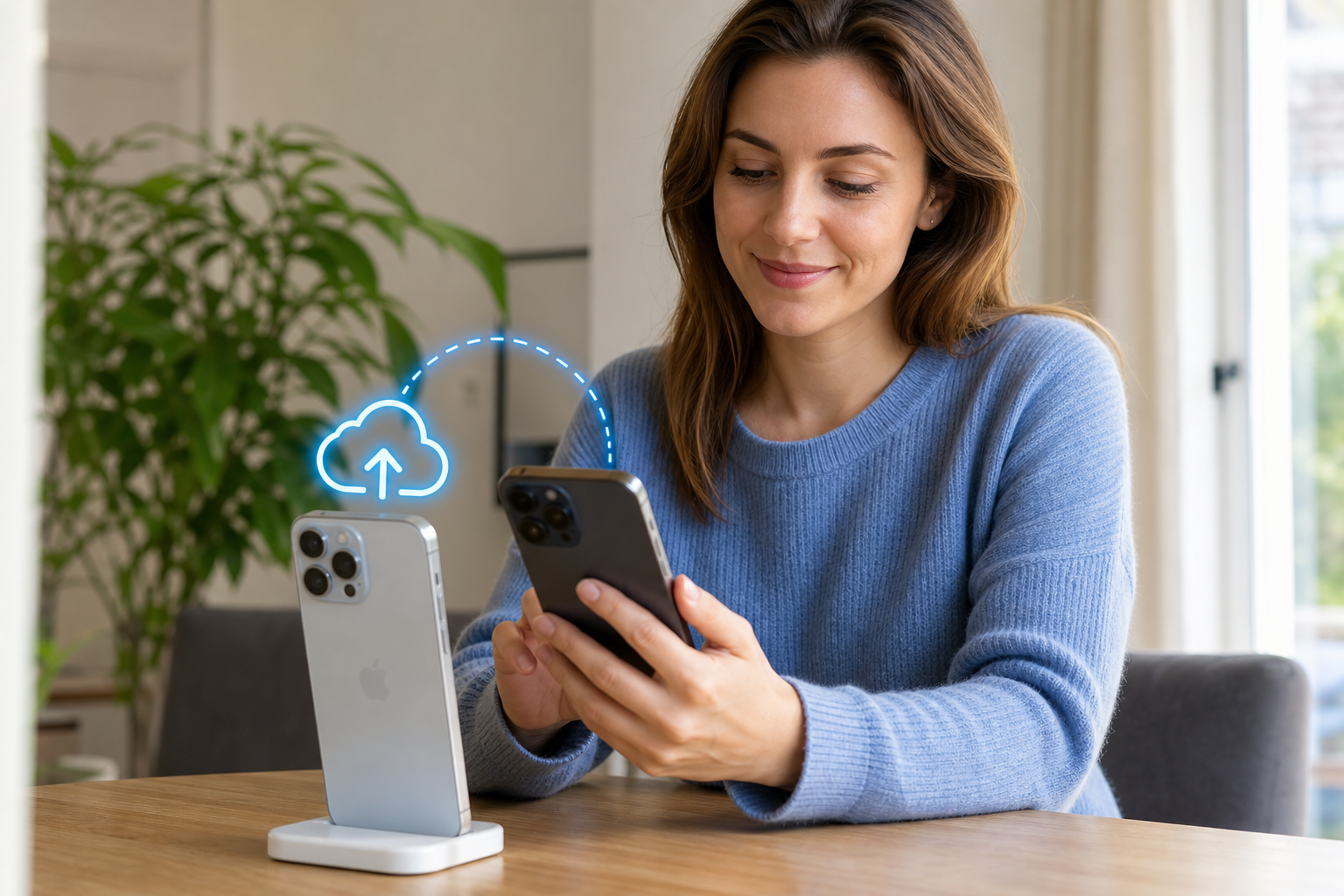
An iCloud backup is the most reliable fallback if your old device is broken or Quick Start keeps failing. You can download your data without keeping both devices next to each other.
-
1
First, manually create a new backup of your old iPhone. Open your iCloud settings and start the backup. Choose an encrypted backup so your saved passwords are transferred securely.
-
2
Turn on your new iPhone. Follow the initial setup steps and choose “Restore from iCloud Backup” when you reach the data transfer screen.
-
3
Sign in to your Apple Account and select the most recent backup from the list. Wait while your basic settings are restored. Once you see the Home Screen, you can use your phone while your apps and photos continue downloading over Wi-Fi in the background.
Frequently asked questions
How do I transfer everything from my old iPhone to my new iPhone?
The fastest method is Quick Start, which works with the devices close together. If your old phone isn’t available, use a recent iCloud backup. Either way, your new iPhone guides you through the steps on screen.
Why can’t I transfer my iPhone data wirelessly?
Common causes include an unstable Wi-Fi connection, a low battery, and Bluetooth being turned off. Check that both devices are on the same network and connect them to chargers. A large gap between the iOS versions on the two phones can also prevent the transfer.
How long does it take to transfer data from iPhone to iPhone?
The time depends in part on how much data you’re moving. If videos fill the storage on your old phone, the transfer will take longer. You won’t be able to use either phone while the data is being copied.
Should I insert my SIM card in my new iPhone before transferring data?
Yes, it’s best to insert a physical SIM card before turning on your new phone. That lets the iPhone connect to your mobile network for activation. If you use an eSIM, you can transfer it wirelessly during setup.
Quick Start or an iCloud backup can get your apps, photos, and contacts onto your new phone quickly if you have enough battery power and a stable connection. Once the transfer is finished, protect your new smartphone from damage with a phone case from directcases.com.