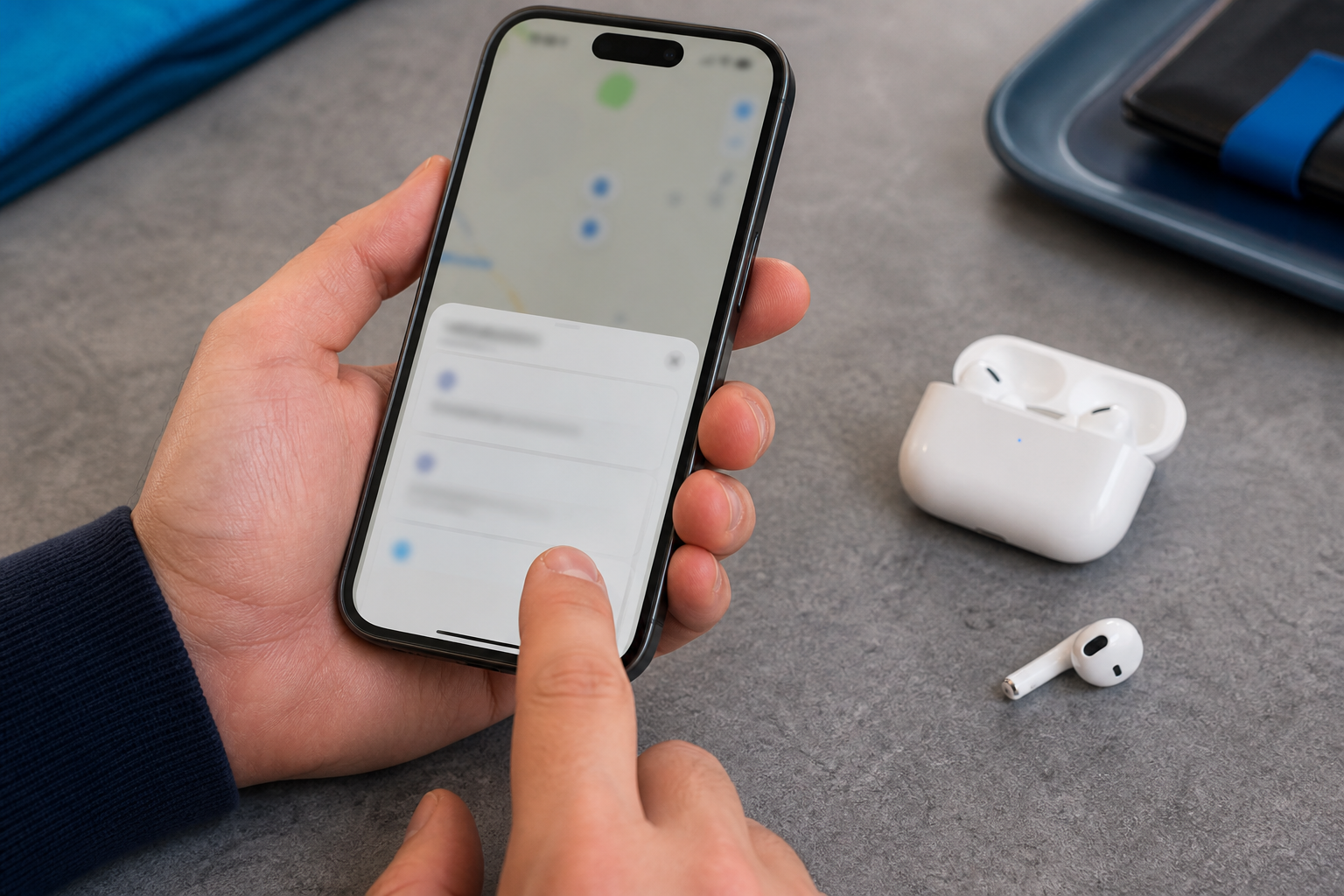
Lost your AirPods? To find my AirPods, open the Find My app on your iPhone, tap Devices and choose your AirPods. The map shows where they are right now or their last known location, and if they're nearby, you can make them beep with Play Sound. Without an iPhone, it also works via iCloud.com/find, but with fewer features.
You pat your pockets, check your bag and run back through your day: your AirPods are nowhere to be found. Panic is a natural first reaction, but luckily you don't need it.
If the Find My network is turned on, you can even see where your AirPods or charging case are when they're offline, because nearby Apple devices pass on their location. If they're out of battery or out of range, you may still see their last known location.
How does the Find My app work for your AirPods?
Find My is Apple's app on your iPhone, iPad and Mac for locating your devices. As soon as you connect new earbuds to your Apple ID for the first time, they're added to Find My automatically. You don't need to install a separate app or register anything manually.
Find My uses the Find My network: hundreds of millions of Apple devices that pass on the location of your AirPods, encrypted and anonymously. Left your charging case in a busy café? As soon as any iPhone user walks past, their phone picks up the Bluetooth signal and sends the current location, encrypted, to your iCloud.
This does mean you need to stay within the Apple ecosystem. The official network doesn't work for Android users, so they have to rely on less accurate Bluetooth scanners. Lost AirPods? Always check your own iPhone or iPad first for the most reliable result and the most up-to-date location.
Checklist: are you set up in advance?
Go through these settings now, because once your AirPods are lost, you can't turn them on anymore.
Turn on the Find My network: Go to Settings > Bluetooth, tap the info button next to your AirPods, choose Find My and turn on 'Find My network'. That way you can also see where they are when they're out of range of your own iPhone.
Set up separation alerts: Turn on 'Notify When Left Behind' in the Find My app. This is available on AirPods 3, all AirPods Pro, AirPods 4 (ANC) and AirPods Max.
Keep these settings on, especially if you travel a lot or work in different places.
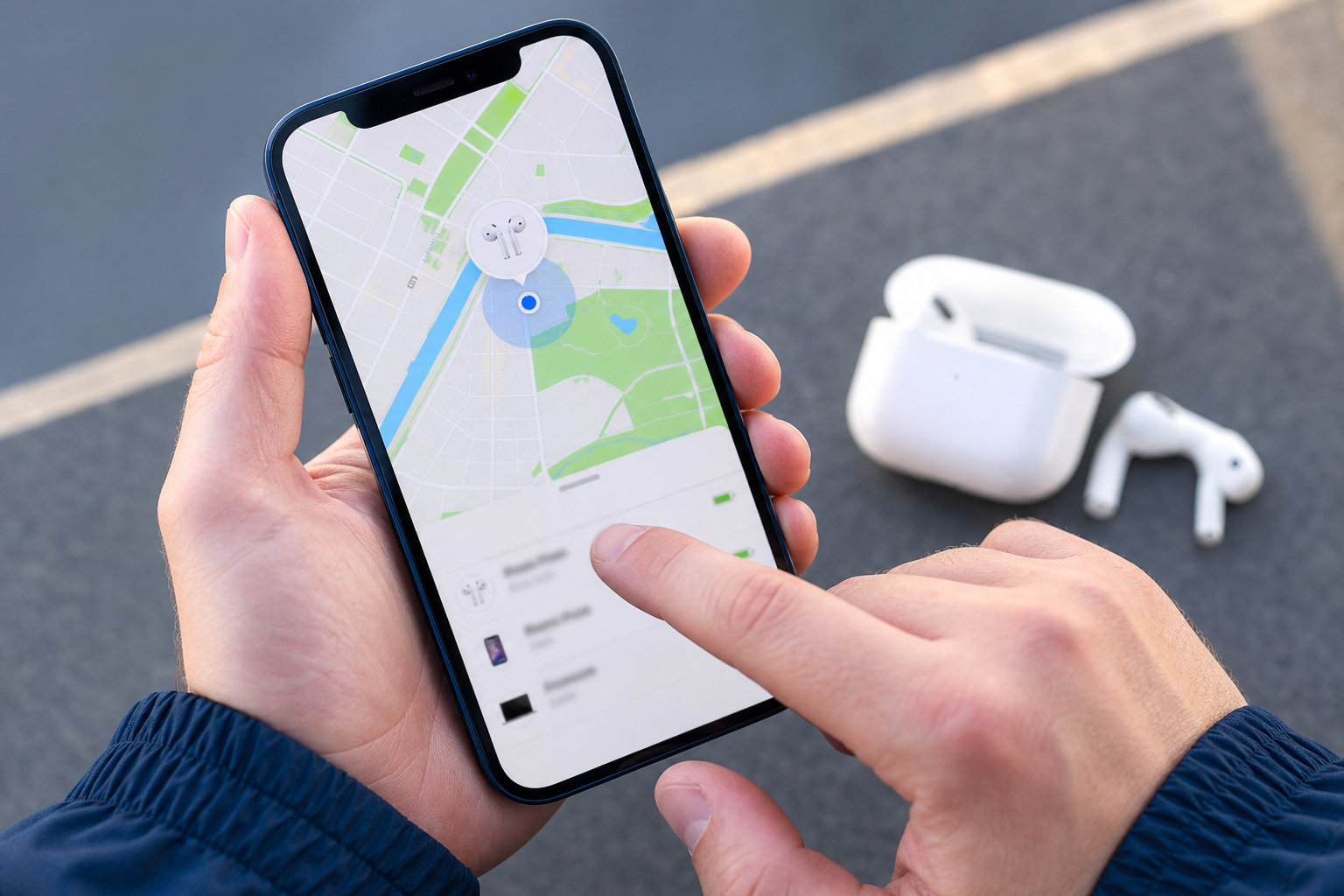
Step by step: how to find lost AirPods on the map
Follow the steps below to see the current or last known location of your AirPods straight away.
-
1
Open Find My
Open the Find My app on your iPhone or iPad. Don't have an Apple device to hand? Go to iCloud.com/find in any web browser and sign in with your Apple ID.
-
2
Select your device
Go to the 'Devices' tab at the bottom of the screen. Here you'll see a list of the Apple devices linked to your Apple ID. Your AirPods aren't showing up in Find My? Check that they're on the same Apple ID as your iPhone.
-
3
Check the map
Select your AirPods in the list to see their current or last known location on the map. You'll see an overview with a street name, a timestamp and an indication of the distance.
-
4
Start directions
If they're further away, tap 'Get Directions' to open the location in Maps. This is especially handy if you've left them in another city or at the office.
Keep in mind that the map shows a search area, not a pinpoint location. Is the pin on the map at your own home address? Then skip directions and switch straight to the tools for searching nearby.
Play a sound and use 'Find Nearby'
If your AirPods are somewhere close by, the Find My app gives you two ways to find them quickly.
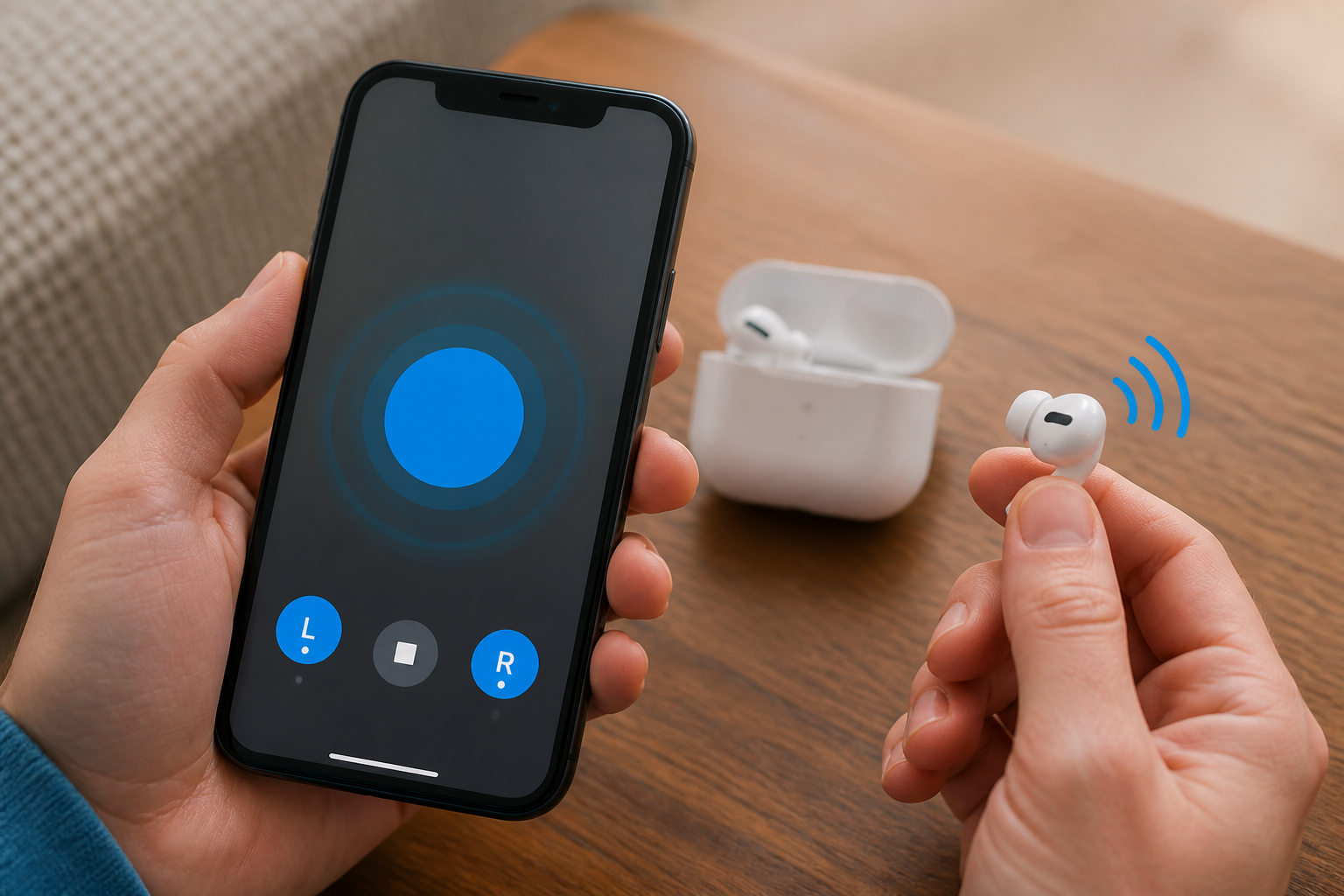
Make your AirPods ping: Use the 'Play Sound' button to play a loud beep when your AirPods are somewhere in your home, office or car. That makes it easier to hear them under a cushion, behind the sofa or in a coat pocket.
Search one earbud at a time: Only lost one earbud? Choose to play the sound from just the left or right one. Take the earbud you still have out of your ear first, so the loud beep doesn't damage your hearing.
Use precision finding: Use 'Find Nearby' (where supported) for visual hot/cold guidance on your screen. Whether you see this option depends on your AirPods model and your iPhone. If it works, follow the directions on your screen once your AirPods connect. This only works at short range, so use the map first to narrow down the search area.
Choose 'Play Sound' if your AirPods are under or behind something where you can't see them. Choose 'Find Nearby' if you're somewhere noisy where you simply can't hear a beep.
What if your AirPods are offline, dead or stolen?
If you see the message 'No location found', your AirPods are probably out of battery or far out of range of any Apple device. Without battery power, live communication with the Find My app stops.
In that case, you'll often still see the last known location and the time they last connected. 'Play Sound' and 'Find Nearby' won't work, but you can still get directions. Once they come back online, you'll get a notification on your iPhone. The last known location is the starting point for your search: go there and check whether they're still around. Is the last known location of your AirPods on a train or bus? Contact the transport operator straight away, because the location on the map no longer moves with the vehicle.
Suspect theft because your AirPods' location has moved to an unfamiliar home address? Never go there yourself. Contact the police and give them the location from the Find My app. Confronting a possible thief yourself puts you at unnecessary risk.
Turning on Lost Mode for your AirPods
-
1
Start Lost Mode
Open Find My, choose your AirPods and swipe up. Under 'Lost' with the name of your AirPods, tap 'Lost Mode'. Confirm your choice on the next screen.
-
2
Share your details
Leave a phone number or email address that the finder can see. As soon as someone pairs your AirPods with their own iPhone, your message with contact details appears on their screen straight away.
-
3
Turn on notifications
Turn on 'Notify When Found' so you get a push notification as soon as another Apple device picks up your AirPods. That way you don't have to keep refreshing the app yourself.
Lost Mode works mainly through your contact details: an honest finder sees your message and can get in touch. Lost Mode is available on AirPods 3, all AirPods Pro, AirPods 4 (ANC) and AirPods Max. On AirPods 4 (ANC) and AirPods Pro 2 and later, you can mark each earbud and the charging case as lost separately. Handy if you're only missing one AirPod.
Find My features by AirPods model
Not every generation offers the same tracking options in the Find My app. Check the table below to see which features your model supports to help you find your AirPods.
| AirPods model | Available features in Find My |
|---|---|
| AirPods Pro 2, AirPods Pro 3 & AirPods 4 (ANC) | You can see the location on the map and use 'Play Sound', 'Find Nearby', 'Notify When Left Behind' and Lost Mode. You can mark each earbud and the charging case as lost separately. Whether you see 'Find Nearby' also depends on your iPhone. |
| AirPods 3, AirPods Pro (1st generation) & AirPods Max | The same features: location on the map, 'Play Sound', 'Find Nearby', 'Notify When Left Behind' and Lost Mode. On these models, you can't mark the charging case as lost separately. If the earbuds aren't in the case, you can select the left or right earbud separately in the app. |
| AirPods 1, AirPods 2 & AirPods 4 (without ANC) | You can see the location on the map and use 'Play Sound'. 'Find Nearby', 'Notify When Left Behind' and Lost Mode aren't available on these models. |
Do you often lose just your charging case? On AirPods Pro 2 and later and AirPods 4 (ANC), you can mark the case as lost separately. If you have an older model, make sure Find My is at least turned on.
Frequently asked questions
How do I find my lost AirPods using the Find My app?
Open the Find My app, go to the 'Devices' tab, select your AirPods and check their location on the map. If they're nearby, use the 'Play Sound' button to make them beep. If they're further away, tap 'Get Directions' to open the last known location in Maps.
What if I've only lost the case?
On AirPods Pro 2 and later and AirPods 4 (ANC), you can track the charging case separately and mark it as lost on its own. On older models, you can't track the case separately. You only see the earbuds, so if there's no earbud in the case, the case won't show up in Find My.
Can you find AirPods when they're dead?
Yes, you may still see the last known location. Playing a sound and 'Find Nearby' won't work, but you can still get directions. Once they come back online, you'll get a notification.
Can I locate my AirPods from a web browser on iCloud?
Yes, sign in at iCloud.com/find in a browser, for example on a Windows laptop or a friend's phone. You'll see your AirPods on the map there, but it works differently from the app and some features are missing.
Does Find My work for Android users?
No, the official Find My network requires the Apple ecosystem and doesn't work on Android phones or tablets. At most, Android users can use unofficial third-party Bluetooth scanner apps to measure signal strength. That isn't an official Apple solution and such an app doesn't offer the same reliability as Find My, so if in doubt, borrow an iPhone or sign in at iCloud.com/find.
Lost down the side of the sofa or left on the train? Open the Find My app on your iPhone right away or go to iCloud.com/find to see where your AirPods are.