AirPods not connecting when you're about to start a podcast or take a call? You tap the screen and open and close the case, but the sound keeps coming from your phone's speaker. A software issue or a low battery can get in the way. Here's what to check to get your AirPods connected again.
What to do if your AirPods won't connect
- Make sure your iPhone, iPad, or Mac is running the latest software available for it.
- Put both AirPods in the case and check that they're charging.
- Check that Bluetooth is on. If your AirPods appear in the list, select them as your audio output.
Still can't connect? Follow the steps below to reset your AirPods.
What the charging case status light means
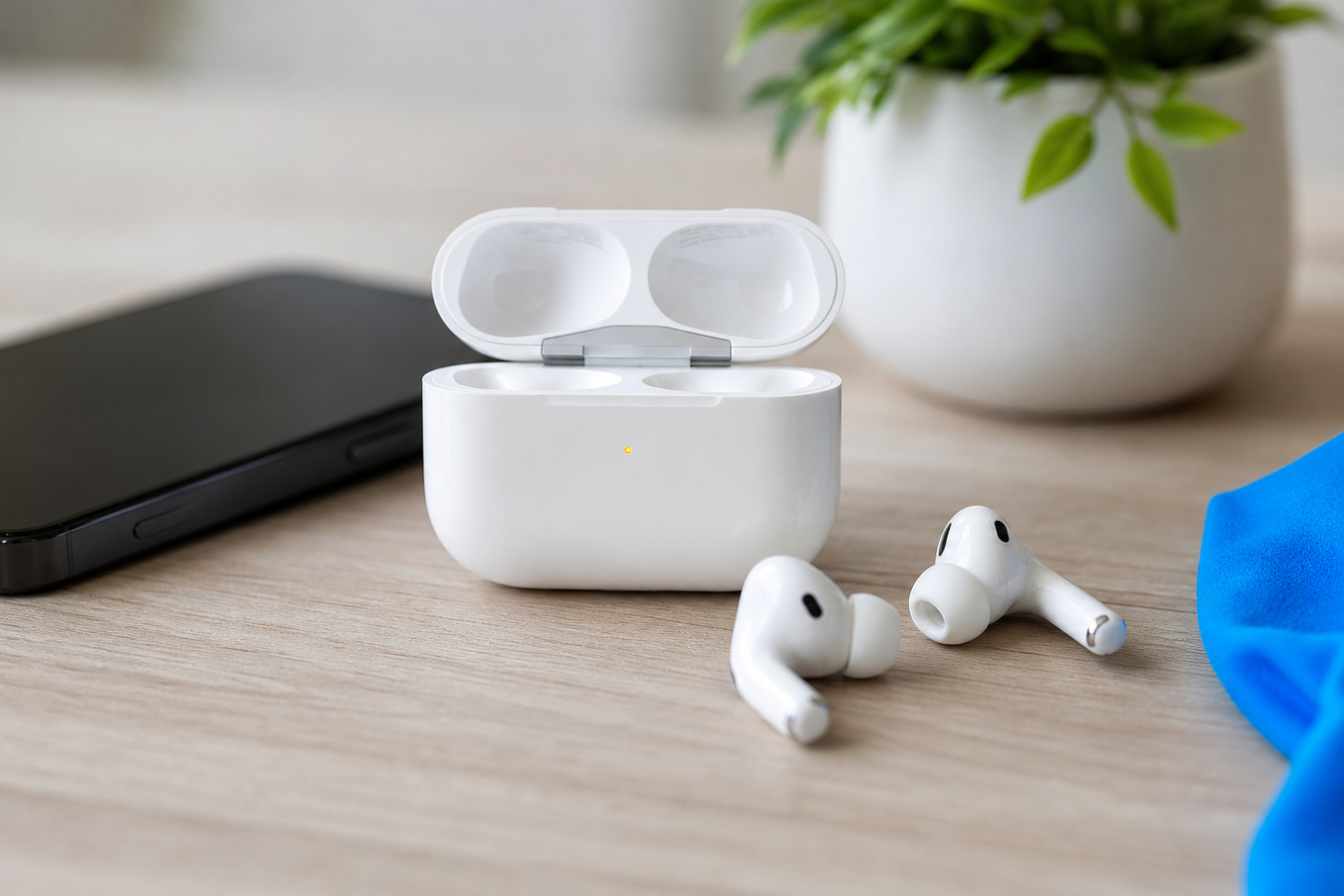
The color of the status light and whether it flashes tell you the status of your AirPods or their charging case.
Status light |
What it means |
What to do |
|---|---|---|
Solid green |
If the AirPods are inside, they're fully charged. If they're outside, the case is fully charged. |
Check Bluetooth if your AirPods still won't connect. |
Solid amber |
Less than one full charge remains. With the AirPods inside, the light shows their charge status. With the AirPods removed, it shows the charge status of the case. |
Check the battery percentage of your AirPods and the case. |
Flashing white |
Your AirPods are in pairing mode and can be detected by nearby Bluetooth devices. |
Hold the charging case close to your unlocked iPhone or iPad and follow the pairing prompt on the screen. |
No light |
The case may need charging. |
Connect the case to a charger and check the light again. |
How to reset and reconnect your AirPods
Still having trouble connecting after the initial checks? Reset your AirPods. The steps depend on your model.
-
1
Put your AirPods in the case
Close the lid and wait 30 seconds.
-
2
Remove your AirPods from the Bluetooth list
On your iPhone or iPad, open Settings and tap Bluetooth. If your AirPods are listed, tap the Info button next to them, choose “Forget This Device,” and confirm.
-
3
Reset your AirPods
Open the case. For AirPods 1, 2, or 3 and AirPods Pro 1 or 2, hold the button on the back for about 15 seconds. For AirPods 4, AirPods 5, or AirPods Pro 3, double-tap the front when the light comes on. Double-tap again when it flashes white, then double-tap a third time when it flashes faster. When the reset is complete, the light flashes amber and then white.
-
4
Pair your AirPods again
Hold the open case near your device and follow the on-screen instructions.
Check Bluetooth settings and firmware
Software issues can interfere with the connection. Use this checklist to narrow down possible causes on your device or charging case.
Check for system updates: Open the general settings on your iPhone, iPad, or Mac and check for software updates. Install the latest version available. Older operating systems can have trouble communicating with a recently updated charging case.
Turn Bluetooth off and back on: Turn Bluetooth off in Settings. Wait ten seconds, then turn it back on. Your device will scan for the case again.
Restart your device: Turn your iPhone or Mac off completely, then turn it back on. Restarting clears working memory and can resolve temporary connection issues.
Update your AirPods firmware: Put both AirPods in the charging case and connect it to a charger. Leave the case next to your iPhone for half an hour while the iPhone is connected to a stable Wi-Fi network. Apple delivers firmware updates automatically under these conditions.
AirPods connection FAQs
What should I do if only one AirPod connects?
Check the metal contacts at the bottom of the charging case for dust or dirt. If one AirPod doesn't make contact with the case, the case may not detect it and the AirPod stays off. Carefully clean the inside with a dry cotton swab. Put both AirPods back, wait for the status light to respond, and follow the reset steps using the setup button. Resetting pairs the two AirPods again.
Why does the status light keep flashing amber instead of white?
On some models, a brief amber flash indicates the charge status. During a reset, the light flashes amber and then white. If it doesn't flash white, check that both AirPods are charging and follow the reset steps for your model.
Can I use my AirPods if the charging case is dead?
A dead charging case prevents you from setting up a new connection. The AirPods play audio, and the case handles the initial Bluetooth setup with your phone. If the case is completely out of power, connect it to a charger until the status light turns amber before trying to pair your AirPods again.
Charging the case, resetting your AirPods, or updating your software can resolve many connection issues. Start by checking the battery and Bluetooth settings. If your case is scratched or damaged from everyday use, browse AirPods accessories from Mobigear and Decoded at directcases.com to find a cover for your charging case.