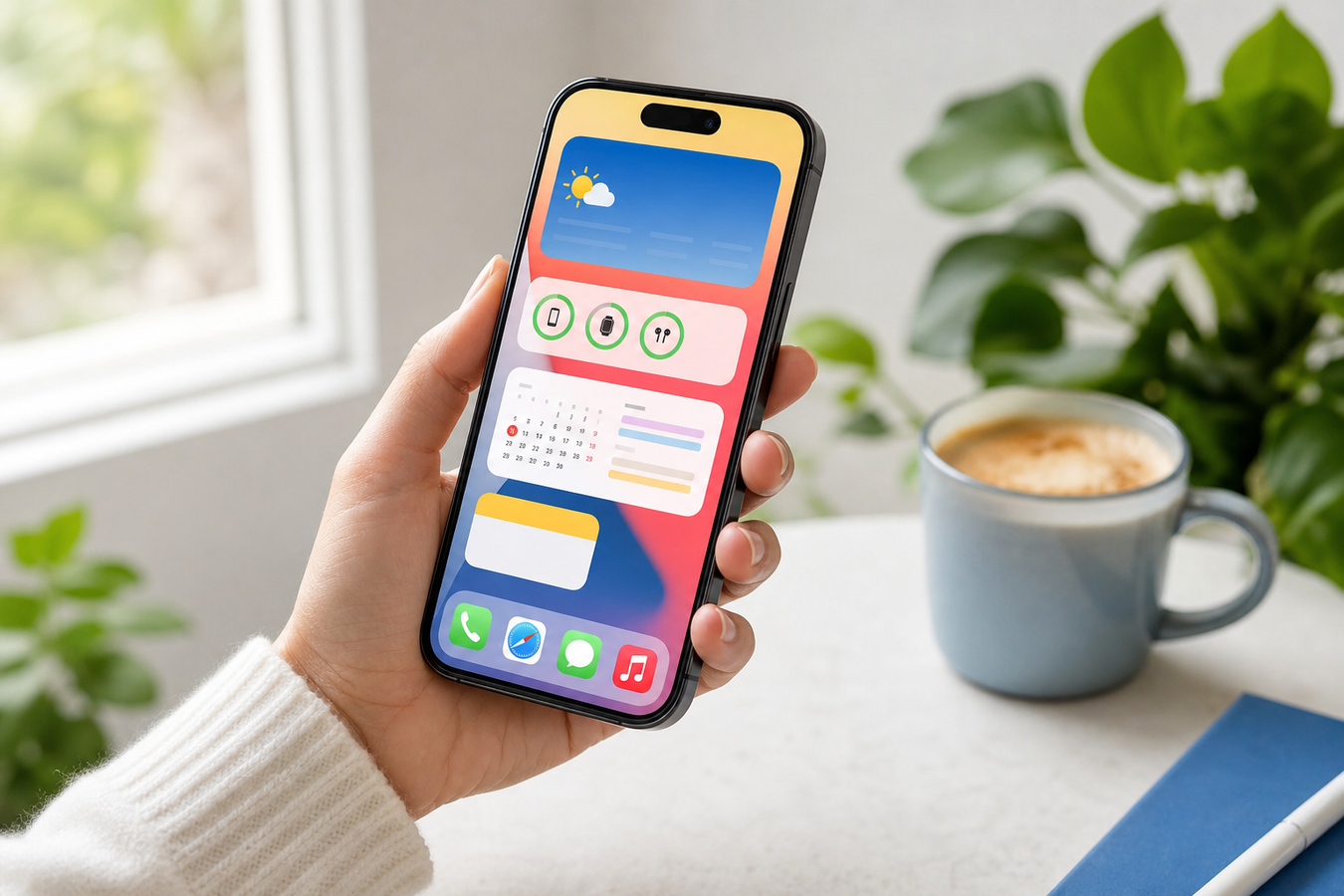
So what is a widget? A widget is a compact view of an app that sits right on the Home Screen or Lock Screen of your iPhone or iPad. You use this little block to check information at a glance, like the weather forecast or your calendar, without opening the app.
You can add widgets in a few taps and remove them just as easily. You choose which information you want to see on your screen straight away.
What is a widget on iPhone?
A widget shows the key information from an app without you having to open that app. You can place these blocks between the apps on your Home Screen, on your Lock Screen or in Today View on the far left.
You decide how big a widget is, depending on how much information you want to see at a glance. Most apps offer a small, medium or large size. A small block is fine for the current temperature, while a large one has room for your whole week's schedule.
A few essential iPhone widgets to start with are Weather, Calendar and the Batteries widget. The last one lets you keep an eye on how much charge your phone, smartwatch and wireless earbuds have left. A good setup makes your iPhone nicer to use, both on screen and off it, for example with a matching case.
What's the difference between an app and a widget?
A widget isn't a standalone app but a visual extension of an existing app. Where you have to open the full app for all its settings and features, a widget is ready and waiting on your screen. It shows a quick summary, like the current temperature or your next appointment.
This saves you a lot of taps every day. Because a widget refreshes its data in the background from time to time, you see what you're looking for at a glance and don't have to keep tapping around.
| Full app | Widget |
|---|---|
| Has to be opened to use | Visible right on your screen |
| Offers all features and settings | Shows a quick summary |
| You look up the latest information yourself | Data refreshes periodically in the background |
How do you add widgets on iPhone?
To add a widget, touch and hold an empty spot on your Home Screen. After that, the information you choose, like the weather or your next appointment, appears right between your apps.
-
1
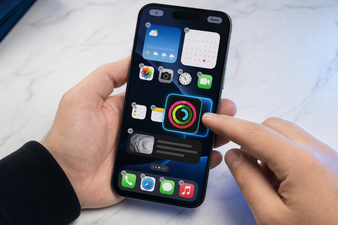
Touch and hold an empty area of your screen. After a few seconds, the apps start to jiggle. You're now in jiggle mode and can change the layout of your phone.
-
2
Tap 'Edit' in the top-left corner, then 'Add Widget'. You'll now see a list of the apps on your device that have a widget.
-
3
Find an app in the list and tap it. Swipe left or right to choose the widget size you want. You can usually pick a small, medium or large block. Tap 'Add Widget'.
-
4
Drag the widget to where you want it on your Home Screen. Tap 'Done' in the top-right corner to save the new layout. For the Lock Screen, touch and hold the Lock Screen, tap 'Customize', then tap 'Add Widgets'.
Choose the size carefully. A small size is enough for a simple piece of information like the current temperature, while a larger size is handier if you want to see several calendar appointments one below the other.
How do you edit or remove a widget?
To edit or remove a widget, touch and hold it. That way, you can quickly fix a wrong setting or tidy up a Home Screen that's become too cluttered.
Choose 'Edit Widget' to select a different calendar, list, folder or location for the weather, for example. Don't see that option? Then the app has no settings for this widget.
Choose 'Remove Widget' and confirm with 'Remove' if you no longer use it. Only the block disappears; the app itself stays on your iPhone or iPad.
Useful information on the wrong screen? Touch and hold the widget, choose 'Edit Home Screen' and drag it somewhere else. Put the info you use most up front and move less important widgets to Today View.
Is a widget blank or showing old data? First open the app it belongs to fully, then check whether the app has an update in the App Store. For weather and travel widgets, it also helps to check your location settings. Only remove the widget and add it again if that doesn't work.
Avoid a large widget size for information you rarely look at. A small block or a Smart Stack keeps your screen calmer.
What is a Smart Stack and what are interactive widgets?
You really don't need to fill your whole screen to have lots of information to hand. With a Smart Stack, you simply stack several widgets on top of each other in exactly the same spot. You then swipe through them with your finger. With the 'Smart Rotate' setting, your iPhone also switches between widgets automatically based on the time or your location. So in the morning you see your calendar appointments straight away, and later in the day the Weather app, for example, moves to the front on its own.
On top of that, you often don't need to open an app to get something done. Apple has supported interactive widgets since iOS 17. You can tick off a completed task in Reminders or pause your music right from your Home Screen. You just tap the widget itself and the action runs straight away in the background. That way, you can do simple things without opening the app first.
Get more out of widgets: design, MagSafe and battery
Here's how to match your widgets to your style and your battery.
You can make your screen match the design of your phone case. Pick widget colors that go with the color of your case, so your Home Screen looks calmer. A busy pattern on your case often calls for understated widgets; with a plain case, you can go for a bit more color.
Make the most of StandBy in iOS too. If you use StandBy, you can place your iPhone sideways on a MagSafe desk charger and use large widgets for things like the time, the weather forecast or your calendar. Handy on your bedside table or desk.
Do keep an eye on power use, though. Widgets that constantly request your location in the background can drain your battery faster. Turn off these location updates for widgets you rarely look at. That way, your battery lasts longer each day.
Frequently asked questions
What does a widget do?
A widget shows compact information or controls from an app right on your screen. That way, you can quickly read relevant information, like the latest news or share prices, without having to open the whole app on your device.
Can you give me an example of a widget?
Handy examples include a calendar with your schedule for the day, live departure times from a train app or the weather forecast. The Batteries widget, which lets you check the charge of your iPhone and connected wireless earbuds, is also a popular choice for the Home Screen or Lock Screen.
How do I make my own widgets on my iPhone?
Hold your finger on an empty spot on your Home Screen until the apps start to move. Tap 'Edit' in the top-left corner, then 'Add Widget'. Next, choose an app from the list, select a small, medium or large size and tap 'Add Widget'. Then drag the block straight to the ideal spot on your screen.
With a Smart Stack or an interactive widget, the information you need most is right in front of you. Want to make the most of StandBy? Check out the MagSafe chargers at directcases.com and turn your iPhone into a smart display.