Been staring at the same dull grid of apps on your iPhone for years? Time for an upgrade. Here's how to add widgets on iPhone: since iOS 14, you no longer need to open every app just to check your calendar, the weather or your battery percentage. In this guide, you'll learn exactly how to add widgets, build Smart Stacks and set up iOS the way you want it. We'll cover the common pitfalls, the best sizes for each situation and how to keep battery drain to a minimum.
What are iOS widgets and how do they help you personalise your iPhone?
Widgets work as mini versions of your favourite Apple and third-party apps, right on your Home Screen. They break up the standard app grid and give you something useful at a glance.
Information at a glance: See your next appointment, the current forecast or your Activity rings without opening the app. That saves you dozens of unnecessary taps every day.
Different sizes: Choose from small squares, wide rectangles or large blocks. A small widget is perfect for a simple battery percentage, while a large one shows your entire day's schedule.
Interactive widgets: In recent iOS versions, you can take action straight from the Home Screen. Tick off a task in Reminders or pause a podcast without ever opening the app itself.
Third-party customisation: Apps like Widgetsmith let you fully customise colours, fonts and data sources. Bear in mind that these apps often ask for specific permissions to access your calendar or location.
How to add widgets to your Home Screen, step by step
Adding widgets to your iPhone requires iOS 14 or later and works best through the built-in edit mode. Follow these steps to change your Home Screen layout.
-
1
Enter edit mode
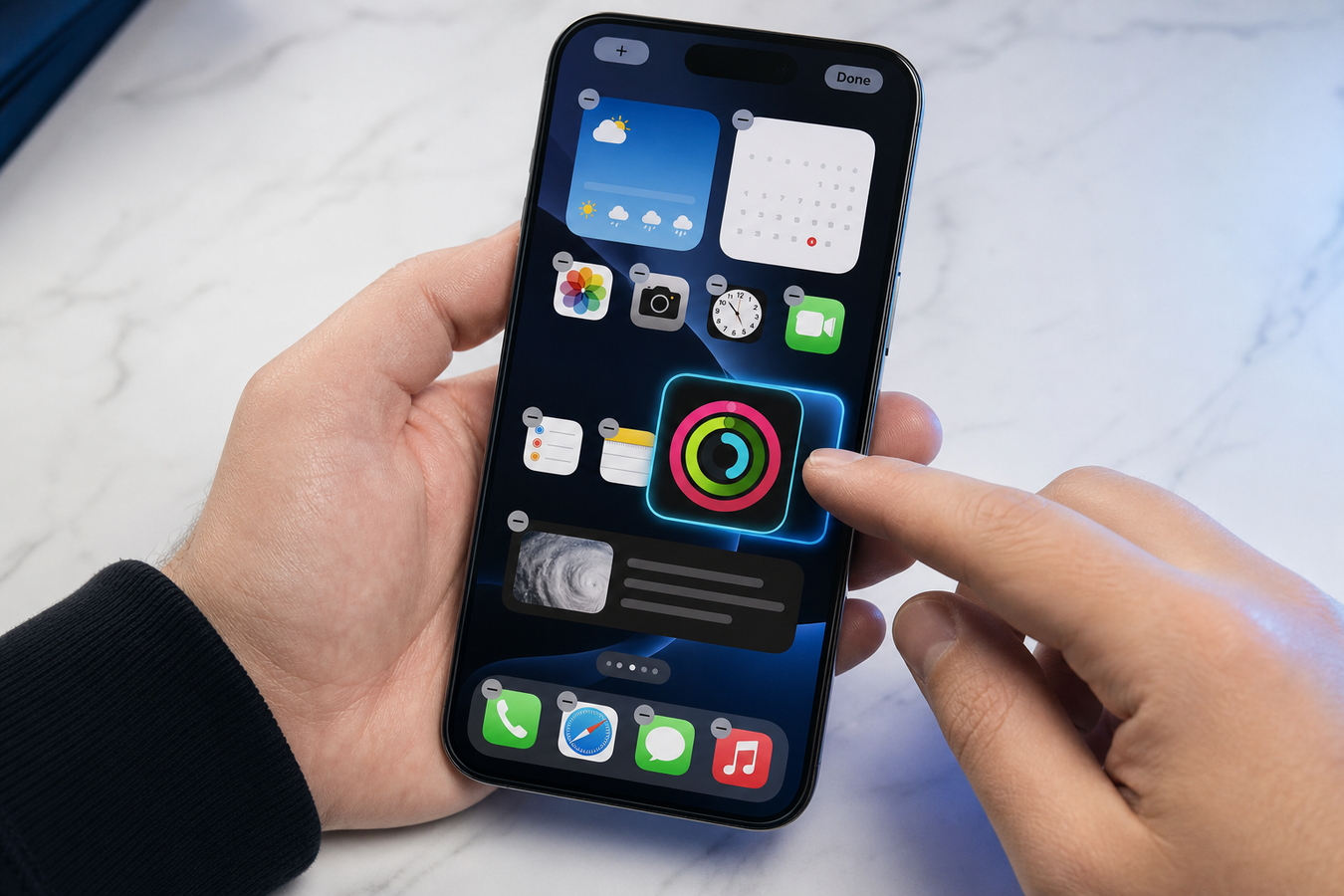
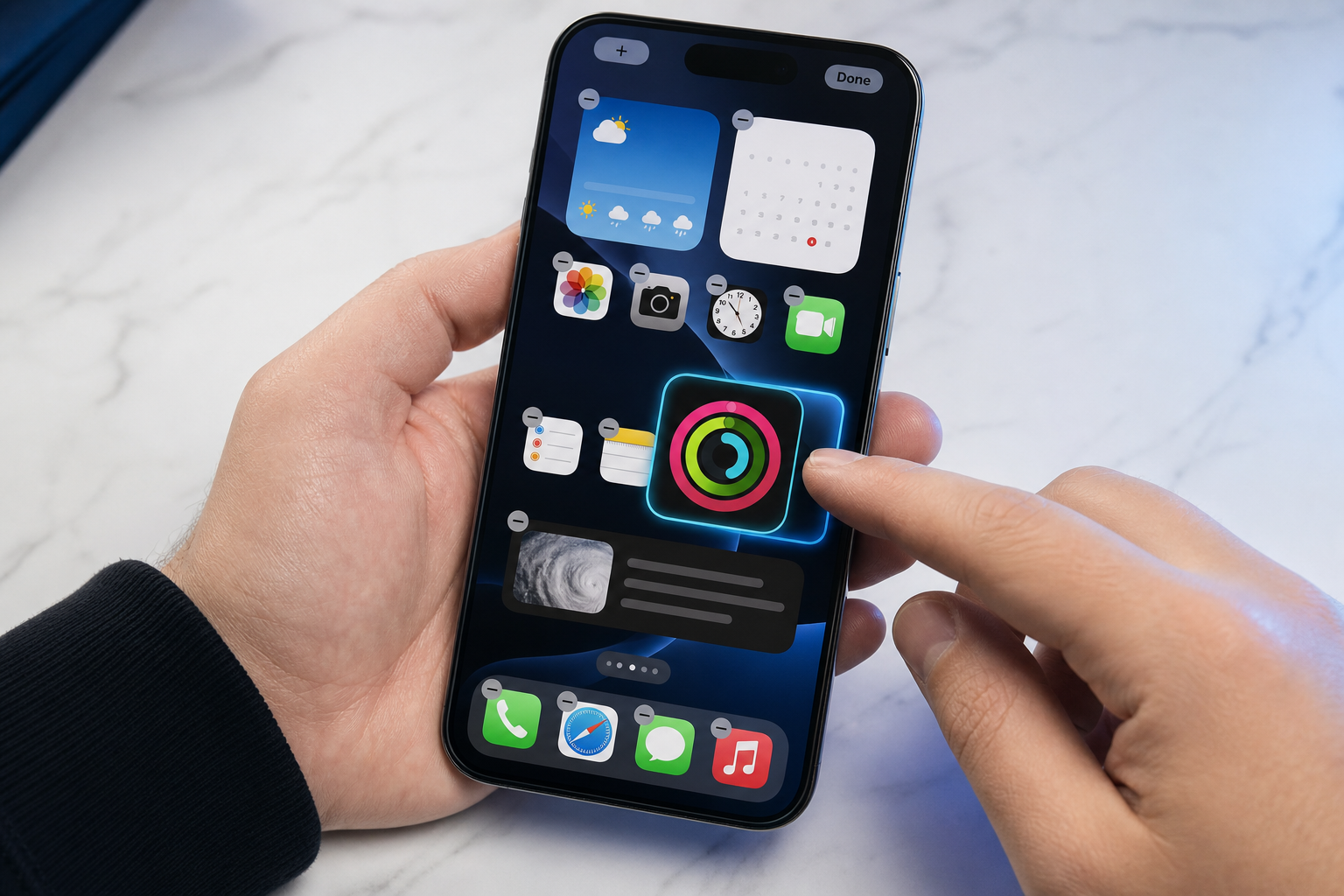
Touch and hold an empty area of your Home Screen until the apps start to jiggle. This is the starting point for every Home Screen change.
-
2
Open the widget gallery
Tap the plus button in the top-left corner of the screen. Here you'll find all installed apps that support widgets, plus suggestions from Apple.
-
3
Pick your app and choose a size
Tap the app you want and swipe left or right to see the available sizes. Check the preview: it shows exactly what data will be displayed.
-
4
Place the widget
Tap 'Add Widget' or drag the block straight to where you want it on your screen. Apps move aside automatically to make room.
-
5
A quicker alternative
Touch and hold a specific app icon. If the app supports it, a pop-up menu appears with widget sizes you can add with a single tap.
Use the quick method via the app icon if you already know exactly which app you want. Use the widget gallery when you're looking for ideas or want to add several widgets at once.
How to add widgets to Today View and your Lock Screen
Swipe right from your first Home Screen to open Today View. This hidden panel is ideal for widgets you want to check quickly but that don't need to take up space on your main screen all the time. Think stock prices, detailed news feeds or the status of your smart lights.
You can also add widgets to your Lock Screen. This gives you quick access to key information without unlocking your iPhone. You'll see the temperature, your next alarm or the battery level of your connected earbuds at a glance.
Do keep an eye on your Lock Screen privacy settings. Want to see personal data such as calendar appointments while your phone is locked? Then you need to turn on 'Today View and Search' in your Face ID or Touch ID settings. Avoid sensitive widgets on the Lock Screen if your phone often sits unattended on your desk.
How to use widget stacks and the Smart Stack to save space
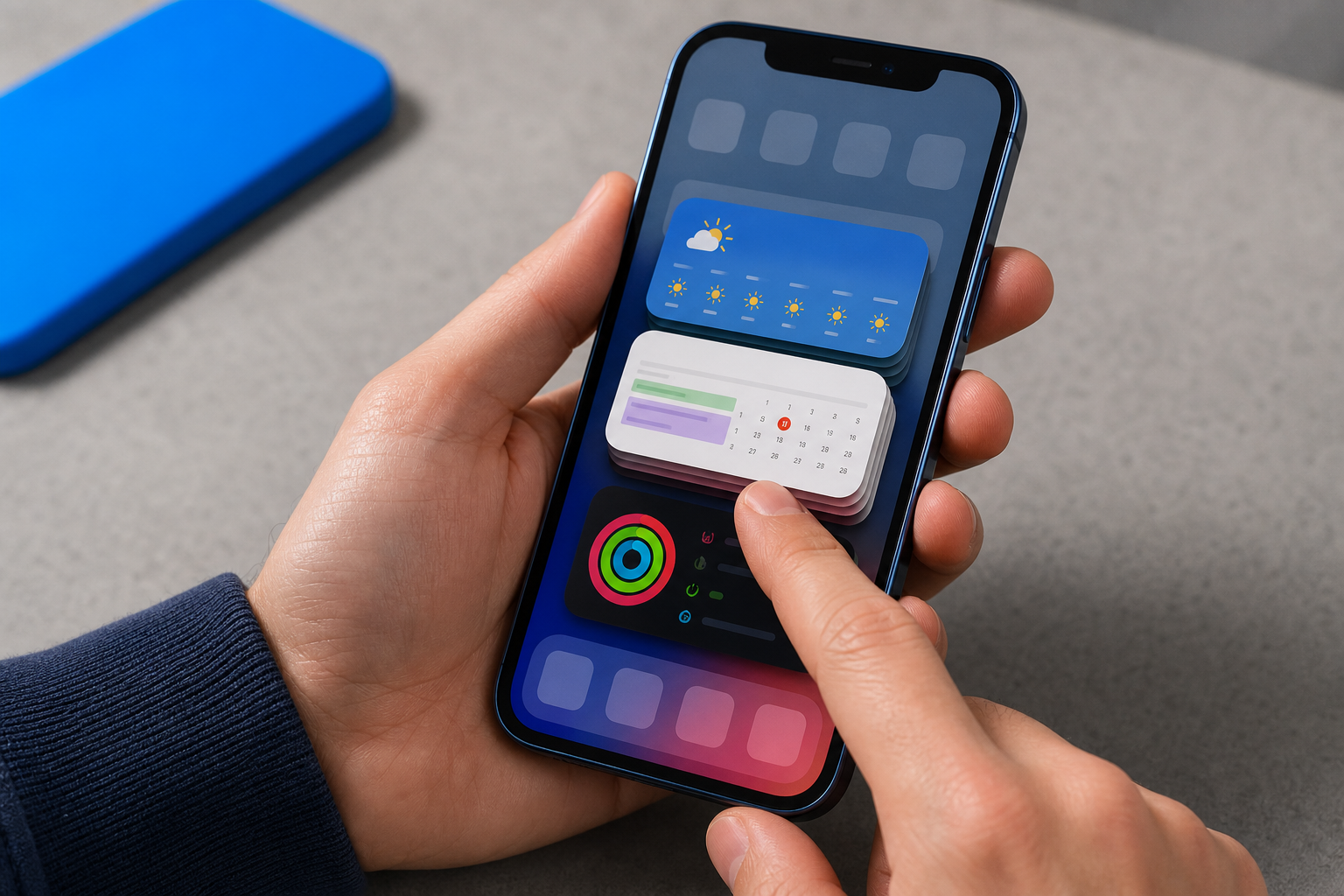
A screen full of widgets quickly looks cluttered. With widget stacks, you combine several sources of information into one block that you scroll through vertically.
Combine matching sizes: In edit mode, simply drag one widget on top of another widget of exactly the same size. You can't stack a small square widget on a wide rectangle.
Up to 10 widgets per stack: Keep things tidy by combining no more than ten items. In practice, we find a stack of three to five widgets works best for finding the right information quickly.
Turn on Smart Rotate: Touch and hold an existing stack and choose 'Edit Stack' to turn on 'Smart Rotate'. iOS will then automatically show the most relevant widget based on your location, activity or the time of day.
Allow Widget Suggestions: Turn on 'Widget Suggestions' in the stack settings. Your iPhone will then temporarily add proactive widgets, such as your boarding pass when you're at the airport.
Set the order yourself: Drag items up or down in the stack's edit screen. Always put the widget you use most at the top.
Go for a manual stack if you want full control over what you see. Go for the Smart Stack if you'd rather let iOS predict that you need the weather in the morning and your podcast player in the evening.
How to edit, resize and remove widgets
The size you choose directly determines how much information fits on your screen. Not every app benefits from the largest view.
| Widget size | Space on screen | Information density | Ideal for |
|---|---|---|---|
| Small (square) | Takes up the space of 4 app icons (2x2) | Low. Shows a single data point or status. | Battery percentage, current temperature, Activity rings. |
| Medium (rectangle) | Takes up the space of 8 app icons (2x4) | Medium. Shows a short list or chart. | Hourly forecast, your next 3 calendar appointments. |
| Large (square block) | Takes up the space of 16 app icons (4x4) | High. Gives a full overview with lots of detail. | Monthly calendar view, detailed news feeds, stocks. |
Got the wrong location in your weather widget? You don't need to add it again. Just touch and hold the widget and tap 'Edit Widget'. From there, you can change specific settings such as the location or selected calendar.
When you no longer need a widget, enter edit mode and tap the minus button in the top-left corner of the widget. Confirm to remove it. Don't worry: removing widgets doesn't delete the app from your iPhone.
How to choose: Pick the small size if you only need a quick status check. Pick the medium size for timelines and lists. Avoid the large size unless the widget is the main feature of your Home Screen.
Frequently asked questions about iOS widgets
Why can't I see my widget, or why isn't it showing any data?
A blank or black widget is usually caused by missing permissions in your privacy settings. Go to Settings and check whether the app has access to your location, calendar or health data. Sometimes simply restarting your iPhone, or removing the widget and adding it again, also does the trick.
Why don't some of my favourite apps offer widgets?
The app's developer has to build widget support specifically for iOS 14 or later. That's why older apps that are no longer updated don't appear in the widget gallery. Always check the App Store to make sure you have the latest version of the app installed.
Do widgets drain the iPhone battery?
Yes, widgets that constantly refresh in the background use extra power, although the impact of standard Apple apps is minimal. Widgets that keep requesting your GPS location, such as weather or navigation apps, drain the battery fastest. Remove location-based widgets if you notice your phone no longer lasts the whole day.
How do I stack widgets on my Home Screen?
To stack widgets, enter edit mode and drag one widget exactly on top of another widget of the same size. This automatically creates a widget stack you can swipe through vertically. Make sure both widgets are the same size, otherwise they'll just move next to each other.
You now know everything you need to make your iPhone screens tidier and more personal with widgets and Smart Stacks. Touch and hold your Home Screen, open the widget gallery and add your first Smart Stack today to get more out of iOS.