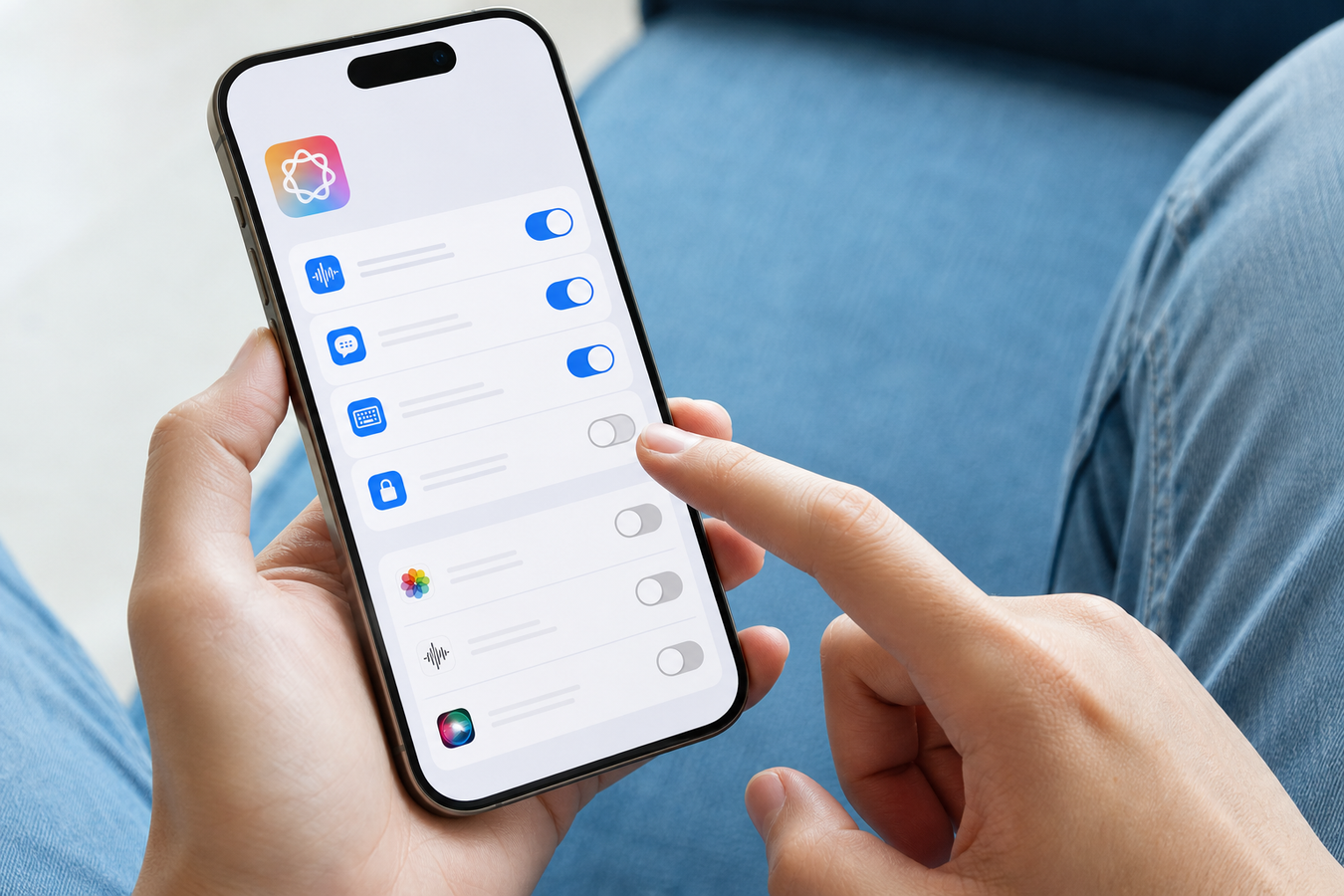
How to turn off Siri on iPhone, iPad or Mac: you do it in the settings. On iPhone and iPad, go to Settings > Siri & Search (in newer versions: Apple Intelligence & Siri) and turn off 'Listen for "Hey Siri"', 'Press Side Button for Siri' and 'Allow Siri When Locked'. On a Mac, turn off 'Ask Siri' in System Settings > Siri & Spotlight or Apple Intelligence & Siri.
Your device is sitting quietly on the table when a virtual voice suddenly starts talking to you. Sound familiar? It's usually not what you want. You can mute just the voice activation, or turn off Siri entirely for maximum privacy.
Fed up with accidental interruptions during meetings? Or do you simply not want a voice assistant constantly listening for commands in the background? We'll walk you through which settings to change across the Apple ecosystem, step by step.
What happens when you turn off Siri?
Once you disable the virtual assistant, misheard commands and unexpected answers from your pocket are a thing of the past. Turning off the voice assistant brings immediate benefits for your privacy and peace of mind, but you do lose hands-free control. In practice, we see that users often struggle to weigh voice control against control over when their device is listening.
| Reason to turn it off | Benefit in practice | Downside / Consequence |
|---|---|---|
| Protect your privacy | The device no longer constantly listens for the wake word in the background. | You can no longer give quick voice commands while cooking or driving. |
| Extend battery life | Background speech recognition processes stop, which saves power. | You give up "Hey Siri", but there are no hard figures on how much battery life that saves. So don't turn off Siri if this is your only reason. |
| Avoid annoyance | No more accidental activation during important meetings or quiet moments. | You'll have to type timers, alarms and quick searches manually again. |
Turn Siri off entirely if maximum privacy is your priority and you never use voice commands. Turn it off partially (just the listening feature) if you still want to call up the assistant with a button but want to avoid unexpected interruptions. Don't disable it if you rely heavily on hands-free navigation in the car via Apple CarPlay, as voice control is essential for that.
How to turn off Siri on your iPhone and iPad
Apple doesn't hide the voice assistant options, but recent iOS updates have changed the name of the menu. Depending on the software version on your device, follow these steps to disable Siri.
-
1
Check which system your device uses
First check whether your device runs iOS, iPadOS or macOS. An iPhone runs iOS and an iPad runs iPadOS, but on a Mac (macOS) you go through System Settings and the steps below won't work. You can find your version under Settings > General > About.
-
2
Open the Settings app
Tap the grey gear icon on your device's home screen.
-
3
Find the right menu
Scroll down the list. In newer versions of iOS and iPadOS the settings menu is called Apple Intelligence & Siri, so if you see that name, tap it. On an older version, tap Siri & Search.
-
4
Review the active toggles
This screen shows you straight away which activation methods are switched on. Apple doesn't treat the assistant as a single on/off switch; you need to turn off the features one by one to stop everything.
So Siri on your iPhone or iPad only goes truly quiet once you switch off each toggle in that menu separately: "Hey Siri", the side button or Home button, and access on the Lock Screen.
How to turn off "Hey Siri", Press Side Button for Siri and the Home button
The Siri & Search menu (or Apple Intelligence & Siri) is where you'll find the core of voice control. To stop your device responding to your voice or a physical press, work through the following steps:
Turn off the listening feature: Switch the toggle for Listen for "Hey Siri" (or "Siri" or "Hey Siri" in newer versions) to grey. This stops the constant microphone monitoring. Your device will no longer respond to your voice.
Turn off the side button: Got a device with Face ID? Then turn off Press Side Button for Siri. This stops the assistant starting when you accidentally grip your phone too tightly in your pocket or bag.
Turn off the Home button: Using an older iPhone or an iPad with Touch ID? Then turn off Press Home for Siri.
If Siri keeps randomly turning on in your pocket or bag, check your case: a precise fit stops buttons being pressed by accident. Choose a case with cut-outs around the side, Home or top buttons, so they stay easy and fully pressable.
Confirm: If your device asks for confirmation after the last toggle, tap it to finish. If you don't see a prompt, the toggles are simply off.
After these steps, test whether the assistant really doesn't respond anymore by pressing and holding the side button or Home button. Nothing should happen now.
Block Siri on the Lock Screen
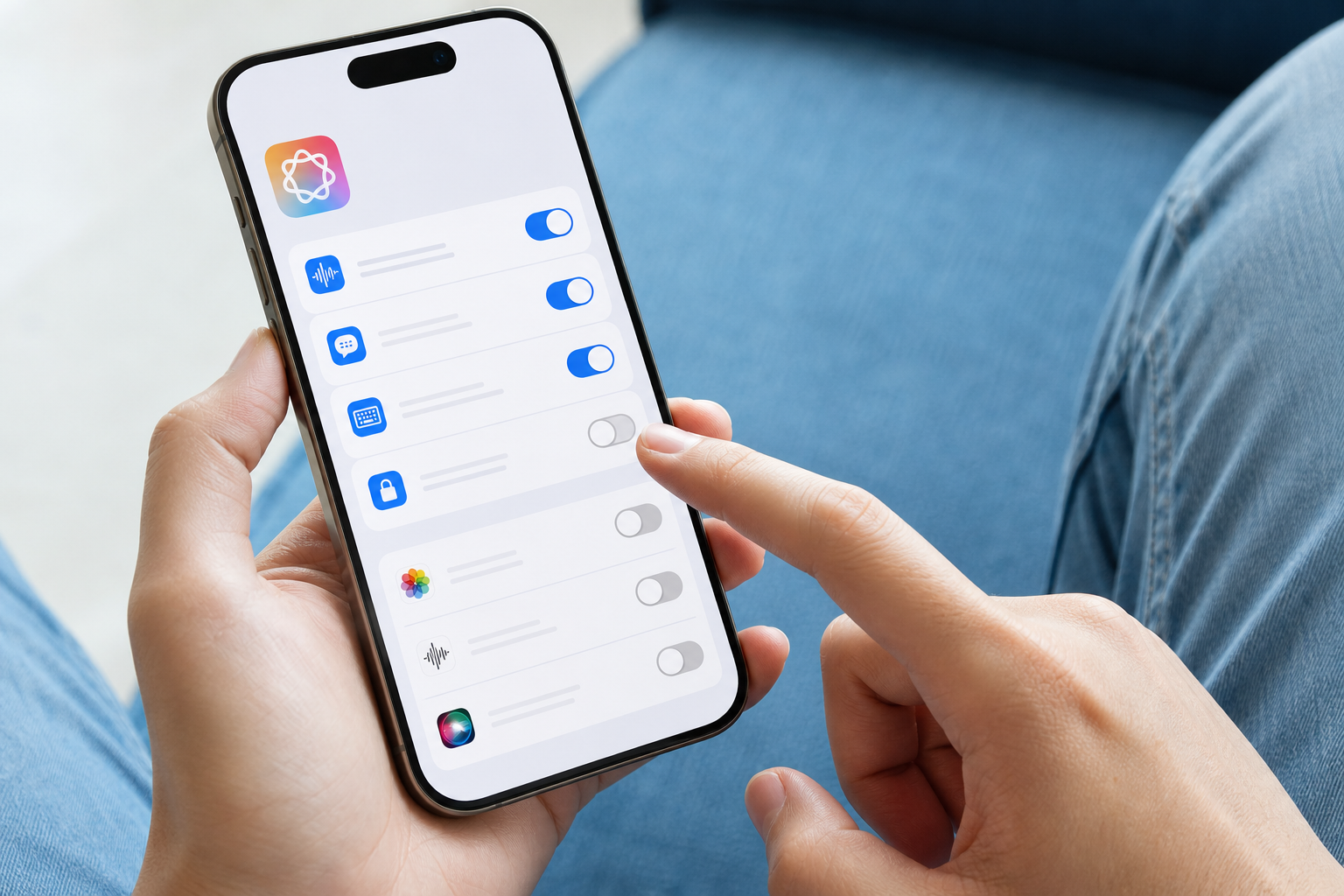
Sometimes you do want to use the voice assistant, just definitely not while your device is sitting locked on your desk. If Siri is allowed on the Lock Screen, anyone who picks up your iPhone or iPad can give Siri commands without unlocking it first. That's a significant privacy risk at work or in public places. You can fix this by turning off Allow Siri When Locked in the same settings menu.
Changing this one setting immediately improves your overall device security. The assistant will then only work once Face ID, Touch ID or your passcode has unlocked the device. Choose this block if you want to keep the convenience of voice control while you're actively using your device, but don't want anyone else accessing your personal data via a locked screen. It's a good middle ground between functionality and strict privacy.
How to turn off Siri on a Mac
On macOS, too, the assistant often listens in unnoticed through the built-in microphone. Turning off Siri works slightly differently here than on mobile devices. Follow these steps to disable the voice assistant completely on your computer.
-
1
Open System Settings
Click the Apple logo in the top left of your menu bar and select System Settings (or System Preferences in older macOS versions). -
2
Go to the right panel
Click Siri & Spotlight in the left-hand sidebar. Using macOS Sequoia or later? Then this menu is now called Apple Intelligence & Siri. -
3
Switch off the main toggle
Find the Ask Siri option and untick it. This blocks direct access to the assistant at system level. -
4
Check the listening feature
Make sure Listen for "Hey Siri" is turned off as well, so your Mac's microphone stops listening for this specific command. -
5
Check keyboard shortcuts
Sometimes a keyboard shortcut stays active. In the same menu, check that the 'Keyboard shortcut' option is set to Off, so you don't accidentally activate the assistant while typing.
Then quickly test whether it worked. Siri on a Mac starts by voice, via the Siri icon or via a keyboard shortcut, so try each one once. Your Mac will no longer respond unexpectedly during video calls or focused work.
How to turn off Siri on Apple Watch and AirPods
The Apple ecosystem is tightly connected, so settings overlap. Changing your iPhone doesn't automatically mean your other devices stop listening. You need to set up each device separately to keep the voice assistant out everywhere.
Change your Apple Watch separately: Your Apple Watch has its own Siri settings, separate from your iPhone. Open your watch's Siri settings and turn off Siri and the listening feature there, otherwise your wrist will keep responding while your iPhone has already gone quiet.
Change your AirPods settings: Connect your AirPods and open the Bluetooth settings on your iPhone. Tap the name of your AirPods and check which earbud action starts Siri, such as a double tap. Choose a different function there, and Siri will no longer start when you touch an earbud.
If you use different headphones with your iPhone, also check in the Bluetooth settings whether a tap or button press still starts Siri.
Adjust your AirPods if you often trigger the assistant by accident while exercising or cycling, by touching or adjusting your earbuds.
FAQs about Siri settings
How do I turn off Siri on my iPhone?
Go to Settings > Siri & Search, or on newer versions Settings > Apple Intelligence & Siri, and turn off 'Listen for "Hey Siri"'. Don't want to see Siri at all anymore? Then also turn off 'Press Side Button for Siri' (or the Home button) and 'Allow Siri When Locked'.
Why would I turn off Siri?
Most people turn off Siri because the voice assistant starts up by accident, for example in the middle of a meeting. Privacy plays a part too: with "Hey Siri" on, your device is always listening for that one wake word. Do you sometimes use Siri via the button? Then just turn off "Hey Siri" and leave the rest on.
What's the difference between turning off Siri and hiding Siri Suggestions?
Turning off Siri stops the voice assistant, but Siri Suggestions is a separate feature that suggests apps, contacts and search tips. So those suggestions can stay on even when Siri itself is off. If they bother you, turn them off separately in the same Siri & Search menu.
How do I turn Siri back on later?
In the same settings menu, switch the toggles for "Hey Siri", the side button or the Home button back on. You don't need to download or install anything. If you turn "Hey Siri" back on, your iPhone or iPad will usually ask you to set up your voice again.
Does that turn off Siri on my Apple Watch and AirPods too?
No, Apple Watch and AirPods each have their own Siri settings. On Apple Watch, you change them in the Watch app or in the settings on the watch itself. For AirPods, you change the Siri action in your iPhone's Bluetooth settings.
Why can't I find 'Siri & Search' in my settings?
Apple has renamed the menu to 'Apple Intelligence & Siri' in newer versions of iOS, iPadOS and macOS. On older versions it's called 'Siri & Search' on iPhone and iPad, and 'Siri & Spotlight' on Mac. The toggles in the menu do the same thing; only the name is different.
You now have full control over when and how your Apple devices listen. By deliberately choosing which activation methods to keep or block, you avoid awkward situations and protect your personal data from accidental recordings. It only takes a few taps in the menus to take back control of your hardware. Grab your iPhone, go to your settings and turn off the "Hey Siri" listening feature now for more peace and privacy.