Want to access your iCloud photos or files on another device? Here’s how to sign in to iCloud on your iPhone, iPad, or Mac and how to use iCloud.com on another device.
How do you sign in to iCloud on your Apple devices?
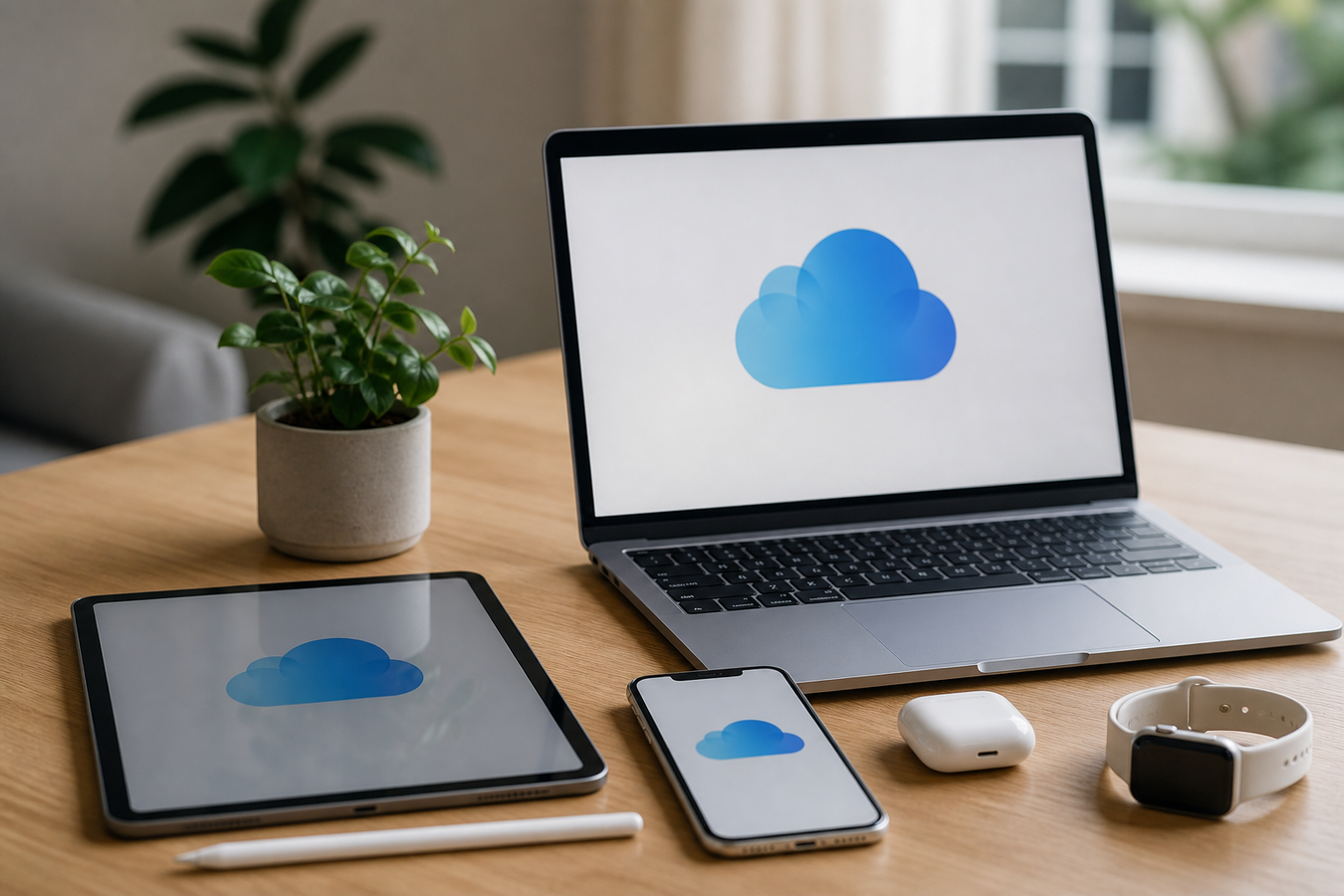
Set up your Apple Account once on your device. iCloud will then sync your data automatically across your devices.
-
1
Open your device settings.
On a Mac, open System Settings. On Apple TV, open Settings and go to Users and Accounts.
-
2
Select the option to sign in to your Apple Account.
If your name already appears at the top of System Settings, you’re signed in to your Apple Account. If it doesn’t, select the sign-in option.
-
3
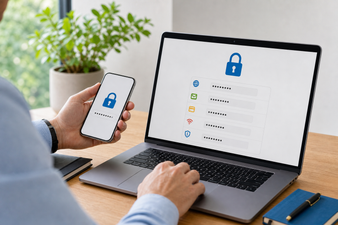
Enter your Apple Account details.
Enter the email address and password for your Apple Account. Use the same account on each device.
-
4
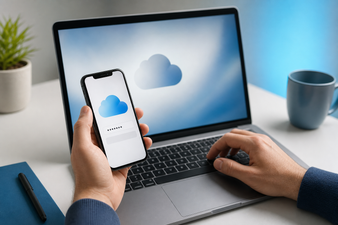
Verify your sign-in.
Apple sends a six-digit verification code to one of your linked devices. Enter the code to finish signing in.
-
5
Choose your preferences.
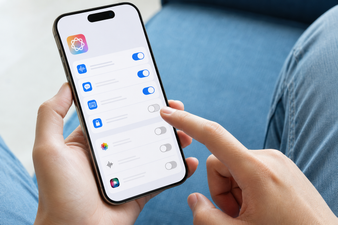
Choose which apps and services can use your iCloud storage, such as Calendar or iCloud Drive.
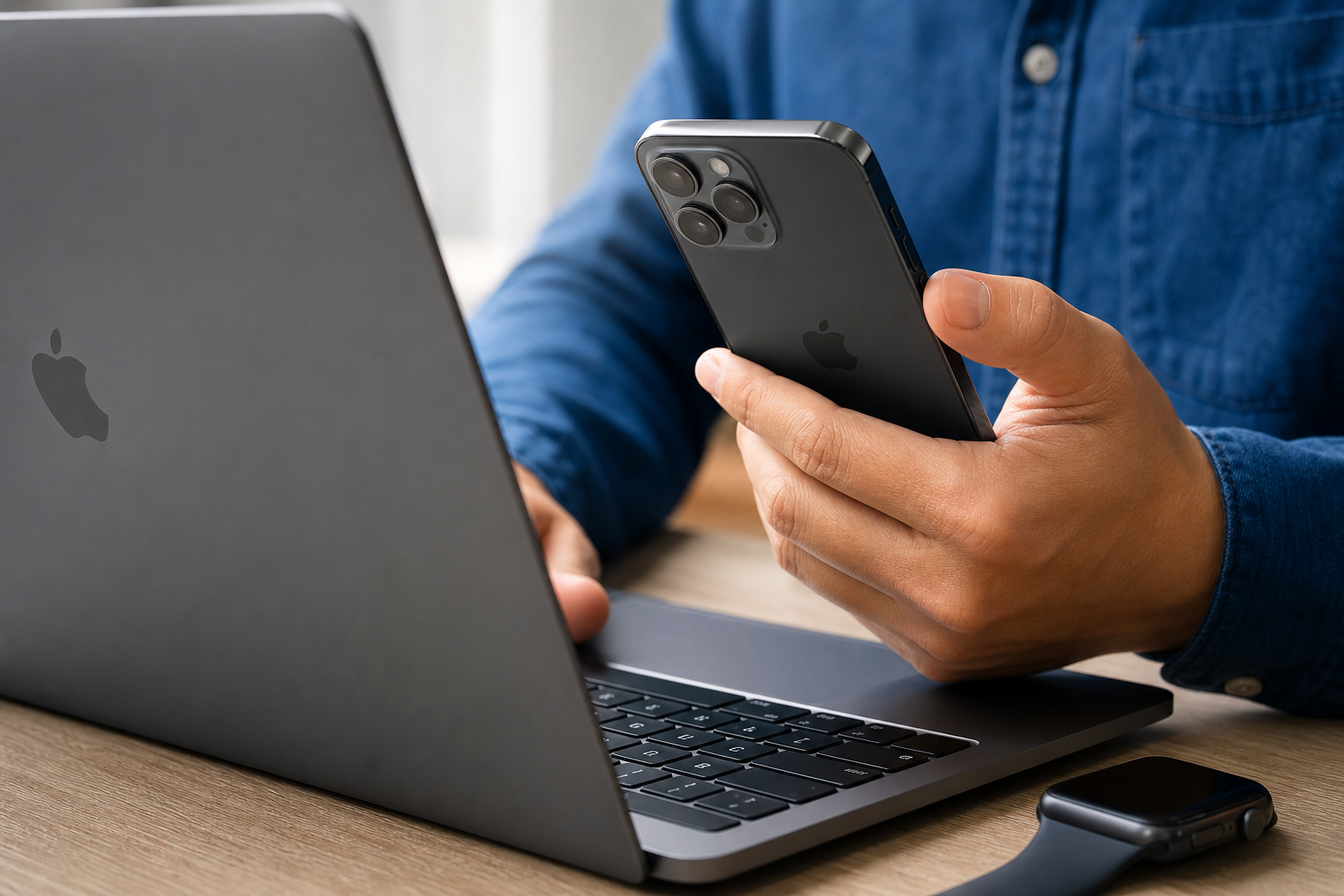
Steps for iPhone or iPad
Here’s how to set up your Apple Account on your iPhone or iPad.
Check your internet connection: Connect to Wi-Fi or 5G so Apple can verify your account.
Open Settings: Tap the sign-in option and enter your Apple Account details.
Choose what to sync: After you sign in, select the data you want to sync. Turn on Photos and iCloud Drive to save space.
Protect your iPhone: Your phone now holds important data from your Apple Account. A sturdy Mobigear case from directcases.com can help protect your screen if you drop your phone.
Sign in to iCloud.com
Open iCloud.com in your browser and sign in with your Apple Account. If Apple asks for a verification code, use the code on a trusted device or have it sent to your trusted phone number. On a shared computer, sign out when you’re finished.
How sign-in differs by device
How you use your Apple Account depends on the device you sign in on.
| Device or method | Syncing | Sign-in requirements | Best for |
|---|---|---|---|
| iPhone, iPad, and Mac | Automatic in the background | Sign in through System Settings | Everyday use of iCloud Drive |
| In a browser (iCloud.com) | Manual access each session | Apple Account and verification code | Accessing iCloud storage on Windows |
| Apple Watch | Through the paired iPhone | Same Apple Account and a device passcode | Health data and notifications |
On a Mac or iPhone, Apple Account data syncs automatically. On iCloud.com, you access it manually each session. To use iCloud features on an Apple Watch, pair it with an iPhone and set up a passcode.
Sign in through your device settings if you want iCloud Drive to sync automatically on that device.
Use iCloud.com if you only need occasional access to your iCloud storage on a Windows PC.
For offline work, skip iCloud.com: the web version needs an internet connection.
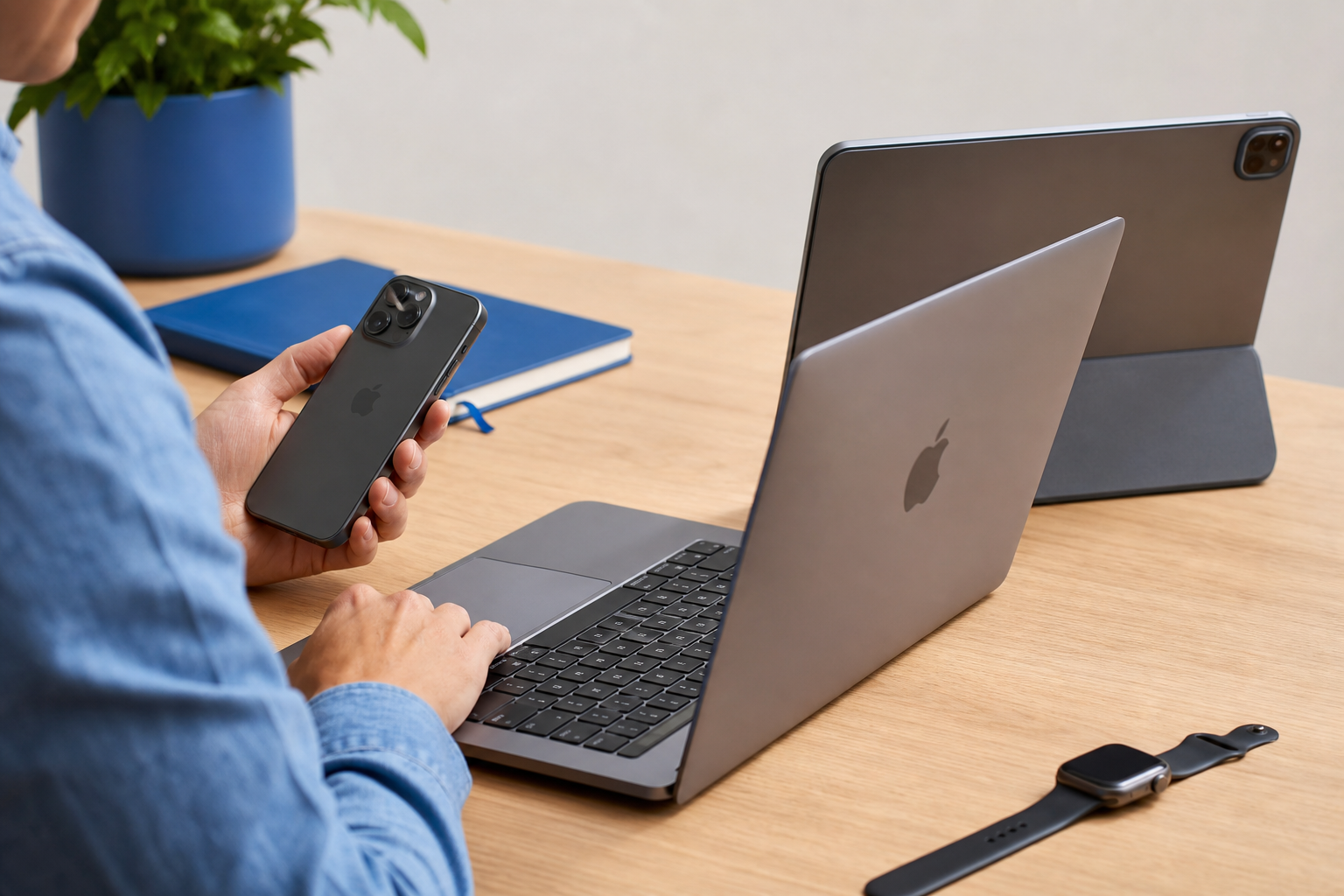
Manage linked devices and sign out securely
Check which devices have access to your Apple Account to help keep it secure.
Review your linked devices regularly: On your Mac, open System Settings, click your Apple Account, and scroll down to see which devices have access. You can also find the list by signing in at account.apple.com.
Remove devices you don’t recognize: See an old iPad in the list? Select it and remove it from your account to protect your data. This stops iCloud Drive syncing on that device.
Sign out of iCloud.com: On a public computer, sign out from the menu under your profile picture. Closing the tab can leave you signed in.
Sign out before selling a device: Sign out of your Apple Account in System Settings to unlink the device from your account.
Frequently asked questions about signing in to iCloud
What if I forgot my Apple Account password?
Reset your password from the settings on one of your linked devices. On an iPhone, tap your name, open the sign-in and security settings, and select the option to change your password. You’ll need your iPhone passcode.
Why does Apple ask for a six-digit verification code?
The code is part of two-factor authentication. It prevents someone from signing in with just your password. Entering the code confirms you have access to a device linked to your account. This protection is on by default for newer Apple Accounts.
Can I sign in to iCloud without my iPhone?
Yes. You can receive the code by text message when you sign in at iCloud.com. If you didn’t get a code, choose the option to send it to the phone number linked to your Apple Account. This can help if your iPhone is broken.
You can sign in to iCloud on a Mac, an iPhone, or a Windows PC. Review your linked devices to help protect your data. Sign in through your device settings or at iCloud.com to check that your iCloud Drive files are up to date.