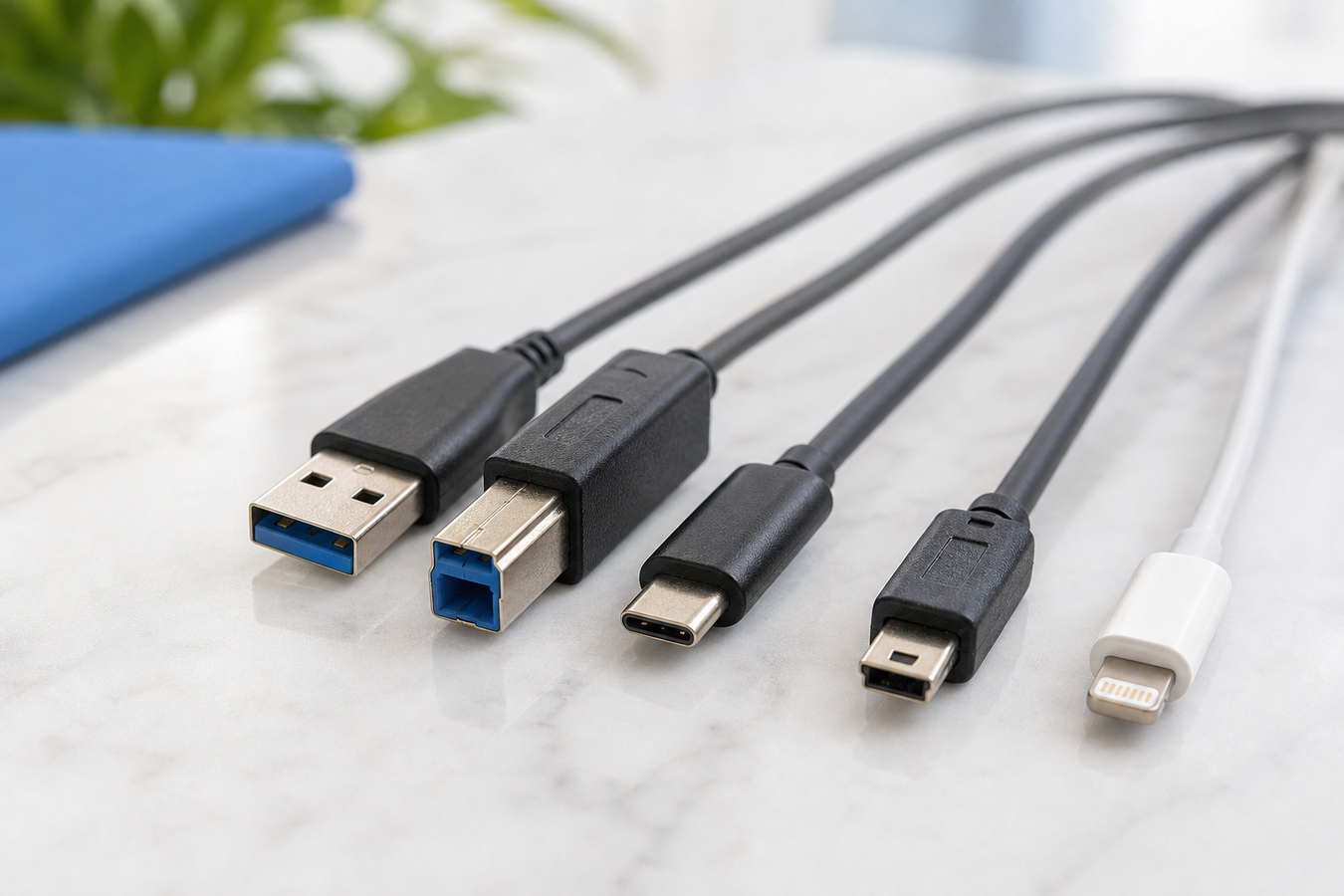
The five common USB connector types are USB-A, USB-B, USB-C, Micro-USB, and Mini-USB. There’s also Apple’s Lightning port. These are the standard connectors for charging and connecting smartphones, tablets, and laptops.
You can tell the ports apart by their shape, size, and whether the plug fits either way. Check the shape of your device’s port before choosing a cable.
What types of USB connectors are there?
Start with USB-A, the familiar wide, rectangular port found on many wall chargers and laptops. USB-A ports often look alike, but they can use different USB versions. Newer versions can transfer data faster.
USB-B has an almost square plug with two angled corners at the top. You’ll mainly find it on equipment such as printers. A USB-B plug won’t fit your smartphone or tablet.
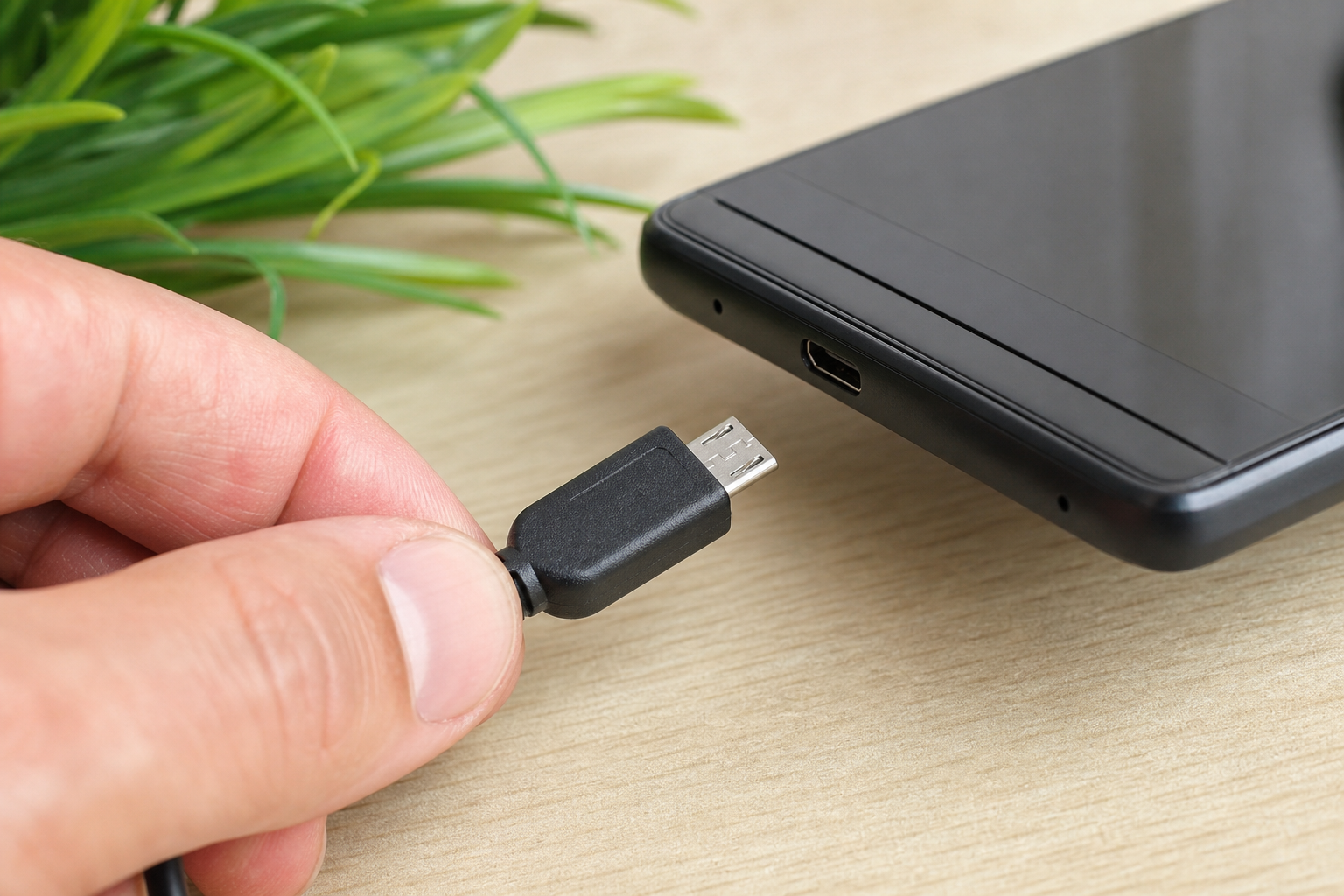
Older phones and e-readers often use Micro-USB. The plug is flat with two angled corners, like a small trapezoid. It fits in one direction only. Mini-USB is its slightly thicker predecessor, which you may still see on an old digital camera or GPS device.
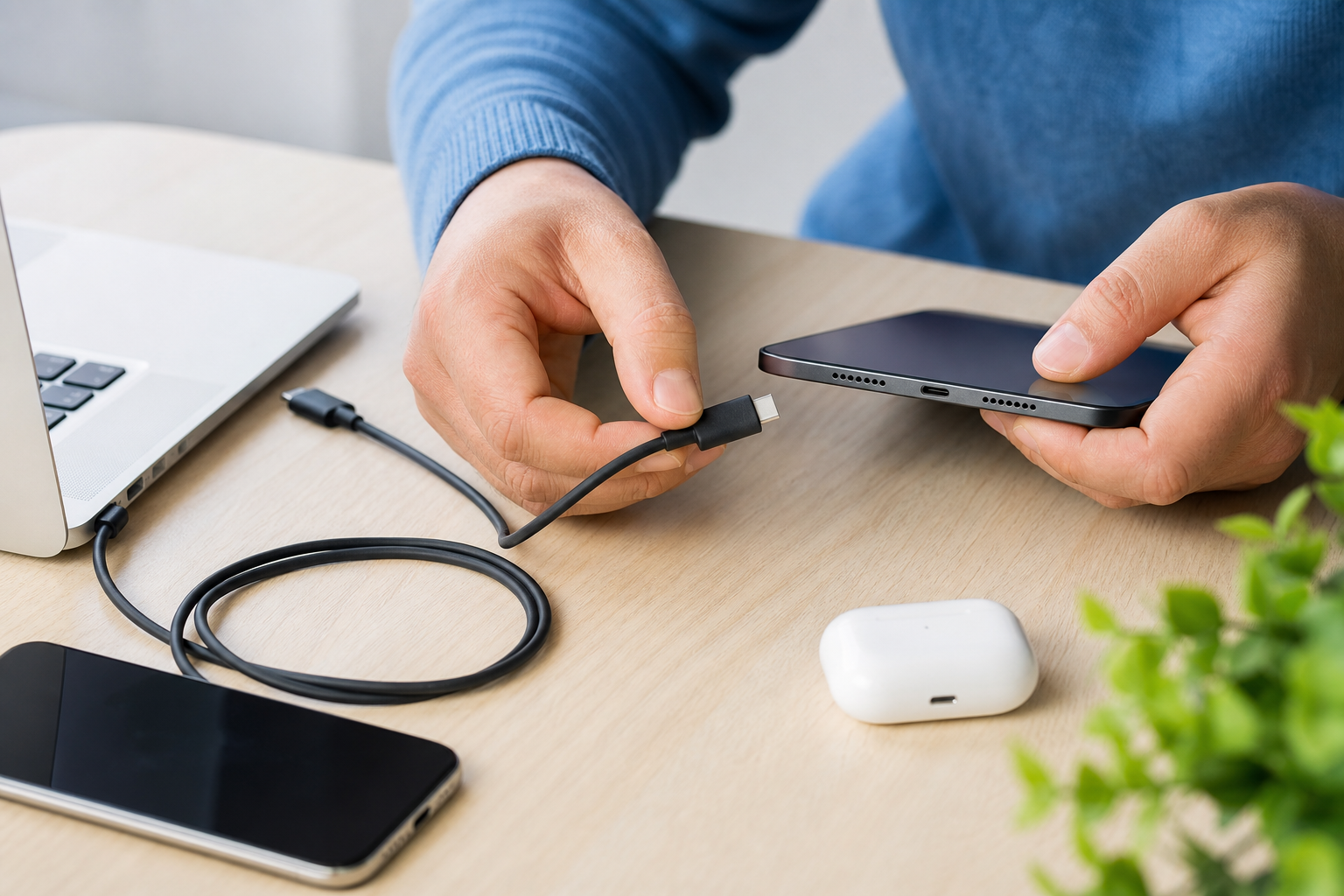
USB-C is now the most common connector on modern phones and tablets. The plug is small, flat, oval, and symmetrical, so it fits either way. USB-C can carry power and transfer data at high speeds.
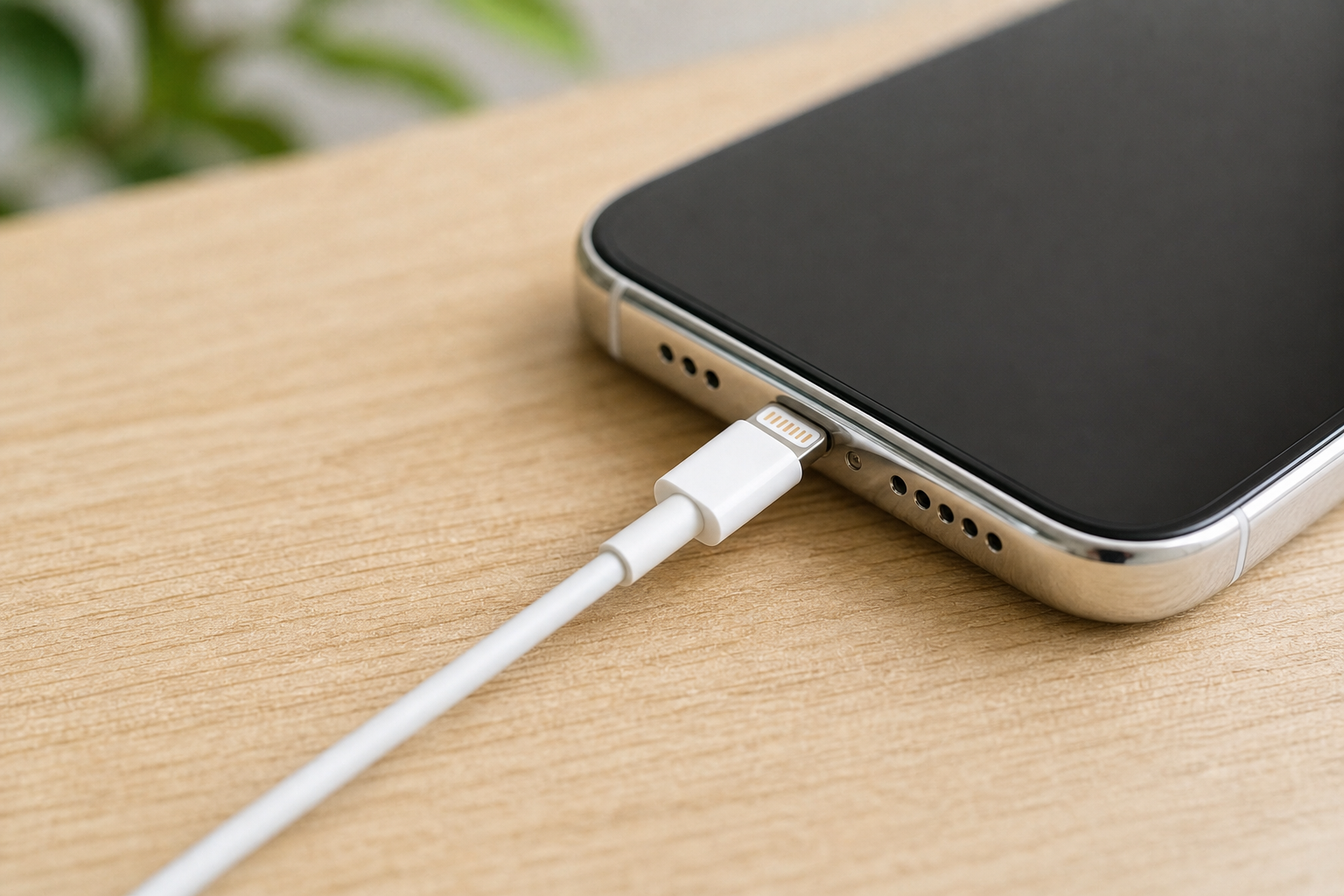
Apple devices from before the iPhone 15 series use the familiar Lightning cable. The flat plug is reversible like USB-C, and you can recognize it by its exposed copper contacts. Check your device’s charging port before buying a new cable.
What do the colors inside a USB-A port mean?
Look inside a USB-A port and you’ll see a small plastic insert. A black or white insert often indicates USB 2.0, which supports data transfers of up to 480 Mbps and is common on older accessories and chargers.
A blue insert often indicates a faster USB 3.0 or 3.1 port. You may notice the difference when transferring large files or powering devices. Check the charger’s specifications for its power output and charging speed.
What’s the difference between USB-A, Micro-USB, and USB-C?
The main differences are plug shape, whether the plug is reversible, and what the connection supports. USB-C is common on smartphones and tablets today. An older cable is still useful if it fits your device.
USB-A is the large, rectangular plug you’ll find on many wall chargers. Micro-USB is smaller and flatter, with two angled corners.
USB-A and Micro-USB fit in one direction. If the plug doesn’t fit, avoid forcing it, especially with Micro-USB. USB-C is small, oval, and symmetrical, so you can plug it into your phone, tablet, or laptop either way.
Kenmerk |
USB-A |
Micro-USB |
USB-C |
|---|---|---|---|
Shape |
Large and rectangular |
Small and trapezoidal |
Small, oval, and symmetrical |
Reversible |
No, fits one way |
No, fits one way |
Yes, fits either way |
Common uses |
Often found on chargers and laptops |
Older mobile devices and accessories |
Newer smartphones, tablets, and laptops |
Charging |
Can charge, depending on the charger and cable |
Mainly basic charging on older devices |
Can support Power Delivery |
USB-C can support Power Delivery, a fast-charging standard. To use it, your smartphone or tablet, wall charger, and USB cable all need to support Power Delivery.
USB-A describes the shape of the wide plug. Transfer speeds vary. A USB 2.0 port supports up to 480 Mbps, and newer USB-A ports may be faster. USB4 uses USB-C exclusively.
For faster charging on a device that supports Power Delivery, choose a USB-C to USB-C cable and a compatible USB-C charger. Choose USB-C to USB-A to connect a newer phone to an older USB-A charger or laptop. For an older phone with Micro-USB, use a USB-A to Micro-USB cable.
An adapter can help when you’re switching connectors, for example from USB-C to USB-A to keep using an old charger. If you need maximum charging power or fast data transfers, avoid adding an adapter that could limit performance. Check the charging port on your mobile device as well as the plug on your old cable.
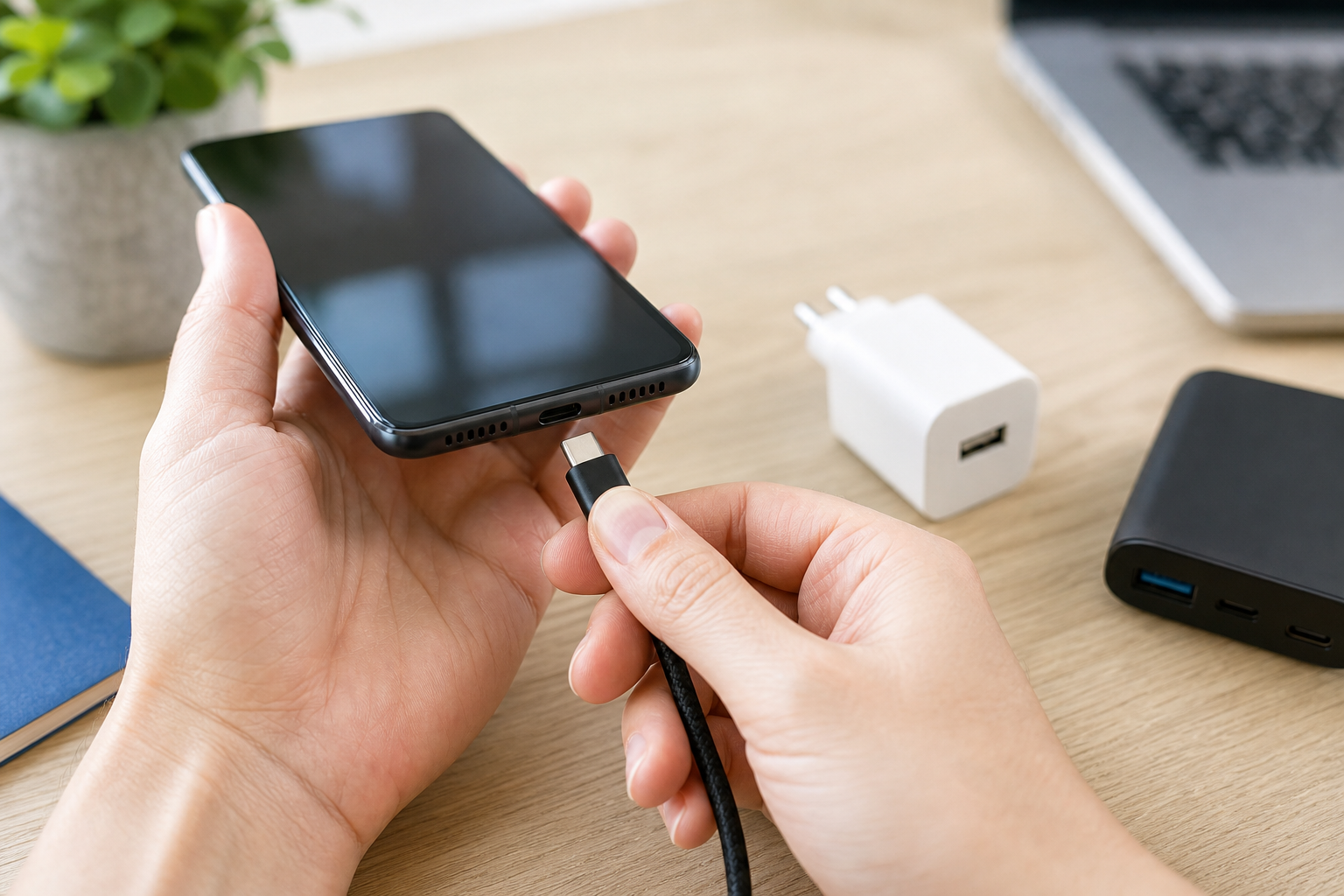
How can I tell which USB port I have?
Take a look at your device to identify its port and choose the right cable or charger.
-
1
Look at the shape of your device’s port
Look at the bottom of your phone or tablet. A symmetrical, oval opening indicates USB-C. A flat opening with two angled corners indicates Micro-USB. If you have an iPhone from before the 15 series, look for Apple’s Lightning connector.
-
2
Check your power source
Look at your wall charger, power bank, or computer. A wide, rectangular opening indicates USB-A. You’ll need a cable with a flat USB-A plug at the charger or computer end.
-
3
Check the pins and USB version
Look at the plastic insert and the number of pins inside the USB-A port. A black or white insert usually indicates USB 2.0, while blue often indicates USB 3.0 or 3.1. The port shape stays the same, but data transfer speeds can vary.
-
4
Check your device’s specifications
Look up your model on the manufacturer’s website and check which port is listed in the specifications.
-
5
Look up your device
If you’re still unsure which USB port you have, check the manual that came with your device. You can also look up your model on directcases.com and compare the ports listed in the product information with the port on your device.
Popular USB cables
When is USB-C required?
Since late 2024, the European Union has required most new smartphones, tablets, and headphones to use USB-C for wired charging. That may explain why your new device has a different charging port from your previous model.
USB-C is becoming the common standard because the same small, reversible connector fits many mobile devices. Using fewer types of chargers and cables is intended to help reduce electronic waste.
From April 2026, the rules also require newly sold laptops to have at least one USB-C charging port.
The EU introduced these rules to reduce electronic waste. As manufacturers move to one standard, you’ll be able to use the same kind of charger and USB cable for more of your mobile devices and keep fewer spare cables and adapters at home.
Frequently asked questions
What’s the difference between USB-A and USB-C?
USB-A is large and rectangular and fits one way. USB-C is small and oval and fits either way. A compatible USB-C port can also handle higher current, which enables fast charging via Power Delivery. USB-A is still common on older chargers, while USB-C is standard on modern smartphones and laptops.
What does a USB Type-A plug look like?
A USB-A plug is wide, flat, and rectangular. A plastic insert inside means the plug only fits one way. You’ll recognize it as the familiar connection on a PC or older wall charger. If it doesn’t slide in easily, avoid forcing it.
What does a USB-C port look like?
A USB-C port is a small oval opening with rounded corners. It’s symmetrical, so you can insert the plug either way. Check the cable’s specifications for its charging and data transfer speeds.
Which cable do I need for an older phone with Micro-USB?
An older phone usually takes a USB-A to Micro-USB cable. Check your wall charger. If it has a wide, rectangular port, choose USB-A. If it has a newer oval port, use a USB-C to Micro-USB cable. You can find compatible cables on directcases.com.
Why is my phone charging slowly?
Check whether your cable, charger, and phone all support fast charging. An older USB-A port often delivers less power than a modern USB-C port with Power Delivery. If your charger supplies too little power, your device charges slowly.
How can I keep my USB port in good condition?
Gently clean the contacts and keep dust out of the port, for example with a wooden toothpick. If you rarely use the port, a small dust cover can stop debris from getting in when you carry your phone or tablet loose in a bag.
Compare your device’s port with the USB-A, Micro-USB, and USB-C examples above. Look at the bottom of your phone or tablet to check the port. Find your model on directcases.com and choose a compatible charging cable or wall charger.