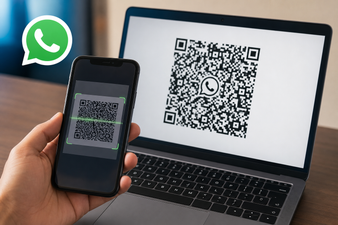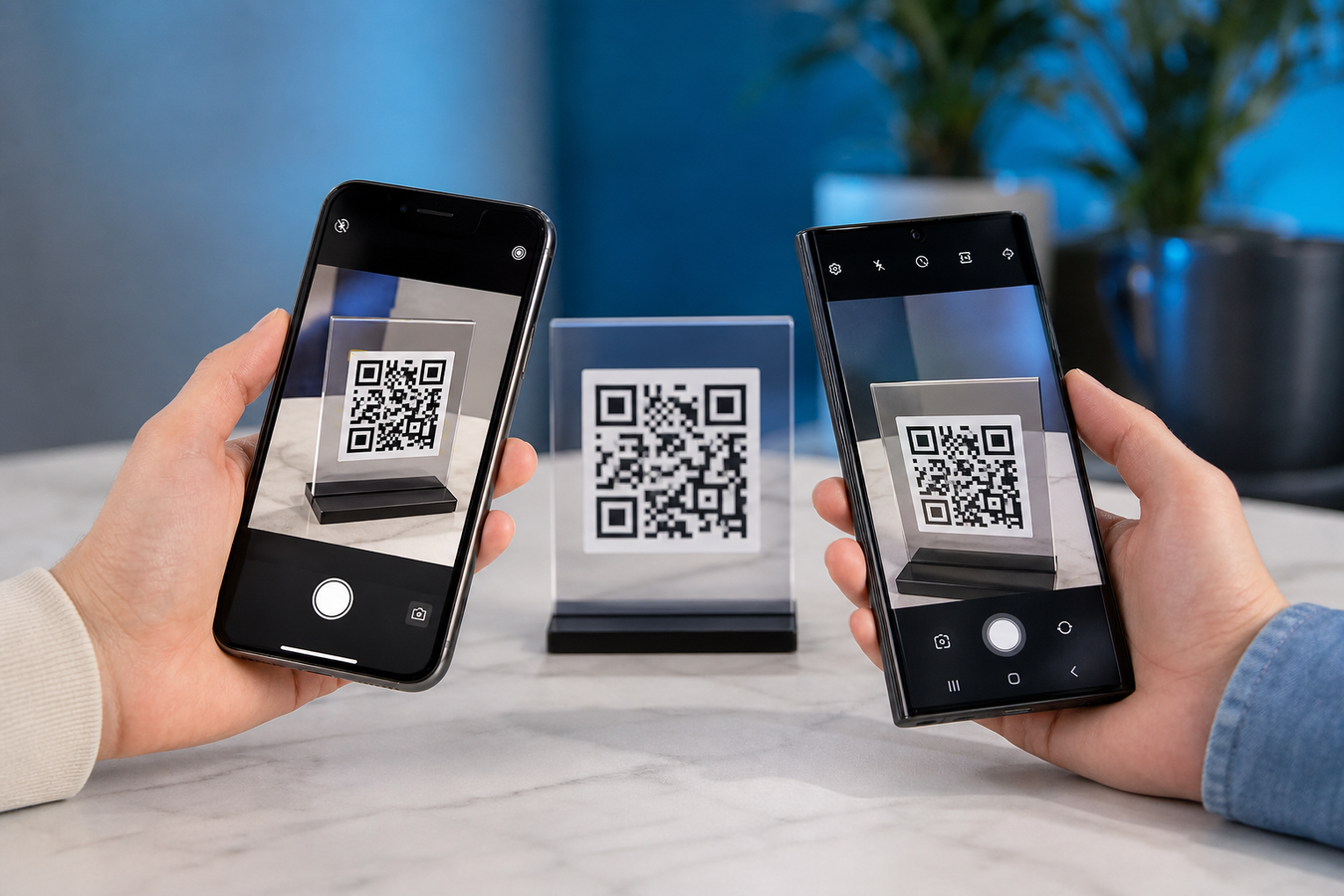
To scan a QR code on Android or iPhone, just use the camera that's already on your mobile phone. Open the Camera app, point it at the code and tap the link or notification that pops up on screen. Most of the time you don't need a separate app.
On an iPhone you can also use the 'Scan Code' button in Control Center. Android devices running Android 9 or later, including Samsung, read the code with the built-in camera or Google Lens. Got an older device? Then you'll need a separate QR code scanner app.
From the menu in a restaurant to an e-ticket for the train, you'll find those little squares everywhere. Scanning saves you typing in long web addresses, and avoids typos too. In practice, scanning a QR code with your smartphone is much quicker than searching for the page yourself.
Do keep safety in mind: always check the web address before you tap. If the camera doesn't pick up the code, it's usually down to poor lighting, the wrong distance or a dirty lens.
What is a QR code and why do we use it?
A QR code is a two-dimensional barcode that stores information in a pattern of black and white squares. QR stands for Quick Response, because your camera reads the code very quickly. The Japanese company Denso Wave developed this technology in 1994 to read large amounts of data quickly in automotive logistics. Where a regular barcode only holds a handful of digits, this little square stores hundreds of characters. That's why the pattern now works as a direct bridge between a poster or receipt and the browser on your device.
These days you don't just use it to open a link to a menu. In practice, businesses use the code to let you download apps, pay for groceries at self-checkout or connect to a Wi-Fi network without typing in a long password. Because the camera recognizes the pattern from multiple angles, you don't have to hold your phone perfectly straight.
Built-in error correction also means the code is often still readable if a corner is damaged. Even so, you can't tell from the squares themselves where the code leads. So it's best not to scan if you don't know who it's from, because the link stays hidden until the camera processes the data.
How do you scan a QR code? Differences by smartphone
Almost every modern smartphone now has a capable QR code reader built into the standard camera app, but exactly how it works depends on the operating system and manufacturer.
| Operating system | Built-in support | Alternative method | Separate app needed? |
|---|---|---|---|
| Apple (iPhone) | Yes, via the standard camera | Control Center ('Scan Code') | No |
| Android 9 and later | Yes, via the standard camera | Google Lens integration | No |
| Android 8 and earlier | No, usually not as standard | Sometimes via Bixby Vision (Samsung) | Yes, via the Play Store |
Go with the standard camera if you have a recent iPhone or a device running Android 9 or later. That way you don't need to install an extra app and you don't give an unknown app access to your camera. Use Control Center if the camera isn't right there on your Home Screen or if you want a dedicated scanning mode. Only download a third-party app from the App Store or Play Store if you're using an older device that won't recognize the code through its own camera.
How to scan a QR code on iPhone
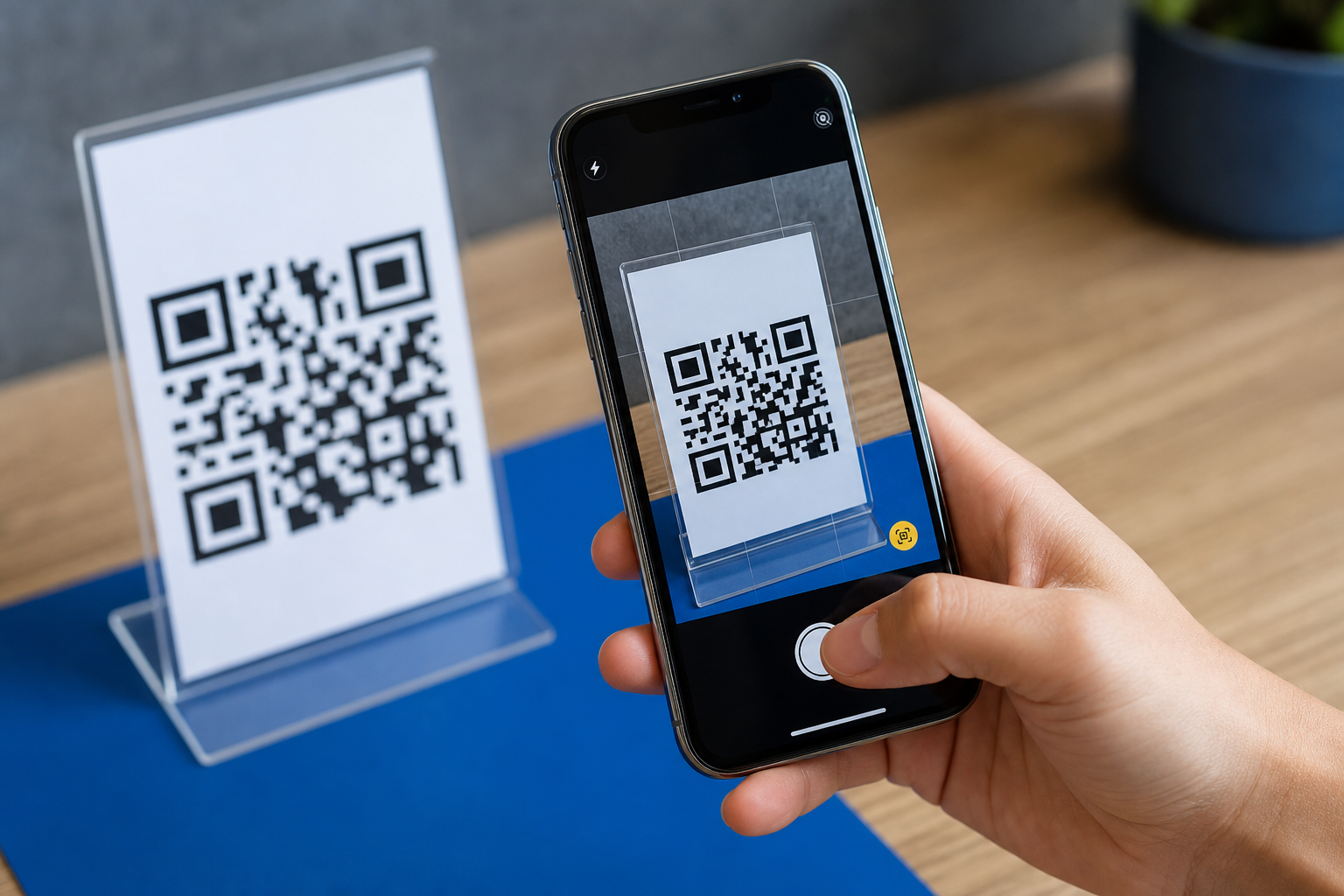
On an iPhone, the QR code scanner is built right into iOS, so you can scan straight from the camera without installing extra software or changing any settings.
-
1
Open the standard Camera app on your iPhone.
You'll find it on your Home Screen, in Control Center, or by simply swiping left on your Lock Screen.
-
2
Point the camera at the code and make sure it's clearly in view
Hold your phone steady and keep some distance; the lens needs room to focus on the pattern of squares.
-
3
Tap the yellow link or notification that appears on screen
As soon as your phone recognizes the code, a tappable pop-up appears that takes you straight to the linked website, app or payment page.
-
4
Use the 'Scan Code' button in Control Center as an alternative
If you don't see this button, you can add it in your phone's settings. This dedicated mode shows just the scanner and is especially handy in dark places, because the flashlight is right there next to the camera.
How to scan a QR code on Android and Samsung
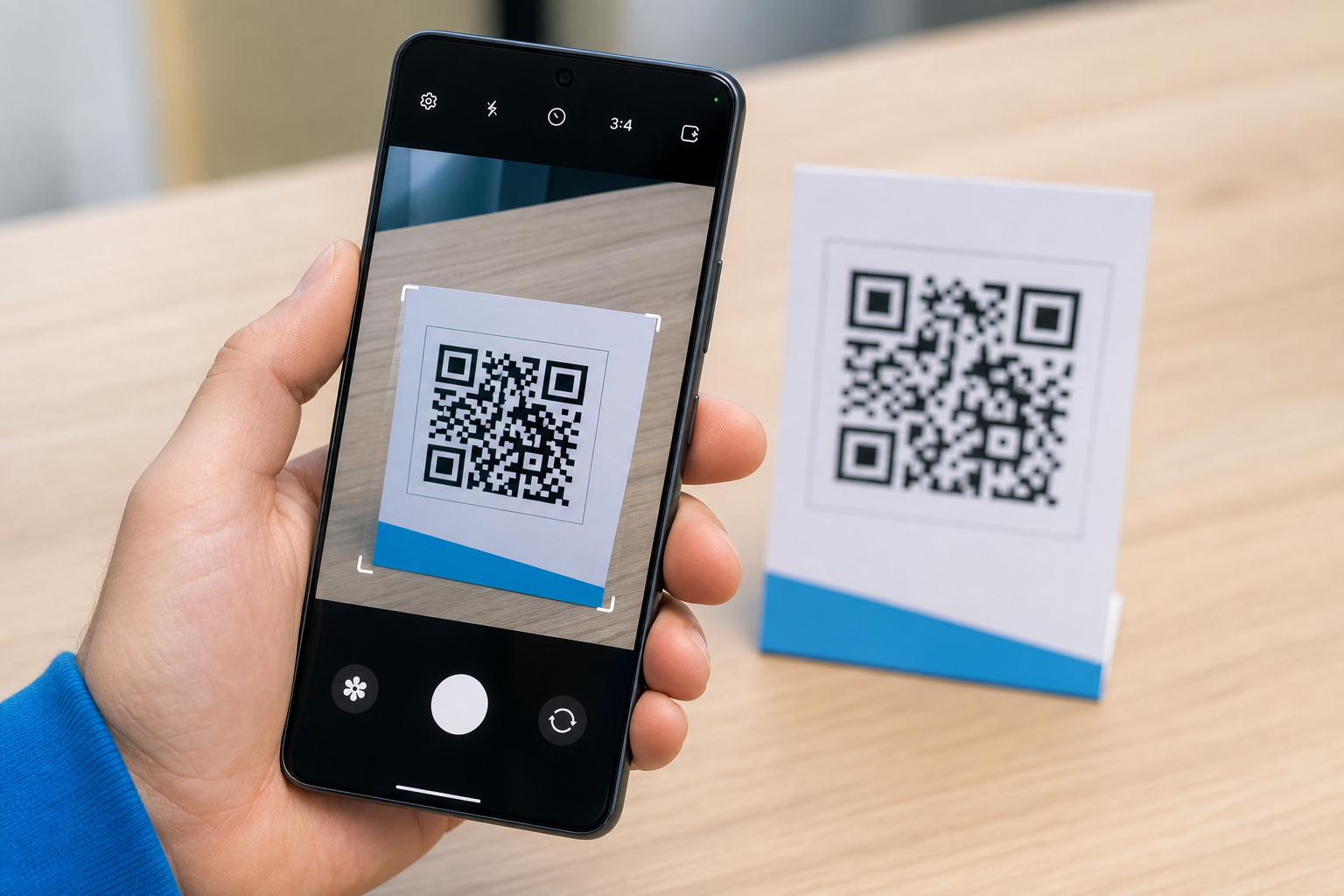
Scanning a QR code works in much the same way, as long as your device is running at least Android 9.
-
1
Open the standard camera on your Android or Samsung device
Always use the app your manufacturer pre-installed on your phone, rather than heading straight to the Play Store.
-
2
Hold your phone steady and point it at the QR code
Make sure the whole square code fits inside the frame on your screen, and avoid bright reflections on the paper or screen.
-
3
Wait for a pop-up or banner with a web address to appear
On Samsung devices, the camera app looks slightly different depending on the model and software version, so the notification may appear in a different spot. The process stays the same, though: you'll see a link and tap it.
-
4
Tap the banner to carry out the action
This opens the link, downloads the file or links an account through Google's built-in security flow. Still nothing after a few seconds, even in good light? Then your device probably doesn't scan as standard, and you'll need to install a QR code scanner app from the Play Store.
Can you scan a QR code on your own screen?
You'll regularly get an e-ticket, digital invoice or flyer with a QR code straight to your inbox or via WhatsApp on your own phone.
Take a screenshot of the QR code on your screen. Make sure the code is sharp and isn't covered by other app elements, volume bars or incoming notifications.
On an iPhone: open the image and use Live Text. Go to the Photos app, open the screenshot you just took and tap the Live Text icon in the bottom right to pull the link straight from the image without using the camera.
On Android: open the screenshot in Google Photos. Then use the built-in Google Lens button at the bottom of the screen to analyze the image. Lens highlights the code straight away and shows the link at the bottom of your screen.
Use this screenshot method if you don't have a second device on hand to scan the code with a camera. Don't bother forwarding the image to a colleague's or partner's smartphone; it takes far longer and compression often lowers the image quality so much that the code becomes unreadable.
QR code not scanning? Check these points
Sometimes the camera just won't read the code, which in practice almost always comes down to external factors, poor lighting or the wrong settings.
Make sure there's enough light. The sensor simply won't recognize a code in the dark; if needed, turn on your camera's flash to boost the contrast between the black and white squares.
Keep enough distance. Don't get too close or stand too far away; slowly move your phone back so the lens has a chance to autofocus on the code.
Flatten curved surfaces. A code on a round bottle or badly crumpled paper distorts the square pattern, so the software can't work out the corners correctly.
Clean the camera lens with a soft cloth. Fingerprints or dust blur the image, so the software misses the sharp edges of the squares completely while scanning.
Check that you're connected to the internet. Scanning the pattern works offline, but the link to a website will only open over Wi-Fi or a stable mobile data connection.
Download a trusted QR code reader app. Only do this if your device is too old for built-in support, and choose an app with a high safety rating and no excessive ads.
Frequently asked questions
Is it safe to scan a QR code?
Not necessarily. Always check the URL before you tap the link to avoid phishing and malware. Because you can't tell from the outside where the squares lead, scammers sometimes make fake stickers and put them over genuine codes on parking meters, restaurant tables or charging points. Your personal data is at risk if you blindly tap the banner your camera shows, so take a close look at the domain name that appears on screen.
Do you need a separate app to scan a QR code?
You only need a third-party app on older phones running a version below Android 9 or a very outdated version of iOS. Modern devices read the code straight from the standard camera. Google also only suggests a separate scanner app for devices without a built-in scanning feature, so always try your smartphone's camera first: it's already there and doesn't need an extra download. If you do have to install an app, choose a well-known scanner from the App Store or Play Store, and still check the link before you tap.
What should you do if a QR code won't open?
Check your internet connection straight away, or try approaching the code from a completely different angle with your camera. Sometimes the printed code is physically damaged, badly worn or printed on glossy paper, so harsh reflections stop the camera recognizing all the corners. Zoom in slightly with your camera to keep distracting background elements out of the frame, so the software can focus fully on the contrast of the squares.
Can you scan a QR code without an internet connection?
Yes, scanning the pattern itself doesn't need internet, but the action that follows usually does. If the code contains plain text, a phone number or a digital business card, your smartphone handles it straight away offline. But if the code points to a website, an online payment request or an app download, the process stops after scanning until you're back on Wi-Fi or a mobile network.
How do you scan a QR code on a Samsung?
On a Samsung, open the Camera app, point it at the QR code and tap the link that appears. It basically works the same as on other Android phones. Only the menus and buttons sometimes look slightly different depending on the Samsung model and software version.
Can I scan a QR code on my own phone screen?
Yes, a screenshot does the job nicely. On an iPhone, open the screenshot in Photos and tap the link using Live Text. On Android, open the screenshot in Google Photos and let Google Lens read the code.
Can you scan on an iPhone without opening the Camera app?
Yes, with the 'Scan Code' button in Control Center. It opens a scanner straight away, without the usual camera modes around it. Handy if you scan tickets or menus a lot and want to be quick.
What can be behind a QR code?
Usually a website, but it can also be an app download, a voucher or an admission ticket. Google even uses QR codes to sign in to your account via Android. So always take a quick look at what appears on screen before you tap, because a code can also trigger an action rather than just opening a page.
Whether you have an iPhone or an Android phone, scanning a QR code is really easy with the standard camera app or Google Lens. Is your camera still blurry? Then scratches are probably interfering with the autofocus. Prevent further damage to your lens. Enter your device on directcases.com and order a sturdy phone case or a clear screen protector straight away.