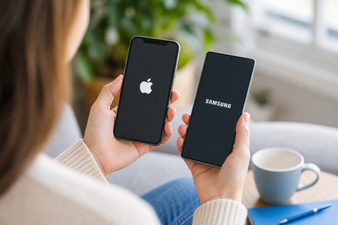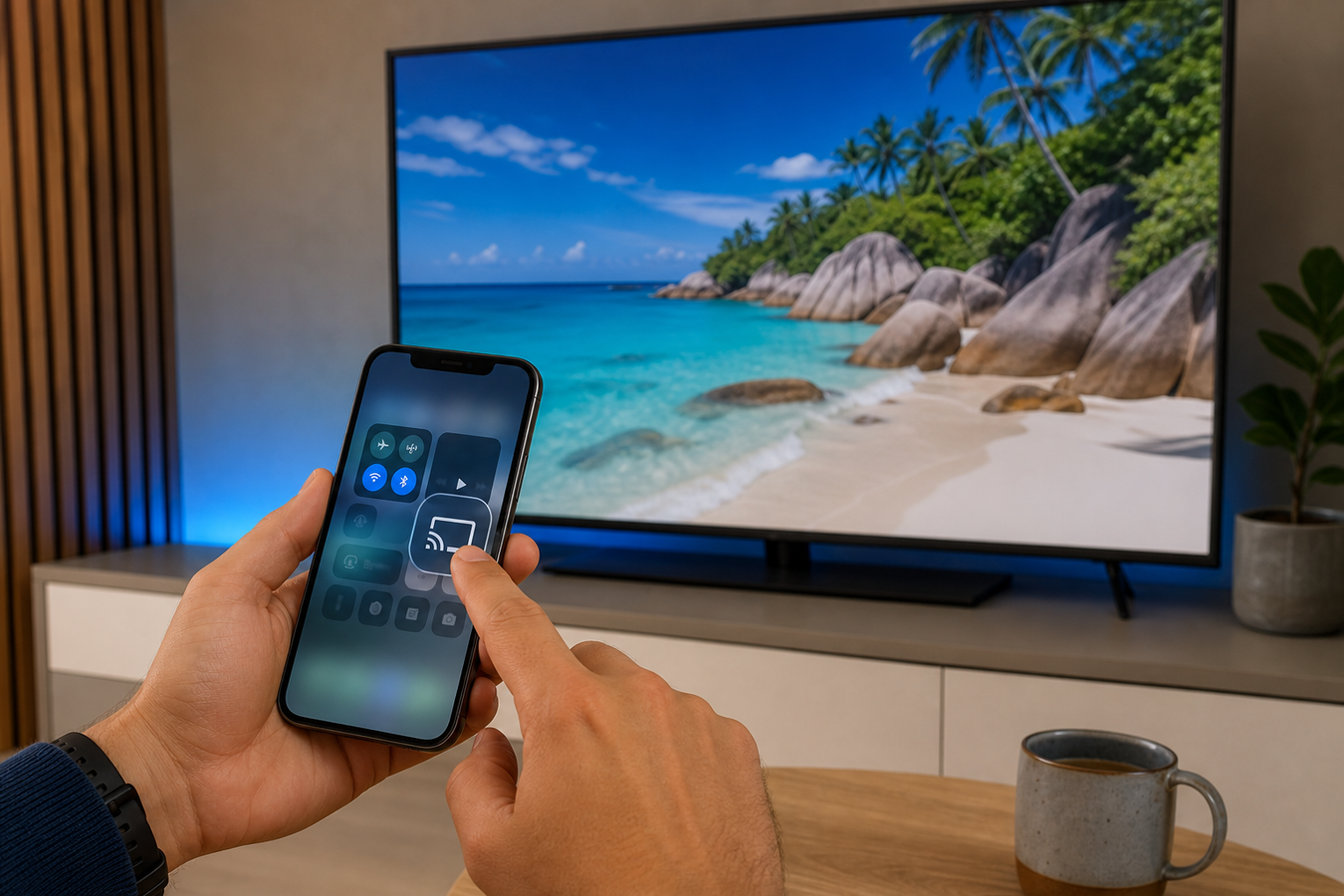
Wondering how to connect your phone to your TV? You can do it wirelessly or with a cable. On an iPhone you use Apple AirPlay, on a Samsung you use Smart View and on other Android phones you use Google Chromecast or Google TV. Your phone and TV do need to be on the same Wi-Fi network.
No Wi-Fi, or an older TV without smart features? Then use an HDMI cable with a USB-C or Lightning adapter. There's no need to squint at a small screen when you've got a great TV in the living room.
That way you can watch your favourite content on the big screen at the best possible quality. We'll go through the quickest ways to mirror your screen, from built-in casting features to very stable wired connections. Whether you want to run a quick photo slideshow or plan an uninterrupted film night, the right setup makes all the difference.
Why connect your phone to your TV?
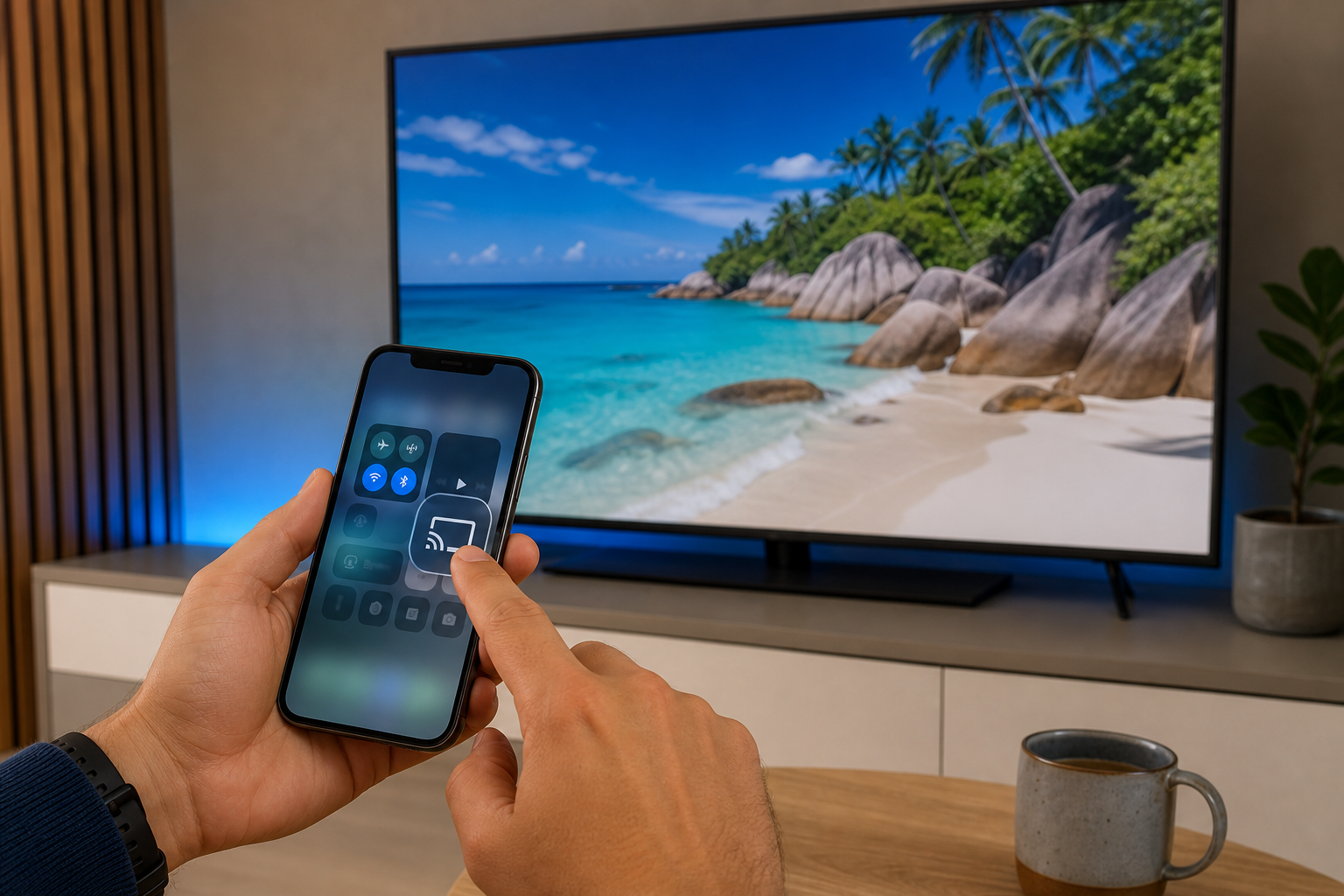
Connecting your phone to your TV has practical benefits, both for entertainment and for everyday convenience.
Share holiday photos and videos easily: Show your latest shots to a group of friends or family. You scroll through the gallery yourself while everyone watches the big screen from the sofa.
Stream films and series to your TV: Use streaming services that aren't installed on your smart TV by default. You start the stream on your mobile phone and the TV takes over playback.
Play mobile games with a better view: Turn your mobile games into a proper console experience. When you cast to a much bigger screen, you see more detail and react faster.
Use your phone as a remote: With the SmartThings app on a Samsung or the Google TV app on Android, your phone works as a remote for your TV. You can get through menus faster and type tricky passwords on your touchscreen. In practice that's much quicker than using the arrow keys on a regular remote.
How to connect your phone to your TV wirelessly: the basics
Before you start casting, make sure your home network is set up properly.
Check your TV's smart features: See whether your TV is a smart TV and supports built-in casting such as Apple AirPlay, Miracast or Google TV. If you want to mirror your whole phone screen, look in the TV settings for names like Screen Mirroring, Screen Sharing or Smart View.
Look at the model, not the year: A newer TV won't automatically work wirelessly with every phone, because the casting features differ per model. To check whether your phone and TV support Miracast, look them up with the Wi-Fi Alliance, which keeps track of compatible devices.
Connect to the same Wi-Fi network: Make sure your phone and TV are both connected to the same network. Check that 'AP isolation' isn't switched on in your router, as this stops the devices from talking to each other.
Choose the 5GHz band: Connecting over the 5GHz Wi-Fi band gives you considerably more bandwidth. This prevents stuttering when you stream high-resolution video.
Consider an external media player: No smart TV, or is the built-in software badly outdated? Then use an external dongle such as a Google Chromecast or Apple TV to share your screen wirelessly.
How do I screen mirror my iPhone to my TV?
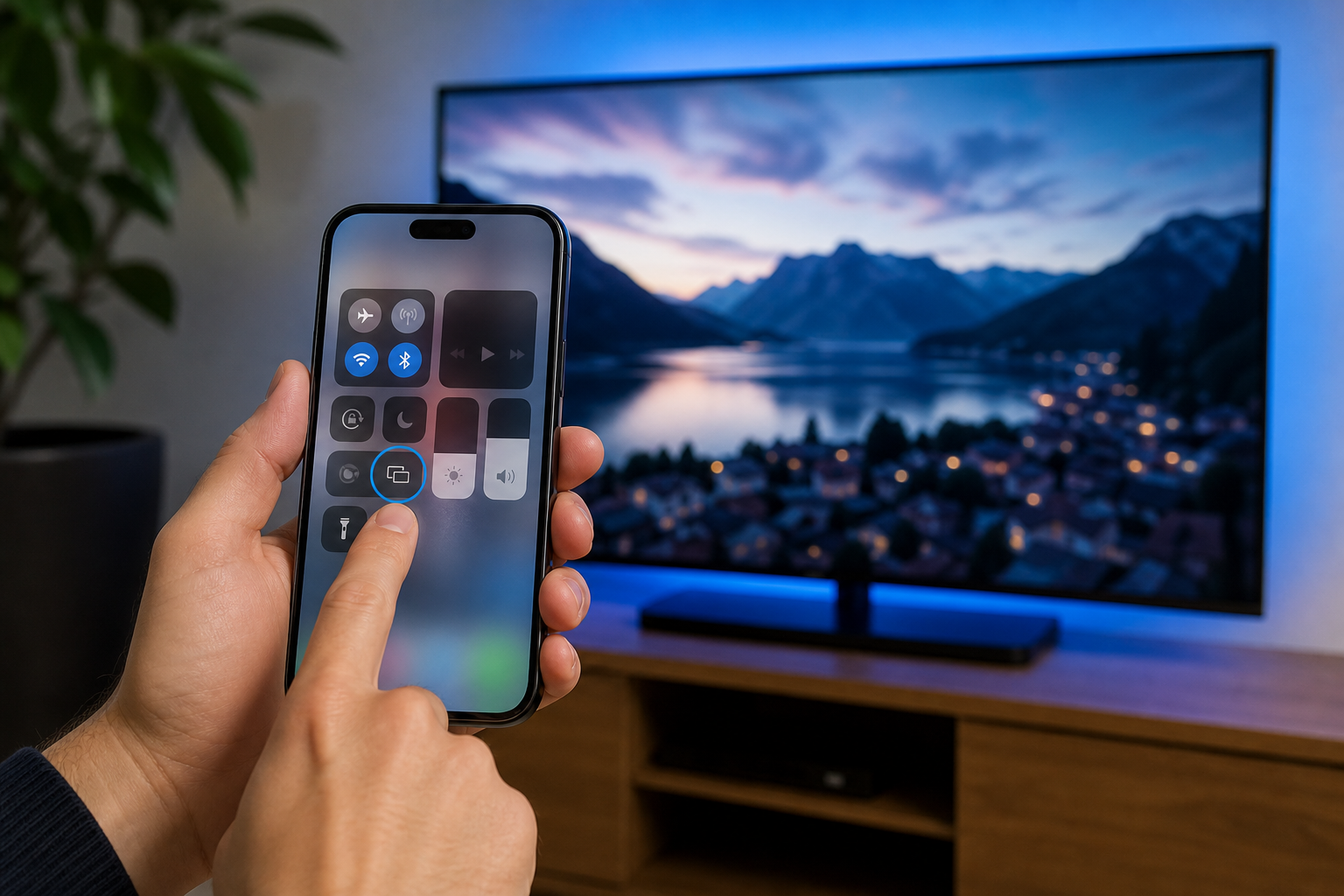
Apple users rely on AirPlay to send picture and sound to compatible screens.
-
1
Open Control Center on your iPhone
Swipe down from the top-right corner of your screen. On older models with a physical Home button, swipe up from the bottom.
-
2
Turn on Screen Mirroring
Tap the 'Screen Mirroring' icon, which looks like two overlapping rectangles.
-
3
Select the right TV
Choose your Apple TV or AirPlay-compatible smart TV from the list of available devices.
-
4
Enter the passcode
If prompted, type in the four-digit code shown on your TV screen to complete the connection.
Use this method when you want to quickly show a YouTube video or your camera roll. Bear in mind that apps like Netflix or Disney+ often block screen mirroring because of strict copyright rules. In that case, use the cast icon inside the app itself instead of mirroring your whole screen.
How do I connect my Samsung or Android phone to my TV?
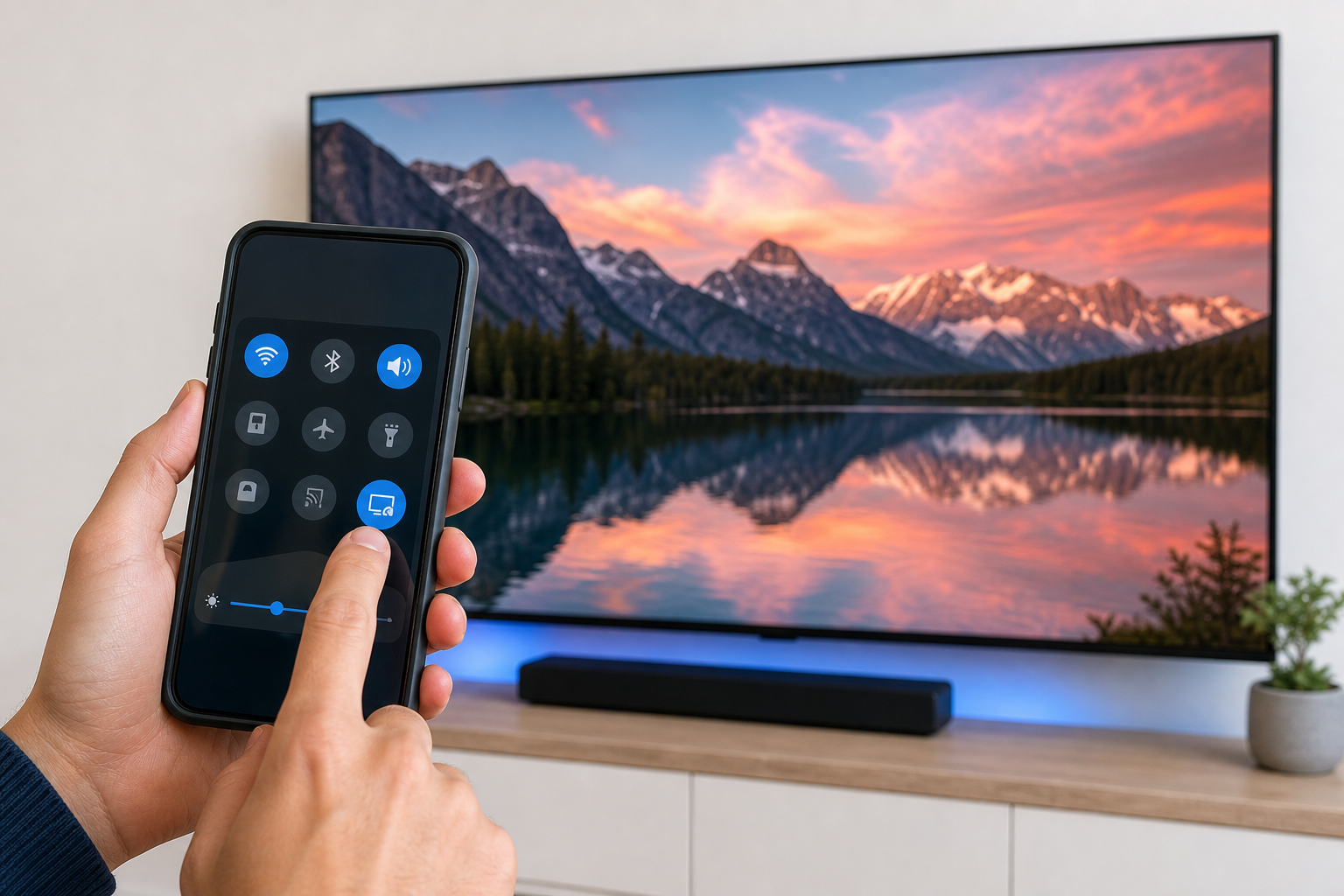
Android phones work well with Google TV and Google Chromecast, while Samsung offers extra features through its own SmartThings app.
-
1
Open Quick Settings
Swipe down from the top of your screen to fully expand the Quick Settings panel.
-
2
Start casting
Tap 'Smart View' (on Samsung) or look for 'Cast / Screen Cast' (on other Android brands such as OnePlus or Motorola).
-
3
Choose your device
Select your smart TV or Google Chromecast from the list of available devices on your Wi-Fi network.
-
4
Confirm the connection
Accept the connection request on your TV with the remote to start screen mirroring straight away.
Can't find Smart View in your Quick Settings? Open the SmartThings app, choose your Samsung TV and tap 'Mirror screen (Smart View)'. In SmartThings you can also use your phone as a remote or play the TV sound through your phone. Handy if you want to watch with earbuds in the evening.
Go for Smart View if you just want to mirror your screen for a quick presentation. Got a high-end Samsung Galaxy? Then try Wireless DeX too. This mode turns your TV into a desktop computer, with your phone acting as a touchpad so you can get work done.
Can I connect my phone to my TV with an HDMI cable?
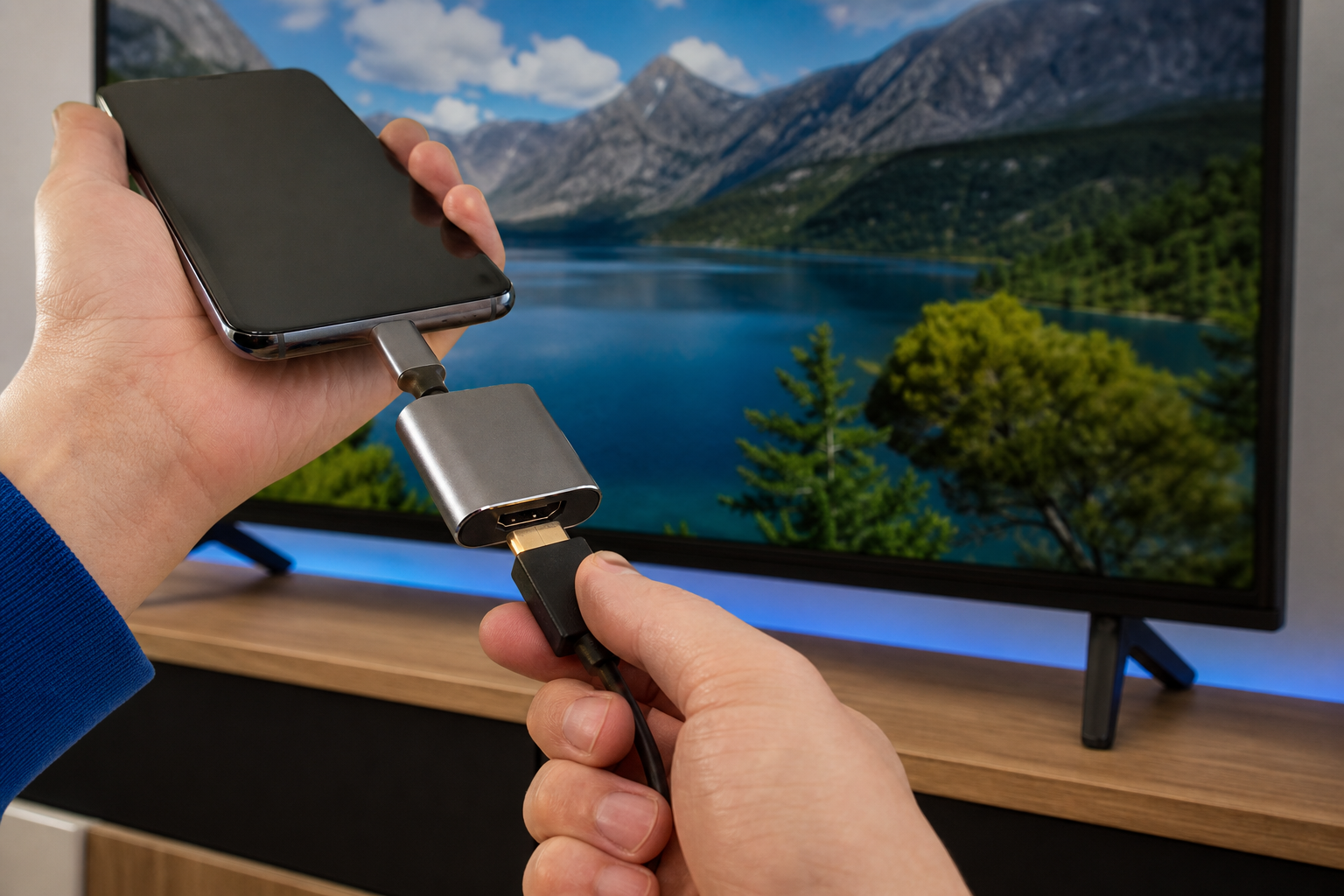
Sometimes a wired connection is simply the most reliable option. It's the easiest solution if you want to stream to your TV without Wi-Fi or avoid stuttering caused by a weak Wi-Fi signal. With an older TV without smart features, a cable is often the only way to connect your phone to your TV.
The connector you need depends on your mobile phone. For Android phones and newer iPhones (from the iPhone 15 series onwards), use a USB-C to HDMI adapter. Got an older iPhone? Then you'll need a Lightning to HDMI adapter. When buying one, make sure the adapter has an extra charging port so your phone doesn't run flat while you're watching.
The process itself is completely plug and play. Plug the adapter into your phone, connect the HDMI cable to your TV and use the remote to select the right HDMI source. Because the picture goes through the cable rather than your Wi-Fi, a busy or weak network won't affect it, so you're less likely to get stuttering or lag than with wireless casting. Still no picture? First check that the TV really is set to the right HDMI input, as that's where things most often go wrong.
Wireless vs. wired: which is best?
Both methods have their own strengths, depending on exactly what you want to show on the big screen.
Feature |
Wireless (casting) |
Wired (HDMI cable) |
|---|---|---|
Freedom of movement |
Maximum: you control everything from the sofa. |
Limited by the length of the cable. |
Stability |
Depends entirely on the quality of your network. |
100% stable, unaffected by Wi-Fi problems. |
Picture quality |
Good, but some slight compression can occur. |
The best possible picture quality (often 4K/60Hz). |
Lag |
Slight lag noticeable in fast action scenes. |
No lag, an instant and smooth signal. |
Battery use |
High, as casting needs a lot of continuous processing power. |
Low, especially if the adapter charges the phone at the same time. |
Choose wireless casting if: you want to quickly put on a YouTube video, control Spotify or share photos with guests. In these situations, the convenience of Smart View or AirPlay matters far more than perfect, uncompressed picture quality.
Choose an HDMI cable if: you play demanding mobile games where reaction time is crucial, want to watch a whole film in 4K or are somewhere (like a hotel room) without reliable Wi-Fi.
Frequently asked questions
Can my TV connect to a phone?
Yes, most TVs made after 2016 support this as standard. Models from brands like Samsung, LG and Sony almost always have a built-in wireless casting feature. Does your older model lack it? Then you can still make your TV 'smart' by plugging an external dongle into a free HDMI port.
Does screen mirroring require internet?
No, you can use an HDMI cable or Wi-Fi Direct. With Wi-Fi Direct, the TV creates its own small network that your phone connects to directly. You then don't need internet or a router to play videos stored on your phone.
Why does the picture stutter when I'm casting?
This is almost always down to a weak Wi-Fi signal, a busy network or an outdated router. Put both devices on the same 5GHz network, as it gives you more bandwidth for the picture. Still stuttering? Restart your router or switch to an HDMI cable.
Why can't my phone find my TV?
Usually your phone and TV aren't on the same Wi-Fi network. Check that first, because a TV on the guest network or on a different band of your router is a common culprit. If it still doesn't work, check whether your TV's software is up to date and whether the TV supports the technology you're using, such as Apple AirPlay or Google Chromecast.
Can I connect my iPhone to a TV without AirPlay?
Yes, with an Apple TV or an HDMI cable and the right adapter. For an iPhone 15 or newer, use a USB-C to HDMI adapter; for older iPhones, a Lightning to HDMI adapter. Prefer wireless? Then an Apple TV is the standard solution.
What's the difference between casting and mirroring?
When you cast, you only send a video or music to the TV; when you mirror, you see your whole phone screen on the TV. Casting works better for films and YouTube, because you can keep using your phone for something else in the meantime. Mirroring is better for showing photos or using apps that don't have a cast button.
Can I use my phone as a TV remote?
Yes, with the SmartThings app for a Samsung TV or the Google TV app for a TV running Google TV. The SmartThings app also has extras, like playing the TV sound through your phone. Saves you hunting for the remote between the sofa cushions.
Can I connect my phone to my TV via USB?
Sometimes, but you'll usually only see your photos and videos, not your whole screen. Set the USB option on your phone to 'File transfer' or 'MTP' and select the USB port as the source on your TV. If you really want to mirror your screen, an HDMI cable is the better choice.
Whether you go for the convenience of wireless casting with AirPlay or Smart View, or the rock-solid stability of an HDMI cable, you now know exactly how to connect your phone to your TV. It's easy to set up and often means you don't need expensive extra equipment. Grab your phone, pick the method that suits your situation best and start sharing your favourite content on the big screen!