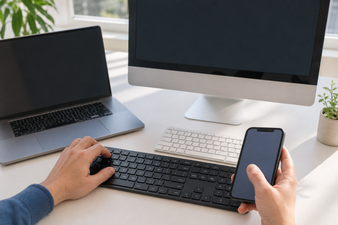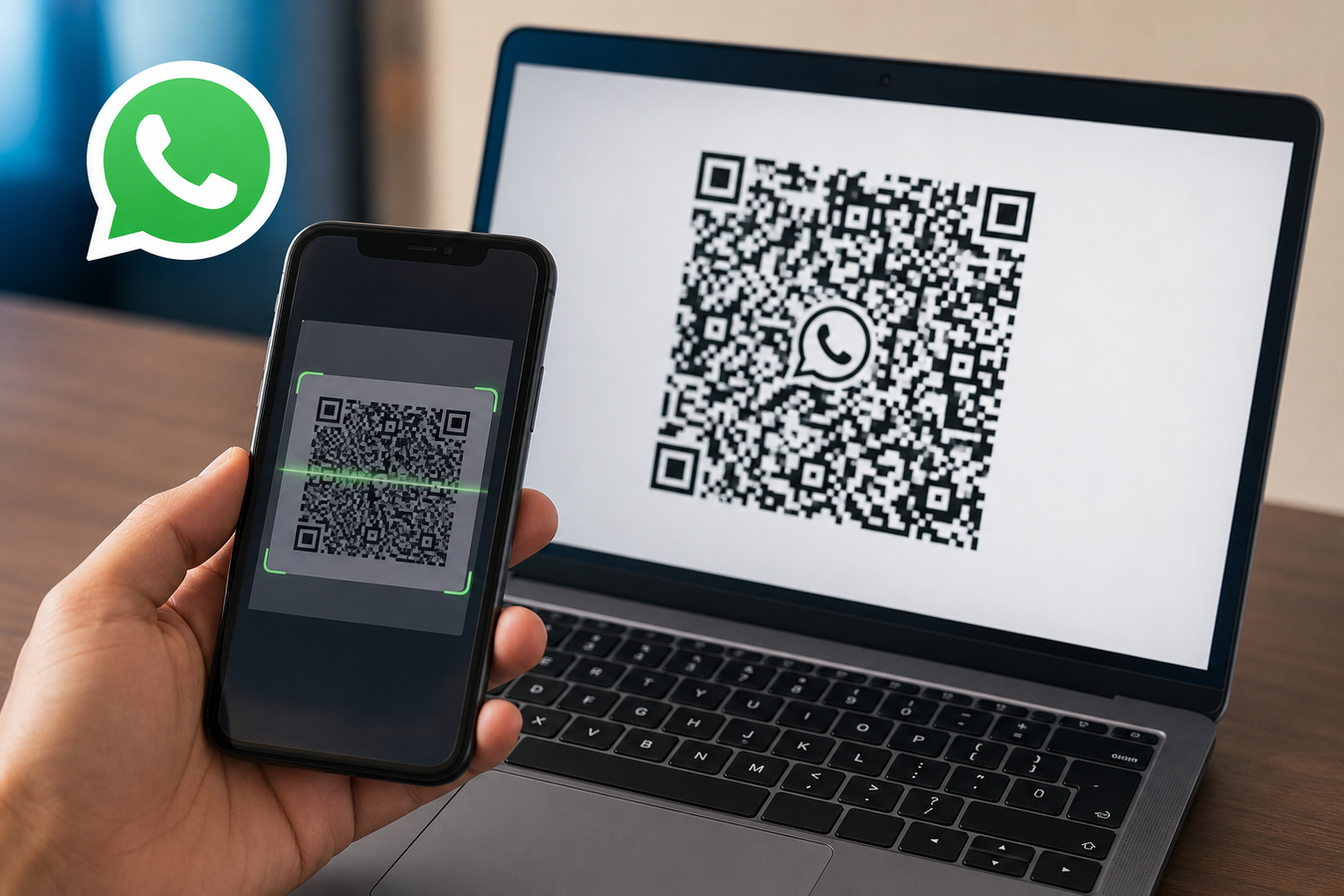
Do you spend your working day glancing sideways at your phone screen? Picking up your mobile phone every time a new message comes in breaks your concentration completely. In this guide you'll learn exactly how to set up, use and safely manage WhatsApp Web, so you can communicate more efficiently from your PC or laptop. On a proper keyboard you type faster and make fewer typos.
What is WhatsApp Web and why should you use it?
WhatsApp Web is a browser-based extension of the mobile app on your smartphone. Without installing any extra software, you get instant access to all your conversations through a web browser such as Google Chrome, Firefox, Edge or Safari. In practice, this web version gives your productivity a real boost:
Type much faster on a physical keyboard: Typing long messages on a touchscreen takes time and leads to more mistakes. With a full-size keyboard you can deal with work questions or long personal conversations far more efficiently. That saves a lot of time in customer service or other office work that involves plenty of messages.
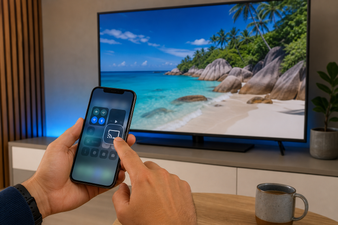
Multitask on one screen: You no longer need to pick up your phone for every notification. Notifications appear straight in your browser, so you can keep your eyes on your monitor while you work or study.
Share files stored on your computer straight away: Documents, PDFs, spreadsheets or photos that are already on your hard drive can simply be dragged into your chat. You skip the awkward step of sending files to your phone by email or cloud storage first.
Use keyboard shortcuts to navigate faster: Work faster with keyboard combinations. Ctrl+Alt+N, for example, starts a new chat instantly.
Go for the browser version if you're on a work computer where IT restrictions stop you from installing software. Since multi-device support was introduced, stability has also improved massively: your phone no longer needs to stay connected to the internet for the web client to work.
WhatsApp Web vs. WhatsApp Desktop: what's the difference?
Although both versions let you use WhatsApp on your computer, there's an important technical difference under the bonnet. The browser version runs straight from a tab, while WhatsApp Desktop is a standalone program for operating systems such as Windows 10 or macOS.
| Feature | WhatsApp Web (browser) | WhatsApp Desktop (app) |
|---|---|---|
| Installation & permissions | No installation needed, no admin rights required. | One-time download from the app store or website required. |
| System resources (RAM) | Shares memory with your browser (can be heavy in Chrome). | Runs as a separate process, often more memory-efficient. |
| Background use | Stops syncing as soon as you close the browser. | Keeps running in the background for instant notifications. |
| Notifications | Depends on browser settings, sometimes delayed. | Native system notifications, always instant and reliable. |
| Video calls & audio | Very limited, mainly focused on text and files. | Full support for video calls and voice messages. |
Choose WhatsApp Web if you work on a shared PC or only use the service now and then alongside your usual browsing. Choose the WhatsApp Desktop app if you use it heavily for work every day, value native notifications and want to be able to video call colleagues or family from your laptop.
Step by step: how to link WhatsApp to your laptop or PC
Connecting your smartphone and computer takes just seconds. All you need is a stable internet connection and an up-to-date WhatsApp account on your mobile device. Follow these steps to open and set up WhatsApp Web without a hitch:
-
1
Open the official web page
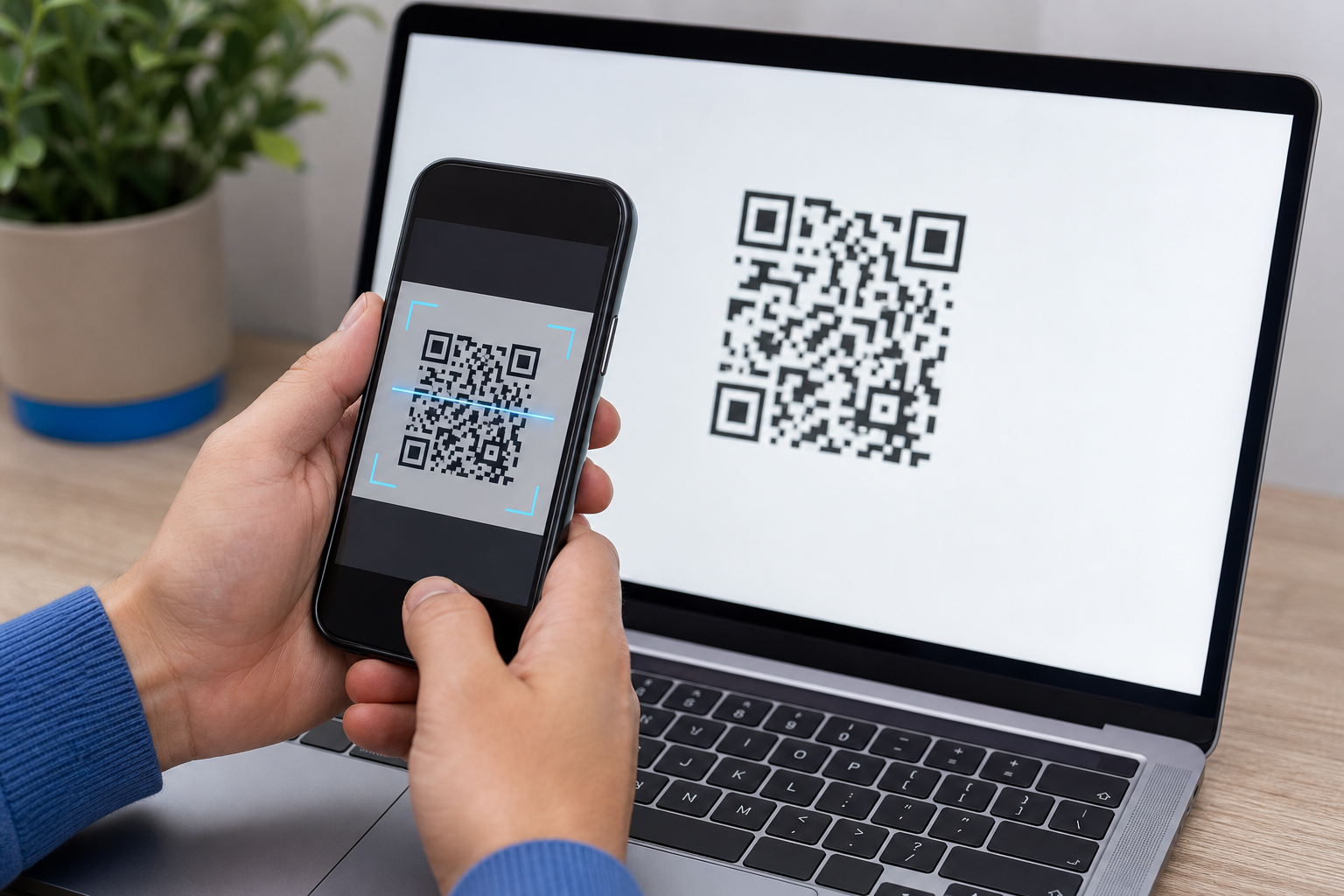
Open the browser on your computer and go to web.whatsapp.com. A start screen appears straight away with instructions and a large black-and-white code.
-
2
Turn on linking mode on your phone
Grab your smartphone and open the WhatsApp app. Go to the settings menu and look for the Linked devices option.
-
3
Start the linking process securely
Tap the 'Link a device' button. Depending on your privacy settings, your phone will now ask for biometric verification, such as a fingerprint or face recognition.
-
4
Scan the QR code
Point your smartphone's camera at your laptop screen. Make sure the whole code sits sharply within the highlighted frame on your phone screen.
-
5
Wait for it to sync
As soon as the scanner recognizes the code, the browser loads your recent chats. The initial sync can take a few seconds, depending on your message history.
Note: the code shown on your computer screen refreshes every minute for security reasons. Too late to scan it? Just click the green button in the middle of the expired code to generate a new one straight away.
Looking for laptop accessories?
Protect and personalise your laptop. Shop accessories that suit you perfectly!
How do you log in to WhatsApp Web with Android, iPhone or a tablet?
Where exactly you'll find the scanner depends on your operating system. Use this checklist to quickly find the right setting on your device:
Apple iPhone: Tap the cog icon (Settings) in the bottom right of the main screen. Then choose 'Linked devices' and tap the blue button to open the camera scanner.
Android phones: In the main overview with all your chats, tap the three vertical dots in the top right corner. Select 'Linked devices' from the drop-down menu and start linking.
Tablets (such as the Samsung Galaxy Tab): Open the browser on your tablet and go to the web version. In the browser settings (often three dots in the top right), turn on 'Desktop view' or 'Request desktop site'. The tablet will now show the QR code, which you then scan with your main phone.
Avoid unofficial tablet apps from the app stores: the official browser method using desktop view is considerably safer and more reliable for your data.
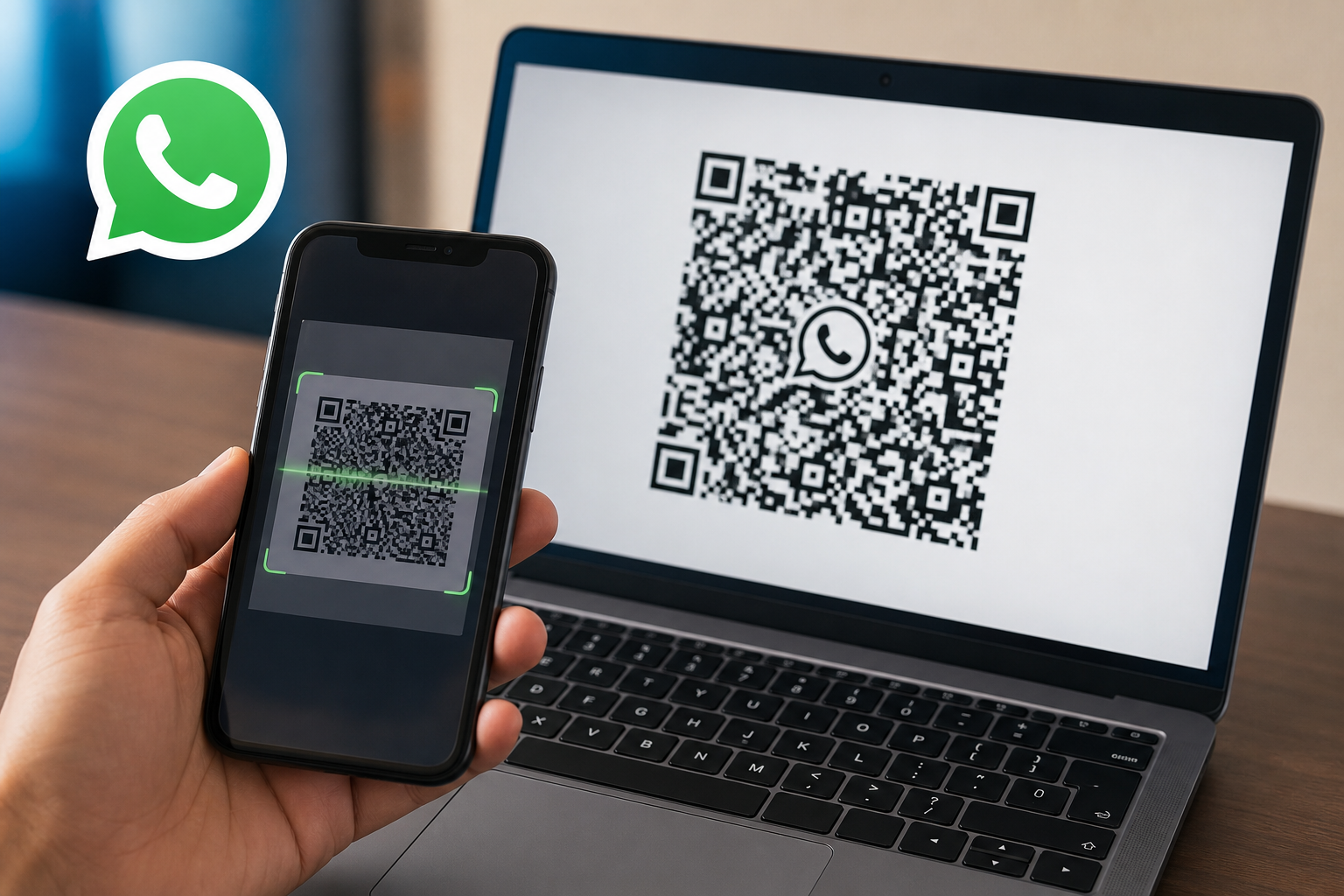
Chatting safely and managing your devices
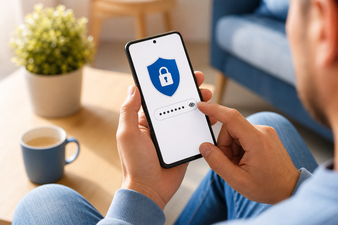
Privacy is a key concern when you use WhatsApp on a shared or public computer. Because the web version syncs your conversations, anyone with access to that browser can read your chats if you leave the session open. At the office, at school or in a library in particular, this is a serious security risk. A handy tip for occasional use is to open an incognito window: as soon as you close it, the session is wiped from that computer.
Fortunately, your own smartphone always gives you full control over which computers have access to your account. The 'Linked devices' menu shows a clear list of all active sessions. You can see exactly which browser was used (for example Google Chrome), on which operating system, and when the device was last active. Spot a session you don't recognise or an unfamiliar location? Then act straight away.
You can easily end unwanted or forgotten sessions remotely. Simply tap the device in the list on your phone and choose 'Log out'. The connection with that computer is cut immediately. The next person who opens the browser will only see the start screen asking them to scan a new code. Make a habit of logging out manually after every session on someone else's PC, using the three dots in the web interface itself.
Frequently asked questions about WhatsApp on your computer
Can I log in to WhatsApp Web without my phone?
No, for the very first link you always need your smartphone to scan the QR code. Without this step, you can't set up the secure connection. However, thanks to multi-device support, your phone no longer has to be online all the time after that initial link. So you can keep chatting on your laptop even if your phone's battery is dead or it has no signal.
Is it safe to use WhatsApp on a public computer, for example in a library?
Yes, as long as you're strict about logging out. The connection between the browser and the servers is end-to-end encrypted, which means the network traffic can't be intercepted. The risk lies purely in physical access: if you walk away without closing the session, the next user can read all your messages. So always click the three dots above your chat list and choose 'Log out' before you leave the public PC.
How long does WhatsApp Web stay active before I have to scan again?
A linked session stays active until you log out yourself, with two exceptions. If you don't use WhatsApp on your phone for 14 days, WhatsApp logs out your linked devices. If you don't use WhatsApp Web for 30 days, that computer is unlinked. Do you use your phone as normal and work on the same computer every week? Then in practice you'll hardly ever need to scan again.
Can I send files and media through WhatsApp on my computer?
Yes, the web version supports sending almost all common file types. You can drag photos, videos, PDF documents and Office files straight from your hard drive into a chat. Bear in mind, though, that the maximum file size for media and documents is the same as the limits in the mobile app. For sharing very large video files, a cloud service is still the better option.
With WhatsApp Web, your computer becomes a powerful communication tool, whether you go for the flexible browser version or the robust desktop app. Link your smartphone today at web.whatsapp.com and see for yourself how convenient fast chatting on a full-size keyboard is.