Oops, accidentally deleted an important message? Don't panic: in many cases that one message can still be saved. You can recover deleted WhatsApp messages as long as you have a backup from before the moment you deleted the message.
On Android, you restore that backup via Google Drive or a local copy; on an iPhone, via iCloud. Either way, you delete WhatsApp, reinstall the app and choose to restore during setup. Without a backup, you can sometimes still read recent messages on Android through the notification history.
The solution is often tucked away in your smartphone's settings. We'll walk you through which methods actually work in practice, step by step, and when you sadly have to accept that a chat is lost.
The golden rule: check your WhatsApp backup first
Whether you can recover anything depends entirely on when your last backup was made. So check the settings on your device straight away before you take any drastic steps.
Timing is everything: you can only recover WhatsApp messages if the backup was made before you deleted the chat. In the app, go to Settings > Chats > Chat backup and check the exact date and time. Does it say "never"? Then automatic backups weren't switched on, and turning them on now won't save a message that's already gone.
Every new backup overwrites the previous one. If you delete a chat this morning and the automatic backup runs tonight, that message won't be in it tomorrow. So don't wait.
New messages disappear: restoring a backup from yesterday? Then you'll permanently lose every message you sent or received today. Weigh this up carefully.
If you've ever turned on an end-to-end encrypted backup, WhatsApp will ask for the password or key you set up back then when you restore. Without that password or key, you can't open the backup.
Desktop apps won't help: don't look for solutions via WhatsApp Web, Mac or Windows. WhatsApp's official help centre confirms that chat history can only be recovered through the phone itself.
Older local files (Android only): no cloud storage? Android sometimes keeps older database files locally in the WhatsApp/Databases folder, recognisable by the file name msgstore-yyyy-mm-dd.1.db.crypt12.
Go ahead and restore if the lost information is essential and worth losing your most recent conversations. Avoid this method if you've made important business arrangements in the app today that aren't backed up to the cloud.
How to recover deleted WhatsApp messages (Android vs iPhone)
The two operating systems store your chat history in completely different ways. Understanding these differences helps you pick the right recovery method straight away.
Kenmerk |
Android |
iPhone |
|---|---|---|
Cloud storage |
Google Drive backup |
iCloud Backup |
Local storage |
Yes, in the internal Databases folder |
No, only via iCloud or a Mac/PC |
Last resort |
Read the notification history |
No built-in option without the cloud |
Required action |
Delete and reinstall WhatsApp |
Delete and reinstall WhatsApp |
Go for the Android method using local files if your Google Drive is full and you're looking for a specific date in the past. On an iPhone, always use the iCloud route, unless you happen to have made a full device backup via Finder or iTunes yesterday.
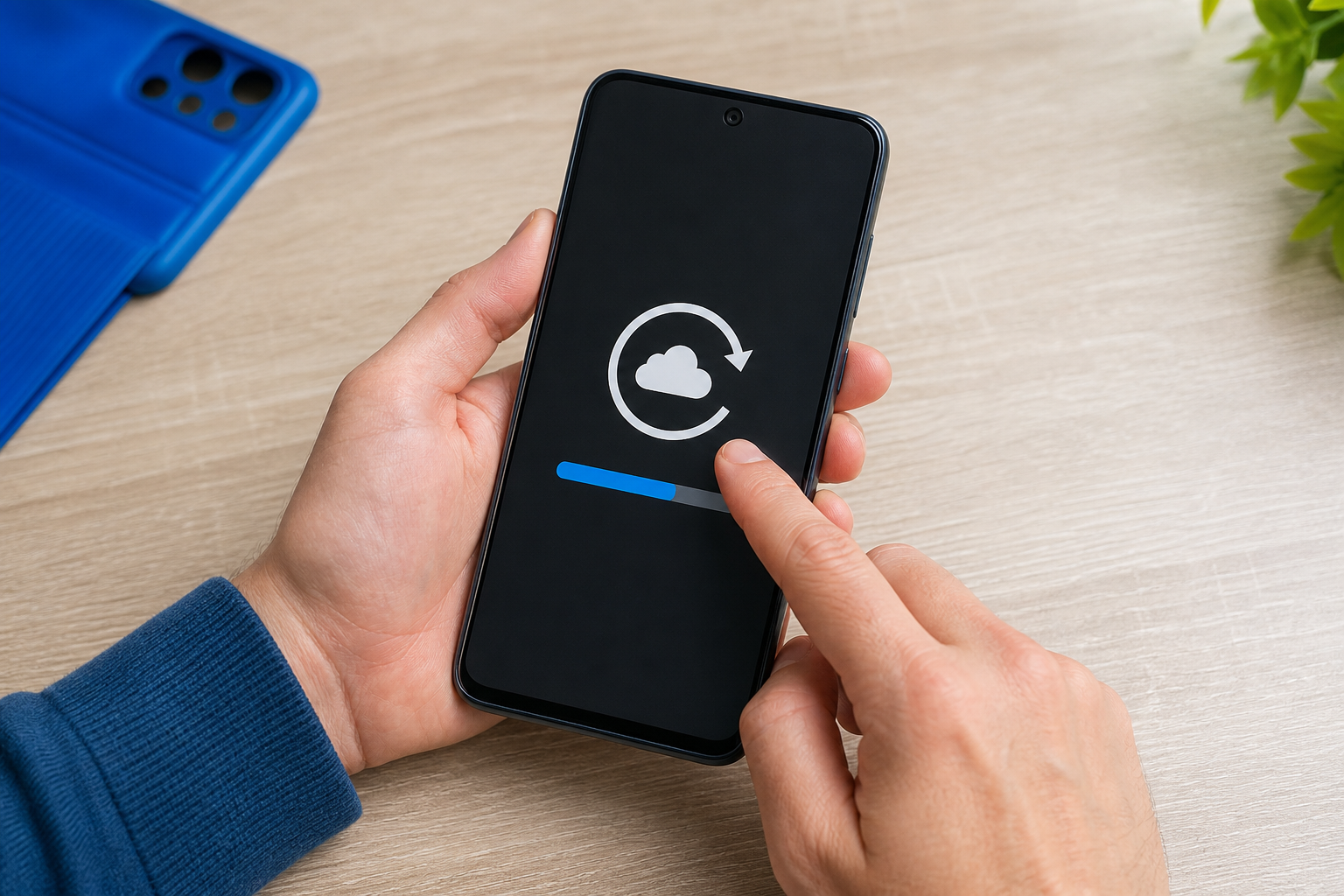
Step by step: restoring a WhatsApp backup on Android
After a clean install, an Android device automatically looks for the most recent backup in the cloud or on the device itself. Follow these steps carefully to avoid losing data.
-
1
Check the last backup date
Go to Settings > Chats > Chat backup. There you'll see when your last Google Drive backup was made. Make sure the messages you want are actually included in this version.
-
2
Delete the app
Remove the app from your phone completely. Don't worry: your account and the data stored in the cloud will stay intact.
-
3
Reinstall
Open the Google Play Store and download the latest version of the app to your device.
-
4
Verify your number
Enter exactly the same phone number you used for the original conversations. A different number will block the restore straight away because of encryption rules.
-
5
Tap 'Restore'
As soon as the app detects the Google Drive or local backup, a prompt appears. Tap the green restore button right away to start the process.
-
6
Wait for your media
Text messages show up first. Photos only come back if they were in the backup, and videos only if you chose to include videos in your backup settings. Wait until the restore has finished, then check your chats.
Cloud option not working? Use a file manager to find the WhatsApp/Databases folder. That's where you'll find local backups with names like msgstore-yyyy-mm-dd.1.db.crypt12, with the date of each copy in the file name. Rename the file from the date you want to the name of the current msgstore file, so the app recognises this older version when you reinstall.
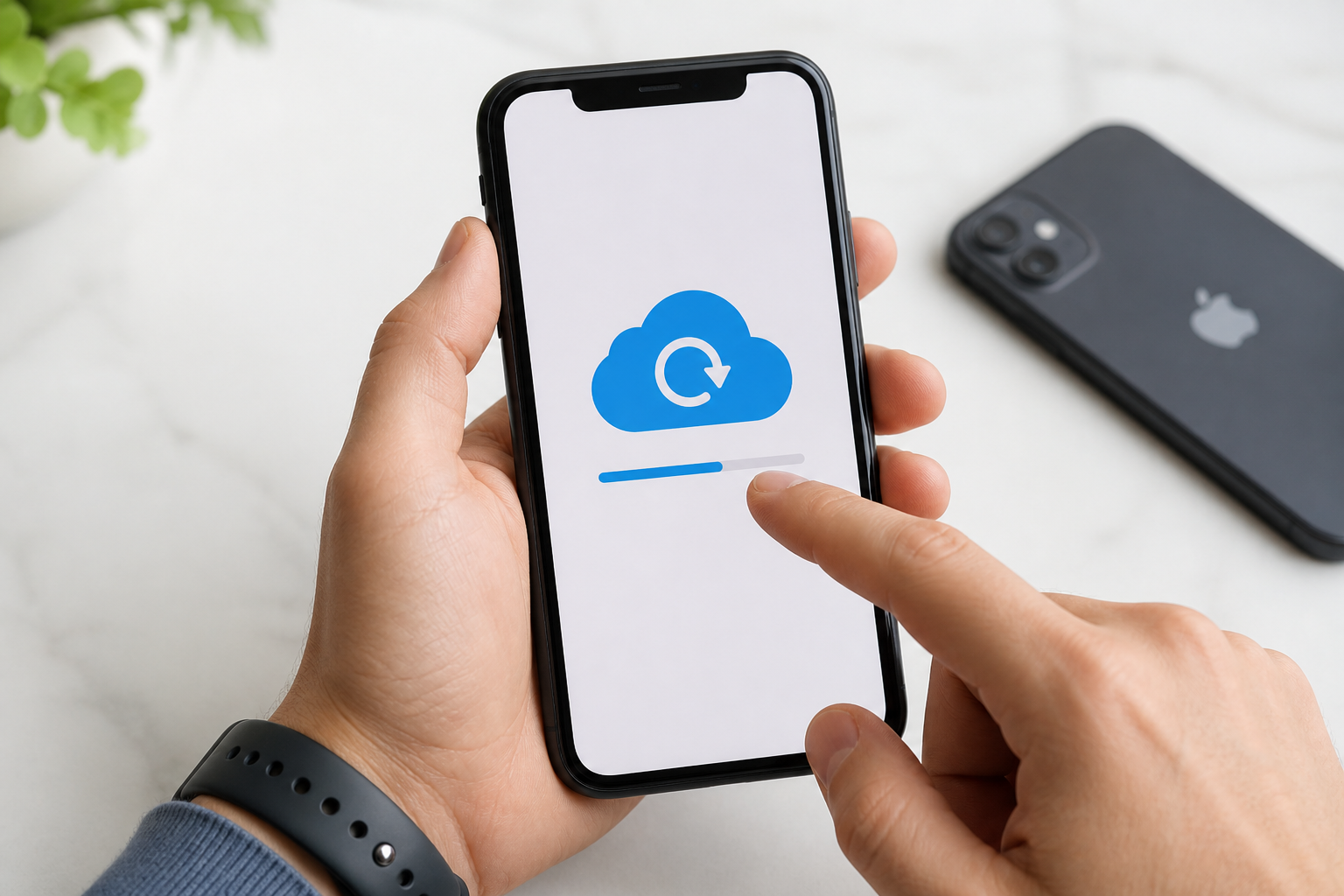
Step by step: recovering your chat history on iPhone
On an iPhone, restoring your chats depends entirely on Apple's servers. Make sure you have a stable Wi-Fi connection before you start.
-
1
Check the status
Open the app and go to Settings > Chats > Chat Backup. Check whether iCloud Backup is turned on and look at the timestamp of the last backup.
-
2
Remove the app from your device
Press and hold the icon on your home screen and choose 'Remove App'. You need to do this so the setup process runs again.
-
3
Download it from the App Store
Search for the app and reinstall it on your iPhone.
-
4
Log in with your details
Use your usual phone number. Also make sure you're signed in on your iPhone with the Apple ID linked to the iCloud Backup.
-
5
Start the restore
During setup, you'll see the option 'Restore Chat History'. Tap it straight away; you can't do this step later from a settings menu.
-
6
Keep the screen open
Don't close the app until the progress bar reaches 100%.
Choose this route if you have enough cloud storage and the timestamp is right. Avoid it if your iCloud is full and your last successful backup was months ago, or you'll lose all your recent data.
Reading messages without a backup: the notification history
No recent backup and using an Android smartphone? Then the operating system itself offers a handy way out via your notifications.
Notification history is a hidden feature that keeps earlier notifications for each app, so you can read them again later. Even if a sender deletes a message straight away with 'Delete for everyone', the original text often stays in your phone's notification history. You turn this option on in your device's general settings, usually under 'Notifications' or 'Apps and notifications'.
Once notification history is switched on, your device saves every push notification. Tap notification history and you'll see a chronological list of recent alerts. Look for the green app icon in the notification history to read the first lines of the deleted message. Bear in mind that notification history has clear limits. It doesn't put the text back in your chat, and you can only read what was visible in the notification itself, as long as that notification is still in the history.
Only use notification history as a quick way to read text messages you've just received. It's no use for older conversations or messages that are no longer in your phone's notification history. This workaround only works on Android, so on an iPhone you'll need your iCloud Backup to retrieve deleted WhatsApp messages.
Prevent data loss: set up automatic backups
Rescuing files by hand takes time and often causes unnecessary stress. Protect your conversations by letting the system do the heavy lifting.
Go to settings: open the app and go straight to Settings > Chats > Chat backup.
Choose a fixed frequency: select 'Daily' or 'Weekly' under automatic backups. Monthly is usually too infrequent to keep recent data safe.
Check in the same menu whether you can choose between backing up over Wi-Fi only or over mobile data too. What this option is called, and whether you see it at all, depends on your device. Choose Wi-Fi if you have a small data allowance. That stops automatic backups from quietly eating through your mobile data while you're on holiday.
Decide about videos: in the backup settings, you choose whether videos are included. Untick 'Include videos' if your cloud storage is almost full, as videos take up a lot of space.
Turn on end-to-end encryption: enable this extra layer of security so that not even Google or Apple can access the content of your stored backups.
Set up daily automatic backups if you use the app for work and don't want to take any risks. Go for weekly if you mostly message family now and then and want to save cloud storage.
FAQs about recovering WhatsApp messages
Can I recover a deleted WhatsApp chat without a backup on iPhone?
No. Without a saved copy in the cloud or on a computer, you can't recover data on an Apple device. iOS is a closed system that doesn't give access to hidden local databases or a notification history. Your only hope is to check whether you recently made a full backup of your device via Finder or iTunes, or whether your iCloud Backup happened to stay up to date automatically.
Do I always have to delete the app to restore?
Yes, in almost all cases you first need to remove the app from your phone. The app only offers the restore option during the very first setup step after a clean install. There's no button in the settings menu to load an old backup while the app is already running.
When you reinstall, verify the same phone number you used to make the backup. With a different number, WhatsApp may not recognise your existing backup, and you won't see the option to restore.
What happens to photos and videos I've received?
Media are restored too, as long as they were part of your last backup. Text appears on your screen right after reinstalling, while photos and videos keep downloading in the background over Wi-Fi. Note: if you'd unticked 'Include videos' in your settings to save space, your videos won't come back.
Where do I find the notification history on Android?
You'll find notification history in the general settings of your Android phone, not in WhatsApp itself. Go to Settings, tap 'Notifications' and look for 'Notification history'. As soon as you turn it on, your phone starts logging notifications. Notification history doesn't work retroactively for messages deleted before you switched it on.
Can I recover deleted messages via WhatsApp Web?
No, WhatsApp Web and the desktop apps for Mac and Windows can't restore chat history. These linked devices only show what's on your phone, so a deleted message disappears there too. Restoring always happens on your phone itself.
How can I check my last WhatsApp backup?
Open WhatsApp and go to Settings > Chats > Chat backup. There you'll see the date and time of your last backup. Was that backup made before you deleted the message? Then there's a good chance the message will come back.
What happens if I delete and reinstall WhatsApp without a backup?
Then you'll lose all your chats. After installing, WhatsApp starts with an empty chat list and you won't get an option to restore anything. So always check your backup date before you delete the app.
Do messages sent after my last backup come back too?
No, everything you sent or received after your last backup is lost when you restore. If you deleted a message at 15:00 and your backup ran at 02:00 that night, you'll get that message back, but you'll lose all chats between 02:00 and the moment you restore.
Can I restore an older local backup on Android?
Yes, you can do this with a file manager in the WhatsApp/Databases folder. That's where you'll find files like msgstore-yyyy-mm-dd.1.db.crypt12. Rename the one you want to the current file name so WhatsApp recognises it when you reinstall. This is technical work, so only do it if you know exactly which date you need.
Can I restore with a new phone number?
No, to restore you need to use the same phone number the backup was made with. With a different number, WhatsApp usually won't recognise the backup. Changing your number? Restore the backup with your old number first.
Whether you have an Android or an iPhone, a recent WhatsApp backup is the only real way to recover deleted WhatsApp chats. On Android, notification history can sometimes offer a way out, but prevention is always better than cure. Check your settings now and turn on automatic backups, so you never lose a message again.