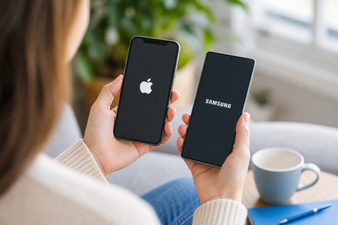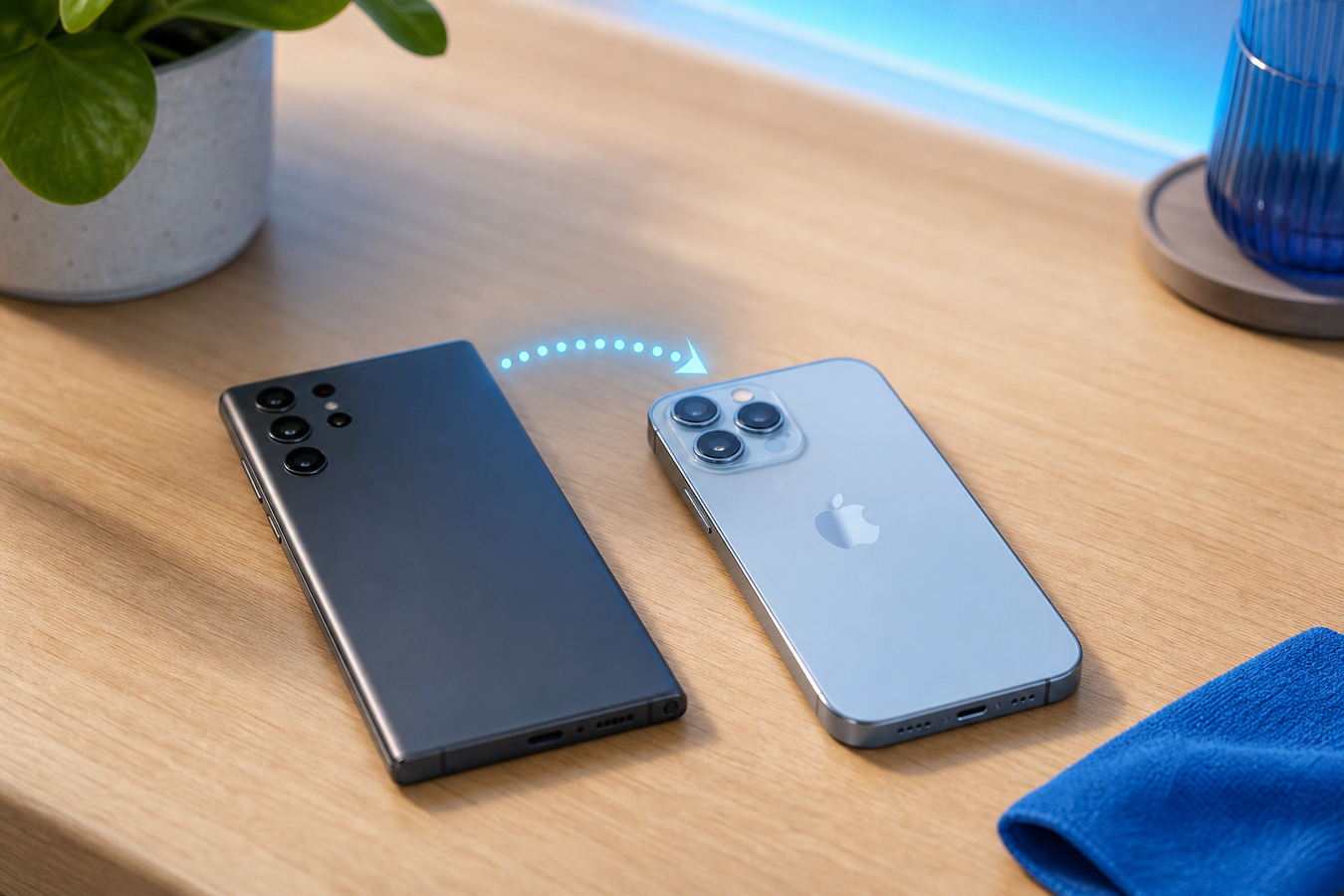
How do you transfer data from Android to iPhone? The safest and most complete way to move all your photos, contacts and messages is with Apple's official Move to iOS app.
You can run the transfer wirelessly or with a suitable cable. Prepare properly and follow the steps for your WhatsApp history, so you switch to your new phone without losing any data.

How should I prepare for the transfer?
How do you stop the transfer from freezing or failing halfway? A smooth start comes down to the right physical and technical preparation. Run through these simple steps before you open the settings.
Put both phones on charge. The process can take a while, and a flat battery can interrupt the transfer. You don't want to start the whole thing again from scratch. Check the battery level on both phones beforehand and keep them plugged in until the loading bar on the iPhone is completely full, even if your Android says it's done earlier.
Connect your Android phone to a stable Wi-Fi network. Moving all your photos and videos takes a huge amount of bandwidth, so a strong connection matters. Turn Wi-Fi on on both phones and keep them next to each other, in the same room as your router. If the Wi-Fi keeps dropping, temporarily turn off mobile data on your Android. That way the phone won't quietly switch to 4G or 5G in the middle of the transfer.
Check that your new iPhone has enough storage for all your Android files. Don't forget photos and videos on a microSD card, because those need to fit on the iPhone too. This is a good moment to delete apps you don't need and large videos. It'll cut the transfer time considerably.
Put a screen protector or a sturdy Mobigear phone case on your new iPhone before you start. You'll be juggling two phones at once, so protecting the iPhone straight away keeps it safe from drops while you set it up.
Go for a silicone case if grip is your priority: silicone feels slightly tacky, so the iPhone is less likely to slip out of your hand. Want more drop protection? Choose a hybrid case, which combines flexible edges with a hard back. A microfibre lining on the inside helps prevent scratches on the glass back.
Back up your old phone first with your Google account or Google One. That way you know your contacts and notes are safe if something does go wrong. A backup doesn't replace the Move to iOS app, but it's your safety net if the transfer gets interrupted.
Update WhatsApp on your Android to the latest version. With an older version, your WhatsApp chats won't transfer to the iPhone.
How do I use the Move to iOS app?
Apple's official app supports Android 4.0 or later. This method moves your personal files during the very first setup of your new smartphone. Install the app from the Google Play Store to avoid glitches or problems with unknown third-party software. The app bundles all the files you select into a single wireless transfer.
-
1
Turn on your new iPhone and follow the on-screen instructions until you reach the 'Transfer Your Apps & Data' screen.
-
2
Tap 'From Android', and the iPhone will show a unique ten-digit or six-digit code.
-
3
Download and open the official Move to iOS app on your Android phone from the Google Play Store.
-
4
Enter the code on your Android phone and select the data you want to transfer, such as contacts, messages and photos.
-
5
Leave both devices alone until the loading bar on the iPhone is completely full.
Never stop the process early. Your old phone often says the transfer is complete well before it actually is, while the iPhone is still busy processing the data in the background. Once the loading bar on your iPhone is really full, you can finish the setup on screen. Afterwards, always check that the data transfer worked properly before you wipe your Android phone for good.
Can I move data from Android to iPhone after I've already set up my iPhone?
So you've already switched on your new phone and made it to the home screen. The Move to iOS app only works during the very first setup, on the welcome screen. Because you're past that point, the iPhone won't start the automatic transfer.
That means you'll need to reset your iPhone to factory settings first. This erases everything you've changed, so you can start the setup again from scratch. During the new setup, you can choose 'From Android' again.
If you've already taken photos or set things up on the new iPhone, back them up first, because erasing removes that data too. You start the reset in the iPhone's settings, after which the welcome screen appears again. Use that moment to put on your case as well, so the phone is protected in your hand during the long setup. Clip the case on all the way round without pressing hard on the buttons, or you might accidentally lock the screen or restart the iPhone halfway through.
Would you rather not erase the phone? You can still move the basics over manually. For example, add your Google account to the iPhone to pull in your existing contacts straight away. Text messages and WhatsApp chats won't come across this way, though, because the Move to iOS app is the official way to transfer them. If you want your chats and messages on the iPhone, it's best to erase it and start again with 'From Android'. Leave your Android phone untouched in the meantime, so all your data stays safe there.
Ready to protect your new iPhone?
Find the accessories that complete your phone!
Can I transfer data with a cable instead of wirelessly?
Yes, you can also transfer data with a cable. Go for a wired transfer if you don't have a reliable Wi-Fi network. A cable can sometimes make your Android to iPhone transfer faster and more stable.
-
1
Check which data cable you need. Depending on your iPhone model, that's a USB-C to USB-C cable or a Lightning to USB-C cable.
-
2
Get the right connector if you don't have one. You can easily pick up a suitable, fast data cable at directcases.com.
-
3
Connect the phones to each other. Plug the cable into both devices before you confirm on your Android phone that you want to transfer the data.
-
4
Follow the rest of the on-screen steps. The devices will now send all your photos and contacts securely over the cable.

How do I transfer my WhatsApp chats from Android to iPhone?
You transfer your WhatsApp chats from Android to iPhone with the Move to iOS app, as Apple lists WhatsApp messages and media among the data that moves across during setup. Make sure you update WhatsApp on your Android phone to the latest version first, as that's one of the requirements for this transfer. If WhatsApp is still missing afterwards, that update on Android is the first thing to check.
When you then use the Move to iOS app, you'll see an overview of all the available data. Make sure you tick the option for WhatsApp chats here, so all your messages and photos are queued for the transfer. Forget that tick, and your WhatsApp data stays behind on the Android phone. You'd then only be able to transfer it with the app by erasing the iPhone first. Allow some extra time too, as lots of videos and voice messages in WhatsApp make the transfer noticeably longer.
Use the same phone number on your old Android phone and your new iPhone, because the WhatsApp transfer is tied to that number. If you're also changing your number or network in the same week, it's better to sort that out separately from the switch, so moving your chats stays as simple as possible. Ideally, put your SIM card or eSIM in the iPhone beforehand, because WhatsApp sends a verification text to that number and you'll want to receive it on the new phone. Install WhatsApp on your iPhone during or after the transfer, when the on-screen instructions ask you to. Then open the app, enter your usual number and follow the steps to move the chats to your iPhone.
It's tempting to clear out your old phone straight away, but this is exactly the stage where you need to be careful. Only reset your Android phone to factory settings after you've opened WhatsApp on your iPhone and checked your chats. Scroll through your recent conversations and make sure the documents and media you've sent are really there. Open a busy group chat, for example, and a chat where you once sent a PDF, because older attachments are where you'll spot missing items fastest. Only when you're sure all your key data has come across correctly can you safely wipe your old smartphone.
What doesn't get transferred automatically?
Why don't you see all your familiar apps and files on your new screen straight after a successful transfer? The Move to iOS app moves a lot of data, but it doesn't always bring the following across automatically:
Paid Android apps aren't transferred, because iOS apps are built completely differently. You'll need to find these apps in the Apple App Store yourself and sometimes buy them again.
Certain logins or passwords aren't guaranteed to transfer. Keep your password manager to hand during setup so you can get back into everything straight away. If your password manager has an iOS app, install that first on the iPhone. It'll make logging in to your banking app and other apps much quicker.
Local music files or specific downloaded documents that aren't in the cloud don't always move across automatically. You may need to move these files manually using the file manager on your computer. Files in Google Drive won't appear in iCloud on their own; keep using Google Drive or copy them to iCloud yourself.
Should I transfer my data or my SIM card first?
You don't have to move your SIM card before the data transfer; you can do it afterwards too. Our advice: put your physical SIM card in your iPhone just before or during the data transfer. The main reason is WhatsApp, because the app sends a verification text straight after the transfer to confirm your profile. Without a SIM card in your new iPhone, you won't receive this code at all, or it'll suddenly pop up on your old phone, which causes unnecessary confusion during the switch.
If you use an eSIM instead of a physical SIM card, the same timing applies. Your eSIM doesn't move across automatically with Move to iOS, so you'll often need to request a new activation for your iPhone from your network provider. Check beforehand whether your provider supports eSIM and keep the QR code or instructions they send you. Activate the eSIM before you open WhatsApp on the iPhone, so the verification text arrives on the right phone.
Before you put the phones side by side, it's also worth checking the physical size of your current SIM. If your old Android phone still uses a larger micro-SIM and your new iPhone needs a nano-SIM, the old card simply won't fit. In that case, get a new card or an eSIM from your provider before you make the switch. Once the right SIM card is in your new iPhone and the data transfer is done, test straight away that calls and mobile data are working properly.
Frequently asked questions
How do I link my iPhone to my Google account?
You add your Google account in Settings on your iPhone, under 'Mail' or 'Contacts'. Tap 'Accounts' and choose 'Add Account'. Sign in with your Google details and then switch on what you want to sync, such as contacts, calendars and notes.
Is it easy to transfer from Samsung to iPhone?
Yes, switching from a Samsung works exactly the same as from any other Android phone. Simply download Apple's app from the Google Play Store on your Samsung phone. As long as the software is up to date, you can then copy everything across over the wireless connection.
How do I set up a new iPhone?
You set up a new iPhone by turning it on and following the on-screen steps. Connect it to Wi-Fi, set up Face ID and choose 'From Android' on the 'Transfer Your Apps & Data' screen. If you skip that screen, you'll need to erase the iPhone later to transfer your Android data automatically.
What happens to WhatsApp with a new SIM card?
If your new SIM card also comes with a new phone number, change that number in WhatsApp on your old Android phone first. If you don't, you won't be able to restore your chat history on your iPhone. If you keep the same number, you'll just verify WhatsApp on your new phone with a text code.
How long does an Android to iPhone transfer take?
There's no fixed time: it depends on your Wi-Fi connection and how much data you're moving. A phone full of videos and WhatsApp media takes noticeably longer than one with mainly contacts and messages. Keep both phones on charge and don't interrupt the transfer, even if your Android says it's 'done' earlier.
Can I wipe my Android phone straight after the transfer?
No, only wipe your Android phone once you've checked everything on your iPhone. At the very least, look at your contacts, photos, WhatsApp chats, calendars, banking apps and authenticator apps. Only when all of those work should you reset the old phone to factory settings.
Are all my apps transferred automatically?
No, apps aren't copied one-to-one. Your iPhone looks up free apps in the App Store, but you'll usually have to buy paid Android apps again. You'll then need to log in to each app again, so keep your password manager to hand.
Thanks to Apple's official software, transferring data from Android or Samsung to an iPhone is pretty straightforward. Just make sure you have a full battery, stable Wi-Fi and a bit of time to prepare. Is your new iPhone fully set up? Then protect it straight away. Pick out a sturdy case, screen protector and the right cables at directcases.com.