Got an important email, a funny meme or a handy recipe on your screen that you want to keep? A screenshot captures it in seconds. Below you'll find how to screenshot on iPad models with and without a Home button, plus how to edit and share your screenshot.
How do I take a screenshot on an iPad?
First, check which model you have. The difference is the round Home button below the screen: does your iPad have one or not? Recent iPads no longer have a Home button. On both types, you briefly press two buttons at the same time.
| iPad model | Feature | Button combination | Best for |
|---|---|---|---|
| iPad Pro (2018 and later), iPad Air (4th generation and later), iPad (10th generation and later), iPad mini (6th generation and later) | No Home button (Face ID or Touch ID in the top button) | Top button + volume up button | Recent models |
| iPad (up to 9th generation), iPad Air (up to 3rd generation), iPad mini (up to 5th generation) | Round Home button below the screen | Top button + Home button | Older models |
Use the volume method if you have a recent iPad without a Home button. Use the Home button method if your tablet still has a clearly visible round Touch ID button on the front. Don't hold the buttons down on either model, as that can accidentally bring up the power-off screen or Siri.
How to screenshot on an iPad without a Home button
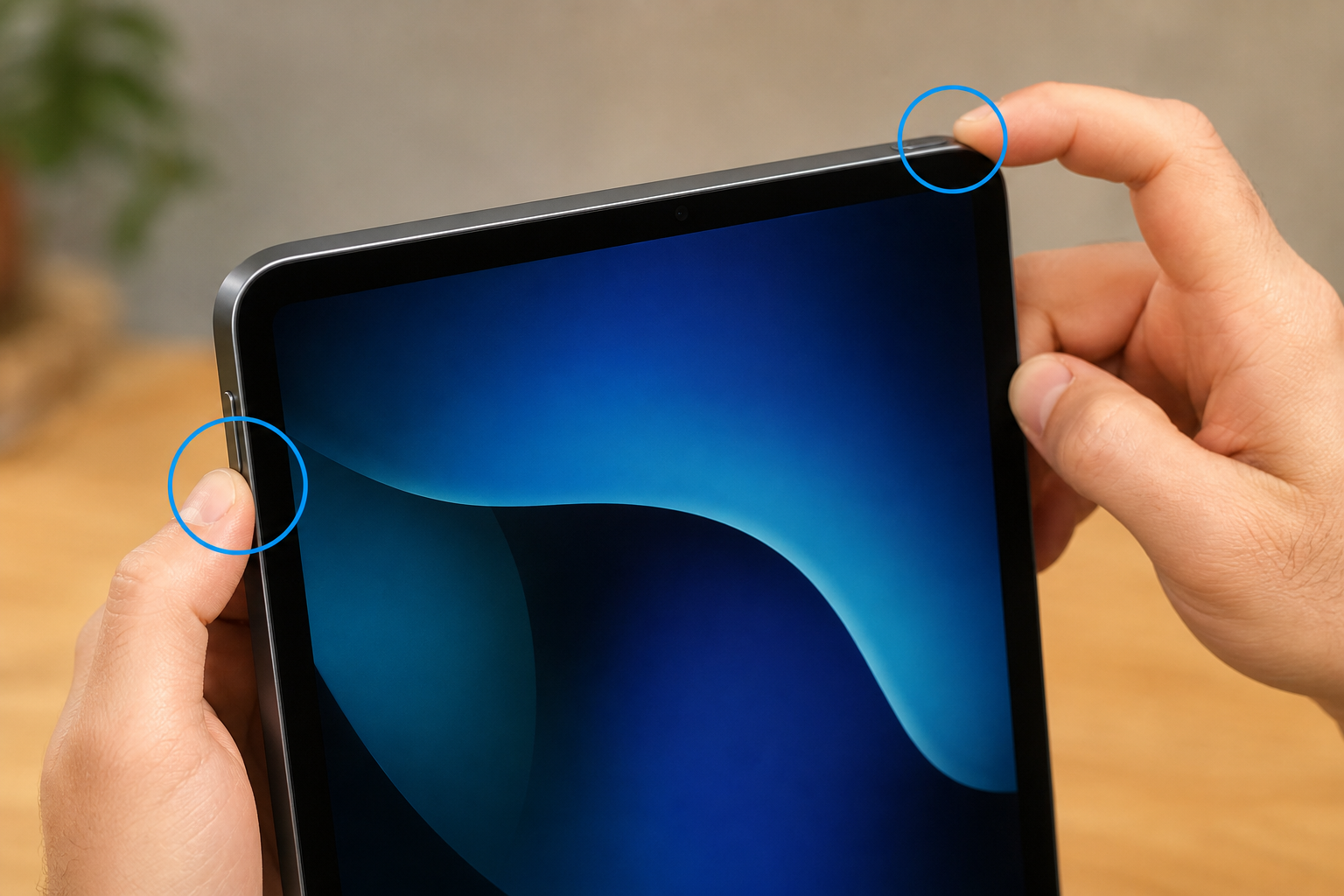
Newer models such as the iPad Pro and iPad Air don't have a physical button on the front. On these, you only use the buttons on the edges of the casing to capture your screen.
-
1
Open the app you want
Make sure the information you want to capture is fully and clearly on screen.
-
2
Position your fingers
Find the top button (power) and the volume up button.
-
3
Press both at once
Press both buttons at the same time and release them straight away. Holding them brings up the power-off screen instead of taking a screenshot.
-
4
Look for the flash
The screen briefly flashes white and you'll hear a camera shutter sound, as long as your sound is on.
-
5
Tap the thumbnail
A small preview appears straight away in the bottom-left corner. Tap that thumbnail to open the image and edit it right away.
Skip this button method if your tablet is in a thick, rugged case that blocks the buttons or makes them stiff. In that case, use one of the software alternatives in the sections below.

How to screenshot on an iPad with a Home button
Older models rely on the familiar round button below the screen. On an iPad with a Home button, timing matters: otherwise you might close the open app and end up on the Home Screen by mistake.
-
1
Get your screen ready
Go to the web page, document or app you want to save.
-
2
Find the right buttons
Put one finger on the top button (power) and your thumb on the round Home button at the bottom of the screen.
-
3
Press both briefly at the same time
Press the top button and the Home button at the same time. Release both buttons straight away.
-
4
Check it worked
A white flash and a clear click sound confirm that the screenshot was taken.
-
5
Ignore or open the thumbnail
Just ignore the thumbnail in the bottom-left corner if you want to carry on; the image is saved automatically.
This is the method to use on older models, unless the Home button is worn out or has become unreliable after years of use.
Other ways: Apple Pencil and AssistiveTouch
Sometimes the physical buttons are awkward to reach, or you'd rather do everything on the touchscreen. iPadOS has built-in alternatives that let you take screenshots without breaking your workflow.
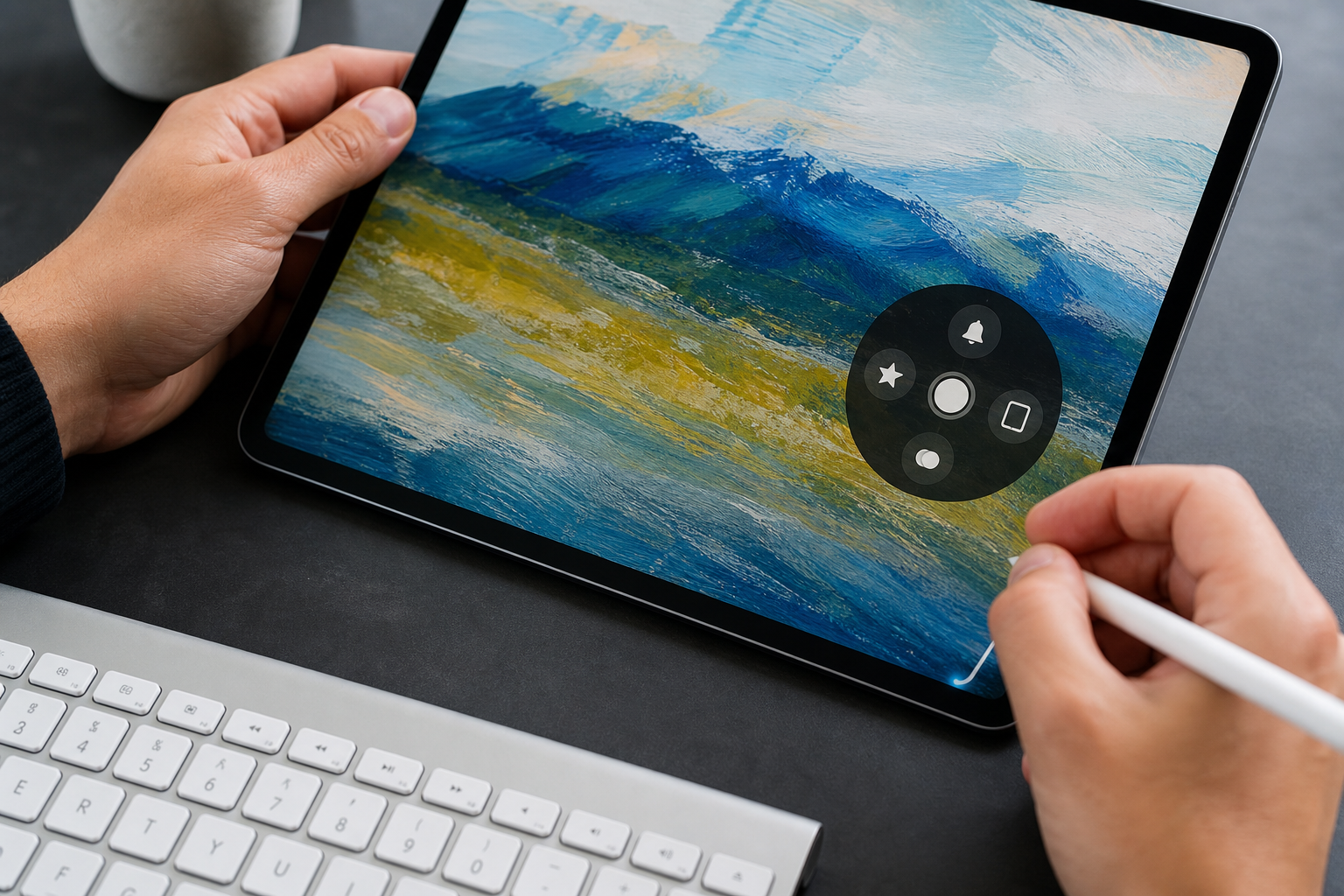
Apple Pencil swipe: With an Apple Pencil, swipe diagonally upwards from the bottom-left or bottom-right corner of the screen. You can choose which corner takes a screenshot in Settings > Apple Pencil.
Turn on AssistiveTouch: Turn on AssistiveTouch in the iPadOS Accessibility settings to get a virtual button on your screen. Assign the Screenshot action to a single or double tap on this floating button – ideal if you have limited mobility.
Keyboard shortcut: With a connected keyboard, use the shortcut Command + Shift + 3, just like on a Mac. To go straight into editing mode, use Command + Shift + 4.
Use the Apple Pencil method if you work in drawing apps and don't want button combinations interrupting your creative flow. Turn on AssistiveTouch if your tablet's hardware buttons are stiff or have stopped working altogether. Skip the keyboard shortcuts if you only use the on-screen keyboard, as these commands don't work there.
How to take full-page screenshots in Safari
Long articles, recipes or web pages rarely fit on one screen. In Safari, you can capture the whole page in one go, without stitching separate images together.
-
1
Open a website
In Safari, go to the page you want to save in full and wait until all the images have loaded.
-
2
Take a normal screenshot
With the website open, take a regular screenshot using the buttons or your Apple Pencil.
-
3
Tap the thumbnail straight away
Don't wait for the preview to disappear – tap the small image in the bottom-left corner straight away.
-
4
Choose the right mode
Tap the thumbnail and choose Full Page at the top. A scroll bar appears on the right so you can check the whole capture.
-
5
Save it as a document
Tap Done and choose Save PDF to Files. Saving it as a PDF in the Files app rather than as a photo keeps the text selectable.
Use this full-page option in Safari or Apple's own document apps. It won't work in third-party apps (such as Chrome or Firefox) if the developer doesn't support this deeper iPadOS integration yet; the Full Page option simply won't appear in the menu.
How to edit, save and share your iPad screenshot
You can edit your screenshot right after taking it. Tap the thumbnail in the bottom-left corner and use the Markup tools to highlight text, circle something or draw an arrow. Drag the handles on the edges inwards to crop out menus or information you don't want to share.
You'll find your screenshots in the Photos app, in their own album under Albums. Is there anything sensitive on it, such as bank details or a private conversation? Crop it out before you share the image.
Just want to send a screenshot quickly? Tap the share icon in the editing screen, choose AirDrop, Mail or another app and send it. You can then delete the screenshot so it doesn't take up storage on your iPad.
iPad screenshots: frequently asked questions
Where exactly are my screenshots saved?
By default, all your screenshots end up in the Photos app, in the automatically created Screenshots album under the Albums tab. The only exception is full-page PDFs, which you save manually to a folder of your choice in the Files app. Thanks to this automatic sorting, you never have to dig through your holiday photos to find them.
How do I screenshot without pressing buttons if my iPad's buttons are broken?
Turn on AssistiveTouch in the Accessibility settings (Settings > Accessibility > Touch) to put a virtual button on your touchscreen. In this menu, assign the Screenshot action to a tap on that button so you can bypass the physical buttons completely. It's a reliable, permanent fix for an iPad whose Home button or power button no longer works.
How do I make a screen recording (video) instead of a screenshot?
First, add Screen Recording to your Control Centre via your tablet's settings. Then swipe down from the top-right corner of the screen and tap the round record button (a solid circle with a ring around it) to start recording a video of what's on your screen. Use this to capture gameplay, document a software bug or make step-by-step tutorials.
Why is there no sound when I take an iPad screenshot?
If you don't hear the usual camera shutter sound and only see a white flash, your tablet is probably in silent mode. Open Control Centre (swipe down from the top right) and check whether the bell icon has a red line through it. You also won't hear a sound if your device's volume is turned all the way down with the volume buttons, or if you have earbuds connected.
With the buttons, your Apple Pencil or a full-page capture, you can quickly take a screenshot on any iPad. Give it a try now and edit your latest screenshot in the Photos app.