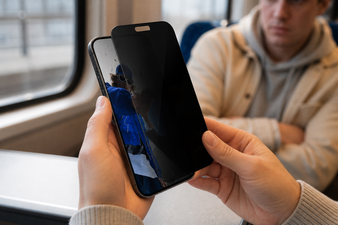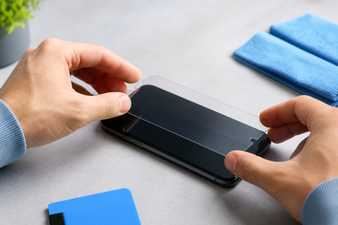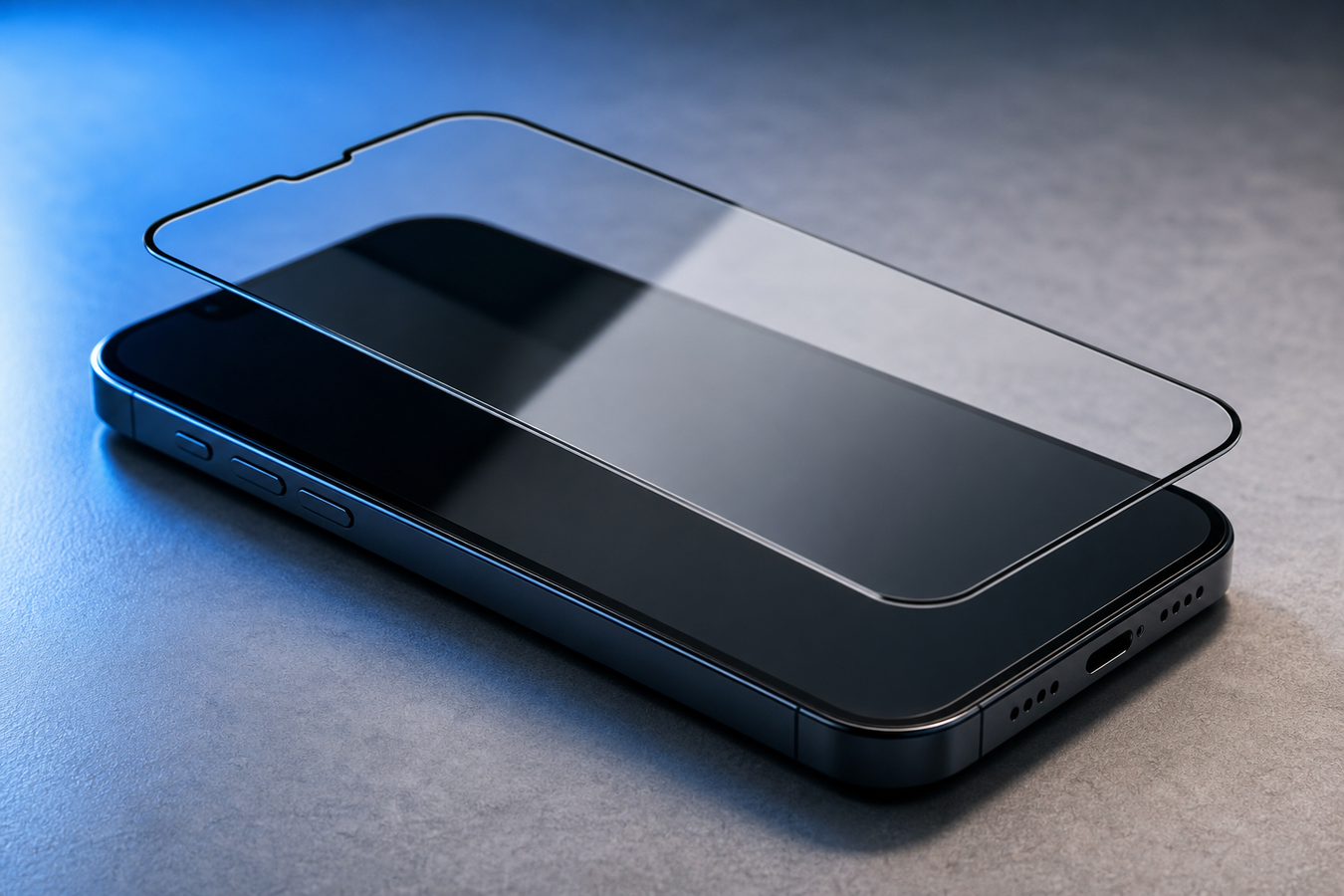
Fingerprint not working after you put on a screen protector? Start by re-registering your fingerprints with the protector on. That usually fixes it. If it doesn't, there's almost always dust or an air bubble over the sensor, or the protector isn't suited to your type of scanner.
Work through the steps in order, from the quickest fix to the last resort. That way you'll quickly know whether you can sort it out yourself or need a different screen protector.
Why is my fingerprint not working with my screen protector?
There's now an extra layer between your finger and the sensor. That changes the distance and the signal the scanner picks up, so your old registration no longer matches properly.
Old registration. Your fingerprint was saved without a protector. The scanner compares a new image taken through glass or film with an old image without that layer. That often fails.
Thickness and material matter. Tempered glass is rigid and often thicker, while TPU and hydrogel film are thin and flexible. Thinner isn't automatically better: a cheap thin film that doesn't stick well sometimes works worse than well-fitting glass.
Air bubble or dust over the sensor. Anywhere else on the screen, a bubble is mostly just unsightly. Right over the sensor, it stops the scanner from reading your finger properly.
The type of adhesive makes a difference too. If there's only adhesive around the edges, a thin layer of air stays over the sensor. Ultrasonic scanners in particular struggle with that.
Applied off-centre. Does an edge, cutout or print sit right over the sensor? Then the image won't be right, no matter how often you re-register.
Step 1: re-register your fingerprints with the screen protector on
Delete your old fingerprints and register them again with the protector on. Your old print was saved without a protector, so your mobile phone is now comparing your finger with an image that no longer matches.
That's why re-registering is the first and most effective fix: the new scan is taken right through the screen protector. It takes two minutes.
-
1
Have your PIN or pattern to hand. Without it, you can't delete or add fingerprints.
-
2
Samsung Galaxy: open Settings and search for 'fingerprint' to get to your saved fingerprints. Delete all the old prints, then tap Add fingerprint. Don't leave any old registration in there, as it can interfere with recognition.
-
3
Google Pixel: open Settings and search for 'fingerprint' to find the unlock setting. Delete the saved fingers and set them up again.
-
4
Vary your finger position while scanning. Place your finger slightly differently each time: straight, at an angle, and include the sides of your fingertip too. Don't press hard. A light touch works better, especially with an ultrasonic scanner.
-
5
Test it straight away. Lock the screen and unlock it a few times in a row with your finger. Still failing regularly? Then re-registering isn't enough and you can move on to the next step.
With an optical scanner and a well-fitting protector, this is usually all you need to do. Still not working well? Do a second round using the tips below.
Tips for a more reliable registration
Use these tips on your next registration round. They cost nothing and, in practice, sort out a lot of borderline cases.
Clean and dry the screen and your fingertip first. Grease, hand cream or a smudge on the glass interferes with recognition right from the first scan.
Breathe lightly on your fingertip just before scanning. Keep it to a tiny bit of moisture, because a clean fingertip is still the basis. It shouldn't be properly wet.
Save the same finger two or three times as separate fingerprints. Your phone then has more images to compare against. That makes a noticeable difference for your thumb.
Register while holding your phone the way you do every day. Do you unlock one-handed? Then scan one-handed too, at the same angle.
Dry hands in winter? Register again later, once your skin is back to normal. A print taken from rough, dry skin matches poorly once your hands recover, so keep both versions saved.
Step 2: touch sensitivity and screen protector mode
Touch sensitivity makes your screen more sensitive to touch, not your fingerprint sensor. So the scanner itself doesn't scan any more sharply. Still, the setting sometimes helps indirectly, because the screen detects your finger faster and so starts the scanner sooner.
-
1
Turn the setting on on your Samsung. Go to Settings > Display > Touch sensitivity and switch it on. On a Galaxy with a thick glass protector, the screen often responds noticeably better afterwards.
-
2
On other phones, such as a Google Pixel, check whether there's a similar option. Search for 'touch sensitivity' in Settings. Not every model has this option, and the name may differ.
-
3
Test a few things straight away. Unlock a few times with your finger, type a message and swipe along the edges of the screen. Does the screen respond better, but the scanner fails just as often? Then the problem isn't the touch response.
In practice, we find this setting mainly helps if typing and swiping have also felt sluggish since you put the protector on. Is the rest of the screen working fine? Then you can skip this step.
Step 3: check for air bubbles, dust and adhesion around the sensor
Check the sensor area for air bubbles, dust and loose edges. Put your phone under a bright light and go through this list.
Look at the sensor area from an angle. Can you see an air bubble, a speck of dust or a milky white patch right over the scanner? Then you've probably already found the culprit.
Push an air bubble from the centre towards the nearest edge with your thumb or a card. Work slowly and never use anything sharp, as that will damage the glass or the adhesive layer.
Press the spot down with a card. Run a bank card over the sensor area a few times with light pressure so the adhesive sticks better there. Then re-register your fingerprint. Ultrasonic scanners in particular benefit from an adhesive layer that's in full contact everywhere.
Check the alignment. Is the screen protector on crooked? Then pressing it down won't help, and you'll need to reapply it or replace it.
Put your case on and look at the edges. If the case pushes up the edges of the protector, the glass slowly lifts and air gets to the sensor. A different case or a slightly smaller protector solves that.
Does the screen protector need replacing? Then follow our separate article on applying a screen protector perfectly, which covers every step in detail.
Last resort: when should you choose a different screen protector?
Samsung says it itself: with screen protectors from other brands, proper scanner performance isn't guaranteed. So sometimes the problem simply lies with the protector, no matter how often you re-register. First, check whether you've reached that point:
You've re-registered your fingerprint and turned on touch sensitivity, but the scanner still fails.
Pressing down with a card doesn't help, or the milky white patch over the sensor comes back after a day.
Edge adhesive on an ultrasonic scanner. Is the adhesive only around the edges and do you have a Galaxy S model with an ultrasonic scanner? Then stop troubleshooting, because you won't get that layer of air out.
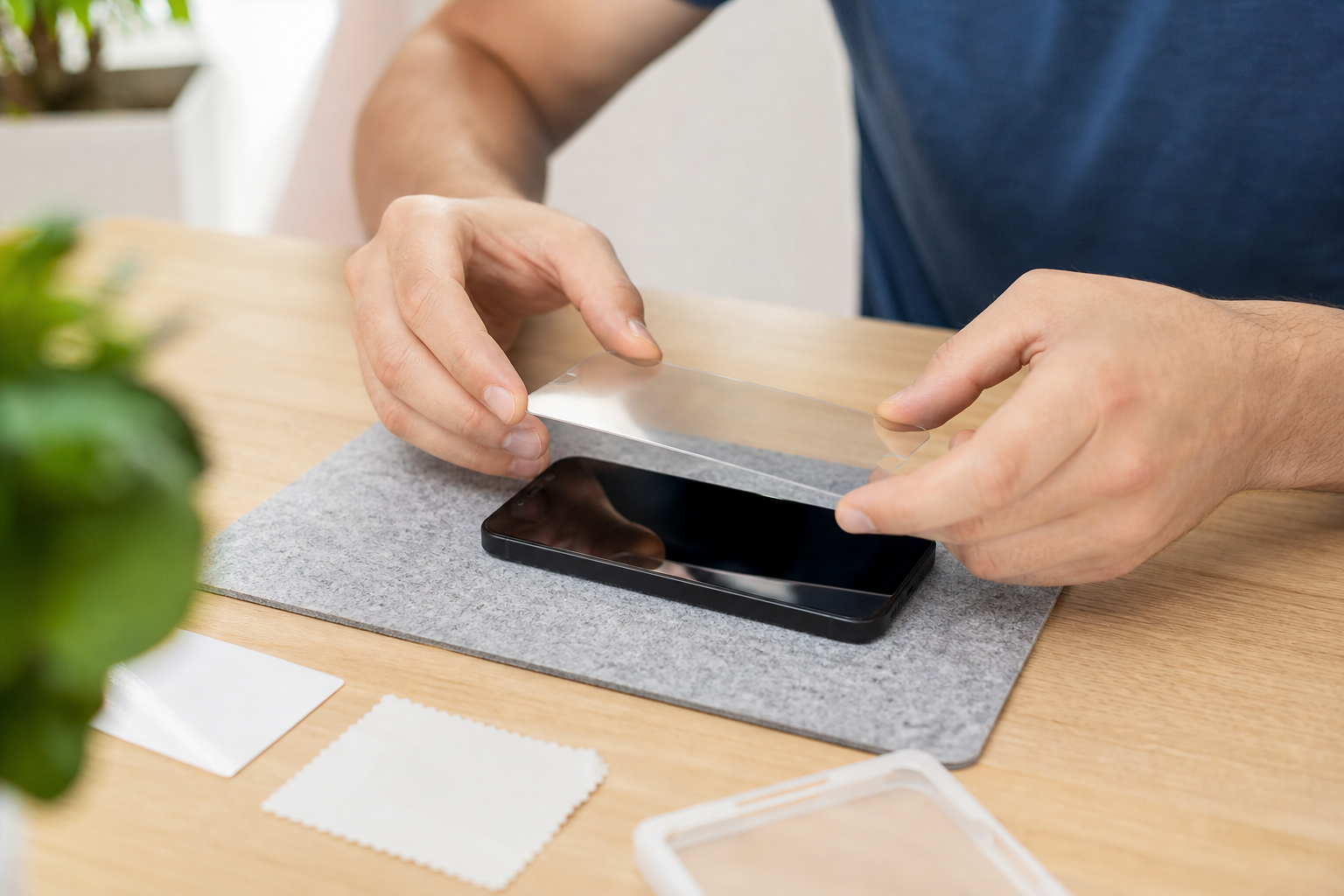
When buying a new protector, look out for these points:
Check whether it says "fingerprint scanner compatible" for your exact model. "Fits Samsung Galaxy" tells you nothing, because Galaxy models use different types of scanner.
Choose full adhesive across the whole glass. That works best for ultrasonic scanners.
Weigh up the material. Tempered glass protects better against cracks, and thinner isn't always better. TPU or hydrogel is thinner and flexible, but protects less against a drop.
Choose a protector that comes with an alignment frame. That makes it less likely an edge or cutout ends up over the sensor.
PanzerGlass, for example, has models made for in-display scanners. Check your device on directcases.com to see which protectors are compatible with the fingerprint scanner.
Popular screen protectors
Frequently asked questions
Which is better, a glass or plastic screen protector?
Tempered glass is better for most people, because it gives more protection against cracks and scratches. Plastic film such as TPU or hydrogel is thinner and flexible, but doesn't absorb a drop well. Go for film mainly if your device has strongly curved edges that glass won't stay stuck to.
What should you look for when buying a screen protector?
Mainly look at your exact device model and the "fingerprint scanner compatible" label. Got a Galaxy S model with an ultrasonic scanner? Then get a protector with full adhesive, not edge adhesive. An included alignment frame saves a lot of crooked application.
How do you clean a screen protector?
Wipe the screen protector with a dry or slightly damp microfibre cloth. Don't use abrasives or kitchen roll, as they leave fine scratches on the coating. Greasy smudges over the sensor can already interfere with recognition, so clean that spot more often.
How do I apply a screen protector?
Make the screen dust-free, line up the protector with a frame and push air bubbles from the centre to the edge. The full installation is in our separate step-by-step guide.
Should I re-register my fingerprint after putting on a new screen protector?
Yes, delete the old fingerprints and register them again with the protector on. Your old registration was made without that extra layer, so it matches less well. Do this even if the scanner seems to work at first glance, as it saves failed attempts later.