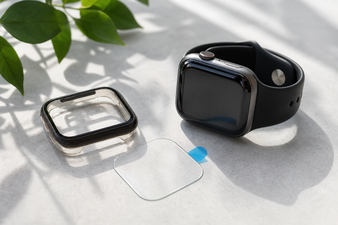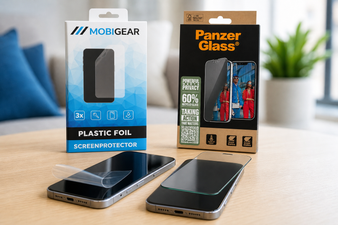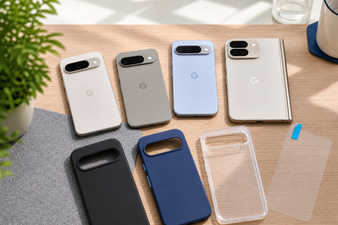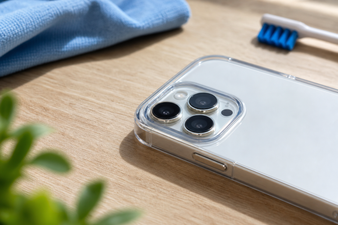
You've just put on a new screen protector and suddenly your screen is missing taps or responding slowly. On a Samsung, the screen sensitivity usually drops because of the protector itself: it's too thick, there's air or dust trapped underneath, or your case is pressing on the edge. You can often fix it yourself: increase the touch sensitivity on your Samsung or other Android phone, adjust the touch duration on your iPhone or work out the air bubbles.
Why is your touch screen not responding properly with a screen protector?
A modern display uses capacitive technology, which means the screen responds to the slight electrical charge of your fingertip. Every extra layer on the screen affects how that signal gets through. How much your touchscreen sensitivity drops depends on three physical factors.
Physical barrier and distance: A screen protector literally puts distance between your finger and the sensors in your phone's screen. The greater that distance, the weaker the electrical signal, so the screen ends up missing taps or swipes.
Material thickness: Thicker materials such as tempered glass (often 0.33 mm thick) reduce the signal far more than a wafer-thin protective film. With this thicker material, you often have to press harder for the screen to register a tap.
Interference from dirt or air: Dust, dirt or bubbles under the glass block the touch completely. Air doesn't conduct electricity, so an air bubble acts as a dead zone where the screen simply won't respond.
Pressure from outside: A tight phone case that doesn't line up properly with the edges of your screen protector can push the glass up without you noticing. As soon as your phone case presses on the corners, an invisible gap forms between the protector and the display.
How to change touch sensitivity in your phone settings
A screen protector increases the distance between your finger and the screen. On many Android phones, such as Samsung models, you can make up for that with a setting that makes the screen more sensitive. Apple doesn't have a toggle like that. On an iPhone, you can set how quickly the screen responds when you hold your finger on it.
Changing a setting is the quickest first step, because you don't have to remove the screen protector. If it doesn't help, check whether there's air or dust underneath (see below).
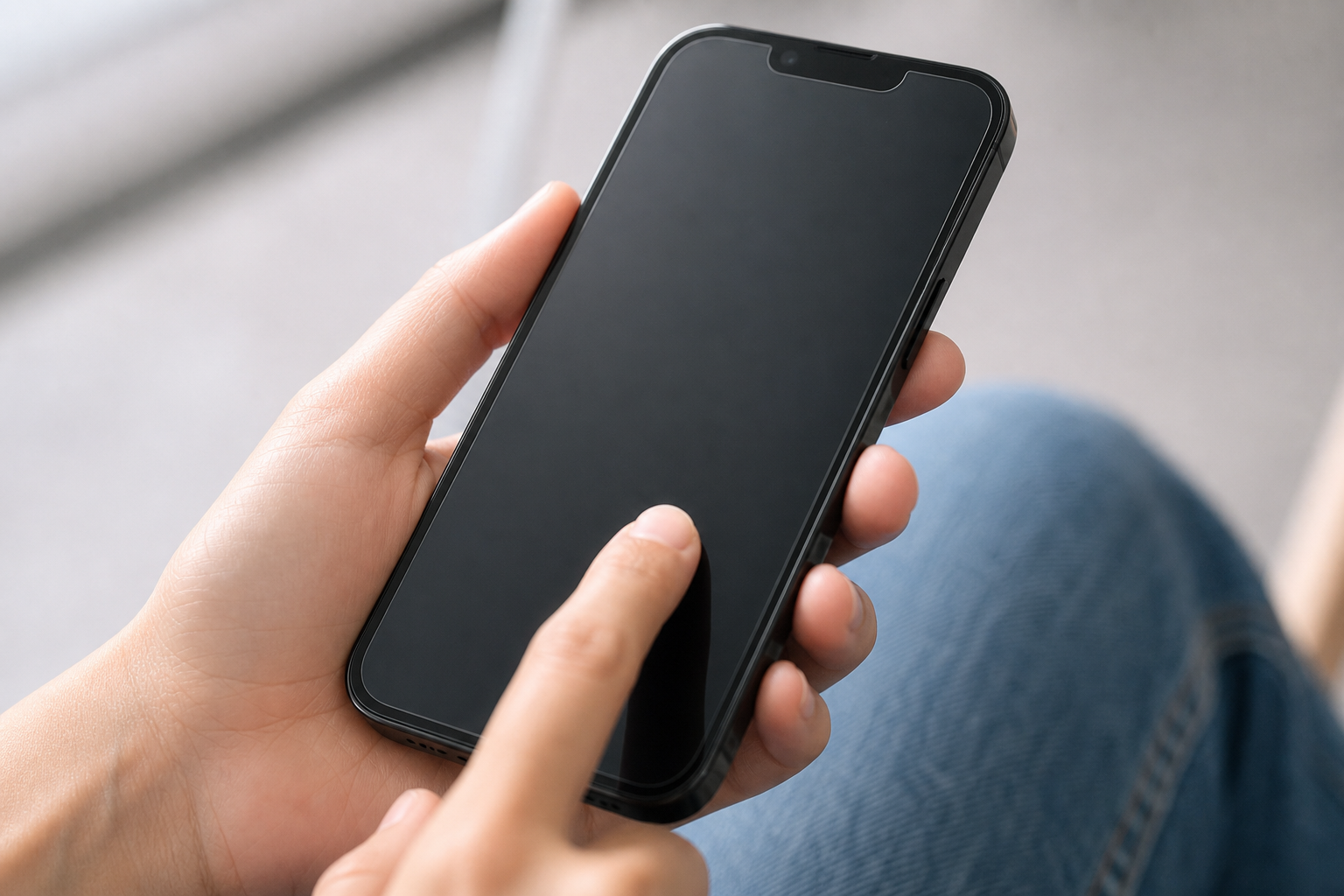
How to increase touchscreen sensitivity on your iPhone
Apple doesn't have a setting to increase screen sensitivity for a screen protector. You can, however, set how long you need to hold your finger on the screen before a menu appears:
-
1
Open the Settings app and tap 'Accessibility'.
-
2
Select 'Touch' and then choose 'Haptic Touch' (or '3D & Haptic Touch' on older iOS versions). This is where you set how quickly the screen responds to a longer press.
-
3
Under 'Touch Duration', choose 'Fast' (the other options are 'Default' and 'Slow'). Try it out straight away on the test image at the bottom of the screen.
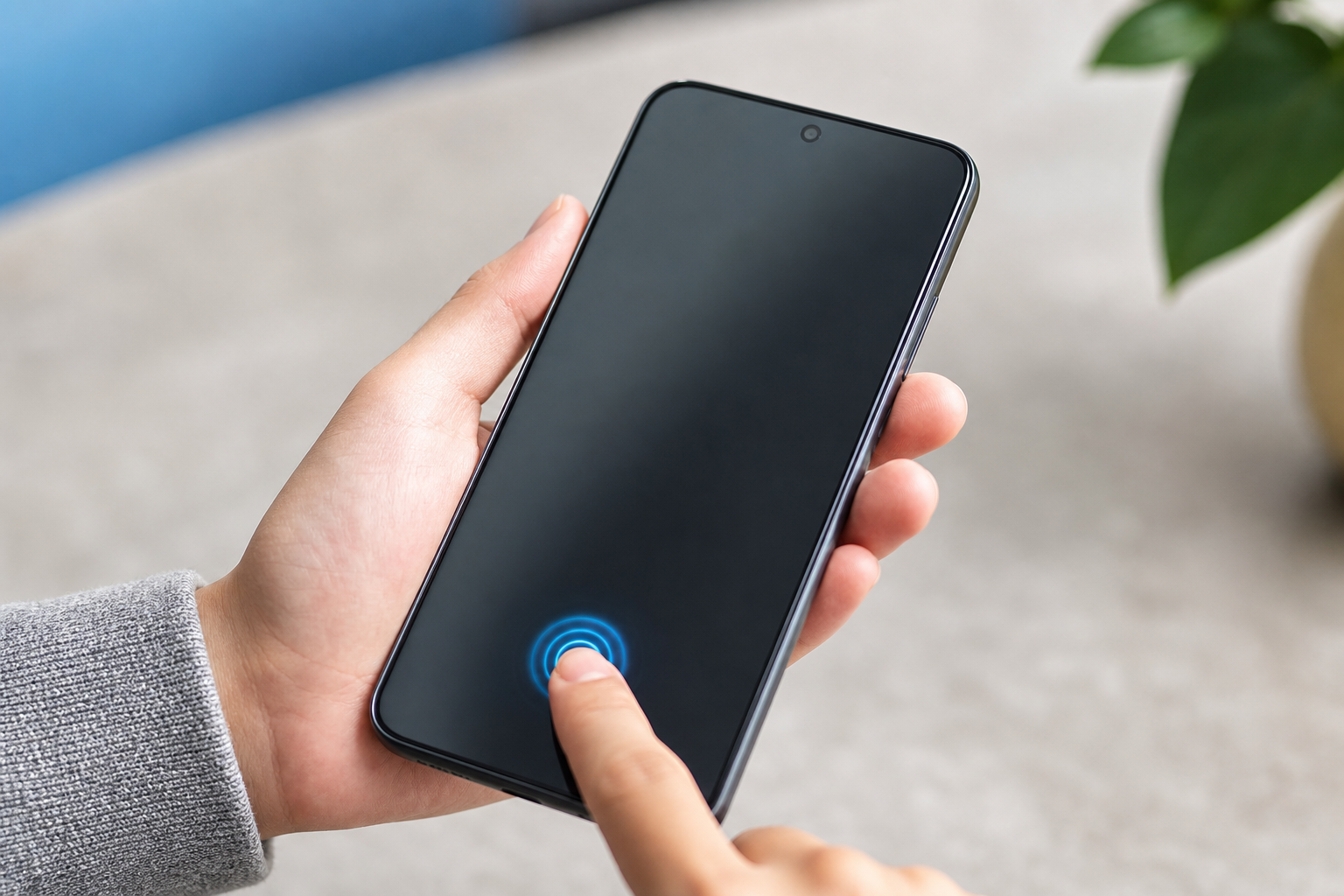
How to turn on touch sensitivity on Android
On a Samsung Galaxy, you can increase touch sensitivity with a single toggle designed for people who use a screen protector. On other Android phones, the option may have a different name or be in a different place.
-
1
Open the Settings app and tap 'Display'.
-
2
Turn on the 'Touch sensitivity' toggle.
-
3
Lock your phone briefly and unlock it again. Check whether the screen responds better when you type or swipe.
-
4
Is your in-display fingerprint scanner still not responding well? Register your fingerprint again with the screen protector on (see the FAQs below).
Remove air bubbles for better touch sensitivity
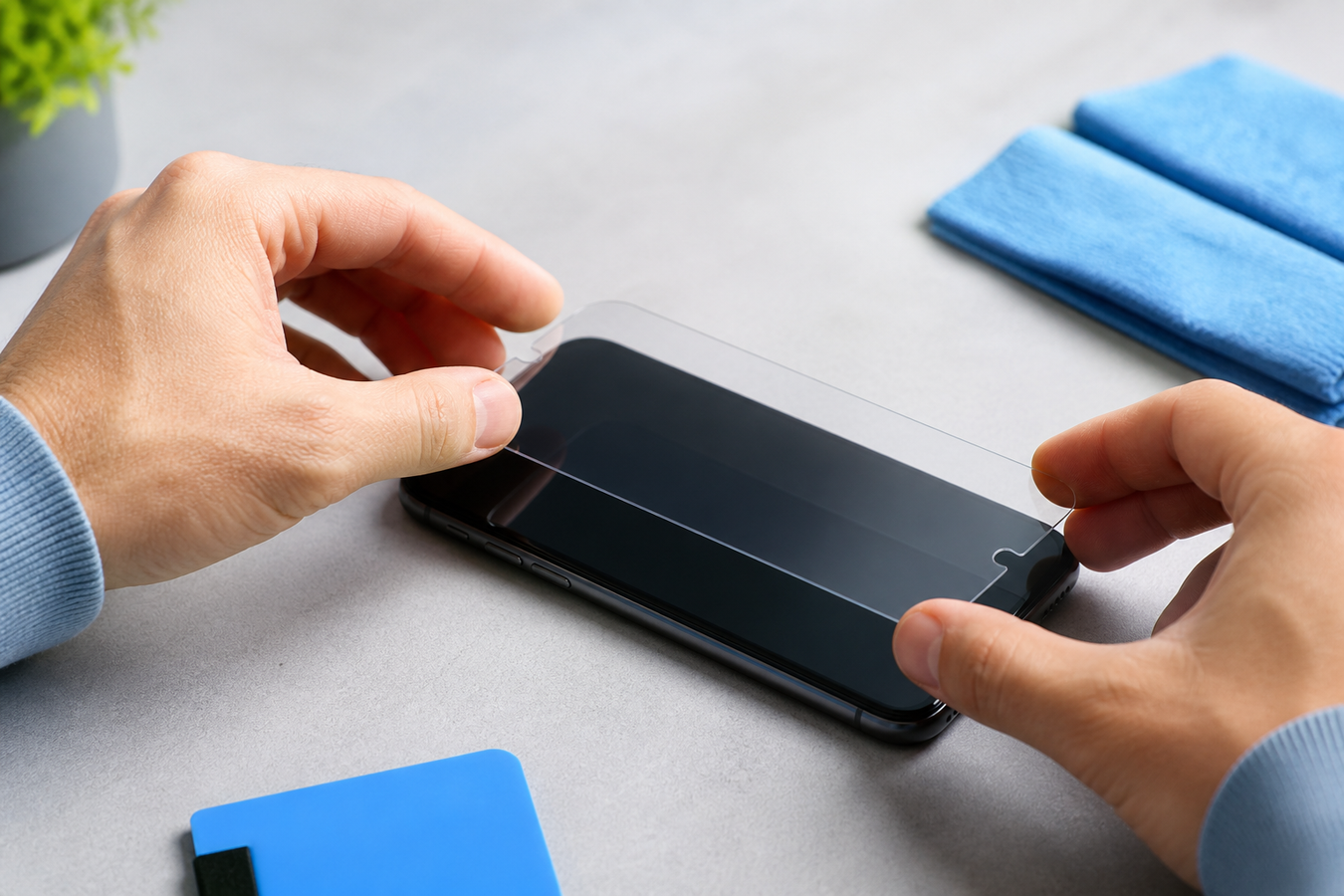
Is your touch screen not responding to touch, or lagging in certain spots? Then there's often air or dust under the protector. The screen will only respond properly again once the protector lies completely flat. These steps will help you get rid of the dead spots.
Create a dust-free zone: Turn off your screen and clean it thoroughly in a humid room. The bathroom is ideal: run a hot shower for a bit so the steam pulls floating dust out of the air.
Take off your phone case: Always take your phone out of its case before you start. A phone case often fits tightly around the edges and blocks the space you need to push out the bubbles.
Use the right technique: Use a microfibre cloth or a bank card to push any air bubbles firmly from the centre towards the nearest edges of the screen. Apply steady, firm pressure.
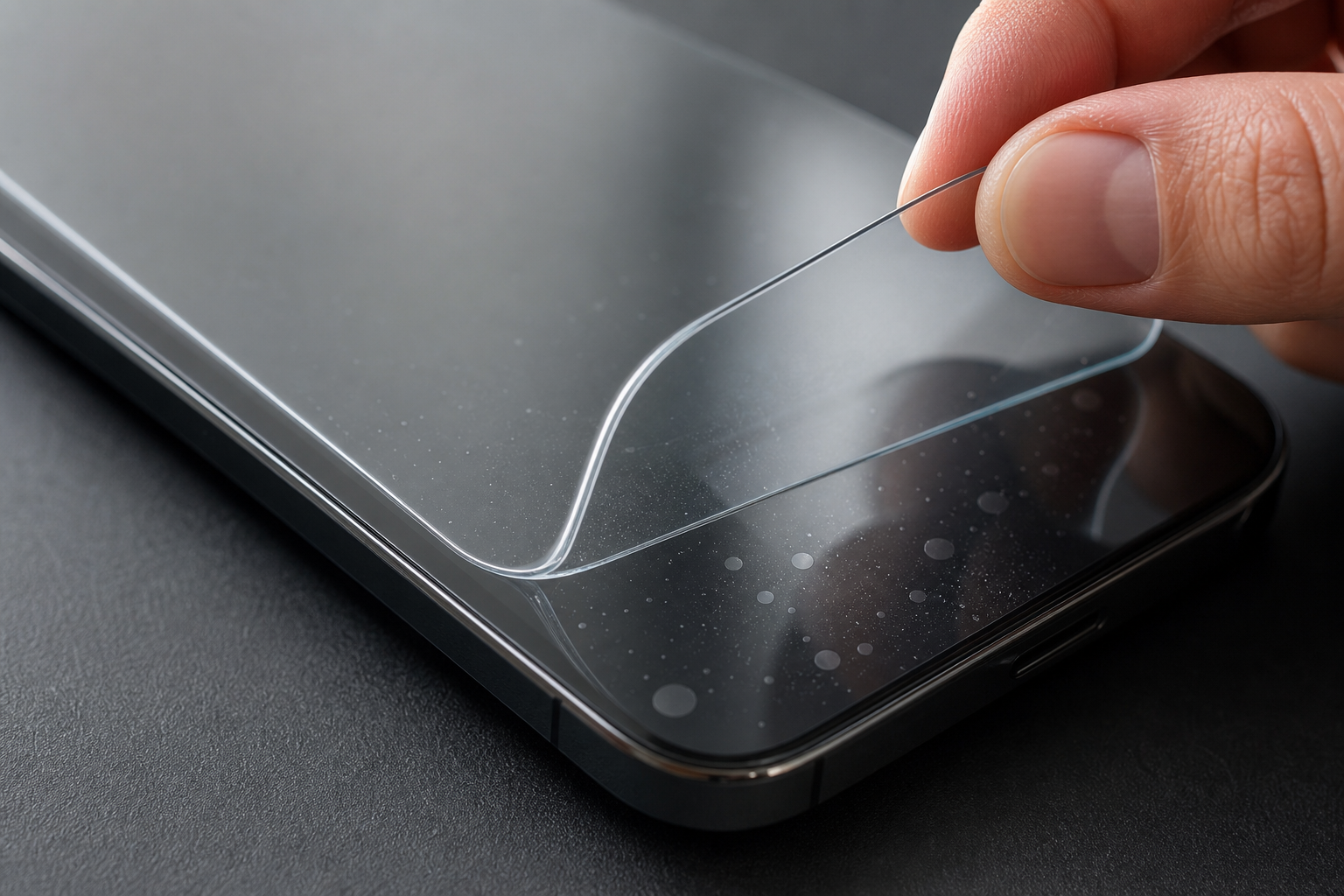
Deal with trapped dust: If a bubble won't go away, carefully lift the screen protector at the corners. Use a dust removal sticker to pick the trapped speck of dust off the glass or the display.
Check the edges: Press the edges down firmly once more before you clip your phone case back on. Make sure the phone case doesn't rub against the glass anywhere.
Which screen protector affects your touch screen sensitivity the least?
The thicker the layer, the more your screen has to compensate. A thin film keeps the sensitivity almost as it was, but offers less protection if you drop your phone. Thicker glass handles a drop better, but often means you'll need to turn up the sensitivity in your settings. Fit matters too: a case that presses on the edge can work the protector loose.
| Feature | Protective film (TPU/PET) | Tempered glass |
|---|---|---|
| Thickness and material | Very thin (approx. 0.10 mm flexible plastic) | Thicker (approx. 0.33 mm sturdy glass sheet) |
| Effect on touch sensitivity | Keeps maximum touch sensitivity without changing your settings | Sometimes requires increasing the sensitivity in your settings |
| Level of protection | Only protects against light surface scratches | Stronger against drops, absorbs the impact and prevents cracks |
| Prone to air bubbles | Trickier to apply, more prone to small air bubbles | Usually adheres well on its own, as long as the screen is completely dust-free |
Fit is just as important as material. Always go for a 'case-friendly' fit. These protectors are cut a fraction of a millimetre smaller than the actual display, which leaves a tiny gap between the glass and the edge of your phone case. You'll find them from brands such as PanzerGlass, Mobigear and GrizzlyCoat.
Also check how your protector and case work together. If the glass sheet is too big, the raised edge of your case keeps pushing against the glass. The edges lift, air gets in along the sides and the screen responds less well there. If you use a sturdy case that wraps well over the edge of the screen, choose a TPU film. If you want the best drop protection and don't mind adjusting your settings once, go for glass.
FAQs about screen sensitivity and screen protectors
Why has my fingerprint scanner stopped working?
Register your fingerprint again with the protector on. The scanner originally learned your fingerprint on the bare screen, and the extra layer changes what it now detects. Go to your settings, delete the old fingerprint and add it again.
Does privacy glass affect touch sensitivity even more?
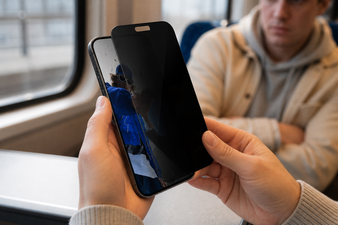
That mainly depends on the thickness, just like regular glass. Privacy glass has tiny louvres that darken the screen when viewed from the side. If your screen responds less well, increase the touch sensitivity as described above.
What if the touch screen still isn't responding at all after these steps?
The screen protector may be faulty, or there may be a hardware fault in the phone. Remove the glass completely and test the bare screen. Does the screen respond properly now? Then the protector's adhesive layer was faulty or the material was too thick for the sensors in your particular phone. Does the screen still lag without a protector, even with the right settings? Then the display itself is damaged and needs a hardware repair.
You can usually fix a touch screen that lags because of a screen protector by increasing the touch sensitivity, working out air bubbles or choosing a thinner protector. Often the setting on your phone is enough on its own. Apply the protector in a dust-free spot and choose a phone case that doesn't press on the edges. Looking for a new protector? Check out the screen protectors at directcases.com.