The quickest way to find and manage saved passwords on Android is with Google Password Manager. Open Settings on your phone, tap Google, and open Password Manager. Your sign-in details are stored in encrypted form, and you can edit them there.
You can also view saved passwords in Google Chrome or Samsung Pass. Use your fingerprint to reveal hidden passwords and remove entries you no longer need.
How to find saved passwords on your Android phone
Where does your phone store your sign-in details?
Android uses Google Password Manager as its default password vault. When you sign in and tap Save, the details are linked to your active Google Account. Your passwords sync with your account so you can access them beyond the device where you saved them.
You can see the full list in your Android phone’s settings or view it directly in your browser. If you already use Google Chrome, it’s often the fastest place to look up a forgotten password.
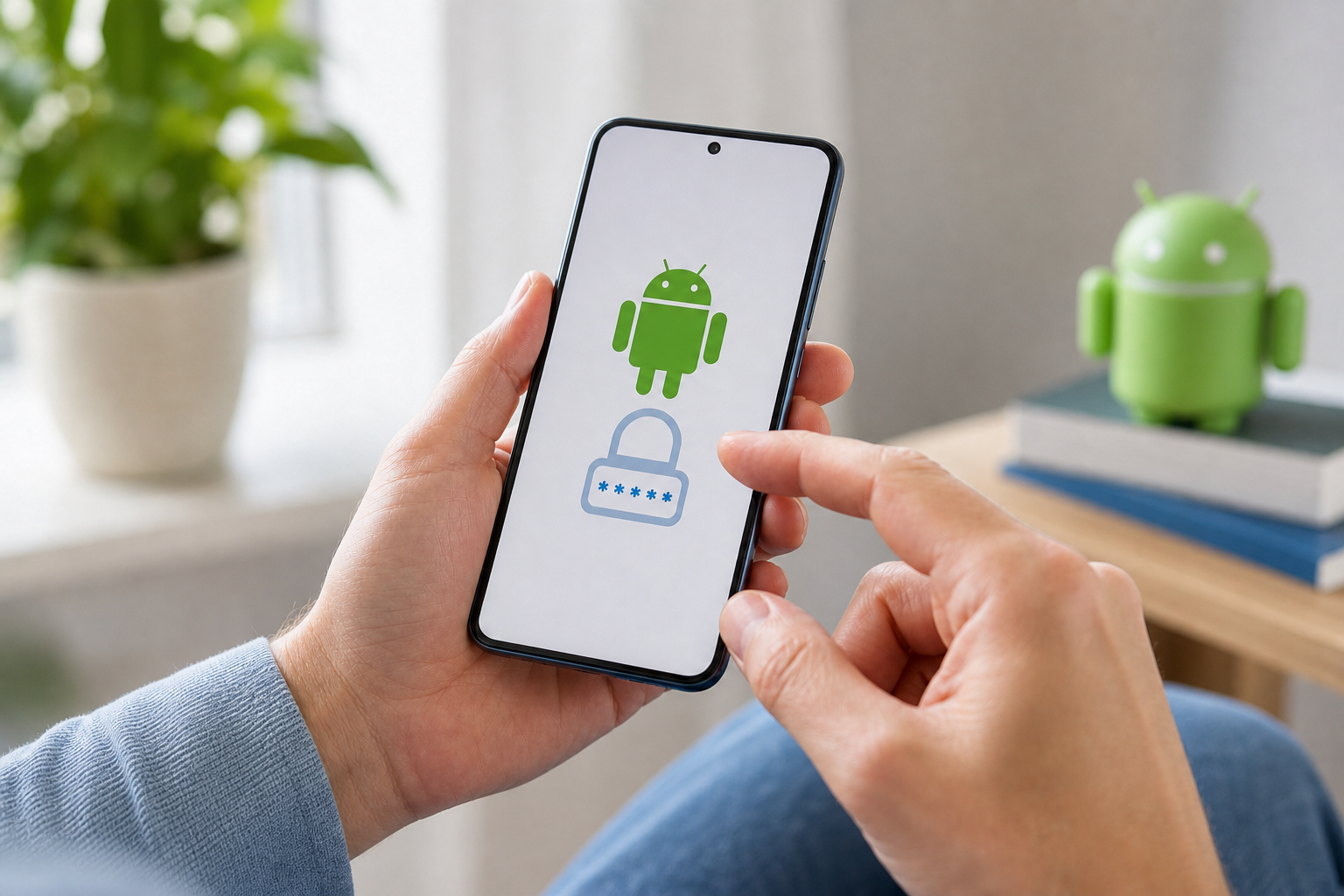
Where do I find saved passwords in Android settings?
This feature is built into Android, so you don’t need to download an app.
-
1
Open the Settings app on your phone. Look for the gear icon on your home screen or in the app drawer.
-
2
Scroll down and tap Google.
-
3
Tap Password Manager. Depending on your phone’s manufacturer or Android version, you may need to tap Autofill first.
-
4
You’ll see a list of websites and apps with saved sign-in details. Tap the magnifying glass at the top to find a specific entry.
How do I view saved passwords in the Google Chrome app?
If you’ve forgotten your password while checking out online, Chrome may already have it saved. Look it up directly in Chrome to save yourself a trip through Android settings.
-
1
Open Google Chrome on your device.
-
2
Tap the three dots in the top right to open the menu.
-
3
Tap Settings, then Passwords. In newer versions of Chrome, you may see Password Manager instead.
-
4
Use the search icon at the top to find a website or app.
Tap the matching result to open the entry for the saved username and password.
View, edit, and delete your sign-in details
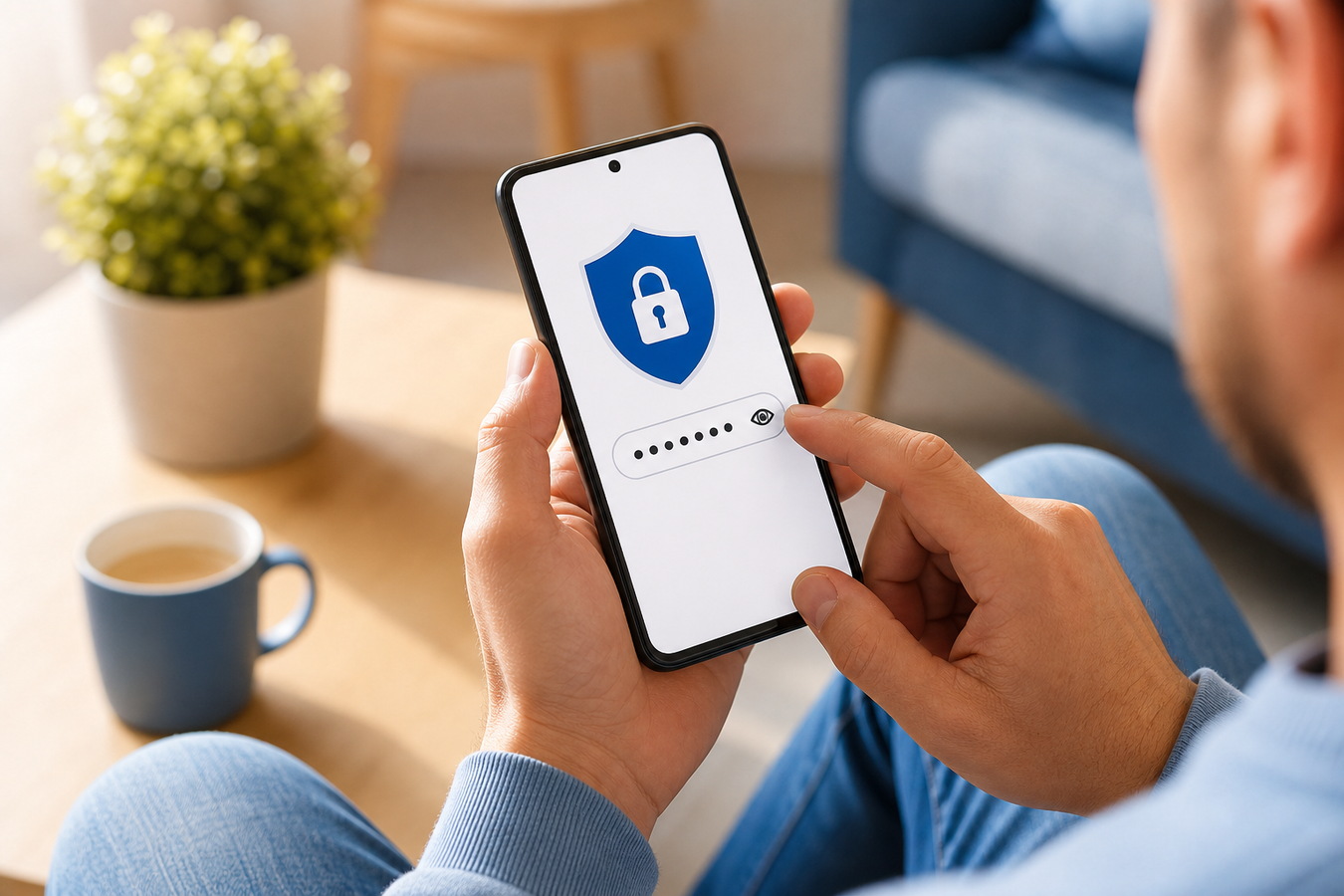
When you tap an account in the list, the password is hidden. Your phone asks you to verify your identity before you can view, edit, or delete saved sign-in details.
How do I reveal a saved password?
Android uses identity verification to protect your saved passwords. The password appears as dots until you verify your identity and choose to reveal it.
Tap the website or app in your list of saved passwords.
When prompted, verify your identity with your fingerprint, face recognition, or screen lock PIN.
Tap the eye icon next to the dots to show the password in plain text.

How do I edit or delete an old password?
If you’ve changed a password or closed an account, update your saved password list.
Open the account entry and tap Edit. Use this to update the saved details after you’ve changed a password on a website.
Tap Delete to remove the saved entry for an account you no longer use. This keeps your list easier to browse.
Review your list regularly for weak or reused passwords. Update them to help protect the accounts you still use.
Google Password Manager or Samsung Pass: Which should you use?
On most Android devices, you can manage your passwords in Google Password Manager. Galaxy users can also use Samsung Pass. It’s built into Galaxy devices and works locally through your Samsung account. Open Settings > Biometrics and security > Samsung Pass. Use your fingerprint to confirm access. Your choice depends on your devices. If you often switch between your phone and a PC or Mac, Google Password Manager is the simpler option. If you mainly use Samsung devices, Samsung Pass is an alternative.
| Feature | Google Password Manager | Samsung Pass |
|---|---|---|
| Syncing | Works across Android, Windows, and Mac | Connects to other Samsung devices |
| Best browser match | Google Chrome | Samsung Internet |
| Ecosystem | Works across device brands | Built into Galaxy devices |
FAQs about saved passwords on Android
When someone borrows your phone, you might wonder whether they can see your sign-in details. Here are answers to common questions about saved passwords on Android.
Is it safe to save passwords with Google?
Yes. Google encrypts the passwords stored in your account. To view them, you need to verify your identity with your screen lock or biometrics.
How do I see a list of my saved passwords?
Open Settings > Google > Password Manager or use the settings in Google Chrome to see the full list.
Where do I find Google Password Manager?
Google Password Manager is built into Android and doesn’t appear on your home screen by default. You can download a shortcut app from the Play Store to open it directly.
How do I open the password manager on my Samsung phone?
Go to Settings > Biometrics and security > Samsung Pass. From there, you can manage the sign-in details stored locally on your Galaxy device.
Once you’ve found your saved sign-in details, review your list. Open Google Password Manager from your phone’s settings, update old passwords, and remove entries for accounts you no longer use.