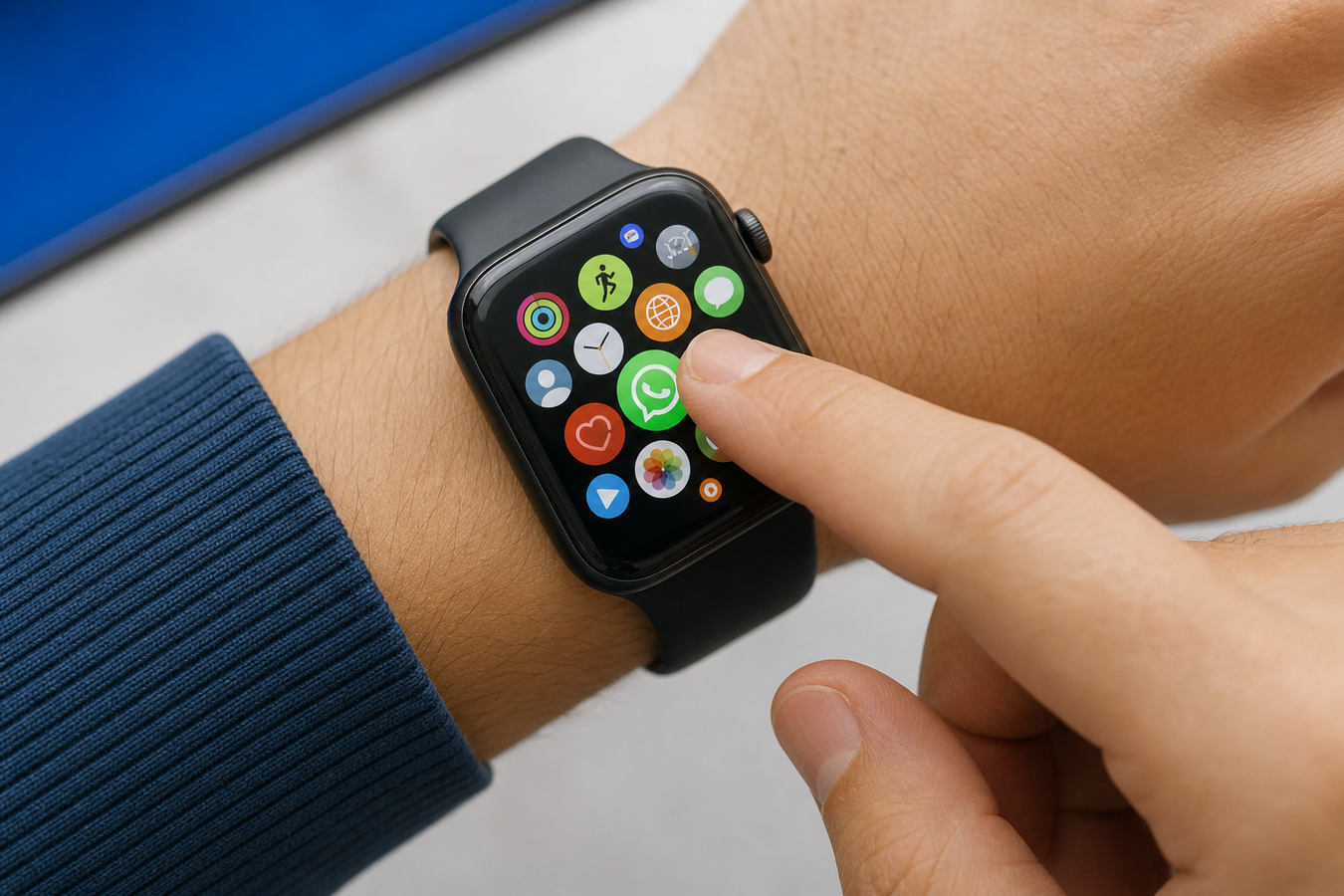
Since late 2025, it's finally here: using WhatsApp on Apple Watch is no longer a clumsy affair of half-shown notifications, thanks to the long-awaited official app. For years, you had to rely on simply mirroring notifications or on shaky workarounds through third-party software that drained your battery. Now you manage your chats straight from your wrist, with an interface designed specifically for the small screen. Below, you'll find out how to install the official WhatsApp app, what it can and can't do, and what to do when notifications play up.
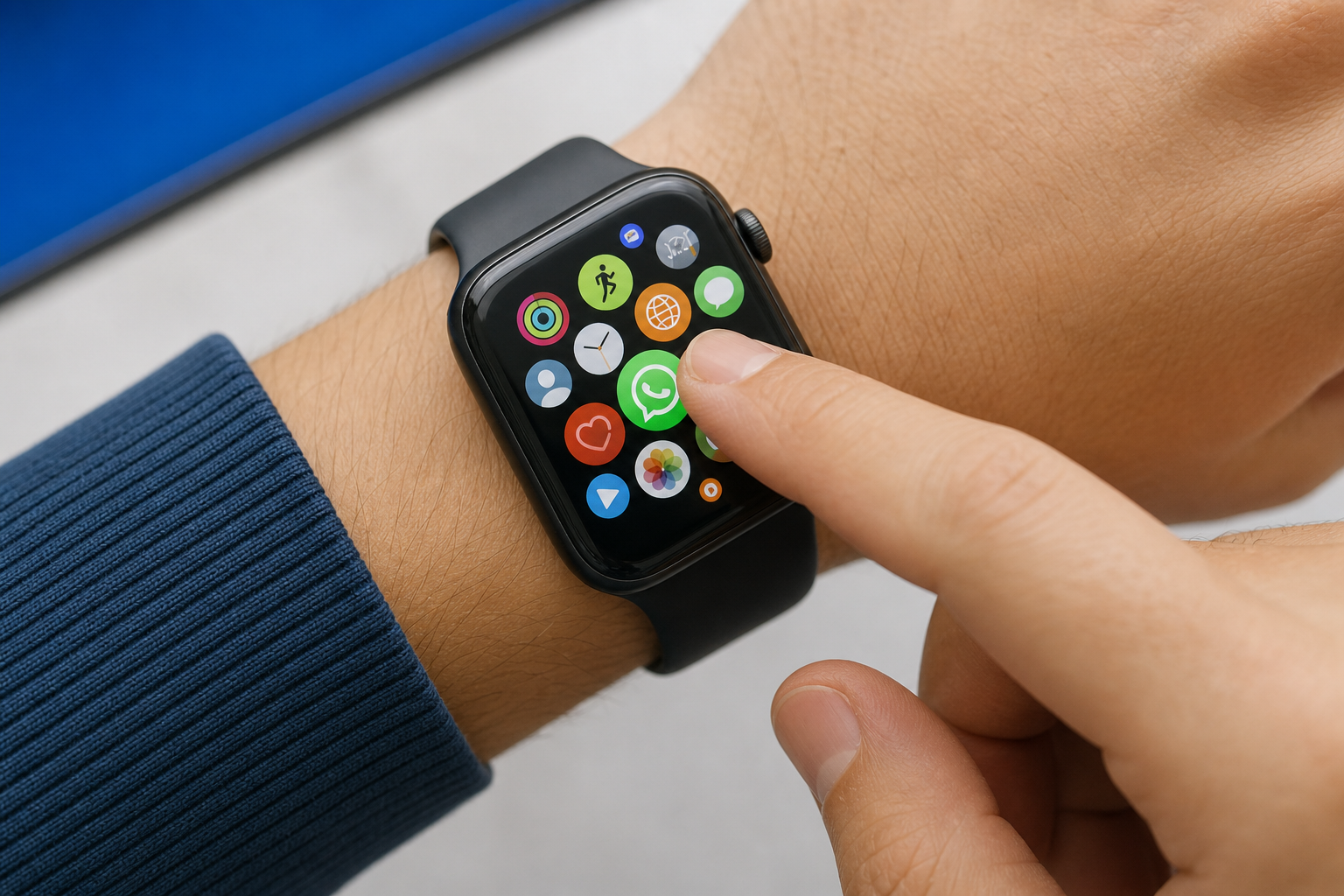
The official WhatsApp app for Apple Watch
Meta released the official app in November 2025, turning your smartwatch into a proper extension of your message inbox. Instead of only reading the last line of a message, you can scroll smoothly through active conversations and group chats. Check your hardware first, though: the app only runs on an Apple Watch Series 4 or newer. If you're wearing an older generation, such as the Series 3, the App Store won't let you download it and you're stuck with the classic notification view.
What are the requirements to use WhatsApp on Apple Watch on the software side? The developer is strict here too. Make sure your watch is running watchOS 10 or later. So start by updating your iPhone, your watch and WhatsApp on your iPhone to the latest version.
What can you do with the app, and what can't you?
Voordelen
- View rich media and chat history: You can now see clear images, stickers and a long chat history right on the screen. In the past, an incoming photo just showed a camera icon with the word 'Photo'.
- Privacy protected: Personal chats and incoming calls stay fully end-to-end encrypted. Meta and Apple can't see the content of the conversations on your wrist, just as you're used to on your main mobile phone.
Nadelen
- No standalone use: An active connection to your iPhone is still required to fetch new data. If you leave your phone at home while working out and your watch doesn't have its own cellular connection, no new messages will come through.
- Limited group management: Creating new groups or changing group settings is still done on your smartphone. The watch app is designed purely for reading and quick replies.
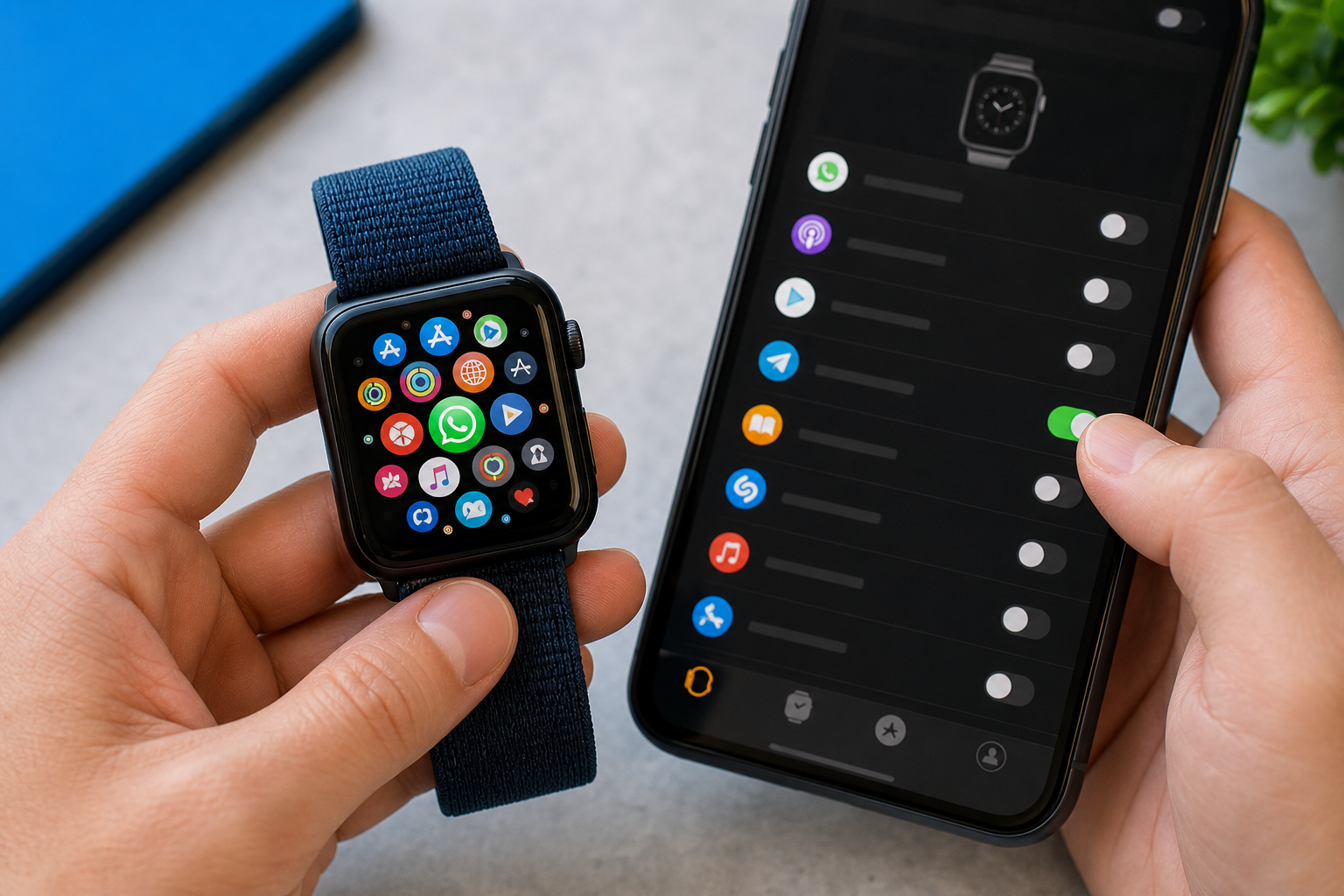
How to install WhatsApp on Apple Watch
-
1
Update your devices
Go to Settings > General > Software Update to check whether your iPhone is up to date. Then do the same for your watch in the Watch app.
-
2
Open the Watch app on your iPhone
In the bottom menu, go to the 'My Watch' tab and scroll all the way down until you see the 'Available Apps' section.
-
3
Start the installation
Find WhatsApp in this list and tap 'Install'. Transferring the app over Bluetooth usually takes one to two minutes.
-
4
Link your account
Open WhatsApp on your watch and follow the on-screen steps. Your iPhone needs to be nearby and connected.
Why won't WhatsApp notifications work on Apple Watch?
Turn on iPhone notifications: On your phone, go to Settings > Notifications > WhatsApp. Turn on 'Allow Notifications' and set previews to 'Always' or 'When Unlocked', otherwise iOS won't pass the data on.
Check mirroring in the Watch app: Open the Watch app on your phone, tap 'Notifications' and scroll to WhatsApp. Switch the toggle to green to force notification mirroring.
Turn off interfering modes: Swipe up (or press the side button on watchOS 10+) to open Control Center. Check whether a Focus mode, Do Not Disturb or Theater Mode has been switched on by accident, as these block incoming vibrations.
Test your wireless connection: Temporarily disconnect Bluetooth and Wi-Fi between your phone and watch, then reconnect. A patchy wireless link is the most common cause of delayed messages.
Official app vs. notifications vs. alternatives
The launch of an official solution makes a big difference to how we communicate through wearables. Where you used to depend on slow workarounds, Meta now offers a streamlined experience. Compare the different methods below to work out which setup suits your everyday use best.
| Feature / Method | Official WhatsApp app | Notification mirroring only | Third-party apps (e.g. WatchChat) |
|---|---|---|---|
| Reading experience | Full chat history, photos and stickers visible straight away. | Only the most recent message can be read briefly. | Access to full chats, but often suffers from slow loading times. |
| Reliability | Very high, with instant and stable syncing via Meta. | High, deeply built into watchOS. | Hit and miss; features often break after an iOS update. |
| Privacy & security | Full end-to-end encryption, guaranteed by the developer. | Secure through Apple's own closed notification system. | Riskier, as you share account access with a third party via a web wrapper. |
| Cost & battery | Free, optimised for minimal battery use. | Free, uses hardly any extra power. | Often hidden subscription fees and heavy battery drain. |
Go for the official app if you have a compatible smartwatch and want to take part in conversations without constantly pulling your phone out of your pocket. Steer clear of third-party options like WatchChat or WatchsApp if you value maximum privacy and don't fancy unexpected subscription fees or a battery that drains fast. Stick with simple notification mirroring if you own an older smartwatch that doesn't support the latest software, or if you deliberately want as few distractions on your wrist as possible.
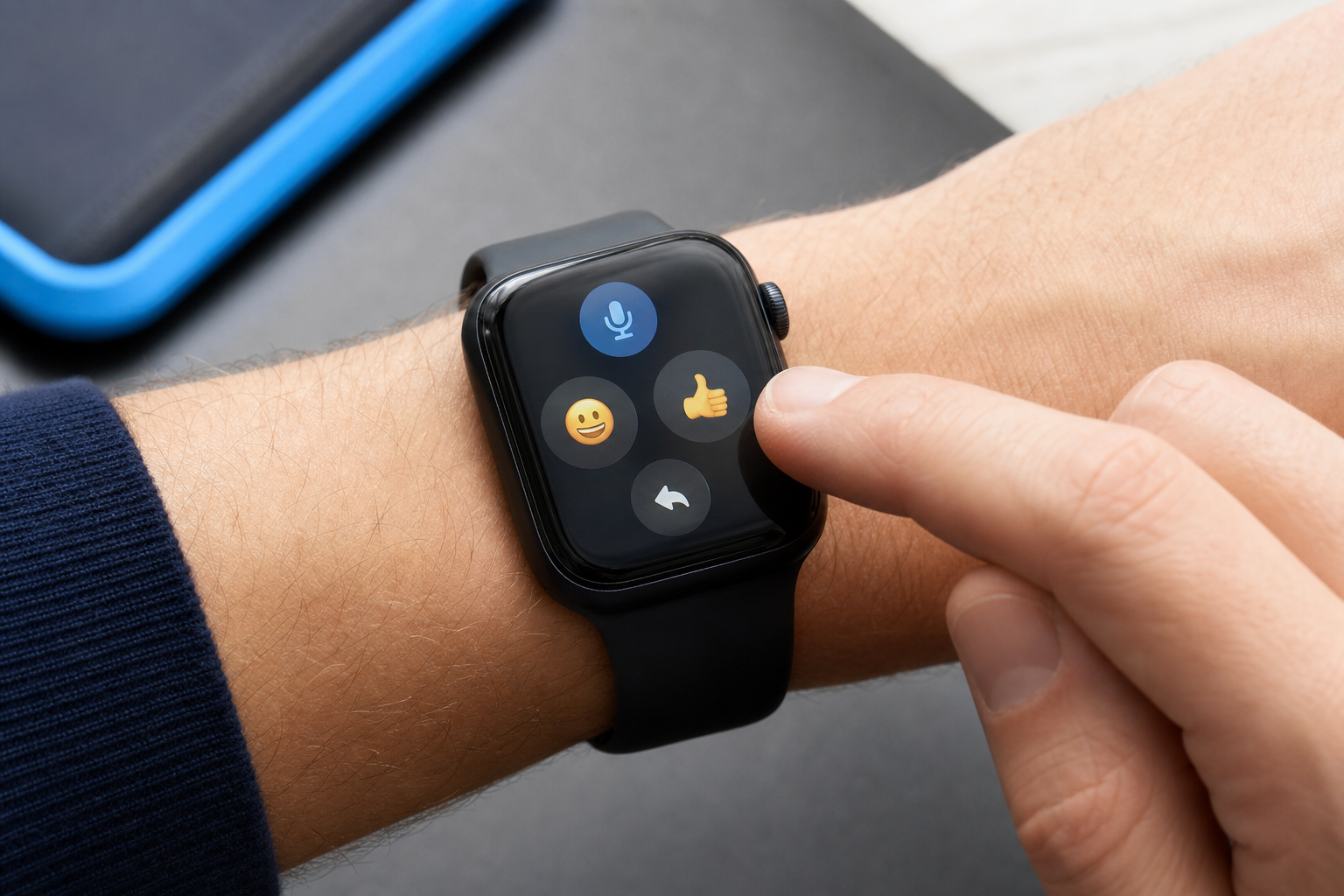
Send messages and reply from your wrist
You can reply quickly to an incoming message in several ways: with an emoji, by dictating, with a voice message, by writing letters on the screen with your finger, or with the keyboard.
Want to say a bit more? Use dictation. Speak into the microphone and watchOS converts your words into typed text in no time. Is speech-to-text struggling because of strong wind or background noise? Then record a voice message instead. You send these recordings straight from the chat screen, which in practice is often quicker than trying to enunciate perfectly.
Sometimes a simple thumbs-up is all you need. The interface offers a wide range of emojis, so you can react with a single tap. Typing on the tiny QWERTY keyboard (available on Series 7 and newer) is technically possible too. Still, you'll find that voice messages and emojis cause far less frustration when using WhatsApp on Apple Watch.
FAQs about WhatsApp on watchOS
Can I use WhatsApp on my Apple Watch without my phone nearby?
No, you always need an active connection to your paired phone. The smartwatch acts as a relay for the data your smartphone receives. If you leave your phone at home, you can't send or receive new messages, unless your watch has an active cellular connection (4G/5G) and your iPhone at home stays switched on and connected to the internet.
Can WhatsApp calls work on Apple Watch?
Not yet. When someone calls you on WhatsApp, your watch shows who's calling. Answering and making calls is done on your iPhone.
Why isn't the WhatsApp app showing up in my App Store?
This is almost always because your hardware or software doesn't meet the minimum requirements. If you have a model older than the Series 4, or you're running an outdated version of watchOS, the App Store automatically hides the app to avoid compatibility issues. Check your model number in the general settings to rule this out right away.
With the arrival of the official app, messaging from your wrist has become a lot richer, as long as your hardware is up to date and your settings are right. Open the Watch app on your iPhone now, check whether a software update is waiting and install WhatsApp on your smartwatch today.