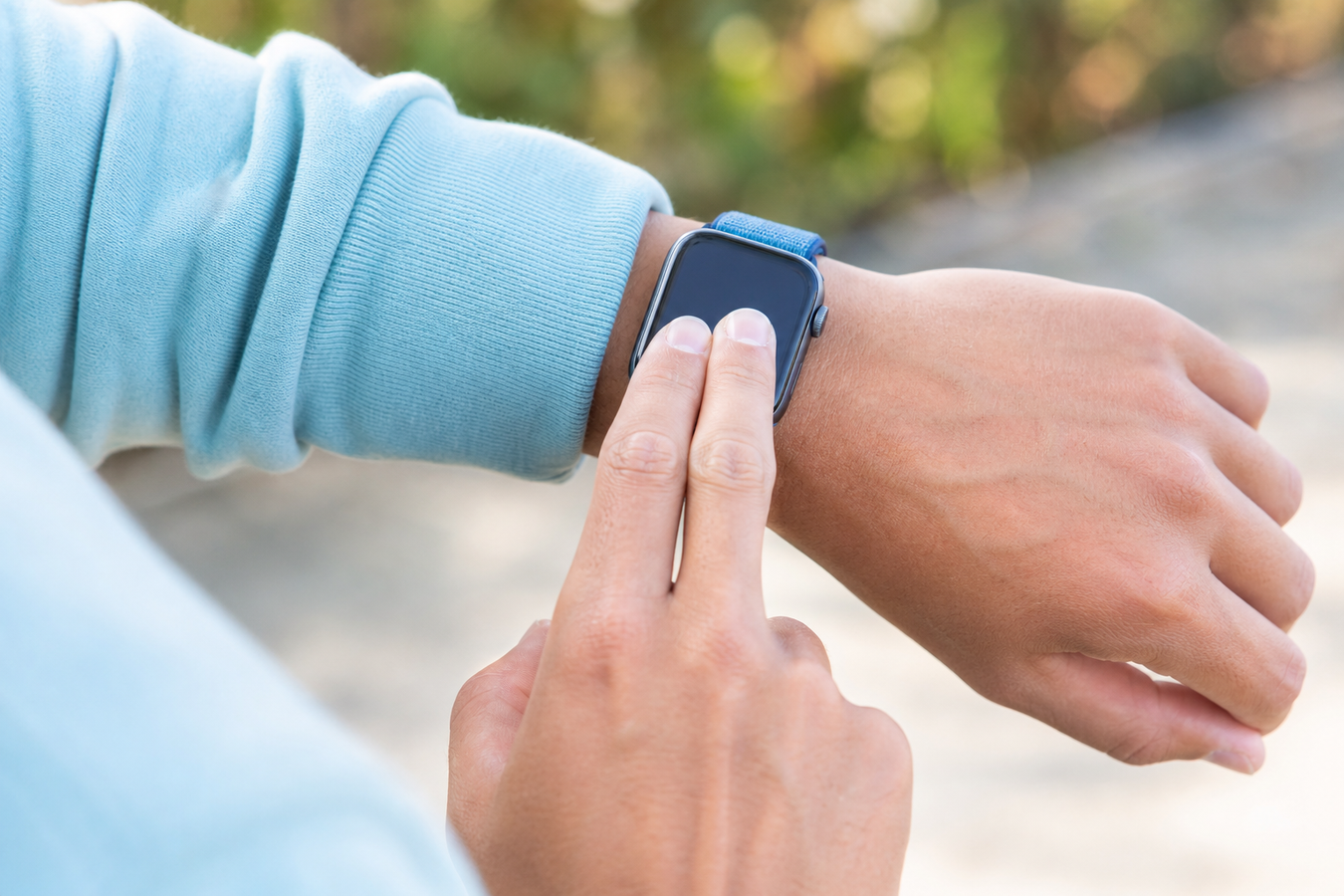
To make your Apple Watch speak the time, open Clock in Settings and turn on Speak Time if it’s available on your model and version of watchOS. Then tap the watch face with two fingers at once. Your watch will say the time out loud.
This is handy when you’d rather keep your eyes off the screen. The spoken time setting can interfere with haptic time cues, and a thick accessory can make it harder for the screen to register the gesture. A few adjustments can help.
How do I make my Apple Watch speak the time?
Speak Time lets you hear the time without asking Siri. The setting is built into your watch. Turn it on from the Clock menu on your Apple Watch or in the Watch app on your iPhone. Chimes are a separate feature that gives you audible or haptic cues at set intervals.
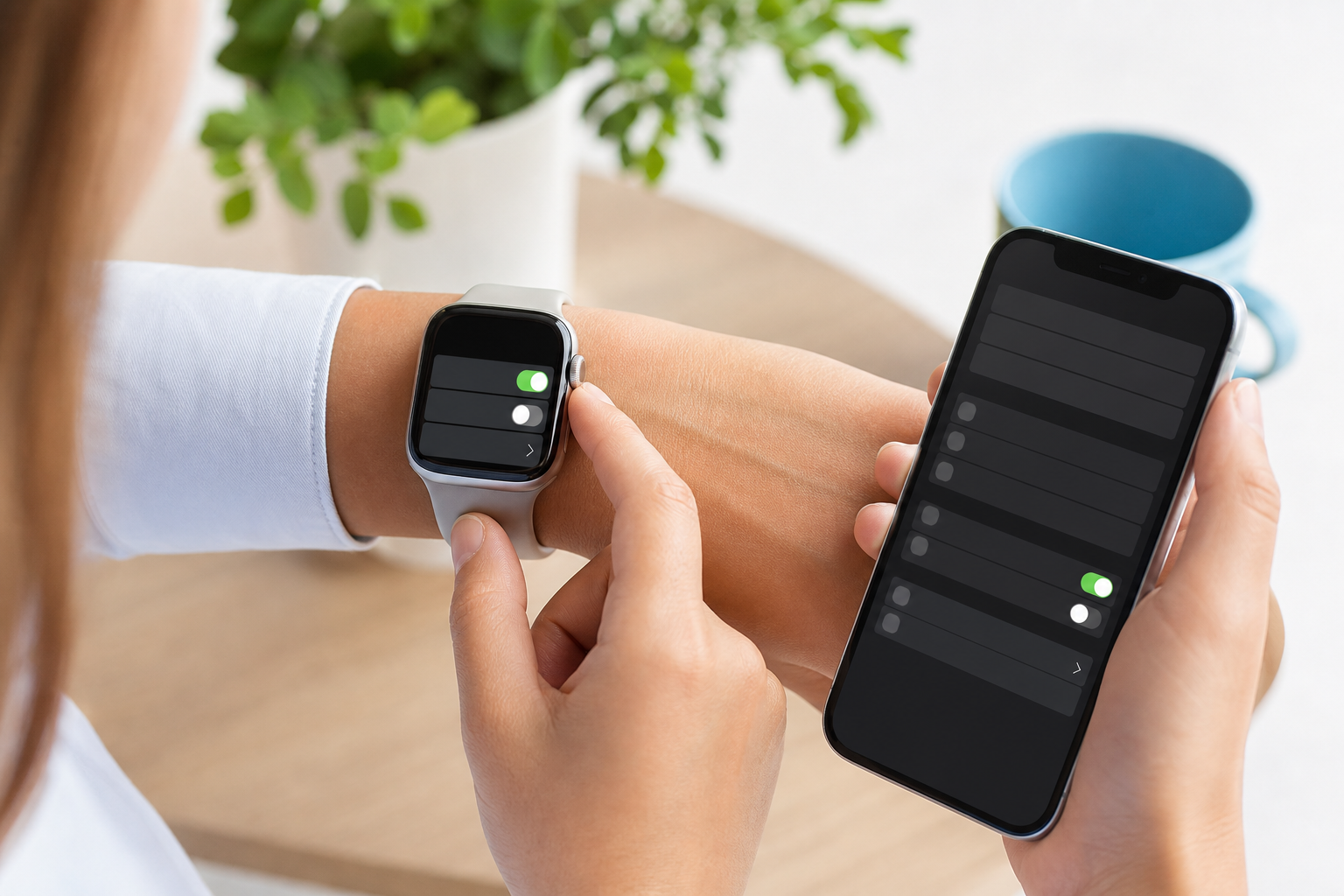
How to turn on Speak Time
Set up your watch to tell you the time out loud.
-
1
Open Settings on your Apple Watch. If you’d rather use your iPhone, open the Watch app and tap My Watch first.
-
2
Scroll down the menu and tap Clock.
-
3
Find Speak Time and turn it on.
-
4
Choose whether to hear the time in all cases or only when Silent Mode is off.
Using the two-finger gesture on the watch face
If bright sunlight makes your screen hard to read, press the Digital Crown on the side first. Make sure you’re on the watch face, since the feature doesn’t work inside an app or menu.
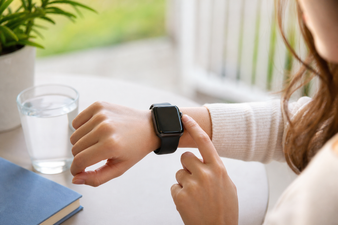
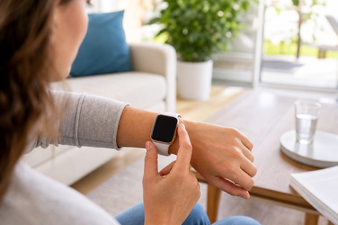
Already turned on Speak Time? Tap the screen with both fingers at once. Your Apple Watch will say the current time. A quick tap is enough, so you can hear the time without looking at the screen or swiping.
How Always Speak affects Taptic Time
Check which sound setting you choose for the watch face. The Apple Watch also has Taptic Time, which uses short vibrations to tell you the time at your wrist. That can be handy in a quiet room.
If you choose Always Speak in the Clock menu, the watch turns off the Taptic Time vibrations. The spoken time takes priority over the taps from the Taptic Engine.
To switch between sound and vibrations, set Speak Time to Control With Silent Mode. When sound is on, the watch reads out the time. When you turn on Silent Mode, you can feel the time in vibrations again.
Can a screen protector affect the gesture?
A screen protector can affect gestures such as the two-finger tap. If your Apple Watch doesn’t respond as expected, try the gesture without the protector first.
A very thick or poorly fitting protector can affect screen sensitivity. Go back to the watch face and tap with both fingers at the same time. Avoid tapping with one finger after the other.
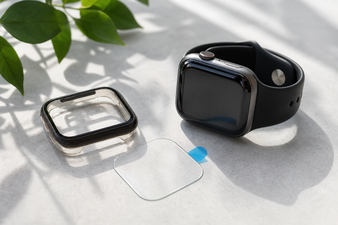
Choose an Apple Watch screen protector that fits your model. PanzerGlass and Mobigear are available from directcases.com. After applying the protector, check whether the two-finger tap still works. Pick a protector made for your Apple Watch size.
Full-cover protection covers the screen and case. A bumper leaves part of the screen exposed. A hard case offers more protection against bumps and scratches.
Some cases can be used with watch bands. They usually snap into place without tools. Check that the case stays secure when you walk or work out.
Thin cases keep the watch feeling much the same on your wrist. Thick cases offer more drop protection but may make the watch feel bulkier.
Precisely cut openings keep the controls within reach. After fitting a case, test the Digital Crown and side button, especially with a full-cover model.
TPU is flexible and absorbs shocks. Polycarbonate offers rigid protection in a slim profile. Silicone feels soft against the skin.
If you see bubbles, notice a lifting edge, or find the screen reacts differently, reapply the protector as directed or try another one that fits. If the gesture still works inconsistently, you may prefer to leave the screen protector off.
Troubleshooting: Why can’t I hear the time?
Does your watch stay quiet when you tap the screen with two fingers?
Check whether Silent Mode is off in Control Center. If the bell icon is red with a slash through it, turn off Silent Mode and try again. This matters if you’ve set your watch to speak the time only when Silent Mode is off.
Check the media volume. Open Settings, go to Sounds & Haptics, and raise the volume a little.
Check your Siri and system language settings to see whether your preferred language is selected. A different setting can explain why you hear the time in another language.
Check whether your watch is connected to Bluetooth headphones. The sound may go to the headphones instead of the watch speaker.
Frequently asked questions
Can Siri tell me the time without touching the screen?
Yes. Say “Hey Siri” or raise your wrist to activate Siri, then ask “What time is it?” Siri will answer right away. This is useful if your hands are full or you’re wearing gloves.
How does it work on the Mickey Mouse watch face?
On the Mickey Mouse and Minnie Mouse watch faces, tap the screen with one finger. The character will tell you the time out loud.
How do I turn off Speak Time on my Apple Watch?
Open Settings on your watch, go to Clock, and turn off Speak Time. Your Apple Watch will then stop announcing the time when you tap the watch face with two fingers.
How do I mute my Apple Watch?
Open Control Center and tap the bell icon. It turns red with a slash through it. Silent Mode mutes notifications and can also silence the spoken time, depending on your settings.
Why does my watch say the time in a different language?
The watch uses the language set for Siri or the system. Check that your preferred language is selected in Siri settings on your iPhone. A different setting can explain why you hear a voice in another language.
Is Speak Time the same as VoiceOver?
VoiceOver is an accessibility feature that reads out buttons and notifications on your screen. Speak Time reads out the time. Turn on VoiceOver if you need the wider accessibility features.
Already turned the feature on? Browse slim screen protectors and smartwatch bands at directcases.com.