You get in the car, start the engine and your favourite Spotify playlist or Flitsmeister route pops up on the car screen straight away. No squinting at a tiny phone screen and no risky moments behind the wheel. Below you'll find out what Apple CarPlay is, how it connects to your car and whether you're better off with a built-in system, a standalone CarPlay screen or a regular car phone holder.
What is Apple CarPlay?
Apple CarPlay is a smart interface that safely connects your iPhone to your car's infotainment system. Instead of holding your mobile phone in your hand, the system shows a simplified Apple menu right on the car's built-in screen. This purpose-built CarPlay dashboard has large icons and a clear layout, so your eyes stay on the road.
The system acts purely as a go-between for your smartphone and the car. So you don't see your full phone screen, but a heavily filtered version designed with road safety in mind. Only essential features like navigation, calls and audio remain, while distracting elements are hidden.
Apple developed this software exclusively for iPhone users. Got an Android device? Then this connection won't work and you'll use the alternative, Android Auto. Almost all new cars and more and more used cars now support Apple CarPlay as standard.
How does Apple CarPlay work?
The tech behind the connection is designed so that your smartphone does all the heavy lifting and the car simply acts as a monitor.
Projection of approved apps: Apple CarPlay projects specific, Apple-approved apps from your iPhone straight to the car screen. Apps that are too distracting, such as games or video players, are automatically blocked by the software.
Flexible controls: You control it using your infotainment system's touchscreen, physical buttons on the steering wheel or voice control. That way, you can change route or track without taking your hands off the wheel.
Processing power from your iPhone: Your mobile phone handles all the processing and uses the mobile data needed. The car only provides the display, microphone and speakers to show the interface.
Instant sync: As soon as you get in, Apple CarPlay syncs with your active route in Apple Maps or your last played podcast, so you can drive off right away.
Wired vs. wireless CarPlay
Modern vehicles often offer two connection options, although not every car supports wireless CarPlay as standard. Always check your vehicle's owner's manual. To find out how to set up the wireless connection, read Wireless Apple CarPlay? Here's how to set it up!
Connection type |
Pros |
Cons |
|---|---|---|
Wired (via USB cable) |
Gives you the most stable connection with no audio or navigation glitches. Charges your iPhone's battery while you drive. |
Requires an original or MFi-certified USB cable. Cable wear or a dirty charging port can cause problems over time. |
Wireless CarPlay |
Connects automatically via Bluetooth and Wi-Fi as soon as you start the engine. Ideal for cable-free trips where your mobile phone stays in your bag. |
Uses noticeably more of your smartphone's battery. In areas with lots of signals, it can sometimes cause a slight audio delay. |
Go for wired Apple CarPlay if you do long drives and need a full battery when you arrive. Go for wireless CarPlay if you make lots of short trips, like popping to the shops, and would rather keep your mobile phone in your pocket.
Step by step: how to connect your iPhone to CarPlay
Setting up Apple CarPlay for the first time takes two minutes at most with the steps below.
-
1
Turn on Siri:
Make sure Siri voice control is switched on in your iPhone's settings. Without it, the system often refuses the very first connection.
-
2
Plug in the cable:
Connect your iPhone with an original or MFi-certified cable to the CarPlay USB port. This port often has a CarPlay or smartphone icon.
-
3
Give permission:
Unlock your mobile phone and accept the CarPlay prompt on both your iPhone and the car's infotainment screen to start syncing data.
-
4
Set up wireless:
For wireless CarPlay, start the car and press and hold the voice command button on the steering wheel. Put the car stereo in wireless or Bluetooth mode. Then on your iPhone, go to Settings > General > CarPlay and select your car.
-
5
Customise the CarPlay dashboard:
On your iPhone, go to Settings > General > CarPlay to rearrange the apps on your car screen the way you like or hide apps you don't use.
What apps work with CarPlay?
While you're driving, only apps that are safe to use on the road appear on the screen. These are the CarPlay apps and features you can use:
Navigation apps for up-to-date routes: Use Google Maps, Waze, Flitsmeister or Apple Maps. These apps give you live traffic info and speed camera alerts right on your dashboard.
Entertainment on the go: Stream your favourite music via Spotify or Apple Music. Audiobooks and Podcasts are fully integrated too, with large, easy-to-tap buttons.
Hands-free messaging: Have Siri read out incoming WhatsApp or iMessage messages through the car speakers. You can then dictate your reply straight away without touching the screen.
Calendar and appointments: Check your plans for the day and navigate to your next appointment at the touch of a button.
You can't watch video while driving. Since iOS 26, CarPlay can show video when the car is stationary, but only if the car manufacturer has enabled it for your model. In most cars, it doesn't work yet.
Built-in system, standalone screen or phone holder?
There are several ways to get this Apple software into your vehicle, depending on your car's age and your budget.
Option |
Features |
Cost indication |
|---|---|---|
Built-in infotainment system |
Integrates perfectly with the steering wheel buttons and has a large, clear screen in the dashboard. Often depends on the age of the car (usually standard from 2016 onwards). |
High (often part of an expensive options package or requires replacing the original car stereo). |
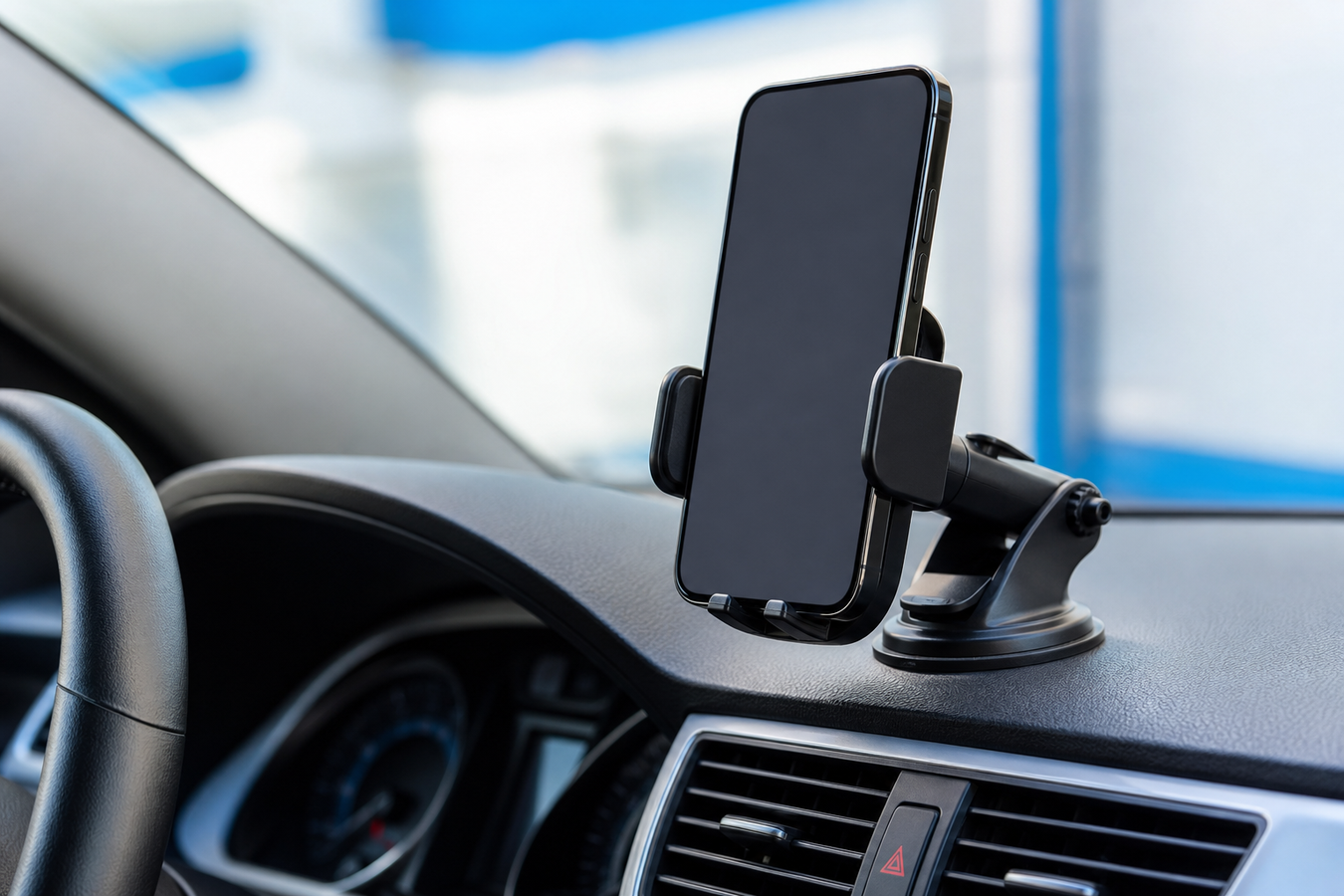
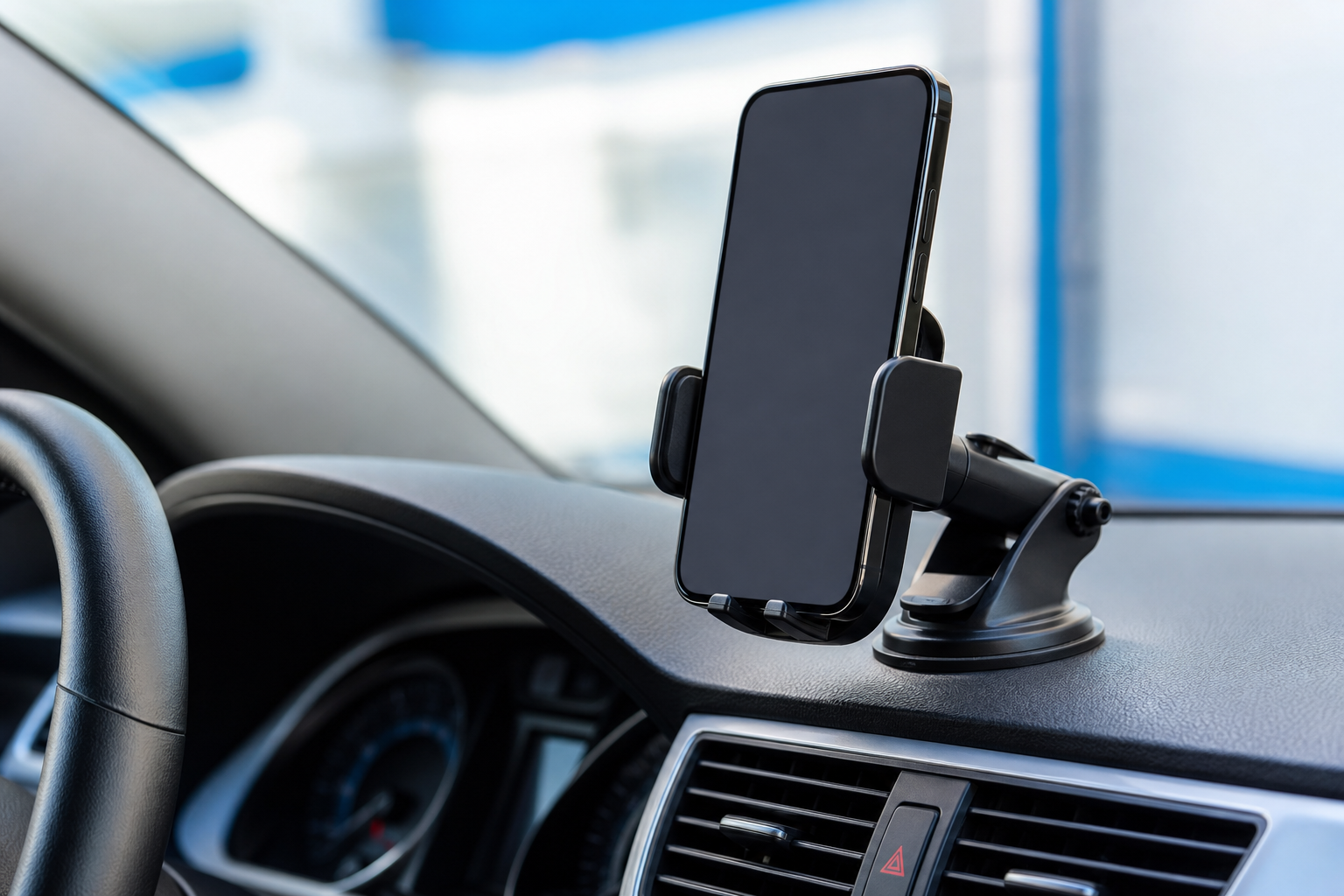
Standard car phone holder |
A budget-friendly alternative for cars without Apple CarPlay. You simply use your iPhone's screen for navigation. The smaller screen gives you a more limited view. |
Low (a few tens of euros for a sturdy holder on the air vent or dashboard). |
Standalone Apple CarPlay screens |
A middle ground in the form of an external display. You mount this screen on the dashboard with a holder and connect it to your mobile phone and the car speakers. |
Medium (a one-off purchase for a plug-and-play upgrade with no installation costs). |
Go for a built-in system if you're buying a new car or are happy to have a specialist replace the original stereo. Go for a standard car phone holder if you're on a tight budget and navigating on your own phone screen is enough for you. Driving an older car but still want CarPlay on a big screen? Then a standalone CarPlay screen on the dashboard is a middle ground without major installation work.
Apple CarPlay FAQs
Is CarPlay free to use?
Yes, Apple doesn't charge anything to use the interface. There are no hidden subscription costs for the software itself. Just keep in mind that Apple CarPlay uses mobile data from your provider for online features, like loading maps in navigation apps or streaming music via Spotify.
Can I get CarPlay in the car I already own?
Not every car supports the software as standard. Most car brands only offer support in models built from 2014 to 2016 onwards. Got an older car? Then you can add it with an aftermarket unit or by mounting an external Apple CarPlay screen on your dashboard.
Can I watch YouTube or Netflix through the system?
Not while driving: Apple only allows apps that don't distract the driver. Since iOS 26, video does work when the car is stationary, but only if the manufacturer supports it for your car. As soon as the car moves, the video stops automatically.
With Apple CarPlay, you can use navigation, music and messages in the car without picking up your mobile phone, wired or wireless. Your owner's manual will tell you whether your car supports CarPlay. No CarPlay in your car? Then a sturdy car phone holder on the dashboard or air vent is the simplest solution.