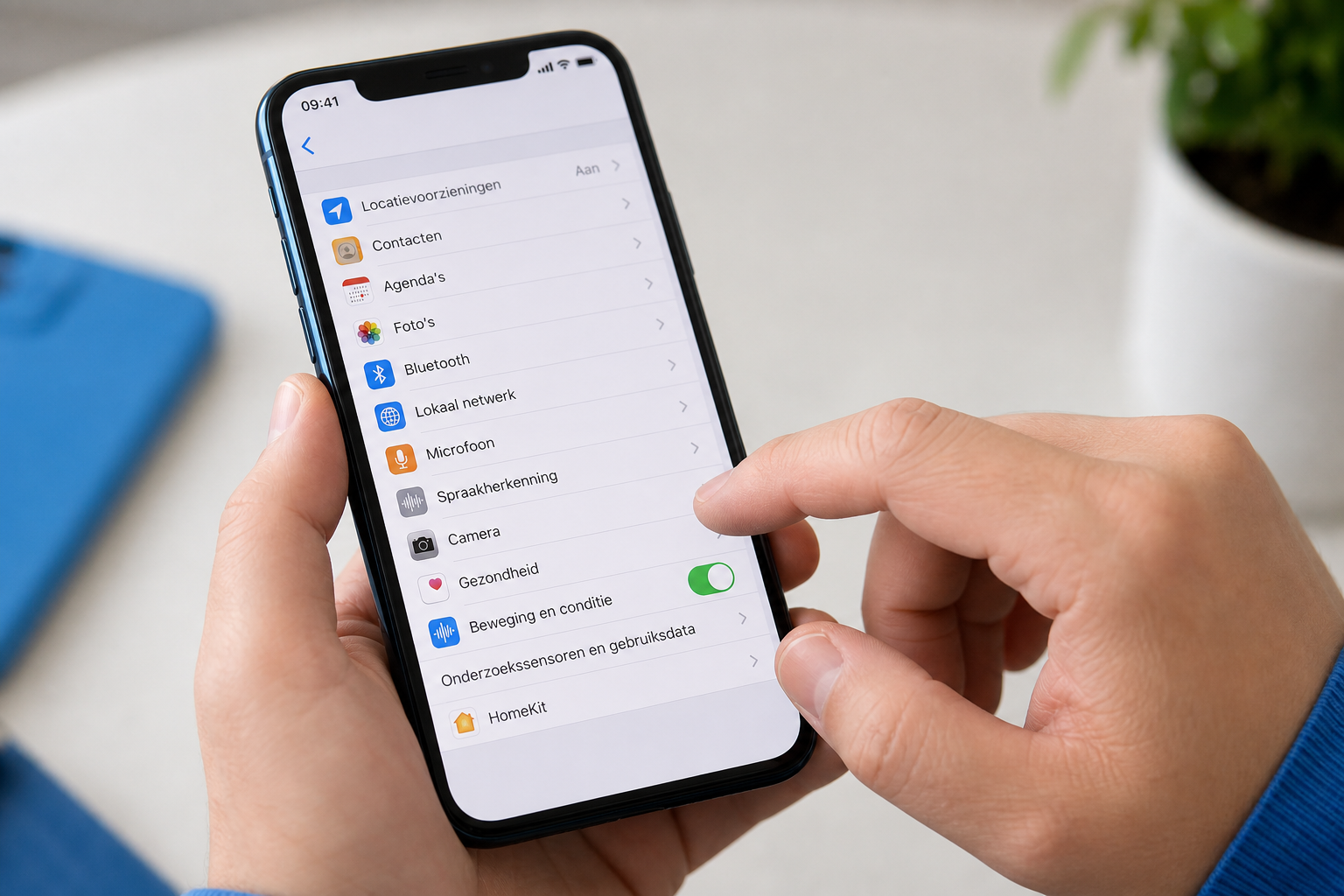
Using the step counter on your iPhone takes seconds to set up. You switch on this built-in iPhone step counter via Settings > Privacy & Security > Motion & Fitness by turning on 'Fitness Tracking'. Once the toggle is green, your iPhone records your steps automatically.
After that, you can check your daily results in the standard apps. Does the distance not quite match reality? A few small tweaks help you fine-tune the measurement and fix inaccuracies straight away.
How do I turn on the built-in step counter on my iPhone?
Why aren't you seeing any steps, even though your phone has been in your pocket all day? Often the required permissions in iOS are simply switched off. If you want to use the iPhone step counter, you need to turn on the motion sensor yourself.
On recent iOS versions, such as iOS 17 and iOS 18, you'll find this setting in the same place. Menu names can vary slightly between iOS versions, so look for Privacy & Security and Motion & Fitness.
-
1
Open the Settings app on your iPhone and scroll down a little.
-
2
Tap Privacy & Security.
-
3
Select Motion & Fitness from the list of options.
-
4
Switch the 'Fitness Tracking' toggle to green to start recording. The internal sensor can now measure and store your hip movements.
-
5
Check that the Health app is also switched on in the same list. Without it, your phone still has the raw data, but no app to display your motion data in.
Once these toggles are green, your phone counts your steps in the background. You don't need to keep any app open while you're walking.
How do I see my steps and walking distance on my iPhone?
Your phone has been collecting motion data ever since the iPhone 5s launched in 2013, and the built-in Health app is the central hub where all your recorded steps and distances are stored securely.
You don't need anything extra for this. Just open the app, tap 'Browse' at the bottom of the screen, choose 'Activity' and then go to 'Steps' to see your progress. Here you'll find handy charts to analyse your walking by hour, day, week or month. Those overviews show you right away which days you spent a bit too long in your desk chair.
Is your iPhone running iOS 18 or later? Then it's even easier. Since that update, you can open the Fitness app and check your step goal straight from the summary. Your walking and running distance appears there as a separate section on your screen. Saves you searching.
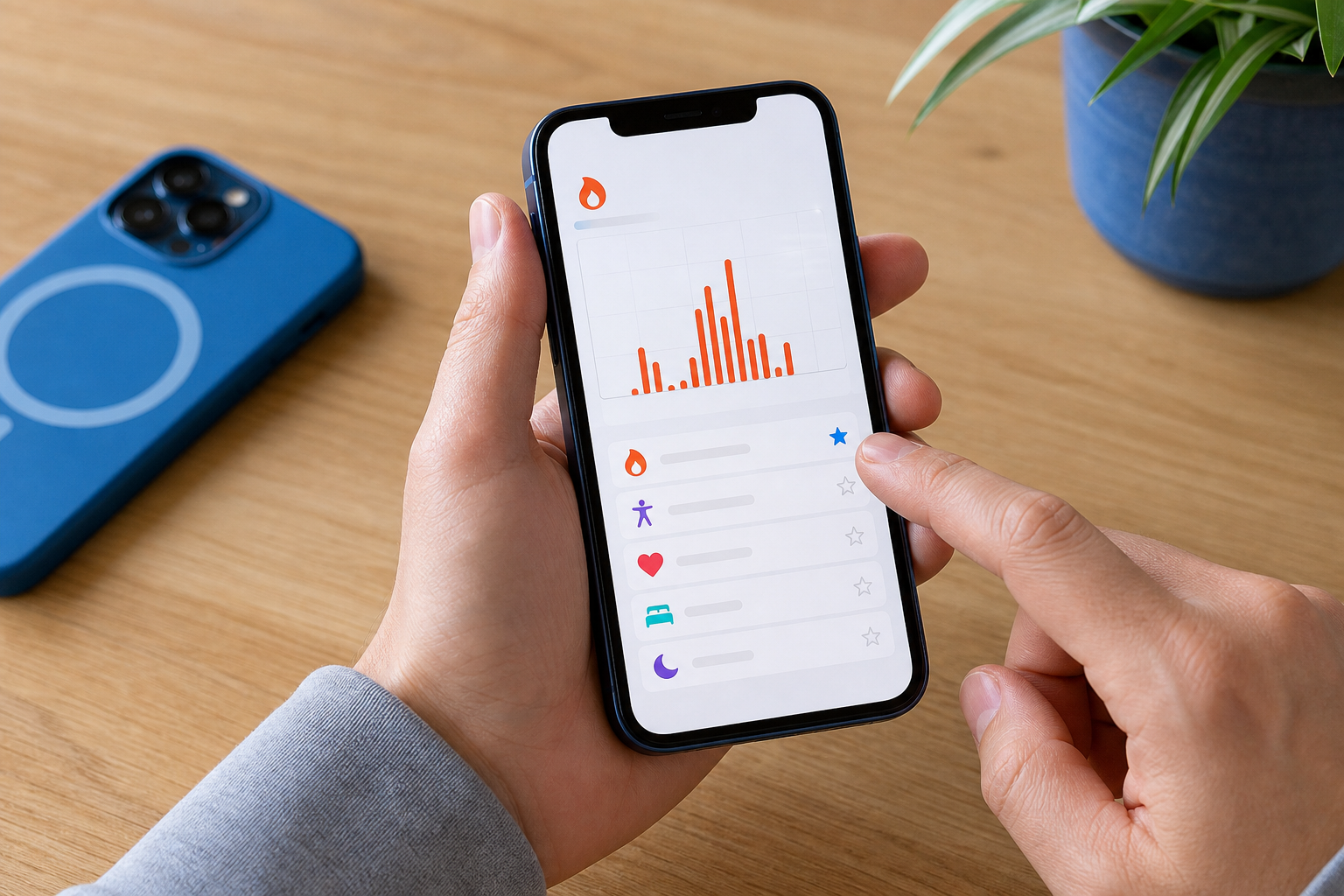
Pin your daily steps to your Summary
After your lunchtime walk, you want to quickly check whether you've hit your goal yet. Clicking through menu after menu every time soon gets annoying. So make your step count visible the moment you open the app.
-
1
Open the Health app and go to the details page for your steps.
-
2
Scroll down on this page and tap 'Add to Favourites' or tap the star icon.
-
3
From now on, your step count appears as a prominent tile on the Summary screen of the Health app.
No more searching: as soon as you open the app, you can see how far you still need to walk.
How do I put the step counter on my Home Screen?
Add a widget to your Home Screen to see your steps throughout the day. That way, you don't need to open any app at all.
-
1
Press and hold an empty spot on your iPhone Home Screen until the app icons start to jiggle. You're now in edit mode.
-
2
Tap the plus icon in the top left to open the iOS widget gallery.
-
3
Use the search bar to find a step counter app with widgets. Check in the preview that the widget really shows your steps; from iOS 18, the Fitness app does show your steps in Summary, but what a widget displays can vary between iOS versions.
-
4
Swipe through the options and pick the size you like best. A wider widget often shows extra walking charts as well.
-
5
Tap 'Add Widget' and place the widget somewhere handy among your apps. Finally, tap 'Done' in the top right.
You can now see at a glance on your Home Screen how many steps you've taken. Drag the widget right to the top of your first screen, for example, and you'll instantly see whether you need an extra walk round the block after dinner.
Want to see your steps without unlocking your iPhone? Add a Lock Screen widget, for example via StepsApp: press and hold your Lock Screen, tap 'Customise' and choose a widget below the clock.
How does an iPhone count your steps?
The step counter doesn't need a constant GPS connection. Your location isn't being requested all the time. In other words, the step counter doesn't rely on GPS that's always on.
Instead of GPS, the iPhone uses a smart built-in accelerometer and a dedicated motion coprocessor. These motion sensors are specifically designed to be energy-efficient. Together, these two internal components collect motion data while your phone is in your trouser or jacket pocket.
The accelerometer registers movement and the iPhone turns that data into a step count. As a result, the built-in pedometer has hardly any impact on your battery life with normal use. GPS may be needed for other features, such as recording a route, but not just for counting steps.
The iPhone processes that motion data to record steps while you walk. So you don't need to turn on GPS to count steps, not even on an ordinary walk. Do keep your iPhone on you, though: on a table, the accelerometer can't measure any steps.
Why isn't my iPhone counting steps, or why is the count wrong?
Walking around town all afternoon, yet your daily total stays inexplicably low or even stuck at zero?
Then first check whether something's wrong with your privacy settings. The most common reason for missing data is that 'Fitness Tracking' has been switched off by accident. If this toggle isn't green, the phone simply stops measuring.
If that setting is fine, look at how you're carrying your phone. The internal motion sensor responds to the sway and vibrations of your hips. Is your iPhone lying on a table, or rattling around loose in a roomy bag while you walk? Then the sensor can't register your steps properly and you'll miss a good chunk of your walking distance.
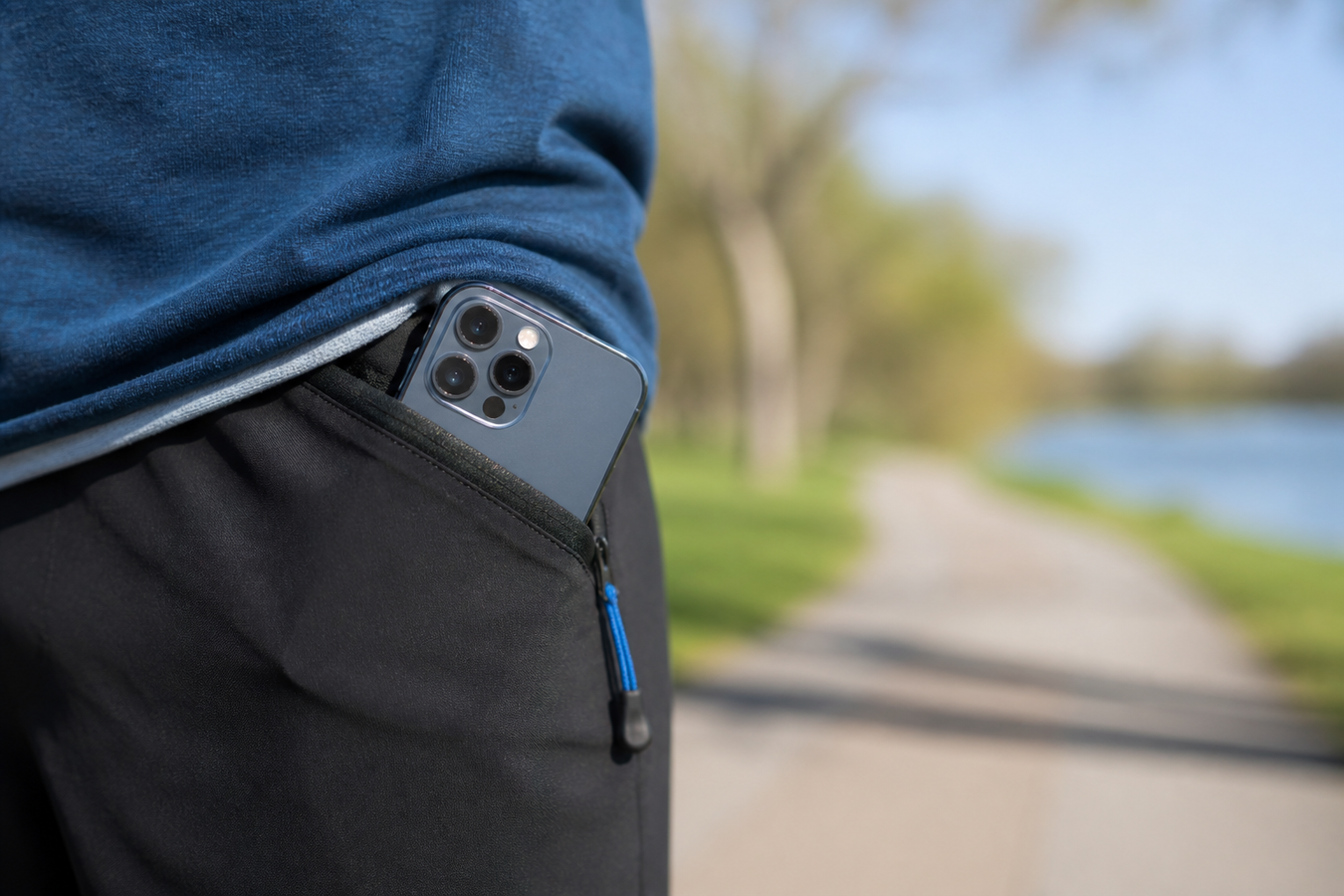
For accurate tracking, carry your phone close to your body. A snug trouser pocket or an inside jacket pocket works well. When exercising, use a running armband or a Mobigear sports waist bag, for example, if you don't have a suitable pocket. Your phone then stays close to your body instead of loose in a bag.
If it's mainly your walking and running distance that's off, also check your profile details in the Health app. An incorrect height can affect how your stride length is calculated, and therefore your distance.
How do I adjust my stride length for more accurate distance tracking?
The Health app stores your steps and walking and running distance. Do the kilometres shown after a long walk not quite match how it felt or your route? Then first check that your personal details are correct.
Open the Health app, tap Body Measurements and enter your exact height. This quick update keeps your profile details current. The distance is still an estimate based on motion and profile data, so a correct height won't always fix a discrepancy. Afterwards, check the distance over a few ordinary walks while carrying your iPhone close to your body.
You can't set your stride length as a separate value in the Health app. Feel free to compare the recorded walking and running distance with your actual route, but the iPhone doesn't offer a dedicated calibration step for this. If the distance is still clearly off, also check that 'Fitness Tracking' is on and that your iPhone isn't loose in a roomy bag.
Frequently asked questions
Does the iPhone have a built-in step counter?
Yes, every iPhone from the iPhone 5s onwards counts steps with a built-in motion sensor. You don't need a separate app. Just go to Settings > Privacy & Security > Motion & Fitness and turn on 'Fitness Tracking'.
Why isn't my iPhone counting steps?
Usually 'Fitness Tracking' is switched off, or you're not carrying your phone properly. A phone lying on a table or rattling around loose in a roomy bag won't measure anything. Keep your phone in your trouser pocket or use a running armband when exercising.
Why doesn't the distance match my walk?
The app calculates your walking distance based on your stride length, which in turn is estimated from your height. Check in the Health app under Body Measurements that your height is correct. Then go for a brisk 20-minute walk outdoors with GPS on to fine-tune the measurement to your own steps.
Is an Apple Watch more accurate than my iPhone?
An Apple Watch measures slightly more consistently because it sits on your wrist. Even so, your iPhone is perfectly fine for everyday use. If you carry it close to your body, for example in a sports waist bag, the measurement is very reliable.
Is the iPhone step count accurate?
The step counter is very reliable, as long as you carry your phone close to your body. The internal accelerometer picks up your walking rhythm precisely. If your phone is in a pushchair or backpack, though, the sensor misses the right vibrations and therefore a lot of steps.
Does the step counter drain the battery?
No, counting steps uses hardly any extra power. Your iPhone uses a dedicated low-power chip that registers movement without constantly using GPS. So you won't notice it in your battery life.
Can I put my steps on my Home Screen?
Yes, with a handy widget. Press and hold an empty spot on the Home Screen until the app icons jiggle, then tap the plus icon. Search for the Fitness widget and place it among your apps. That way, you can instantly see how far you've walked.
Does my iPhone count steps when I'm cycling?
No, hardly at all. The sensor is trained to recognise the specific up-and-down motion of footsteps. When cycling, your upper body and trouser pocket stay fairly still. For cycling, you're best off using a dedicated sports app with GPS.
You now know how to turn on the step counter, check your progress in the Health app and avoid tracking errors by carrying your phone properly. Want accurate stats right away? Check out the running armbands at directcases.com and keep your iPhone close to your body on your next walk.