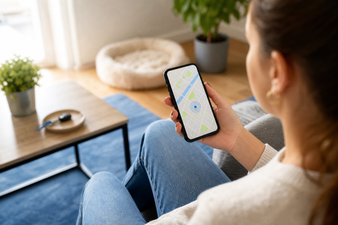
How you transfer your authenticator app to a new phone depends on which app you use. With Google Authenticator, you can sync your codes through your Google Account or transfer them manually with a QR code. With Microsoft Authenticator, you can restore a backup on the same type of device. Test that you can sign in on your new phone before erasing the old one.
How do you transfer Authenticator to a new phone?
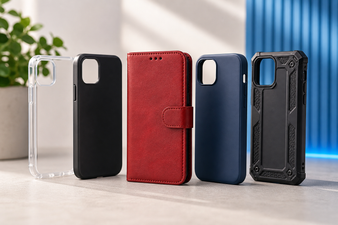
Start by laying both phones flat on a table. That keeps them steady while you scan and makes your new phone less likely to slip off the table. Consider putting on a protective phone case, such as one from Mobigear, before you begin. Set up a screen lock to protect your codes.
The steps vary by app. In Google Authenticator, you can use your camera to scan a QR code. Microsoft Authenticator restores your data from a cloud backup. Use only the official Google or Microsoft app. Both apps provide codes for two-factor authentication (2FA). Transfer them before you erase your old device. Accounts with passwordless sign-in often require you to sign in again after the transfer.
Transfer Google Authenticator
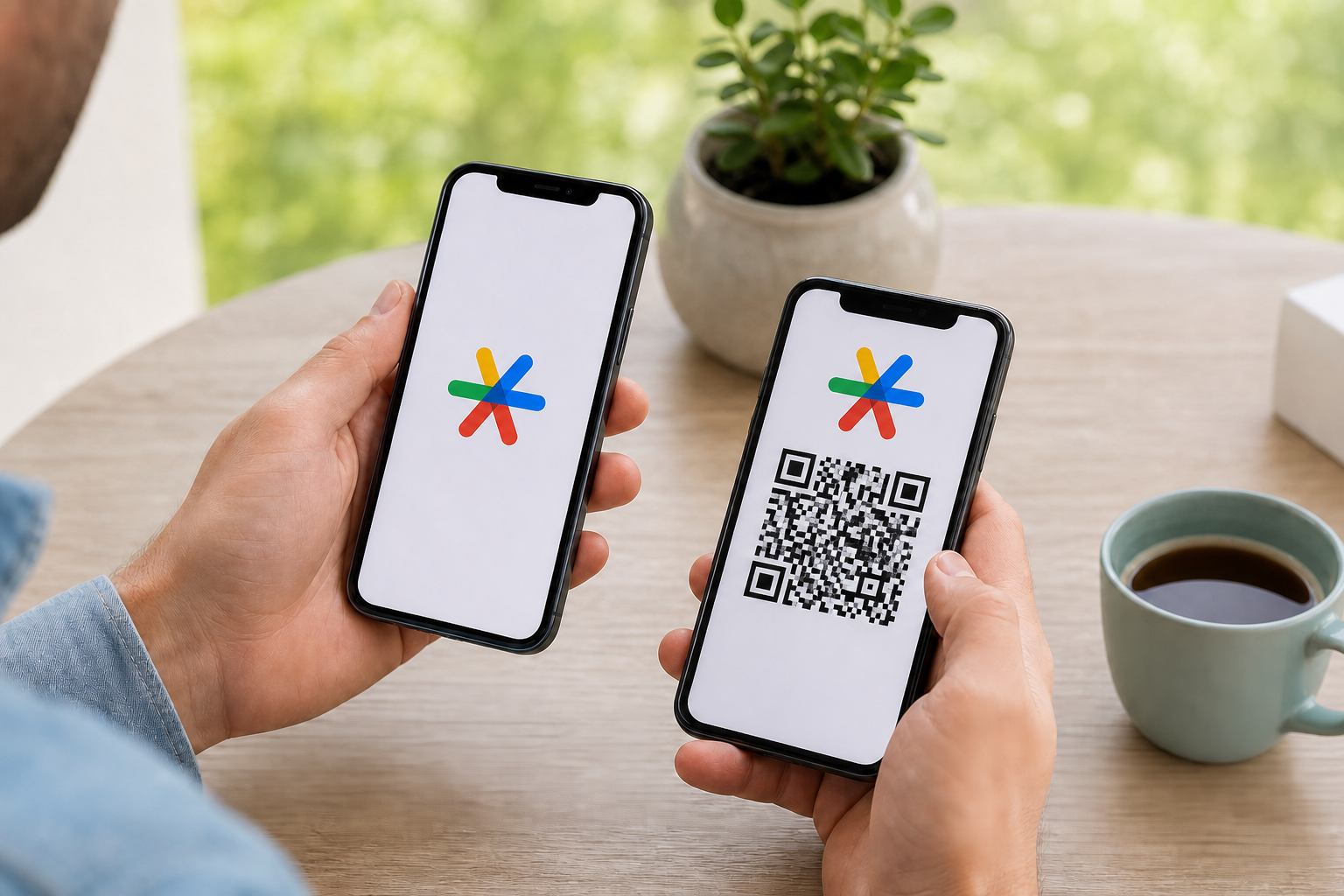
Use Google Authenticator’s built-in export feature to transfer selected accounts by QR code from your old phone to your new one. All you need on the new phone is its camera.
Set both phones side by side on a flat table while exporting and scanning. That helps you keep the code in focus without holding either phone steady.
-
1
On your old phone, open the app menu and tap “Transfer codes.”
-
2
Select “Export codes,” then choose which accounts to transfer.
-
3
Confirm your selection. A large QR code appears on your old phone.
-
4
On your new phone, open the app menu and tap “Transfer codes,” then “Import codes.”
-
5
Scan the QR code with the camera to transfer the selected accounts. If more than one code appears, scan each one.
Check that all the selected accounts appear on the new phone. Then try signing in to an important account with a verification code from that phone.
Transfer Microsoft Authenticator
Before switching phones, use the backup method for Android or iPhone. You’ll need to register work or school accounts again on the new phone.
-
1
Android: On your old phone, open Settings in Microsoft Authenticator, turn on Cloud Backup, and select a personal Microsoft account for the backup. Check that the backup is enabled before you continue.
-
2
Android: On your new phone, open Microsoft Authenticator and select Restore from backup or Begin recovery before adding an account. Sign in with the personal Microsoft account you used for the backup.
-
3
iPhone: Turn on iCloud Drive, iCloud Keychain, and iCloud Backup. Use the same Apple Account for iCloud on your new iPhone and open Microsoft Authenticator. If an account displays Sign in to restore your account, sign in to that account.
-
4
For work or school accounts, only the account name is restored. Sign in and register the account again on your new phone. Keep your old phone available until you finish.
-
5
Test signing in on a computer and approve the notification on your new phone only. Remove the app from your old phone once this works.
Can I transfer my authenticator from an iPhone to an Android phone?
The steps depend on the app when you switch operating systems. Google Authenticator lets you export accounts from an iPhone to an Android phone by QR code as long as the old phone still works and the code is readable. Scan the old phone’s screen with the new phone. The same method works on iOS and Android.
You can only restore a Microsoft Authenticator backup from iPhone to iPhone or from Android to Android. If you switch between iPhone and Android, set up verification again for each account.
How do I set up Authenticator again without my old phone?
If you no longer have your old phone or its screen is broken, you can’t scan QR codes from it. You may still be able to recover access to your accounts. If the phone was lost or stolen, use the recovery or backup codes you saved when you set up two-factor authentication. A code can help you sign in and link your new phone.
If you didn’t save those codes, check whether you’re still signed in on a trusted device, such as your laptop. You may be able to update the security settings there. Remove the old authenticator app from the account, add the app on your new phone, and store any new recovery codes somewhere safe.
For a work account, contact your IT administrator or help desk. They can help you regain access and set up the app again under your organization’s security procedures.
What if my old phone has a broken screen?
Cracks can make it hard for your new phone’s camera to read a QR code on the old screen. Try these steps:
Turn the old phone’s screen brightness all the way up.
Turn off dark mode for better contrast.
If you still can’t scan the code, follow the steps above to set up your authenticator app without your old phone.
When can I safely delete the app from my old phone?
Test the 2FA codes on your new phone first. Wait until you’ve tested signing in before you erase your old phone.
Choose three important accounts, such as your email, bank, and cloud storage accounts.
Sign out on a computer, then try signing back in.
Use only the new phone to generate the six-digit codes you need.
Delete the app from your old phone once you’ve signed in successfully to every account you tested.
Frequently asked questions
Why doesn’t Microsoft Authenticator show a QR code?
Microsoft uses cloud backups tied to your Microsoft account instead of exporting your codes to a QR code on the device. That helps prevent someone with access to your phone from simply copying your codes.
Can I use an authenticator app on two phones at once?
Yes. Scan the original setup QR code on both phones or restore the Microsoft backup on more than one device. For security, avoid keeping old devices active if you no longer use them.
Why doesn’t my authenticator app work on my new phone?
The clock on the new phone may be out of sync. Open your phone’s settings and make sure the date and time are set automatically.
What if I no longer have my old phone?
Sign in with the backup codes you saved when you set up verification. For a work account, contact your IT help desk to reset two-factor authentication.
Will I lose my codes when I switch phones?
Export your accounts or create a cloud backup before you reset your old phone to factory settings.
Is it safe to back up my verification codes in the cloud?
Providers such as Microsoft encrypt cloud backups. Protect the main account with a strong password.
Once you’ve transferred your authenticator app, you can protect the new phone itself. Browse directcases.com for a phone case and accessory that fit your device.