How to take a screenshot on iPhone? Here's how! Briefly press the side button and the volume up button at the same time, then let go straight away. Got a model with a round Home button below the screen? Then use that button together with the side button or top button.
The method depends on your specific device. Below you'll see exactly which button combination you need and where to find screenshots once you've taken them. We also cover handy alternatives, such as the clever Back Tap feature.
Which button combination do you need for your iPhone?
Which buttons do you need to press? Not every iPhone works the same way. The screen needs to be unlocked to take a screenshot. The method depends on the design of your smartphone and works on iPhone and iPad screens. Models with Face ID don't have a physical Home button below the screen, so they need a different action than classic Touch ID devices.
| iPhone type | Button combination |
|---|---|
| Face ID (no Home button) | Side button and volume up button |
| Touch ID (with Home button) | Home button and side button, or the top button on older models |
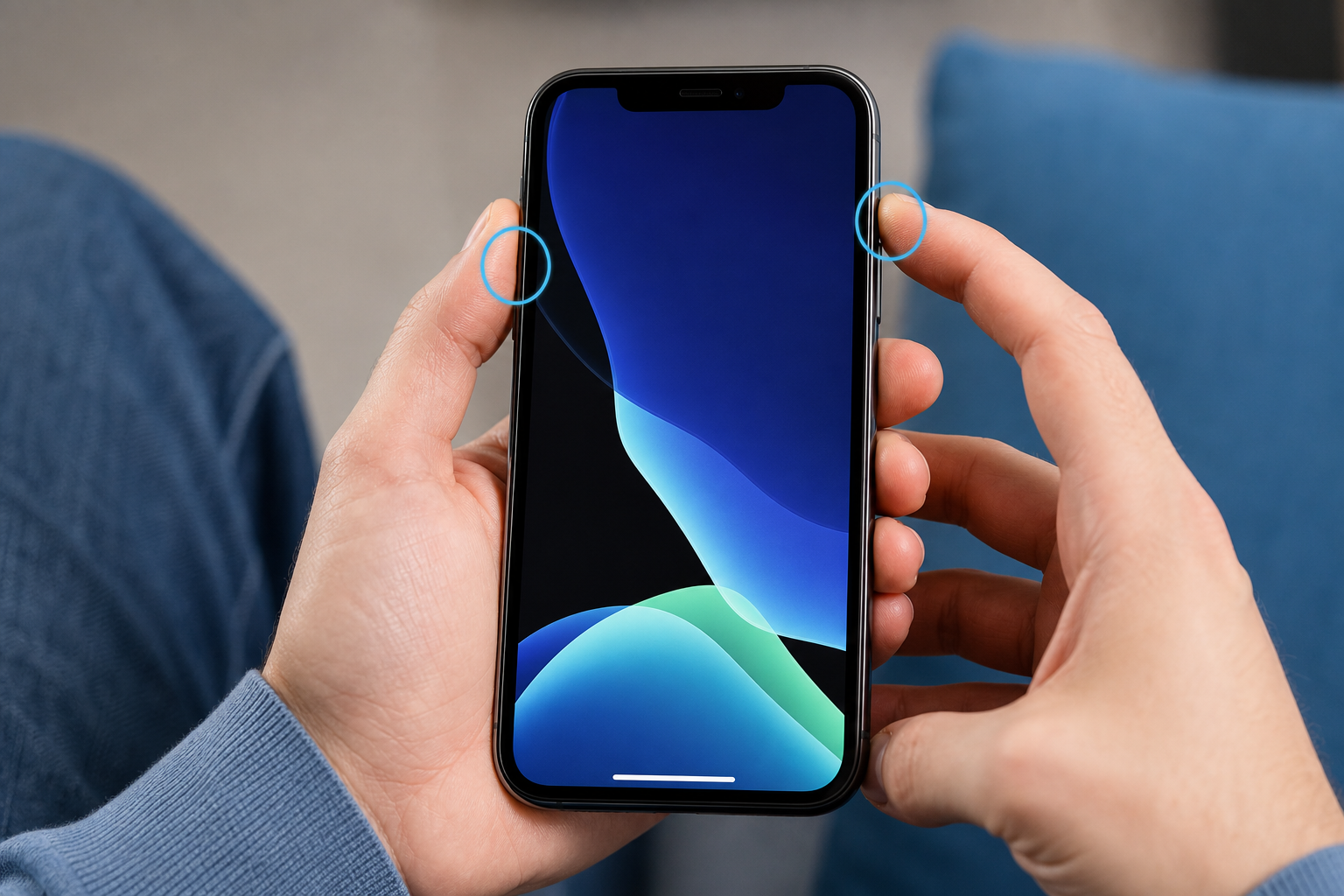
How do I take a screenshot on an iPhone with Face ID?
On iPhones with Face ID, you combine the physical buttons on either side of the screen. Follow these three steps for a quick screenshot.
-
1
Place one finger on the side button on the right of your device and another finger on the volume up button on the left.
-
2
Briefly press both buttons at the same time and let go straight away. This step matters: if you hold the buttons too long, the power-off slider appears and your screenshot won't be taken.
-
3
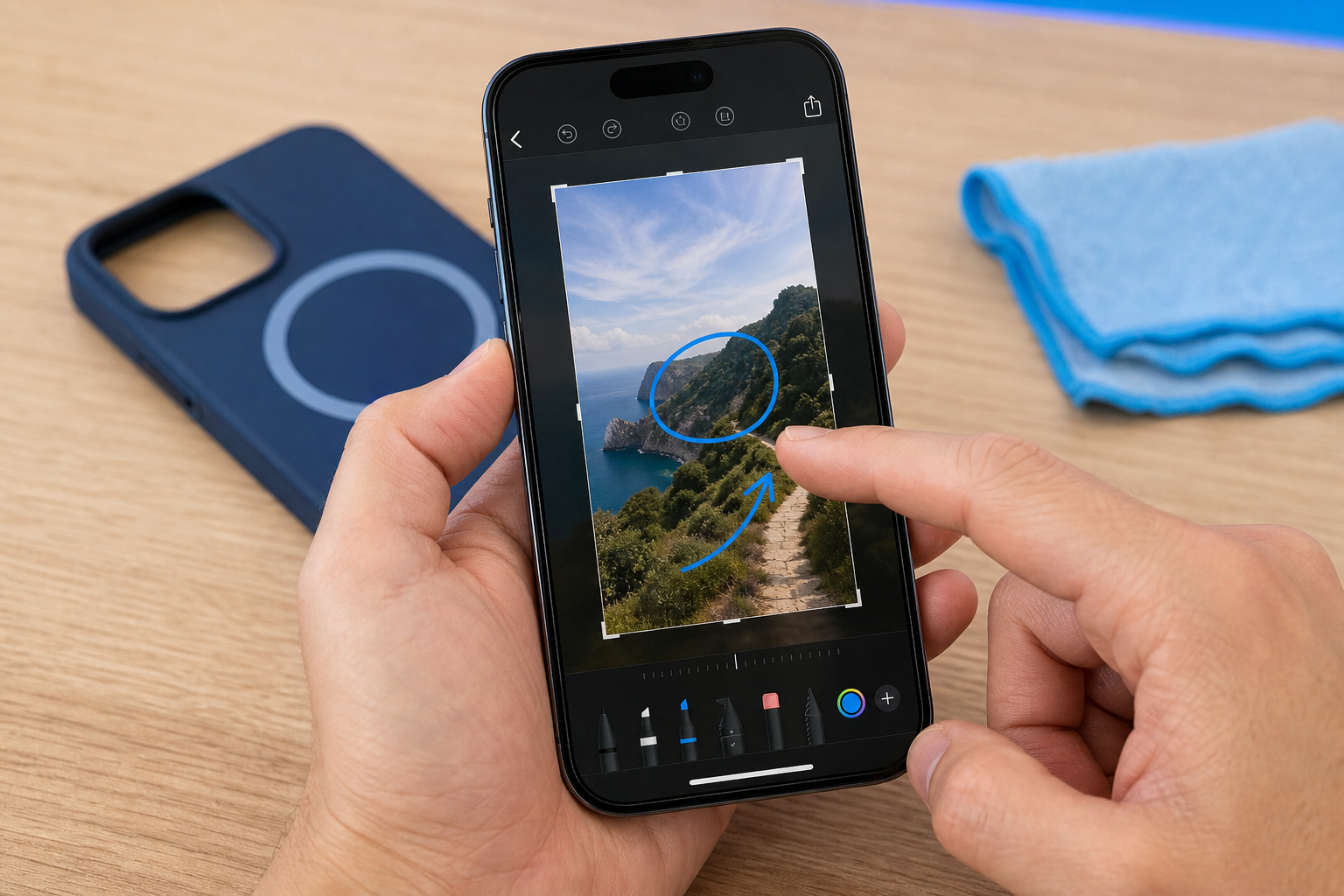
Wait for the visual confirmation. The screen briefly flashes white and a small thumbnail of your captured screen appears in the bottom-left corner. Tap that thumbnail to crop, share or edit the screenshot straight away with the Markup tools.
How do I take a screenshot on my older iPhone?
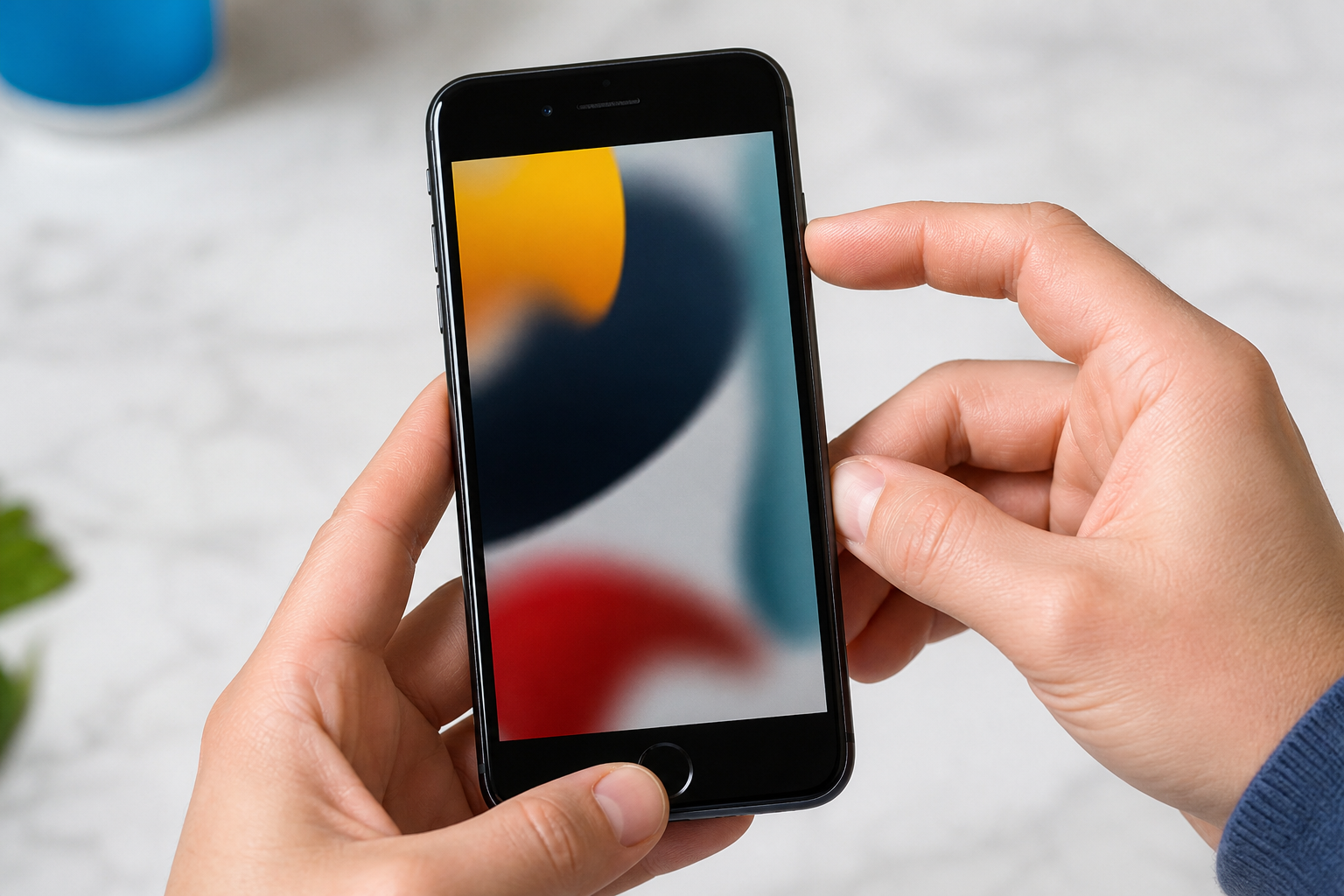
You want to quickly save a funny WhatsApp message or a digital train ticket on your iPhone SE or iPhone 8. Because these devices have a physical button below the screen, it works slightly differently.
-
1
Find the round Home button (Touch ID) at the bottom of your screen. Place your other finger on the side button on the right, or on the top button if you have a very old model.
-
2
Briefly press the Home button and the side or top button at the same time, then let go straight away. If you press too long, you'll accidentally activate Siri.
-
3
Watch for the flash. The screen flashes white to show the screenshot was taken successfully. Right after that, a small thumbnail of your screenshot appears in the bottom-left corner.
Where does a screenshot go on my iPhone?
Open the Photos app straight away if you're looking for a screenshot you've taken. iOS saves all these images there automatically. Tap 'Albums' at the bottom and scroll down a bit until you see the 'Screenshots' folder. So every screenshot ends up in the 'Screenshots' album in the Photos app. If you take a lot of screenshots, regularly delete the ones you no longer need to free up storage.
Want to edit an image or share it with someone right away? Tap the thumbnail that pops up in the bottom-left corner of your screen after you take it. This opens the Markup tool straight away. That way you can quickly crop a screenshot, hide private details or circle the most important information. If the thumbnail disappears, the screenshot is already saved in the Photos app.
When you're done, swipe the thumbnail away to the left. If that swipe doesn't work smoothly, tap the thumbnail first and close the editing screen when you're finished. A thicker edge on a screen protector can get in the way of that swipe. When choosing a new screen protector, go for a case-friendly or edge-to-edge model from PanzerGlass or Mobigear that fits your screen and case well.
How do you screenshot a full page on an iPhone?
A full-page screenshot saves you from a cluttered photo folder full of separate images when you want to keep a long article or a detailed recipe.
-
1
Open the accessibility settings
Open the web page you want in Safari. Then take a regular screenshot using the button combination for your device.
-
2
Select the feature
Tap the thumbnail in the bottom-left corner of the screen straight away. Just too late and the image slides away? Then you'll need to try again.
-
3
Choose your tap preference
Select the 'Full Page' option at the top. You'll now see the entire website along the side, which you can easily scroll through.
-
4
Test the shortcut
Tap 'Done' and choose to save. Save the full-page screenshot as a PDF in the Files app, because this version isn't stored with your regular photos.
How do I take a screenshot if the buttons are hard to press?
Can't manage to press the buttons at exactly the same time?
With some sturdy phone cases that offer extra drop protection, the button covers can feel different. So the fit and button feel of a phone case determine how easily you can press the side button and volume button at the same time. You choose a sturdy case for the best protection for your iPhone, of course, and you don't want to lose any functionality. Solve this straight away with these handy iOS settings.
Turn on Back Tap via Settings > Accessibility > Touch > Back Tap. Choose Double Tap or Triple Tap and assign Screenshot to it. Then tap the back of your iPhone to take a screenshot. Handy if a thick case makes the buttons harder to press.
Use AssistiveTouch for a floating virtual button on your screen. Turn this feature on via Settings > Accessibility > Touch > AssistiveTouch and add Screenshot to the AssistiveTouch menu. You then tap the on-screen button and choose Screenshot, without using the physical buttons. This is also the obvious choice if a button is broken.
Frequently asked questions
What is a screenshot and how do you take one?
A screenshot is a digital image of whatever is on your screen at that moment. You take it by briefly pressing a specific button combination, or by tapping your device using features such as AssistiveTouch or Back Tap.
Why can't I take a screenshot on my iPhone?
Usually you're not pressing the buttons at exactly the same time, or you're holding them too long. Briefly press the two buttons and let go straight away. If you hold them too long, the power-off slider appears and your screenshot won't be taken.
How do I save a screenshot directly on my iPhone?
Your iPhone does this completely automatically. Every screenshot goes straight into the Photos app, in the 'Screenshots' folder. Opened the thumbnail in the bottom-left corner to crop or mark up the image first? Then just tap 'Save to Photos' to keep your changes.
Can I take a screenshot without using the buttons?
Yes. Use AssistiveTouch or the Back Tap feature. In the settings, you can link taking a screenshot to a tap on the back of your device or a virtual button on your screen. This is a good solution if the physical buttons are hard to press.
Can I edit or share the screenshot straight away?
Yes, just tap the thumbnail that appears in the bottom-left corner after you take the screenshot. You can then crop the image, add notes or send it straight away via WhatsApp or email before it lands in your album.
You now know exactly which button combination goes with your iPhone model, where to find your screenshots in your albums and how alternatives such as Back Tap work. Are the physical buttons no longer easy to press because of your current case? Check out our wide range of new iPhone cases with responsive button covers at directcases.com.