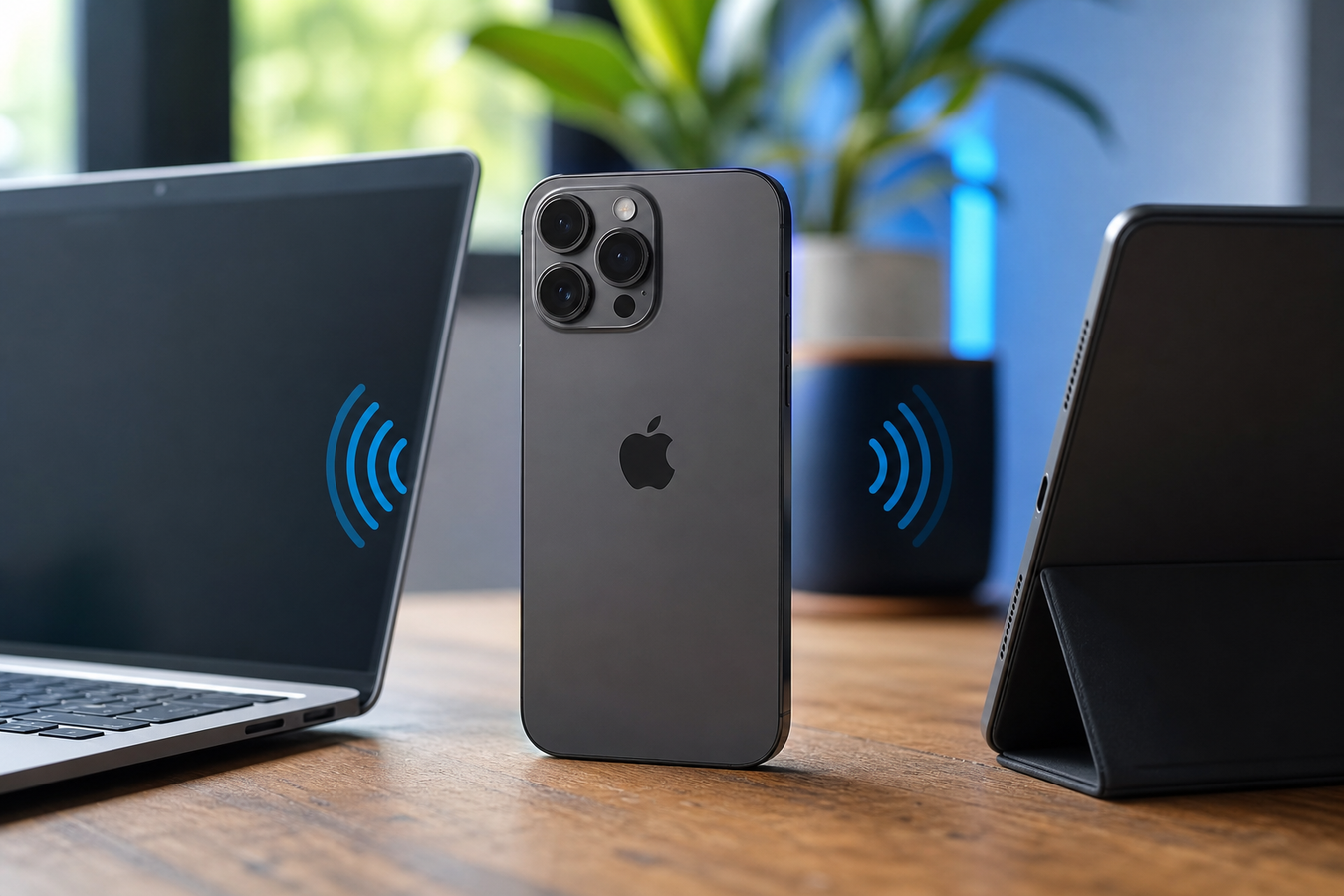
To set up an iPhone hotspot, go to Settings > Personal Hotspot. On some iOS versions, you'll find the option under Cellular. Turn on Allow Others to Join, check the password, then pick your iPhone's name from the list of Wi-Fi networks on your laptop or tablet.
No secure Wi-Fi nearby, but you need internet on your laptop or tablet right now? Here's how to set up a secure personal hotspot in seconds. You protect it straight away with a strong password and share your mobile data connection efficiently.
Making a hotspot is the quickest way to stay online anywhere, without relying on unreliable public networks. In practice, we see lots of people taking unnecessary risks at train stations or in cafés. By using your own personal hotspot, you stay in full control of your data and security.
Why use Personal Hotspot on your iPhone?
Tethering through your own smartphone has clear advantages over third-party connections. You create a private Wi-Fi network that benefits from your mobile network's strict security. That makes a personal hotspot far safer than logging on to unsecured public networks, where hackers can easily intercept data. You also save on subscription costs: when you share your mobile data connection, you don't need a separate, expensive data plan for your work iPad or laptop. Thanks to the stability of a modern 4G or 5G connection, you can keep working wherever you are.
Feature |
Public Wi-Fi |
Personal Hotspot |
|---|---|---|
Security |
Low (vulnerable to eavesdropping and data leaks) |
High (encrypted through your own network provider) |
Cost |
Often free, sometimes paid by the hour or day |
Fully included in your current mobile plan |
Speed |
Variable, depends heavily on how busy the location is |
Stable and predictable via your own 4G or 5G connection |
Availability |
Only at specific, fixed locations (cafés, restaurants, stations) |
Anywhere your smartphone has enough mobile signal |
Go for a personal hotspot if you work with sensitive business data or need a stable connection for video calls. Steer well clear of public networks when you log in to online banking or confidential systems.
How to turn on hotspot on iPhone (step by step)
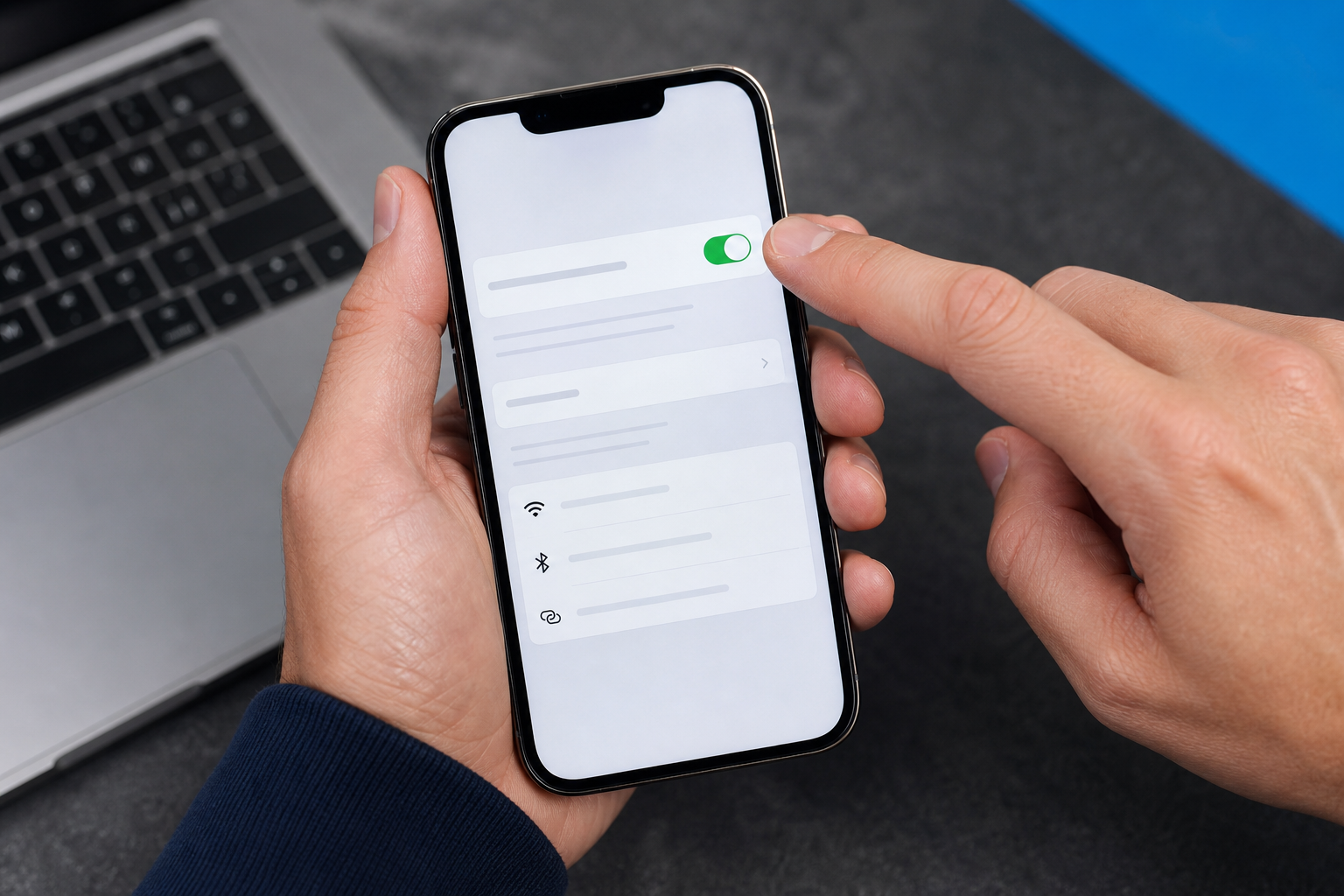
Sharing your internet from your smartphone only takes a few steps. Depending on your iOS version, you'll find the settings you need directly in the main menu or under Cellular. Follow these steps to turn on your personal hotspot:
-
1
Open the Settings app on your Apple device.
-
2
Tap Personal Hotspot in the menu (sometimes tucked away under Cellular).
-
3
Slide the Allow Others to Join toggle to green to switch on the signal.
-
4
Keep this settings screen open until the other device has connected.
-
5
On your laptop or tablet, look for the new Wi-Fi network, which is named after your mobile phone by default.
-
6
Click Connect and enter the password shown on your phone screen.
Can't find the option in your Settings menu? Contact your network provider. Some older or business plans block tethering by default at network level. As soon as you turn on Allow Others to Join, your phone broadcasts a signal that nearby devices can see. If you like, change your device's name under General > About so you can spot your personal hotspot more quickly in busy places.
How do I view or change my iPhone hotspot Wi-Fi password?
Setting a password for your personal hotspot is the first step to preventing unwanted data use. So before you turn on Allow Others to Join, check which password is currently set under Wi-Fi Password. If it's a long, random string, it's often tricky to type correctly on another screen.
You can easily change it by tapping Wi-Fi Password in the Personal Hotspot menu. Delete the existing string and type in your own, easier-to-remember version. Use at least eight characters, with a mix of numbers and letters, for the best security. Apple recommends using standard ASCII characters to avoid compatibility issues with older laptops.
A strong password stops strangers nearby from quietly piggybacking on your data allowance. Confirm your new password by tapping Done in the top-right corner of your screen. From then on, your personal hotspot is protected and ready to use safely.
Three ways to connect: Wi-Fi, USB or Bluetooth
Although connecting over Wi-Fi is the standard, your smartphone supports several methods. Which one you choose depends largely on the speed you need, how many devices you want to connect and how much battery your phone has left.
Connection method |
Speed |
Battery use |
Best for |
|---|---|---|---|
Wi-Fi |
Very high |
High |
Connecting several devices at once and downloading large files. |
USB cable |
High (very stable) |
Low (charges your iPhone at the same time) |
Working on a desktop without a Wi-Fi adapter or when your phone battery is almost flat. |
Bluetooth |
Low |
Very low |
Light background tasks and situations where you want to save as much battery as possible. |
Choose Wi-Fi if you want to work quickly on your iPad or give several colleagues access via Allow Others to Join. Choose a USB cable if you want the most stable tethering and want to charge your phone from your laptop at the same time. Avoid Bluetooth if you need to download large files or stream videos, as the speed is considerably slower.
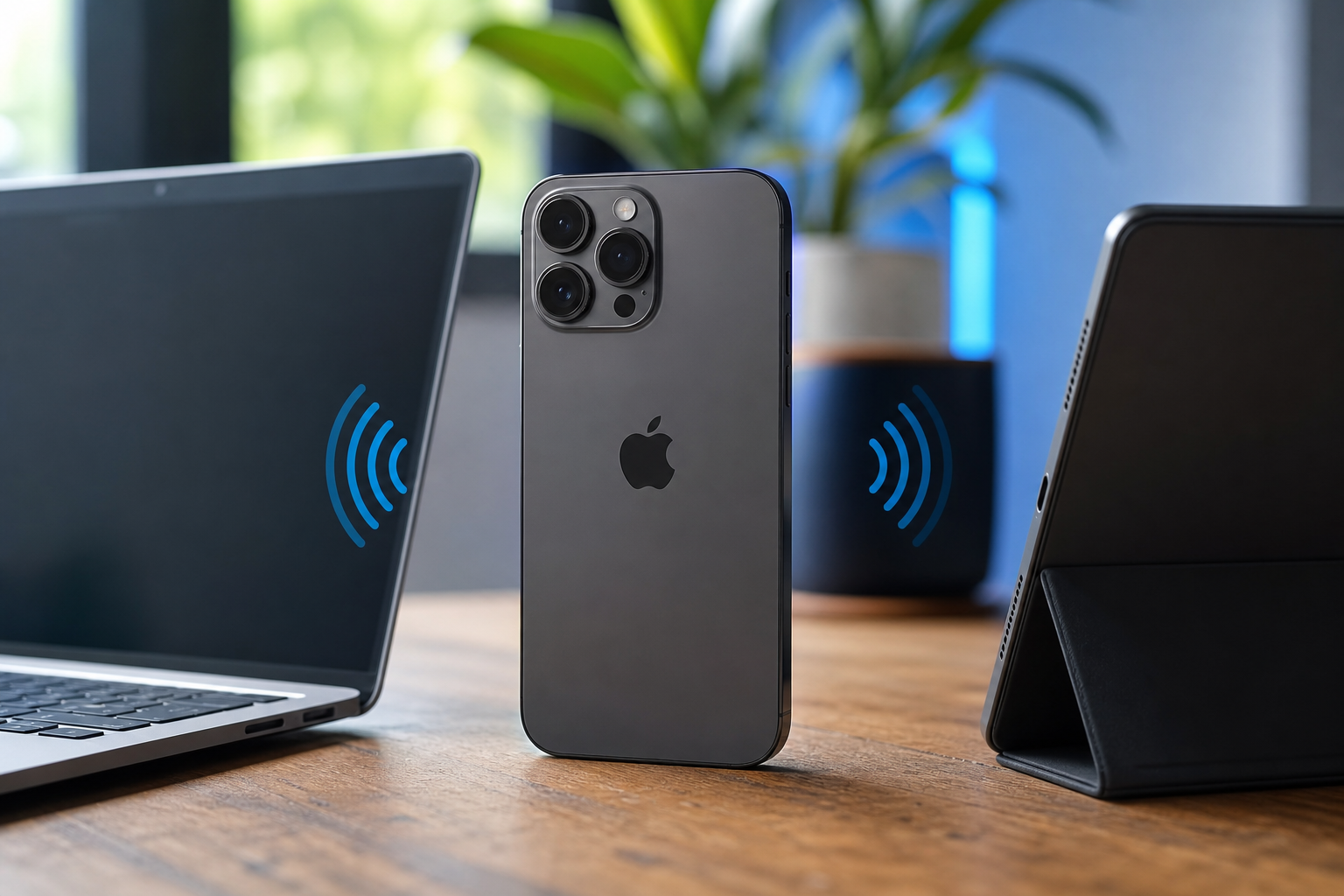
Using Instant Hotspot with your Mac and iPad
Within the Apple ecosystem, sharing your internet is even easier thanks to Instant Hotspot. You don't even need to take your phone out of your bag to turn on your personal hotspot. Keep the following requirements and benefits in mind when using Instant Hotspot:
No password needed: Your Mac or iPad connects automatically without you having to enter a password manually.
Want family members to connect automatically too? Set this up via Family Sharing in the hotspot settings.
Connections switched on: Make sure both Wi-Fi and Bluetooth are turned on on both devices so they can detect the personal hotspot.
Easy to connect: Just select your phone in your Mac's Wi-Fi menu and Instant Hotspot sets up the connection straight away.
Switches off automatically: As soon as you stop using it, Instant Hotspot disconnects by itself to save power.
That makes Instant Hotspot the most efficient option for everyday use between your own devices. It also saves you from having to switch on Allow Others to Join in your settings every time.
Does hotspot use more battery? Managing data use and saving battery
An active personal hotspot uses a lot of power and can quietly eat through your monthly data allowance. Laptops often treat the connection as a regular, unlimited Wi-Fi network and immediately start heavy background tasks. Use this checklist to avoid unexpected charges and a flat battery:
Don't assume hotspot use is automatically included in your plan. Apple states that you can only use Personal Hotspot if your network provider allows it on your plan. If you don't see the option, contact your provider.
Turn on the metered connection setting or Low Data Mode straight away on the connected Windows laptop or MacBook.
Temporarily switch off automatic software updates, cloud backups and heavy background syncing while tethering.
Switch off the hotspot by turning off Allow Others to Join as soon as you stop using it, to save battery.
Plug your phone into a power bank or use the USB method if you're using your personal hotspot for a long time.
Keep an eye on your current data use in your network provider's app.
Use Family Sharing in iOS to decide exactly which family members can automatically use data via your personal hotspot.
By following these steps, you stay in control of your data use and avoid a flat battery at crucial moments.
Frequently asked questions
Why isn't my personal hotspot showing up on other devices?
First, check that Cellular Data is turned on in your phone's settings. Without an active 4G or 5G connection, your device can't broadcast a network, even if Allow Others to Join is switched on. Also, stay on your iPhone's hotspot screen until the other device has found the network in its list.
How do I fix ongoing connection problems with my personal hotspot?
Restart both your iPhone and the device you're trying to connect. In most cases, this fixes temporary software glitches. Still not working? Turn Wi-Fi and Bluetooth fully off and back on again on both devices to reset the network adapters.
Where is the Personal Hotspot setting on iPhone if it's not listed in Settings?
Contact your network provider to check whether tethering is allowed on your current plan. Apple automatically hides the feature if your provider blocks internet sharing. Sometimes you need to update the APN settings manually via the Cellular menu.
Does resetting network settings help if my personal hotspot won't work?
Reset your iPhone's network settings as a last resort if problems with your personal hotspot persist. Go to General, choose Transfer or Reset iPhone, tap Reset and select Reset Network Settings. Note: this also permanently deletes all the passwords you've saved for other networks.
Now you know exactly how to set up and manage a secure Wi-Fi hotspot on your iPhone, without relying on unsafe networks. Set a strong password on your iPhone now and test your new personal hotspot by connecting your laptop.