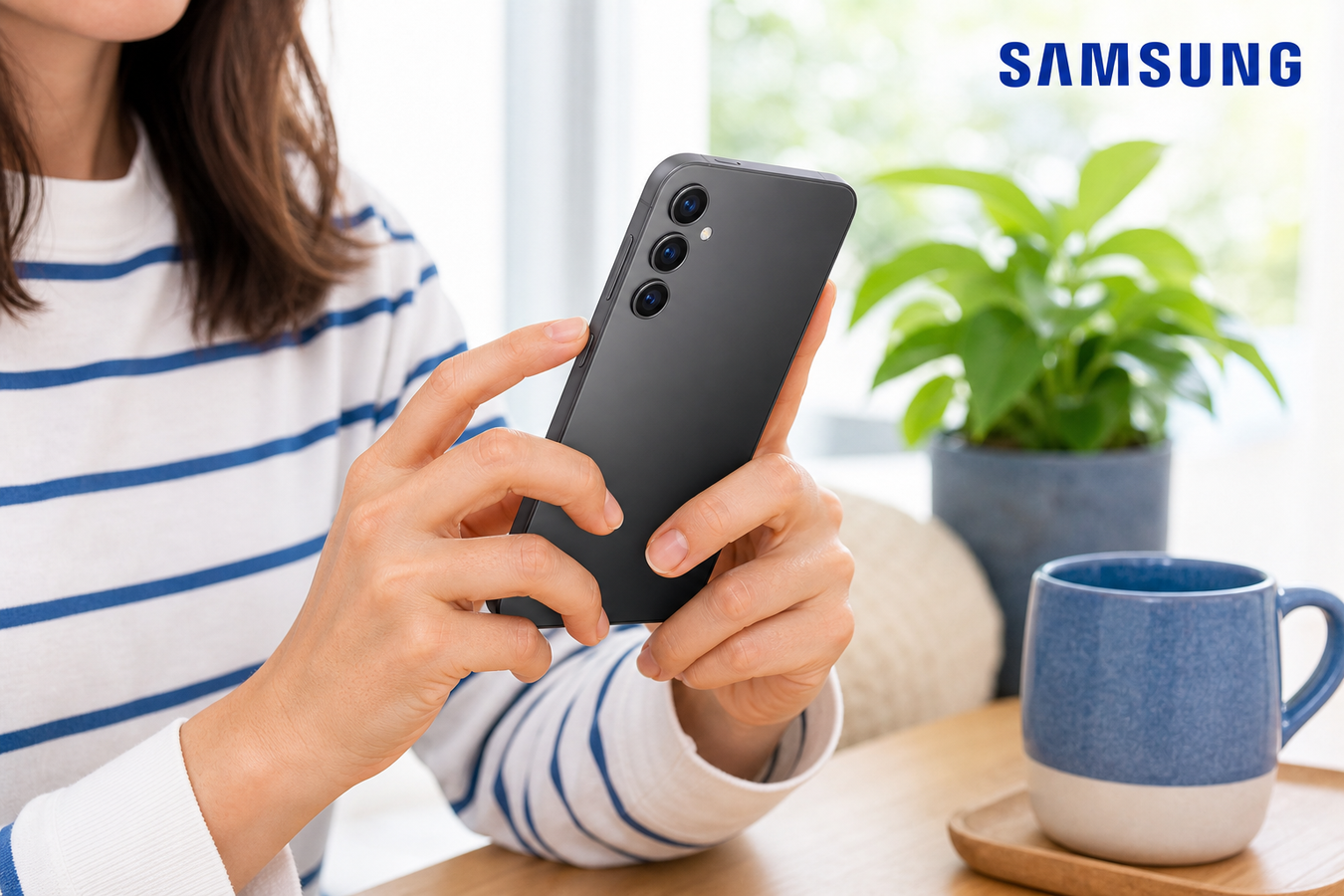
The quickest way to take a screenshot on a Samsung phone is to briefly press the Power and Volume Down buttons together. Release both buttons straight away. The screen flashes briefly and the image is saved.
This shortcut works on almost every Samsung Galaxy phone or tablet. The buttons can be awkward to press when your hands are full. You can also take a screenshot without the buttons or capture a long web page.
What is the shortcut for taking a screenshot on a Samsung device?
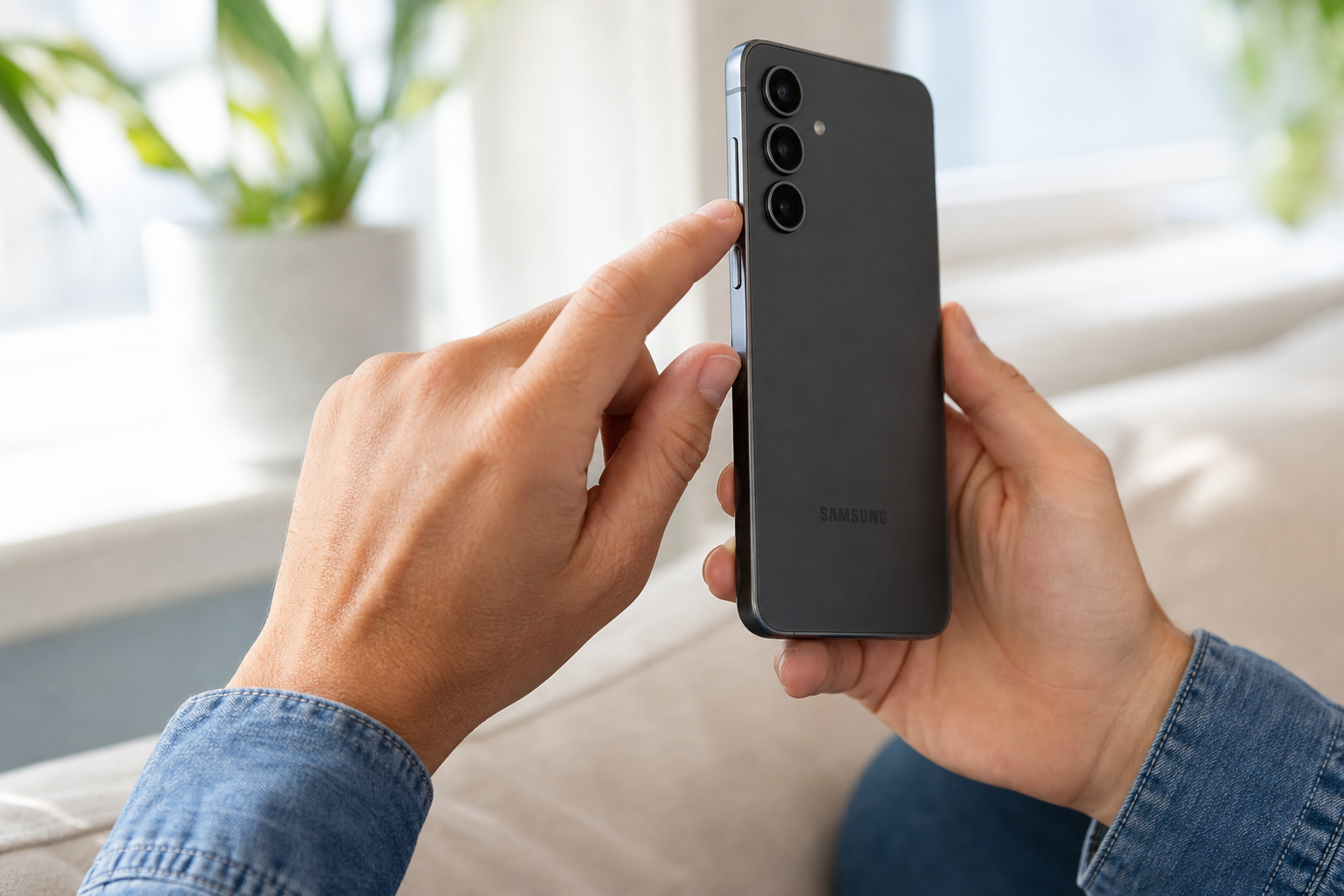
To take a screenshot on your Samsung Galaxy, briefly press Power and Volume Down at the same time. This shortcut works on most recent Samsung Galaxy phones and tablets.
-
1
Open the app, photo or web page you want to capture and make sure everything you need is visible. Check for notifications, phone numbers or other private information you would rather keep to yourself.
-
2
Place your fingers on the Power and Volume Down buttons. On many recent Samsung Galaxy devices, both are on the same side. Use Volume Down for this shortcut.
-
3
Press both buttons briefly at the same time and release them straight away. Holding them down too long opens the power menu. If it doesn’t work on the first try, make sure you press both buttons at exactly the same time.
-
4
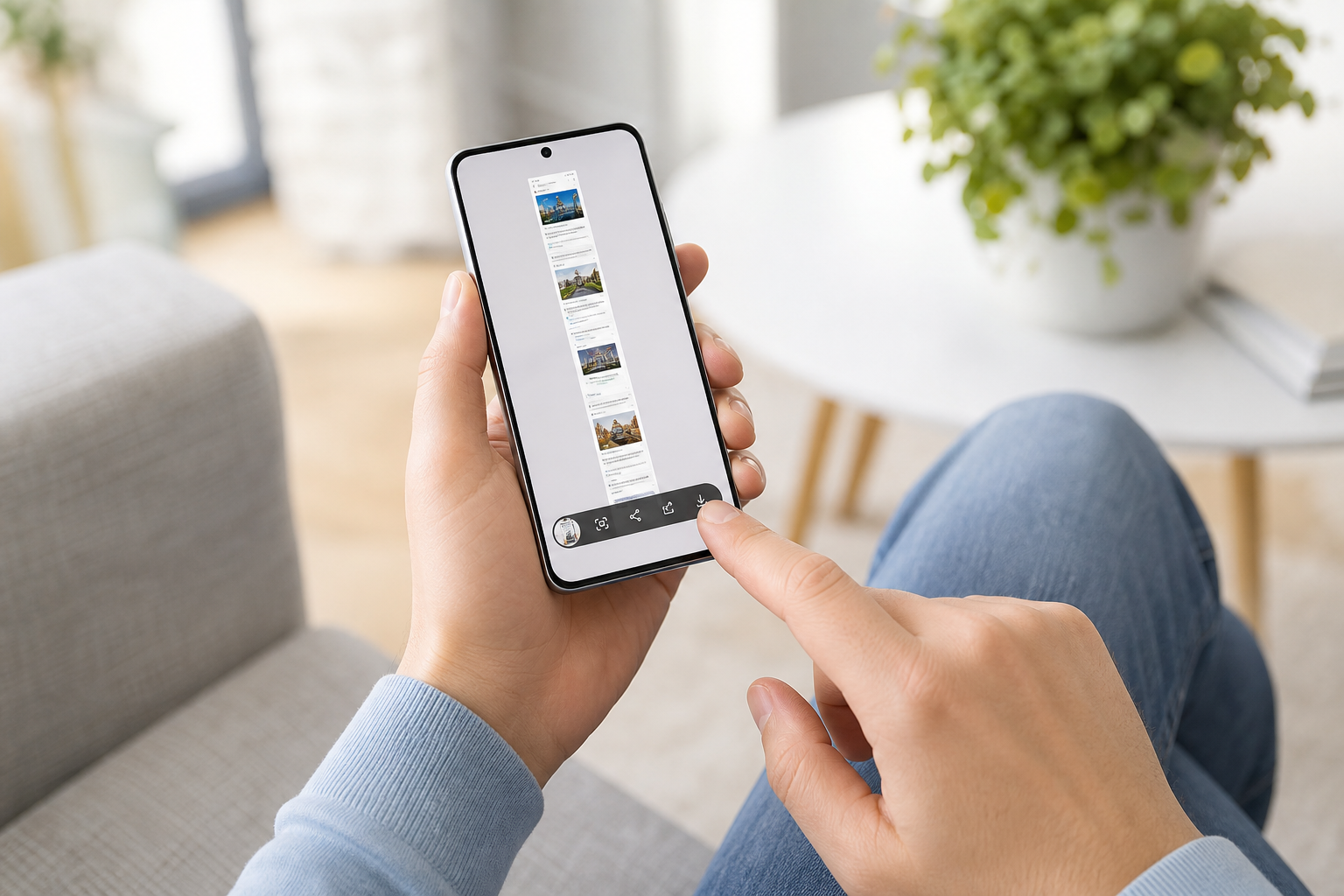
The screen flashes or shows a short animation to confirm the screenshot. A small toolbar usually appears so you can crop or share the image straight away. You can often use it to draw, highlight text or extend the screenshot with Scroll capture.
How do I take a screenshot on my Samsung without using the buttons?
If your hands are covered in dough or your phone is lying flat on your desk, the side buttons can be awkward to press. Samsung offers a few other ways to capture the screen. The options vary by device and One UI version.
-
1
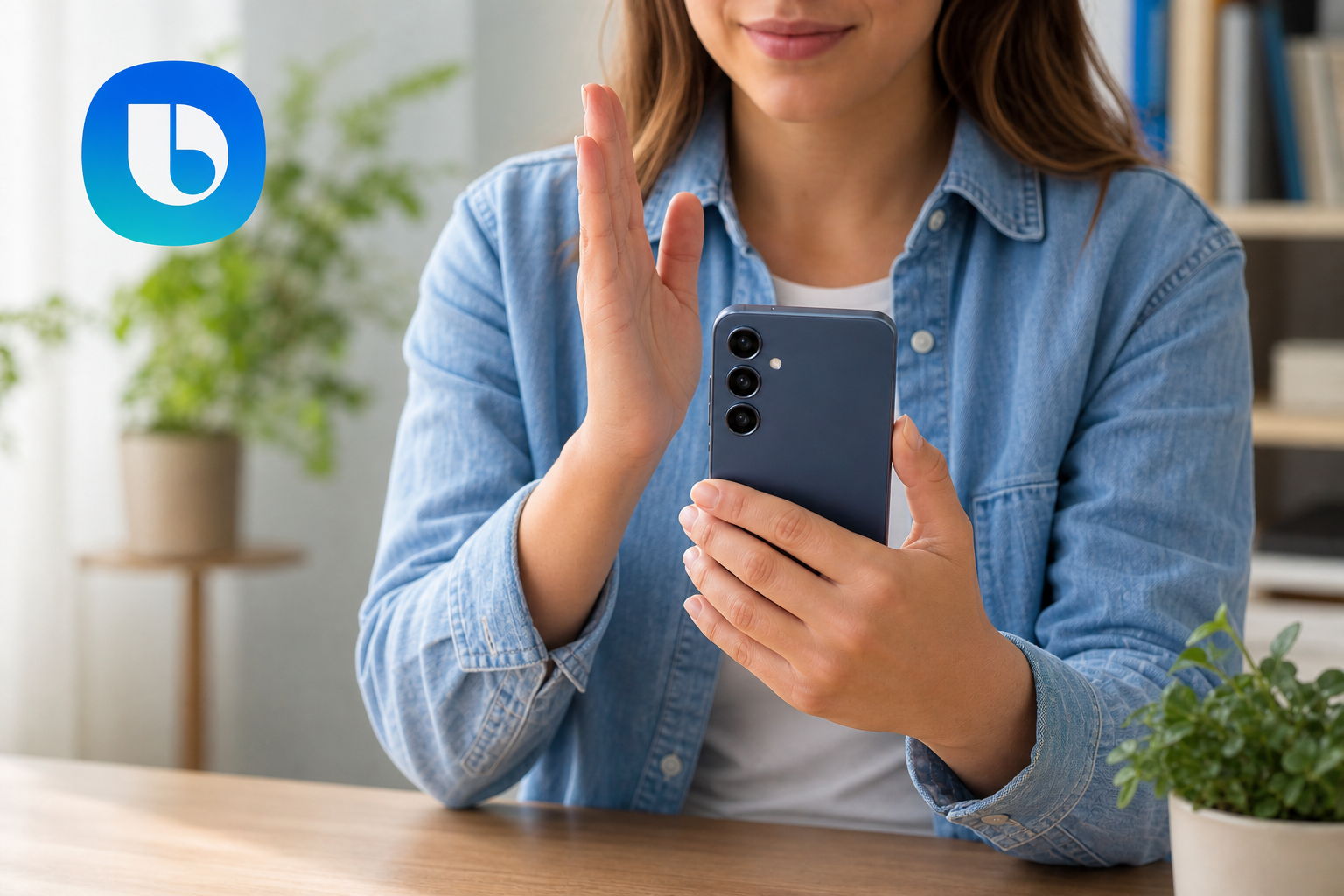
Swipe the edge of your hand horizontally across the screen, for example from right to left. This palm swipe gesture works on many Samsung models and captures what’s visible on the active screen. It can’t capture an app running in the background. If the gesture doesn’t work, turn it on in Settings, Advanced features, Motions and gestures, then Palm swipe to capture. Availability varies by device. A thick case can get in the way, so keep the edge of your hand lightly against the screen as you swipe. Try this method if a rugged case makes Power and Volume Down hard to reach.
-
2
Use voice control to keep your hands free. Ask Bixby or Google Assistant to take a screenshot and the assistant will save the image. This comes in handy if the phone is in a mount or the buttons are hard to reach. Open the page or app you want first, since the assistant captures whatever is showing on the screen.
-
3
On a Galaxy Ultra or Galaxy Note, you can use the S Pen. Take the pen out to open the Air command menu. Choose ‘Smart select’ to capture a specific part of the screen, such as part of a conversation, an image or a web page. For a whole page, it’s usually easier to take a regular screenshot and then use Scroll capture.
How do I take a screenshot of an entire web page? (Scroll capture)
Use Scroll capture to save a whole article or a long conversation as one image.
-
1
Start by taking a regular screenshot using whichever method you prefer.
-
2
Wait for the screenshot toolbar to appear at the bottom of the screen.
-
3
Tap ‘Scroll capture’. On older Samsung Galaxy models, this feature may be called ‘Smart capture’.
-
4
The phone scrolls down automatically. Keep tapping the icon until you’ve captured the whole page or conversation.
-
5
Stop at the point you want and open the screenshot in Gallery. You can crop out any extra header or blank space before sharing it.
If the button is missing, the page may not scroll, the screenshot toolbar may be off or the app may block the feature. Scroll capture doesn’t work with protected documents or some apps with a protected display.
Use Scroll capture to save an article, conversation or document as one image. If you’ll need to find a passage quickly in very long content, a PDF is often easier to use.
Where can I find my screenshots?
Your Samsung phone normally saves screenshots automatically. Just after taking one, you can often open it from the toolbar.
Open Gallery or Google Photos to find your screenshots. In the album view, look for a folder called Screenshots or Screen captures. The name can vary with your Samsung’s software version.
If you don’t see a separate album, look in Gallery or Google Photos for the date you took the screenshot. A new screenshot may show up under recent images first. A flash or thumbnail on the screen usually confirms that it worked.
The folder contains your screenshots. Open an image to edit it or crop its edges, for example to hide private details. When you’re done, use the share button to send it via WhatsApp or email.
Frequently asked questions
Why can’t I take a screenshot on my Samsung?
Some apps block screenshots for security reasons. Banking apps, streaming services and other protected apps can use this measure to safeguard payment details, personal information or protected content. You might see an error, get a black image or find that no screenshot was saved. This usually isn’t a problem with your Samsung Galaxy.
How do I record a video of my screen?
Swipe down from the top of the screen to open the Quick panel and tap Screen recorder. Choose your audio and recording options and start the recording. It begins after a 3-second countdown. Use this to show an error message, movement or a series of steps. A screenshot captures a still image.
Does a screen protector change how you take a screenshot?
The Power and Volume Down shortcut stays the same. For the palm swipe, the edge of your hand needs to make good contact with the screen. A thick screen protector or a case with a screen cover can make the swipe less responsive. You can use the buttons, Bixby, Google Assistant or the S Pen with Smart select.
Where can I find my screenshots?
Open Gallery and look for the Screenshots or Screen captures album. The name can vary by Samsung Galaxy model and software version. You can crop or share the image from there.
Why don’t I see Scroll capture?
Scroll capture only appears after you take a screenshot of content that can scroll. If you don’t see it in a conversation or app, the app may not support the feature. Check your settings to make sure the screenshot toolbar is set to appear after a capture.
You can take a screenshot on your Samsung with the buttons or a swipe of your hand. If an old or damaged case makes the side buttons hard to press, search for your model on directcases.com and choose a new phone case with buttons that are easy to press.