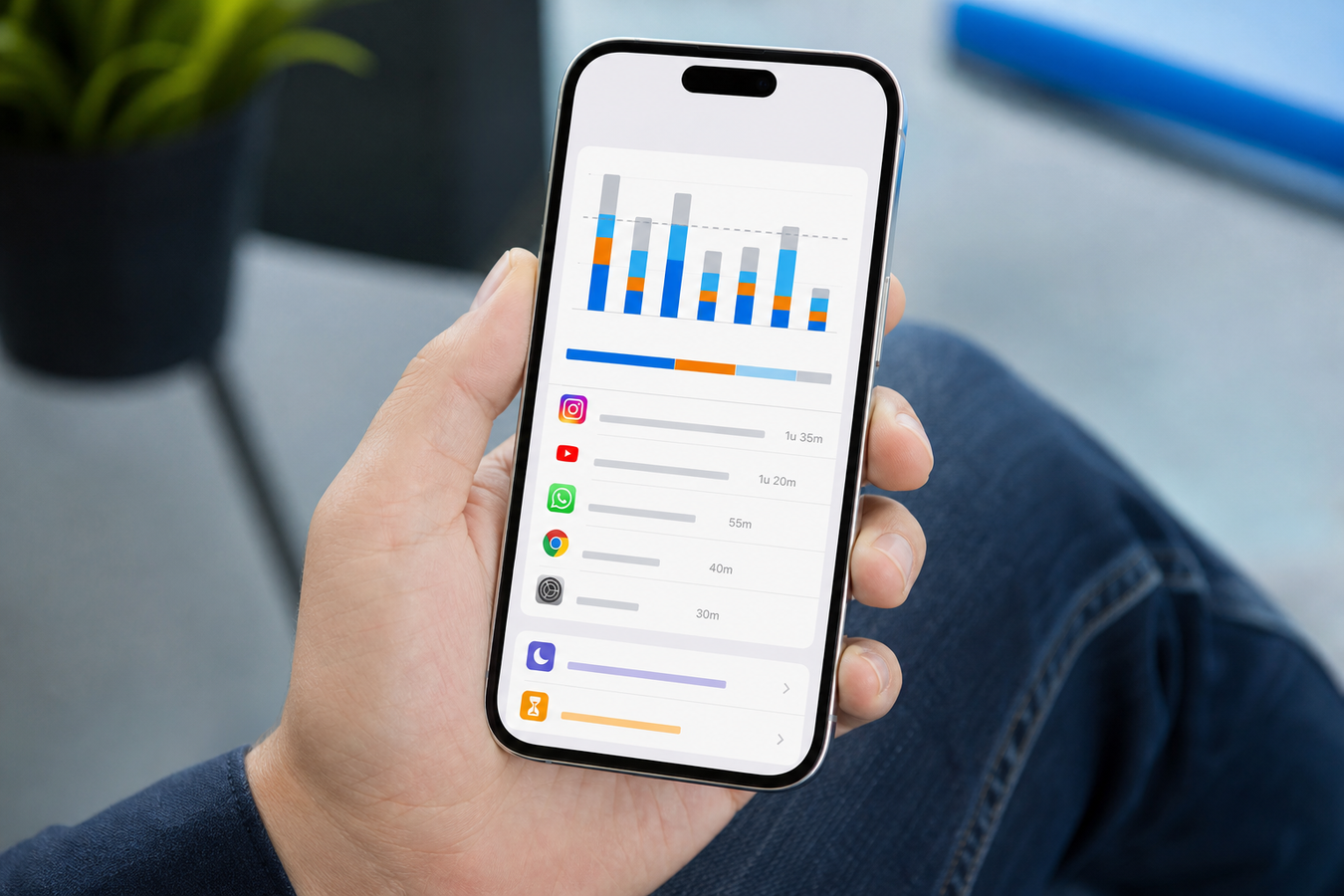
Screen Time on iPhone and Android is the built-in feature that tracks how much time you spend in each app, how often you pick up your device and how many notifications come in. On an iPhone, you'll find it under Settings > Screen Time, and on Android it's usually called Digital Wellbeing and parental controls. On both, you can set app limits, screen-free time and parental controls without needing an extra app.
Ever been shocked by your weekly report on your mobile phone usage? You're not alone. Constant notifications and endless feeds quietly eat up hours of your day, often without you even noticing.
What is screen time and what's a healthy average?
Screen time is much more than a handy tracking feature on your smartphone. It's also a way to change your habits. Both iPhone and Android keep exact track of how many minutes you spend looking at your screen, which apps you open and how often you pick up your device each day. Those numbers show how you actually use your mobile phone. We often see that usage is higher than people expect, and that insight is exactly the first step towards scrolling less.
So how much screen time is normal and healthy for adults? There's no hard medical limit, but one Dutch source suggests a maximum of three hours of recreational screen time a day as a practical guideline. Work and study don't count, so it's about the hours you lose to social media, video and games. That's why it's worth looking at where your time goes in your weekly overview. Six hours a day sounds like a lot, but if four of those go to work email and navigation, two hours of scrolling still keeps you under that limit.
You'll mostly notice too much screen time in your sleep and your focus. In practice, it shows up in the evening first: if you keep scrolling in bed, you go to sleep later and wake up less rested. Your attention also gets fragmented during the day, so you get less done. That's mainly down to notifications, because every push notification interrupts what you're doing and pulls you back to your mobile phone. So tackle your notifications first, before you set strict limits.
Screen Time on iPhone vs. Digital Wellbeing on Android
Both operating systems offer extensive tools for healthy screen use, but the terminology and exact features differ. Apple puts everything under one name, while Android manufacturers such as Samsung Galaxy often use a broader term for their wellbeing features.
Feature |
Apple iOS (iPhone) |
Android (incl. Samsung Galaxy) |
|---|---|---|
Name |
Screen Time |
Digital Wellbeing and parental controls |
Location in menu |
Directly in the main Settings menu |
In Settings, often under a separate wellbeing section |
View activity |
Shows usage per app, category and website |
Dashboard with a pie chart per app and category |
Limits per app |
App limits per app or category |
Timer per app via the dashboard (hourglass icon) |
Notification insights |
Counts exactly how many notifications each app sends |
Shows which apps generate the most push notifications |
Pickups |
Shows how often you pick up your phone and which app you open first |
Records the number of unlocks per day |
Downtime |
Downtime (blocks everything except the apps you choose) |
Bedtime mode (turns the screen grey and silences notifications) |
Switching from an iPhone to a Samsung Galaxy? Then don't look for "Screen Time" in Settings, look for "Digital Wellbeing". The insights are almost identical on both devices; only the names and charts look different.
Go for the iOS approach if you want a strict, system-wide block that's hard to get around without a passcode. Go for Android's Digital Wellbeing tools if you'd rather reduce visual stimuli, for example with the automatic greyscale in Bedtime mode. Avoid third-party screen time apps on both systems: the built-in features work deeper in the operating system and you don't have to install anything extra.
How do you set and limit screen time?
Before you switch on all kinds of restrictions, it's smart to check your current activity first. Your smartphone collects this data automatically in the background. By going through your dashboard, you'll spot patterns: do you mostly scroll aimlessly on your morning commute, or do you lose hours late in the evening? With those insights, you can take much more targeted action. You usually don't need a separate screen time app for this, because Screen Time on iPhone and Digital Wellbeing on Android already show your usage per app.
In practice, setting specific limits works much better than locking down your whole phone. If you restrict everything at once, you'll often meet resistance, which makes it easier to slip back into old habits. By only limiting your biggest time-wasters, like Instagram or TikTok, to say thirty minutes a day, you keep the useful features of your phone. That way you get a workable balance instead of a digital boot camp.
Want to cut down your screen time? Start by turning off notifications from apps you don't really need, because those notifications are exactly what make you pick up your phone again and again. Then cut back gradually, for example by 30 minutes a day rather than a full hour straight away. Check your overview again after a week, so you can see whether a limit is actually helping or mostly just annoying you.
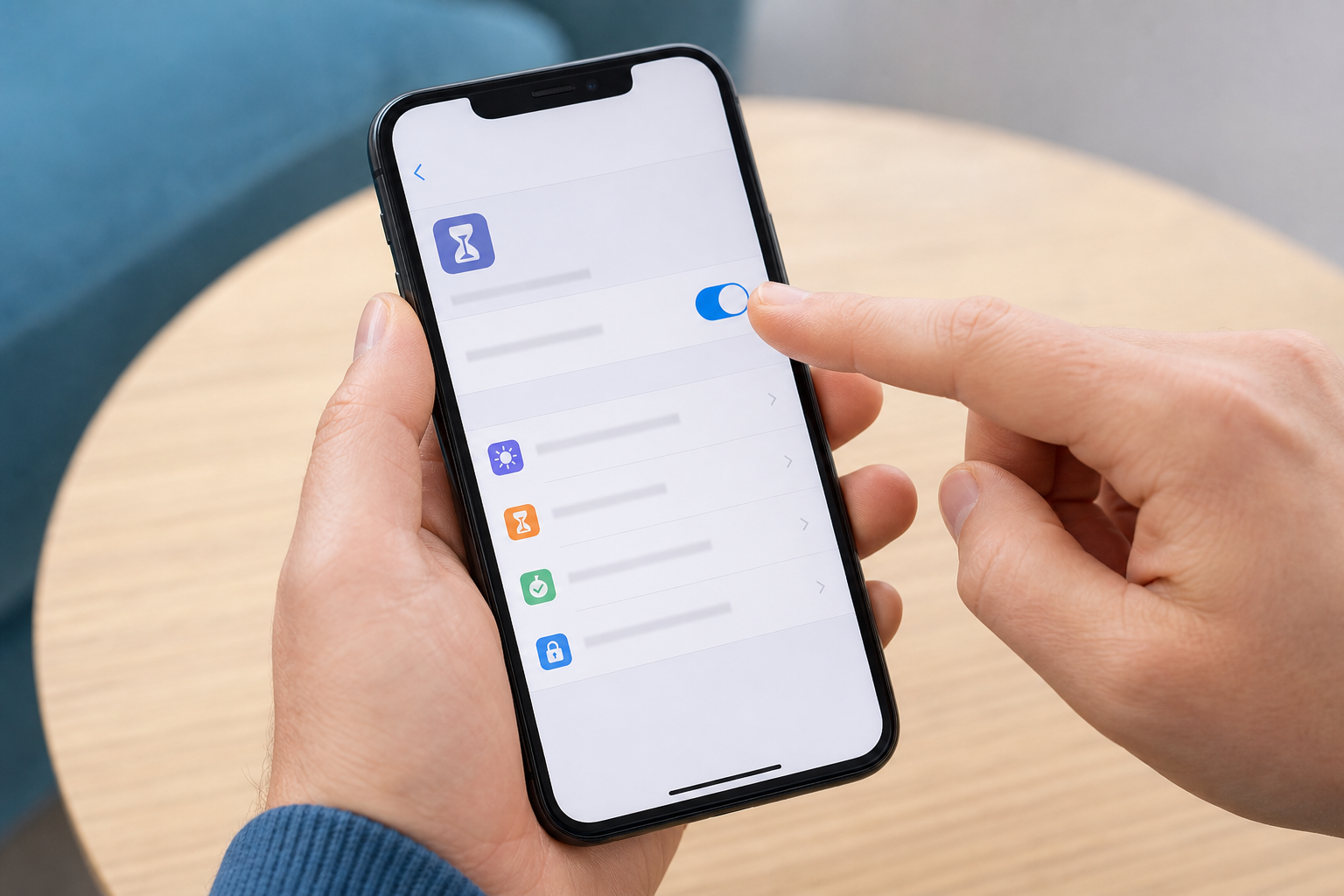
Step by step: how to set Screen Time on iPhone
-
1
Go to Settings
Open the 'Settings' app on your iPhone and tap 'Screen Time' in the second section. -
2
Start tracking
Turn on 'App & Website Activity' (or 'Turn On Screen Time' on older versions of iOS) to let your device record your usage. -
3
Set app limits
Tap 'App Limits', choose 'Add Limit' and select specific apps or whole categories (such as 'Social') to set a daily time limit. -
4
Schedule downtime
Use 'Downtime' to set a fixed schedule, for example from 22:00 to 07:00, during which only phone calls and apps you've approved are available. -
5
Lock your settings
Create a unique Screen Time passcode via 'Change Screen Time Passcode'. Note: use a different code from your phone's unlock passcode, otherwise the limits are too easy to get around.
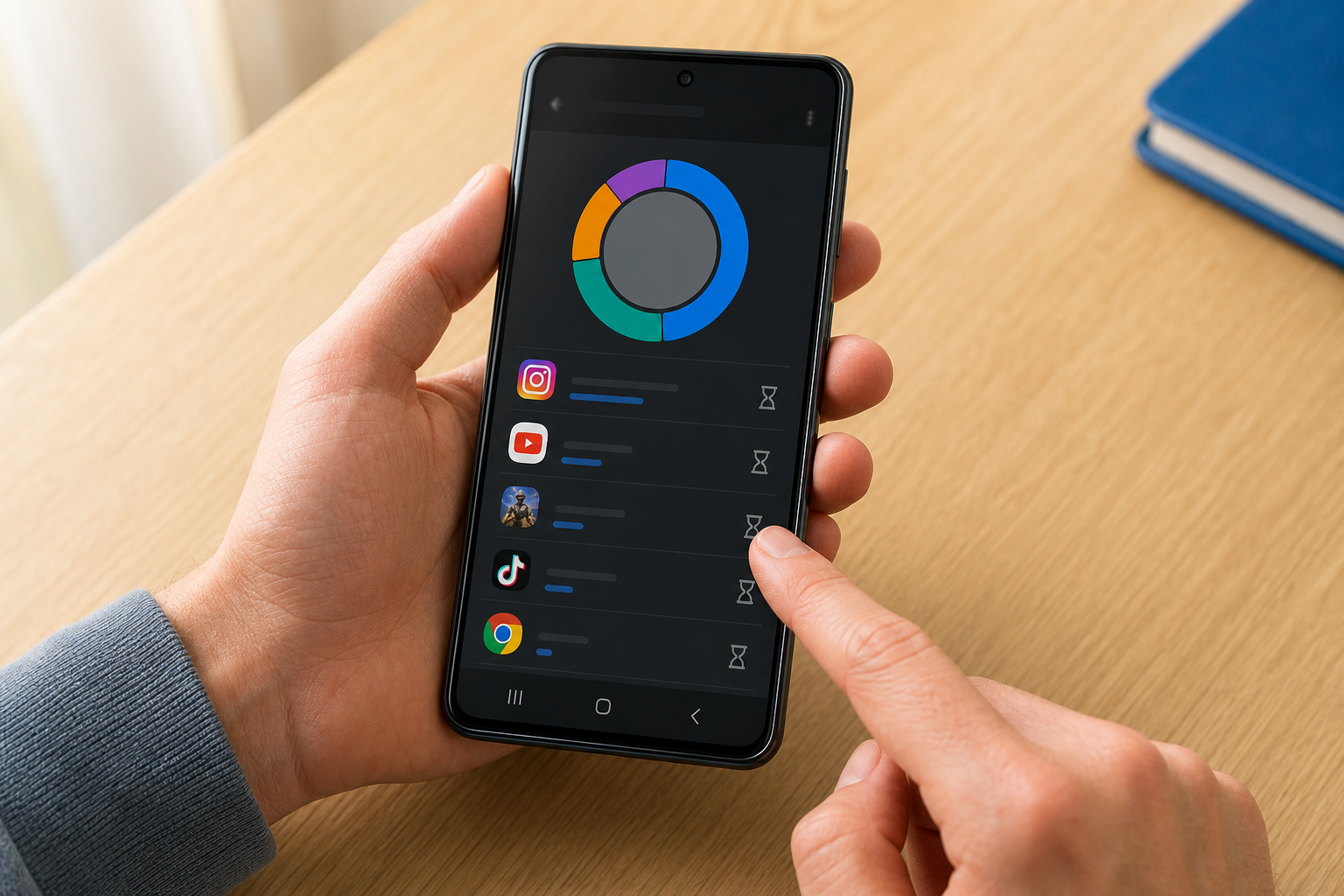
Step by step: how to set up Digital Wellbeing on Android
On Samsung Galaxy and most other Android devices, here's how it works:
-
1
Open the wellbeing settings
Go to 'Settings' on your Android device and scroll down until you see 'Digital Wellbeing and parental controls'. -
2
Check your dashboard
Tap the chart or 'Dashboard' to get a detailed overview of your daily activity per app. -
3
Set app timers
Tap the hourglass icon right next to the name of a time-consuming app to set a maximum daily usage time (for example 45 minutes). -
4
Turn on Bedtime mode
Go back to the main menu and set up 'Bedtime mode'. This switches your phone to 'Do not disturb' at a set time and turns the screen black and white. -
5
Manage distractions
Use 'Focus mode' to pause distracting apps temporarily during work or study hours, so you don't get notifications from those specific apps.
Parental controls: managing screen time for kids
With the right settings, you can manage your child's screen time from your own phone.
Follow age-based guidelines: For children aged 0 to 2, experts recommend zero minutes of screen time on iPhone or Android. For toddlers and preschoolers, a maximum of one hour a day is the norm. Gradually adjust the maximum time in the settings as your child gets older and needs screen time for homework.
Use Apple Family Sharing: Link your child's Apple ID to your account. This lets you limit screen time, approve app purchases and track the device's location from your own iPhone, without needing your child's phone in your hands.
Set up Google Family Link: For Android devices, Google Family Link is the standard. You install this app on your phone and your child's. Together with Digital Wellbeing and parental controls, you can set daily limits and a bedtime for your child's device.
Stop kids from getting around the Screen Time passcode: Clever teens often look for ways to break limits, for example by recording the screen while you type in the passcode. Block account changes in the settings and always shield your passcode properly. Forgotten your passcode on iPhone or iPad? These days you can safely reset it with your own Apple ID login details.
5 practical tips for healthy screen use
You can tick off these five actions today, without locking down your phone straight away.
Turn off non-essential push notifications: Notifications are the biggest driver of mindless phone use. Turn off all notifications except for direct communication like WhatsApp or phone calls. That way, you decide when to pick up your phone, rather than the app grabbing your attention.
Keep your bedroom device-free: Put your phone on the charger in another room at least an hour before bed. Blue light from your screen disrupts the production of melatonin in the evening, the hormone that makes you sleepy, so you sleep worse. It also stops you being tempted to scroll in bed, noticeably improves your sleep quality and forces you to use a proper alarm clock.
Turn on greyscale mode: Switch your screen to black and white in the accessibility settings. Without colourful icons and red badges, scrolling feels less rewarding, so your smartphone loses some of its pull.
Move time-wasters off your home screen: Put apps like Instagram, news apps and games in a folder on the second or third page of your home screen. Adding that bit of extra friction means you're less likely to open them out of sheer boredom or habit.
Cut back step by step: Don't halve your screen time overnight. Start by setting a limit just thirty minutes below your current average. Then lower that limit by fifteen minutes every week. Small, achievable steps lead to lasting changes in your digital habits.
Frequently asked questions about screen time
Forgotten your Screen Time passcode on iPhone or iPad?
On the passcode screen, tap Forgot Passcode? and sign in with the Apple ID you used when you set up Screen Time. Then choose a new Screen Time passcode. That's also why you should never use the same code as your unlock passcode when setting it up, especially if your child knows that code.
What's a normal amount of screen time?
There's no fixed number for normal screen time, because work, navigation and calls also count towards your total. So focus mainly on your recreational time: social media, videos and games. If that's regularly above 3 hours a day, it's a good moment to set app limits.
Is a lot of screen time bad for your health?
A lot of screen time mainly comes at the expense of your sleep, focus and downtime. The biggest problem is in the evening: if you're still scrolling in bed, you often end up going to sleep later without realising. Constant notifications also keep breaking your concentration, so start there if you notice any issues.
How much screen time is healthy for adults?
For adults, a maximum of 3 hours of recreational screen time a day is a practical guideline. It's advice, not a medical limit. Watching a series for two hours is different from two hours of aimless scrolling in odd moments, so pay attention to when and why you pick up your phone too.
Can I limit screen time per app without blocking my whole phone?
Yes, on both iPhone and Android you can set a daily limit per app or per category. When the time's up, your phone only blocks that app until the next day. Calls, messages and navigation keep working as normal.
Now that you know how your smartphone's built-in wellbeing features work, it's time to take back control of your time. Don't wait for the next weekly report to confront you with lost hours again. Open your phone's settings now, check your current activity dashboard and set your first app limit today for the app you use most.