You're standing at your front door in pitch darkness and can't get the key in the lock, or you're hunting for something under the sofa. You need light right now, and at that moment your iPhone flashlight is your best friend. In this article you'll learn the quickest ways to use your iPhone as a torch, plus a few hidden features. Think adjusting the flashlight brightness for a softer glow, or hands-free control with Siri when your hands are full. We'll skip the theory and go straight to the settings you can use today. That way you won't be scrolling through menus while you're standing out in the cold.
How do you turn on the flashlight on your iPhone?
Acting fast in the dark means using the right method for your particular model. Follow these steps to turn on the flash straight from the lock screen, without entering your passcode or using Face ID.
-
1
Wake the lock screen
Tap the dark screen once or just pick up your phone to wake the display. -
2
Find the icon
Look at the bottom-left corner of the lock screen, where the round flashlight icon appears. -
3
Press firmly
Press and hold the flashlight icon until you feel a short vibration and the light comes on. -
4
Turn the flashlight on or off
Repeat the same step and hold the icon again to turn the flashlight off. -
5
Use Control Center
Is your phone already unlocked? Then Control Center is the handiest option, since you don't have to close the app you're using.
In practice, the lock screen method is the quickest. Don't just tap the icon lightly, though; Apple requires a deliberate, longer press. This stops the light from switching on by accident in your bag or pocket.
Control Center vs. lock screen (Face ID vs. Touch ID)
Not every iPhone works the same way when it comes to quick settings. How you open Control Center or use the lock screen depends entirely on whether your phone has a physical Home button.
| Model type | Lock screen | Opening Control Center |
|---|---|---|
| Face ID models (no Home button) | Shortcut available in the bottom-left corner of the lock screen. | Swipe down from the top-right corner of the screen to open Control Center. |
| Touch ID models (with Home button, e.g. iPhone SE) | No lock screen button for the LED flash. | Swipe up from the very bottom of the screen to bring up Control Center. |
Either way, you don't need to fully unlock your phone to reach Control Center. Go for the lock screen method if you have a newer model and need light fast. Use Control Center on Touch ID models, or when you're already scrolling through your email and want to keep the app open.

Adjusting the flashlight brightness in iOS
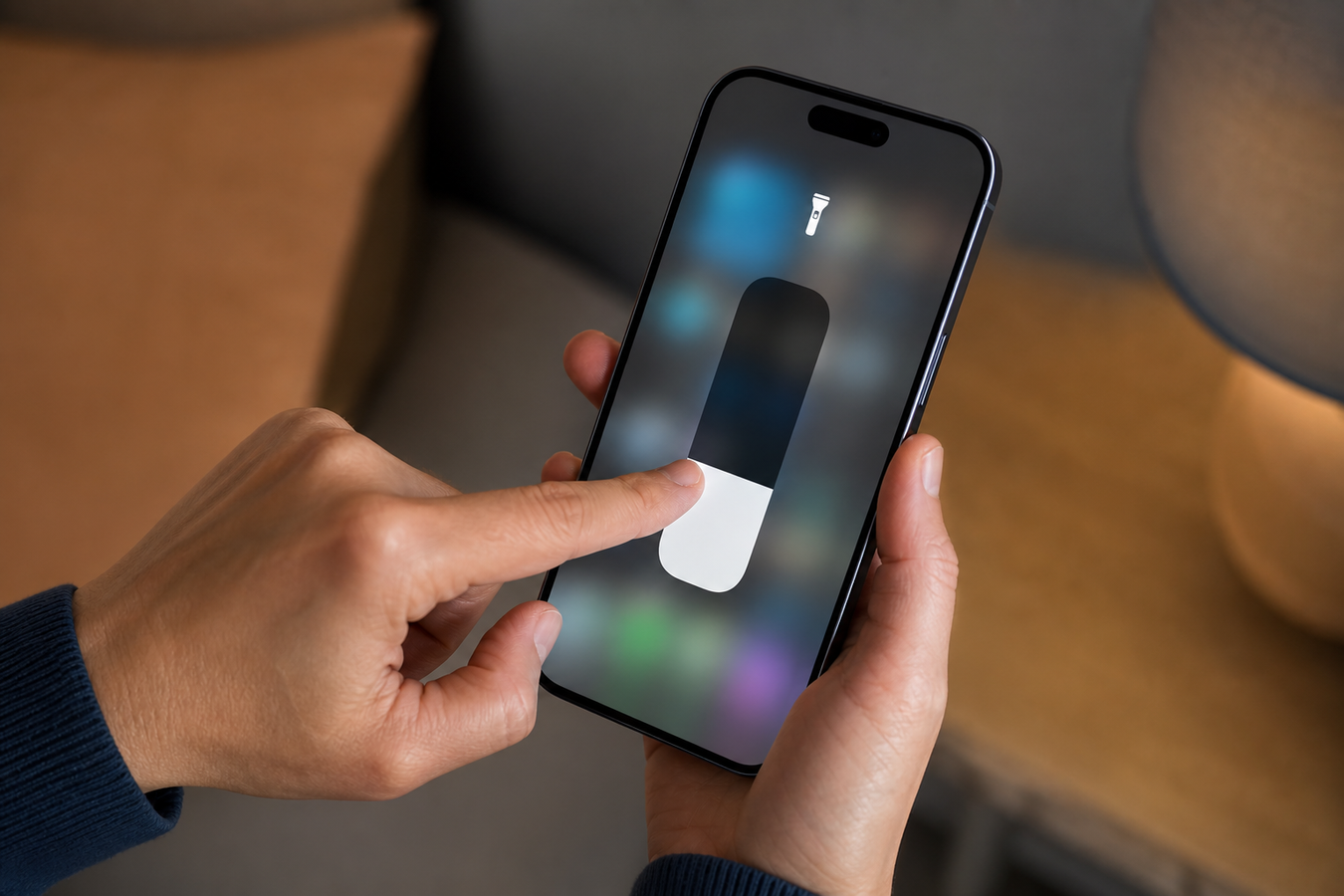
The LED flash on the back of your phone isn't stuck on one bright setting. In a dark bedroom you often want a softer light so you don't wake anyone. You can easily dim it through a hidden menu in Control Center.
Open Control Center with the right swipe. Find the familiar icon and, instead of tapping it, press and hold the flashlight icon. A large vertical slider appears on your screen. Slide your finger up or down to set the brightness in several steps.
With iOS 18, newer models with the Dynamic Island get a much more visual version of this feature. In iOS 18, a new interface appears at the top of the screen around the Dynamic Island. There you can not only set the brightness but also swipe sideways to change the width of the beam. A narrow beam is perfect for searching for something specific, while a wide beam lights up a bigger area.
Smart alternatives: Siri, the Action button and Back Tap
Sometimes your hands are muddy or you simply can't look at the screen to open Control Center. In those situations, a physical button like the Action button or a voice command to Siri works far better than swiping.
Voice control with Siri: Siri is ideal for hands-free use while you're doing DIY. Just say "Hey Siri, turn on my flashlight" and Siri takes care of it. Then say "Hey Siri, turn it off" and Siri switches the light off again.
Physical control with the Action button: If you own one of the latest Pro models, you can use the programmable Action button. One long press on the Action button turns the light on straight away, with a vibration to confirm.
Setting up Back Tap: Go to Settings > Accessibility > Touch > Back Tap to assign a double tap on the back of your phone to the flashlight. This skips Control Center completely and is very quick.
These options save valuable time. Use Siri when you can't touch your phone and Siri can hear you clearly. Use the Action button for the most reliable physical feedback, and skip Control Center when you're wearing thick gloves.
Setting up the Action button on your iPhone
Newer iPhone models introduced the Action button in place of the mute switch. If you want to use the Action button for the flashlight, it takes a one-time setup outside Control Center.
-
1
Open Settings
Go to the Settings app on your iPhone. -
2
Find the right menu
Tap Action Button in the main list. -
3
Choose the function
Swipe sideways through the Action button options until Flashlight appears. -
4
Test it
Leave Settings and press and hold the Action button on the side of your phone. The flashlight now comes on straight away.
Once it's set up, the Action button means you no longer need to open Control Center. It's the most dependable method, especially when rain on your screen makes opening Control Center awkward.
FAQs about the iPhone flashlight
Why isn't my iPhone flashlight working?
Often the battery is too low or the Camera app is still running in the background. iOS automatically disables the LED flash when the battery gets critically low to save power. Fully close the Camera app from the app switcher and charge your phone; you'll then be able to turn the flashlight on or off from Control Center.
Can I turn on the flashlight without touching the screen?
Yes, Siri is by far the best option for this. With a voice command to Siri, you skip Control Center entirely. Just ask Siri to turn on the light, or use the Action button on newer models for a physical shortcut with no need to touch the screen.
How do I stop the flashlight turning on by accident in my pocket?
Turn off Raise to Wake under Settings > Display & Brightness. Your screen will no longer light up when you move, which greatly reduces accidental touches. That stops your leg from switching the flashlight on or off by mistake.
How do I change the brightness of the iPhone flashlight?
Open Control Center, press and hold the flashlight icon and use the vertical slider. On phones running iOS 18, this slider appears right around the Dynamic Island, so you don't even need Control Center for this.
Whether you prefer a quick press on the screen, a voice command to Siri or the new Action button, there's always a method that suits your situation. Combine Control Center and Siri, and fumbling around in the dark is a thing of the past. Try adjusting the flashlight brightness in Control Center now, so you're not blinded in the dark tonight.