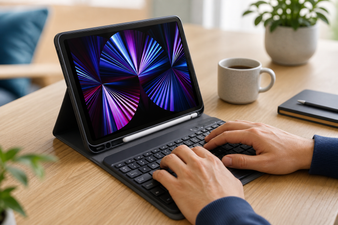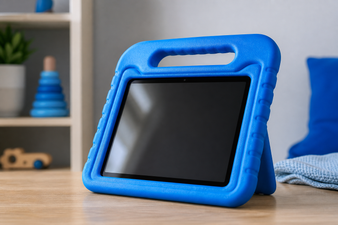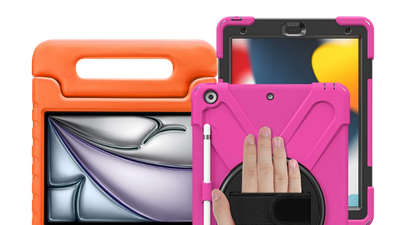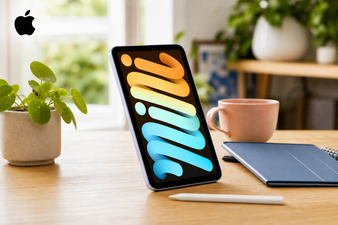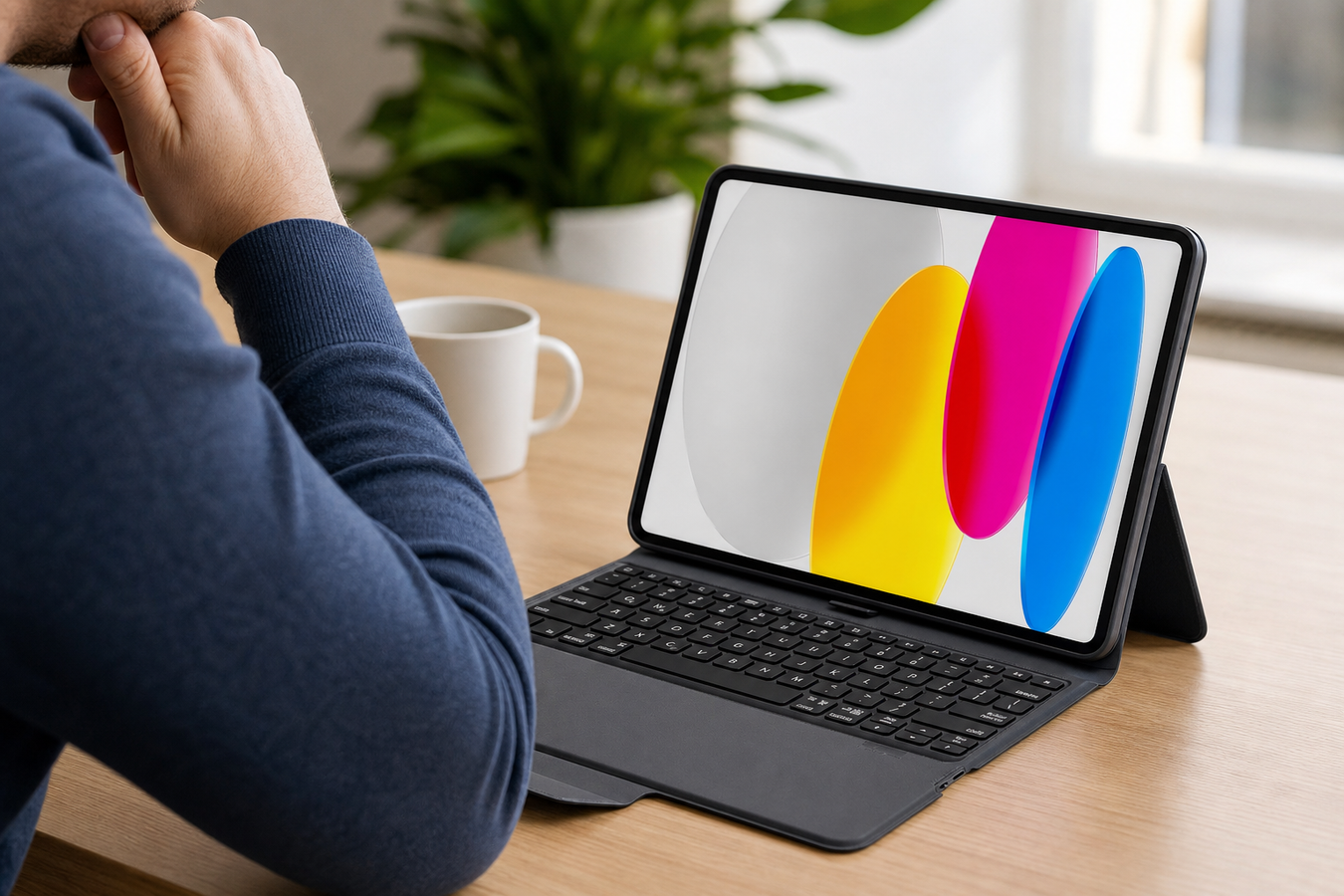
Is your iPad Bluetooth keyboard not working? Usually it comes down to a flat battery, Bluetooth being switched off or a connection that has stalled. You can fix it quickly by charging the battery, restarting the tablet and pairing the keyboard again in Settings.
There's nothing more frustrating than a keyboard that won't respond just when you want to get some work done. A few targeted checks will sort out these connection problems straight away. These steps are for the iPad, but most of them also work on other tablets.
Why is my Bluetooth keyboard not working on my iPad?
First, check that Bluetooth is actually switched on on your tablet. A toggle that's been turned off by accident in Settings is often the simple reason your keyboard isn't responding.
Next, rule out a flat battery. In practice, a low battery is the most common reason a Bluetooth connection keeps dropping. Put the keyboard on charge for a while to test this.
Also bear in mind that many Bluetooth keyboards have an automatic sleep mode to save power. Brands like Mobigear and ZAGG build this in as standard. If you haven't typed for a while, the keyboard needs a few seconds to wake up after your first keystroke.
Finally, make sure the tablet and keyboard are close to each other. That way you rule out signal problems and interference from other wireless devices in the room.
Why isn't my Bluetooth keyboard being recognised?
A tablet will only recognise a new or unpaired keyboard if it's in pairing mode. Use this checklist to make your keyboard visible:
Put the keyboard into pairing mode. Usually you do this by holding down the Connect or Bluetooth button for a few seconds. Your keyboard's manual tells you which button or key combination to use.
Wait for the signal. Often a blue light starts flashing as soon as the keyboard is ready to pair.
Check your other devices. A Bluetooth keyboard automatically connects to the device it was last paired with. It may already be connected to a mobile phone or laptop nearby.
How do I reset the Bluetooth settings on my iPad?
Get your iPad to forget the keyboard, then pair it again. That way you start with a clean connection.
-
1
Go to Settings > Bluetooth. Tap the info (i) icon next to the keyboard's name and choose Forget This Device.
-
2
Turn Bluetooth off and restart your iPad.
-
3
Check Settings > General > Software Update to see if a new version of iPadOS is available. Some accessories don't work as well with older software.
-
4
Turn the tablet back on, switch Bluetooth on and put the keyboard into pairing mode to reconnect it.
Why can't I type on my iPad any more?
Has the on-screen keyboard disappeared? That's easy to fix:
Once an external keyboard is connected, the tablet automatically hides the on-screen keyboard to free up space.
Want to use the on-screen keyboard anyway, for example because your external keyboard is playing up? Tap the keyboard icon in the bottom-right corner of the screen.
Typing a Y instead of a Z?
Keyboard layouts can differ from country to country. Sometimes a Y appears on screen when you press Z. This happens if you're using a QWERTZ keyboard while your iPad is still set to a QWERTY layout. It's not a fault, just a setting you can change straight away in your iPad's menu under 'General' and 'Keyboard'.
Here's how to change the keyboard layout:
-
1
In Settings, tap 'General' > 'Keyboard' > 'Hardware Keyboard'.
-
2
Tap a language at the top of the screen and choose a different layout from the list.
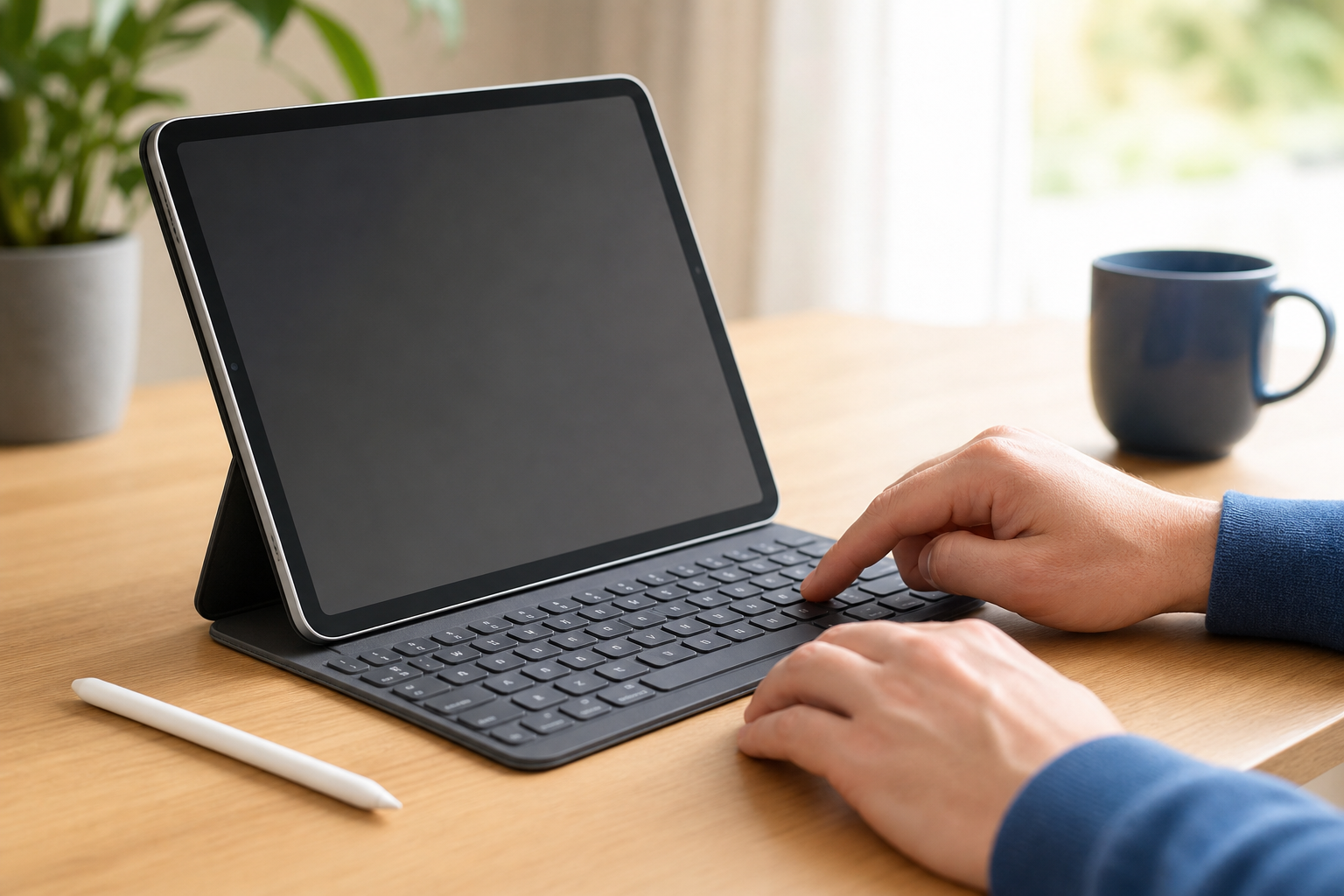
Avoid this problem by using a keyboard with a layout that matches your language. Dutch keyboards usually use the QWERTY layout, German keyboards the QWERTZ layout and French keyboards the AZERTY layout.
Fixing battery problems
A dead battery can sometimes look like a broken keyboard. Often the charging cable is simply faulty or the adapter isn't supplying enough power. On most keyboards a light comes on as soon as they start charging. Still nothing? Try a different cable and a different socket before you write the keyboard off. Leave the keyboard on charge for at least half an hour. A completely flat battery needs time before there's enough power for a Bluetooth connection.
Do these fixes also work for a Samsung tablet?
On Android tablets it works in much the same way. On a Samsung tablet you also start by checking the battery, pairing again and restarting the system. The menus are different, though.
Instead of the iPadOS settings, on a Samsung Galaxy Tab you go to 'Settings', then 'Connections' and then 'Bluetooth'. To forget a misbehaving device in this menu, tap the cog icon next to the keyboard's name and choose 'Unpair'.
If problems persist on a Samsung tablet, also check the 'General management' menu and tap 'Physical keyboard'. Here you can see straight away whether the right language and layout are selected. This stops strange characters appearing on screen while you type.
Most of the time, a keyboard that won't work is quickly fixed by charging the battery or resetting the Bluetooth connection. Is your keyboard still not working on any device after these steps? Then take a look at our wide range of new keyboard cases at directcases.com so you can get straight back to work.