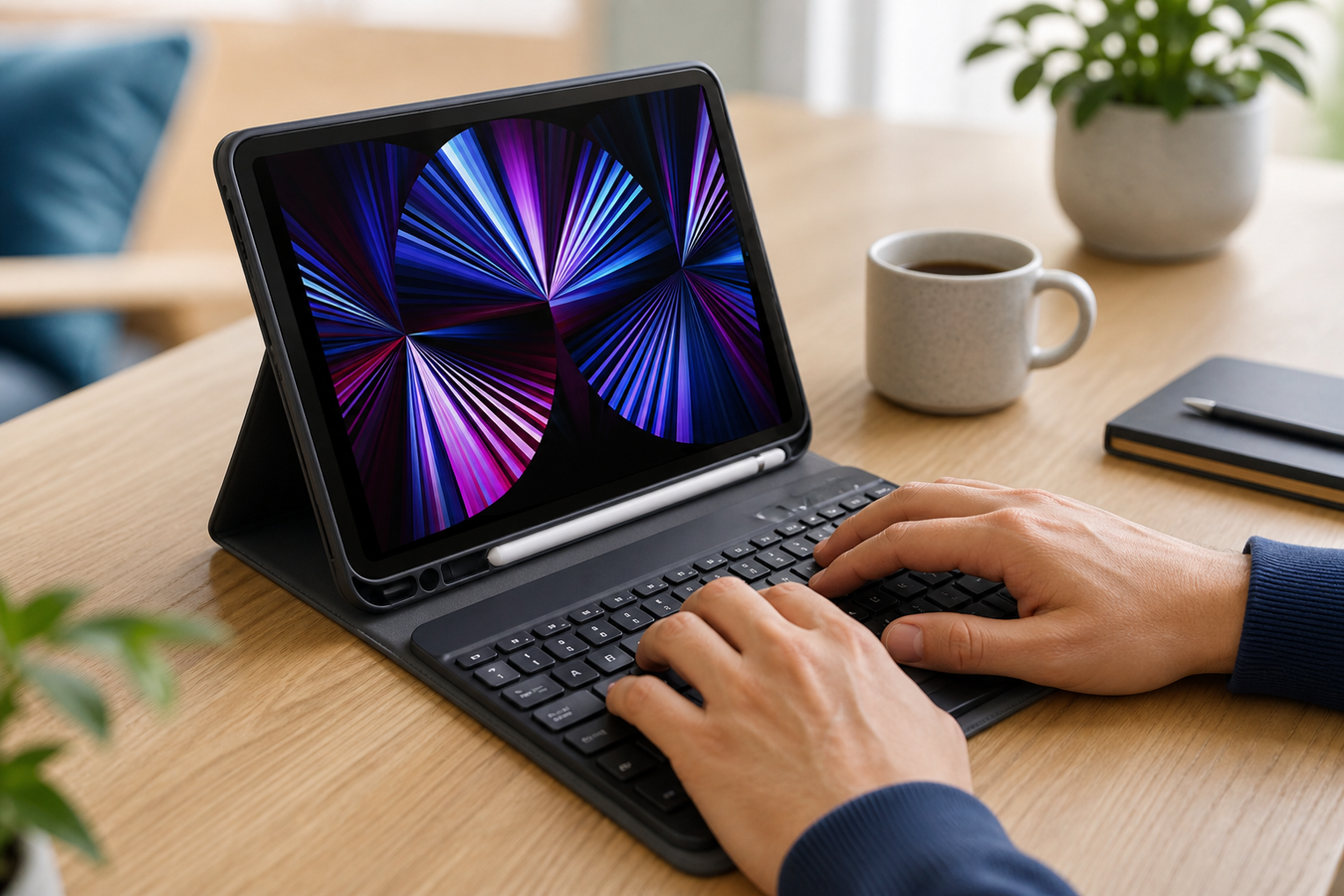
Stop typing awkwardly on a glass screen. You're probably already holding a powerful computer without realising it. Find out how a good-quality keyboard for tablet use turns your device into a proper laptop replacement for working efficiently on the go. Typing on a touchscreen slows you down and leads to more typos because there's no feedback. Physical keys give you exactly the tactile response you need to type long emails or detailed reports without mistakes. With the right accessories, you can work anywhere just as comfortably and productively as you do at your desk at home.
Why using a tablet as a laptop is the smart choice
Lugging around a heavy laptop bag is a thing of the past once you switch to a smart tablet setup. You get the processing power of modern chips with maximum portability. In practice, we see that turning your tablet into a laptop offers three big advantages for professionals and students.
Lightweight mobility: An average tablet often weighs less than a kilo, case included. That makes working on the train, in a coffee shop or on a flight much more comfortable than with a traditional, bulky laptop.
Higher productivity: Physical keys give you a much better typing experience than a touchscreen. You can feel where your fingers are resting without looking, which is essential when writing long documents. Without that physical feedback, you simply make more typos and work more slowly.
A cost-saving alternative: Upgrading with a keyboard case costs between twenty and a hundred and twenty euros on average. That's a fraction of the price of a new 2-in-1 laptop, while you get almost the same functionality for everyday office tasks.
Go for this setup if you travel a lot and mainly work in cloud apps. Avoid it if you run heavy video editing software every day that needs dedicated desktop hardware and active cooling.
What should you look for when buying tablet accessories?
Not every accessory suits the way you work or your device. Avoid a bad buy by working out your exact needs and the specs of your current hardware first. Use the checklist below while you search for the perfect match.
Choose the right keyboard layout: Check carefully whether you need a QWERTY, AZERTY or QWERTZ layout. QWERTY is the standard in the Netherlands, while AZERTY is used in Belgium and France. Do you live or work in Germany or Austria? Then you'll need a QWERTZ keyboard.
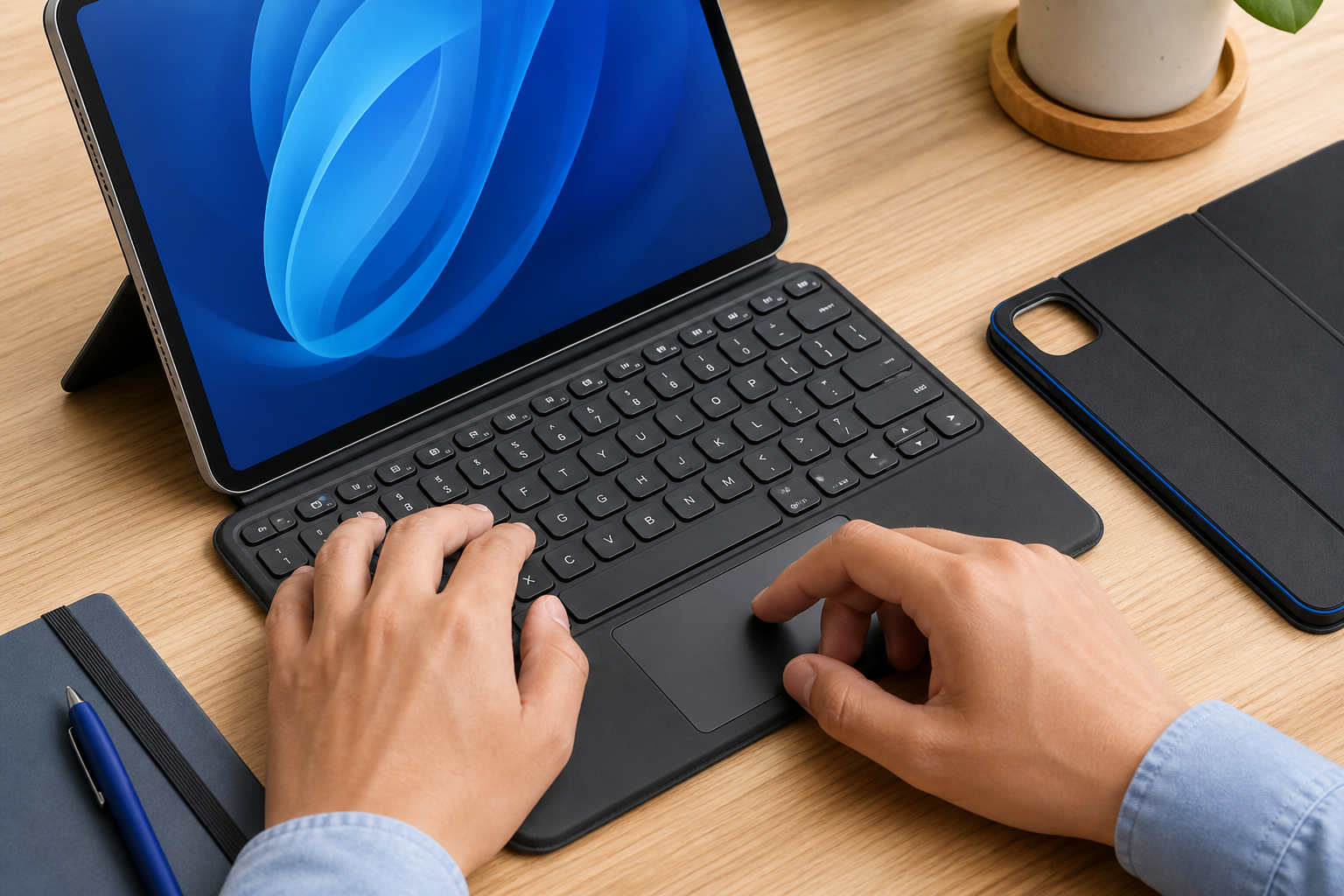
Check for built-in extras: Look out for a trackpad and mouse support for precise navigation. Both iOS and Android now support mouse cursors, which makes selecting text in spreadsheets much faster than tapping with your finger.
Check device compatibility: Make sure the case fits the dimensions and ports of your specific model perfectly. Check the exact model number: a case for an older generation often won't quite fit a newer model because of small differences in the camera module or thickness.
Choose a model with backlit keys if you often work in the evening. Skip accessories without a built-in battery if you want to save as much of your tablet's battery life as possible for the screen itself.
Comparison: separate Bluetooth keyboard vs. integrated keyboard case
Choosing between an all-in-one solution or separate components determines what your workspace looks like. Both options directly affect your posture, your budget and how well your device is protected when you're working on the go.
| Feature | Integrated keyboard case | Separate Bluetooth keyboard |
|---|---|---|
| Portability & protection | An all-in-one case protects your screen straight away and is more compact on the go. At the end of your working day, you simply close it safely like a book. | Takes up extra space in your bag. You often need a separate laptop sleeve to protect your tablet from scratches from keys or pens. |
| Flexibility & ergonomics | The screen and keys are attached to each other. This means you're always looking slightly down, which can lead to neck pain sooner during long typing sessions. | You can place the keyboard further away from the screen. Combined with a separate stand, you can put the tablet at eye level for an ergonomic sitting position. |
| Price differences & experience | Often more expensive to buy. A keyboard case made specifically for your iPad fits well and has no loose parts that shift around. | Usually cheaper (available from twenty euros). At home, you can also pair this keyboard with your mobile phone or smart TV. |
Choose an integrated case if you often work with it on your lap on the train or on the sofa. Choose a separate model if you mainly sit at a desk and ergonomics is your top priority.
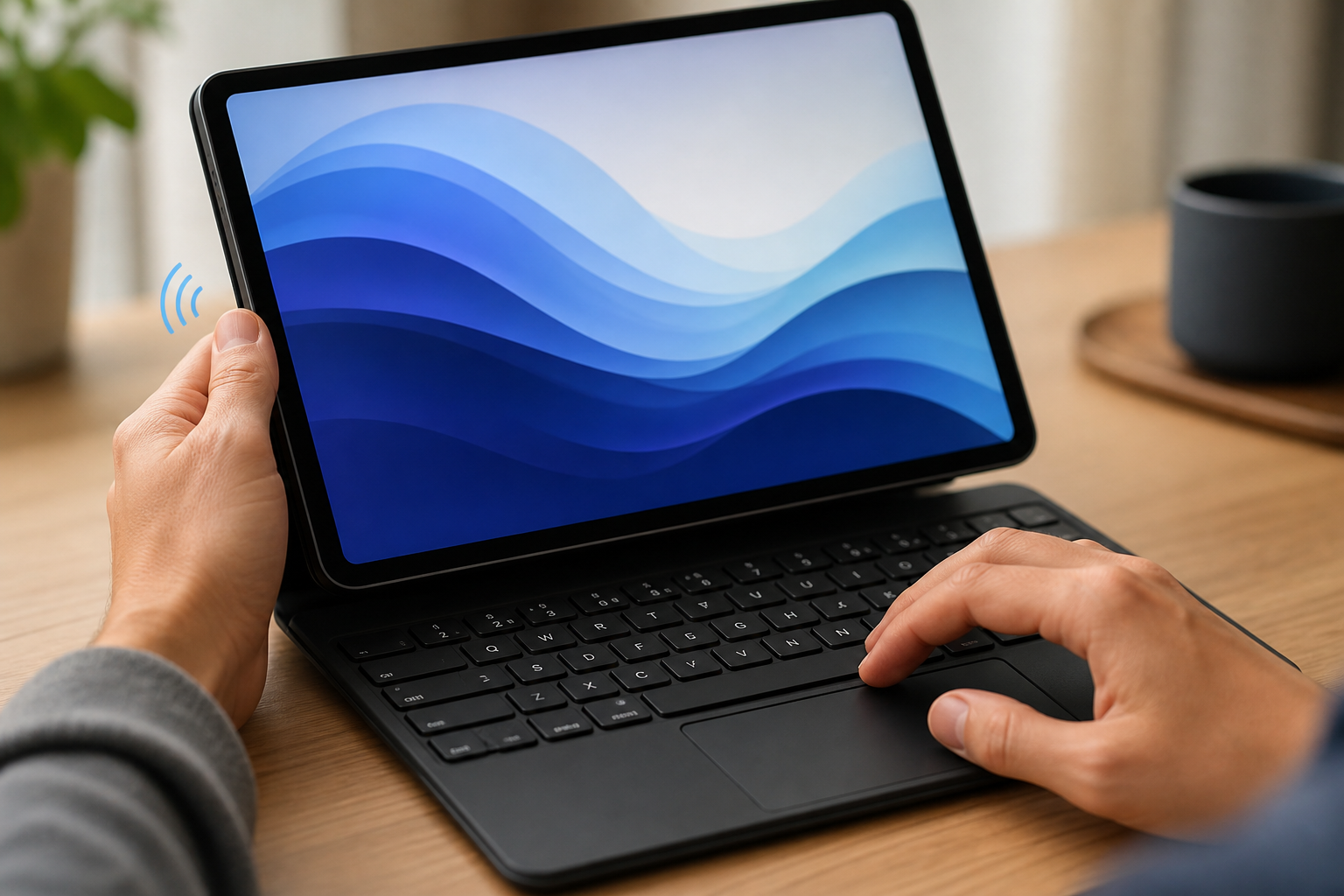
Step by step: how to connect a keyboard to your tablet
-
1
Turn the keyboard on
Slide the power switch to 'ON'. An indicator light usually comes on briefly.
-
2
Activate pairing mode
Press the Connect button or use the indicated key combination (for example Fn + C) until the Bluetooth light starts flashing.
-
3
Open your tablet settings
On your tablet, go to Settings > Bluetooth and make sure Bluetooth is turned on.
-
4
Pair the device
Select the keyboard as soon as it appears in the list of available devices (often called 'Bluetooth Keyboard') to complete the connection.
FAQs about using a tablet as a laptop
Before you make the switch, you'll want to be sure your new setup meets all your expectations. Here we answer the most common questions about performance and battery use.
Which is better, a laptop or a tablet with a keyboard case?
For everyday tasks, emails and word processing, this combination is perfect and often even quicker to get going than a traditional PC. For heavy video editing or complex software development, a laptop is still the better choice thanks to its more powerful cooling and dedicated desktop operating systems. Your productivity ultimately depends entirely on the specific apps you use for work every day.
Does a Bluetooth keyboard use a lot of my tablet's battery?
No, modern Bluetooth connections are very energy-efficient and barely affect your tablet's battery life. What's more, most separate keyboards have their own built-in battery that lasts for months on a single charge. So there's no need to worry about your tablet dying halfway through your working day at the café.
Can I also use my tablet as a second screen?
Yes, built-in features in Windows and your tablet's OS make it easy to extend your workspace. For example, use the 'Second Screen' feature on Android together with the Windows key + 'K' on your laptop, or Apple's Sidecar feature for iPads and MacBooks. This is ideal when you're working on complex spreadsheets at home and need a better overview.
With the right accessories and smart settings, you can turn any tablet into a powerful, ergonomic workstation on the go. You get the light weight of a tablet combined with the typing comfort of a physical keyboard. Leave your heavy laptop bag at home and enjoy the freedom of a compact setup. Browse our wide range and find the perfect keyboard case today to boost your productivity right away.