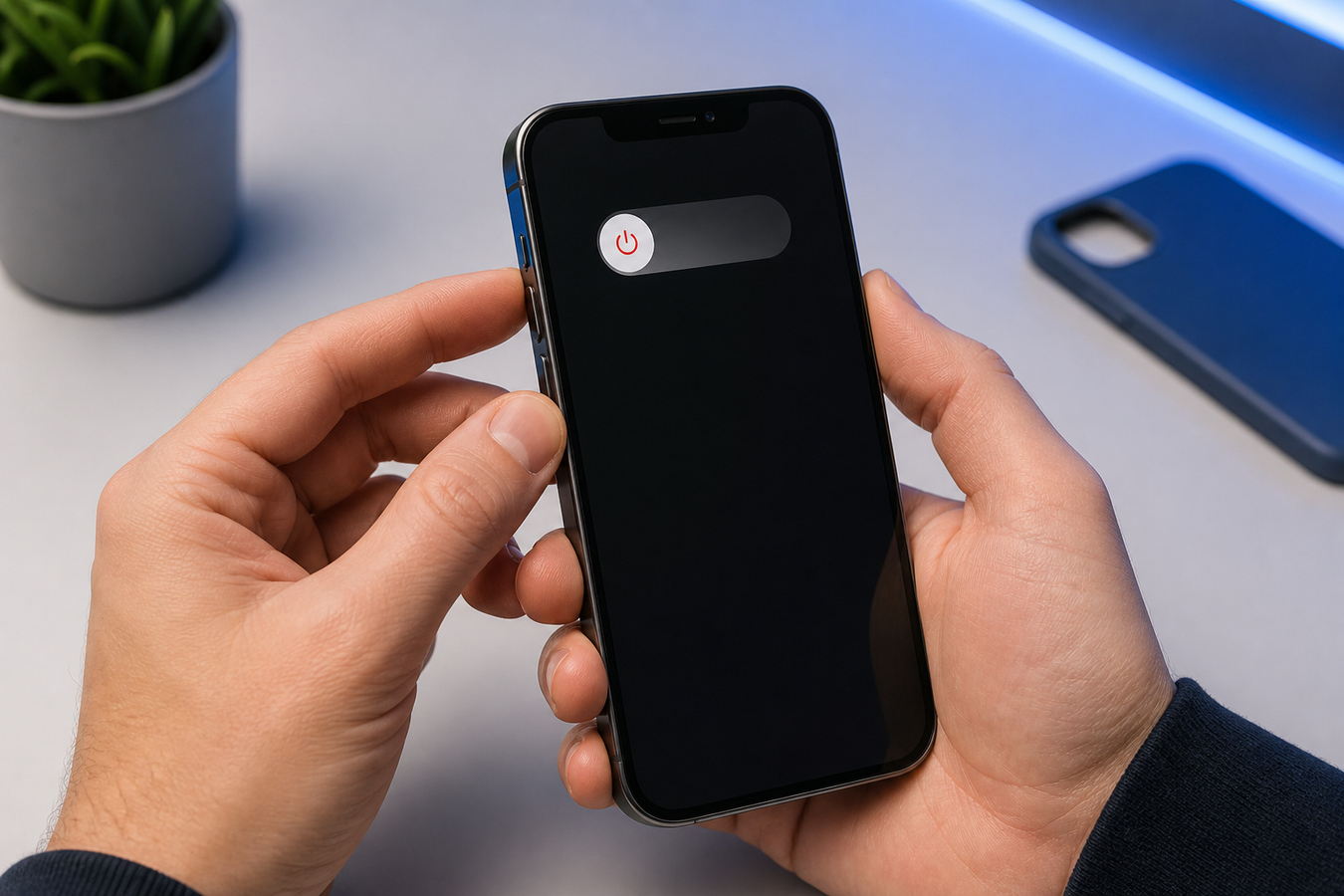
How to turn off iPhone models with Face ID: press and hold the side button and either volume button at the same time until the slider appears. Drag it to the right, and after about 30 seconds your iPhone is fully off. On an iPhone with a Home button, you only hold the side button (or the top button). If the buttons don't work, go to Settings > General > Shut Down.
A screen that won't respond, or a button combination you don't know on your new phone: sometimes it seems impossible to just switch off your phone for a while. Turning off your iPhone sounds like a basic task, but Apple has changed the method several times over the years. Especially when you move from an older phone to a newer model, the missing Home button and the dual role of the side button often cause confusion.
You press the button, but instead of the power off screen you accidentally bring up Siri or Apple Pay. We often see users end up changing settings by accident or getting frustrated because of this. The good news: the process makes sense once you understand how the hardware works.
Below, you'll find exactly which buttons you need to turn off your iPhone for each model, and what to do if the screen is frozen.
How do I turn off my iPhone with the buttons? Which model do you have?
The right button combination depends entirely on the hardware your specific iPhone has.
| Device type | Feature | Buttons needed | Wait time after switching off |
|---|---|---|---|
| iPhone X, 11 and later | No physical Home button (Face ID) | Side button + either volume button | About 30 seconds |
| iPhone SE (2nd/3rd gen), 7, 8 | Physical Home button (Touch ID) | Side button only | About 30 seconds |
| iPhone SE (1st gen), 5s and earlier | Physical Home button, small screen | Top button only | About 30 seconds |
Use the volume button method if you have a modern full-screen iPhone. On these Apple models, don't press and hold only the Action button or the side button, as that just activates the voice assistant. After dragging the slider on the screen, always wait half a minute: background processes only shut down completely once the display has gone fully black.
Not sure which model you have? Go to Settings > General > About, where you'll find the model name. That model name and generation also determine whether a case fits properly, because iPhone models with similar dimensions aren't automatically compatible: the camera and buttons are often in a slightly different position.
After putting on a new case, check that the side button and volume buttons aren't being pressed all the time. A case that keeps pressing on the buttons can stop the slider from appearing properly or make your phone react when you don't want it to.
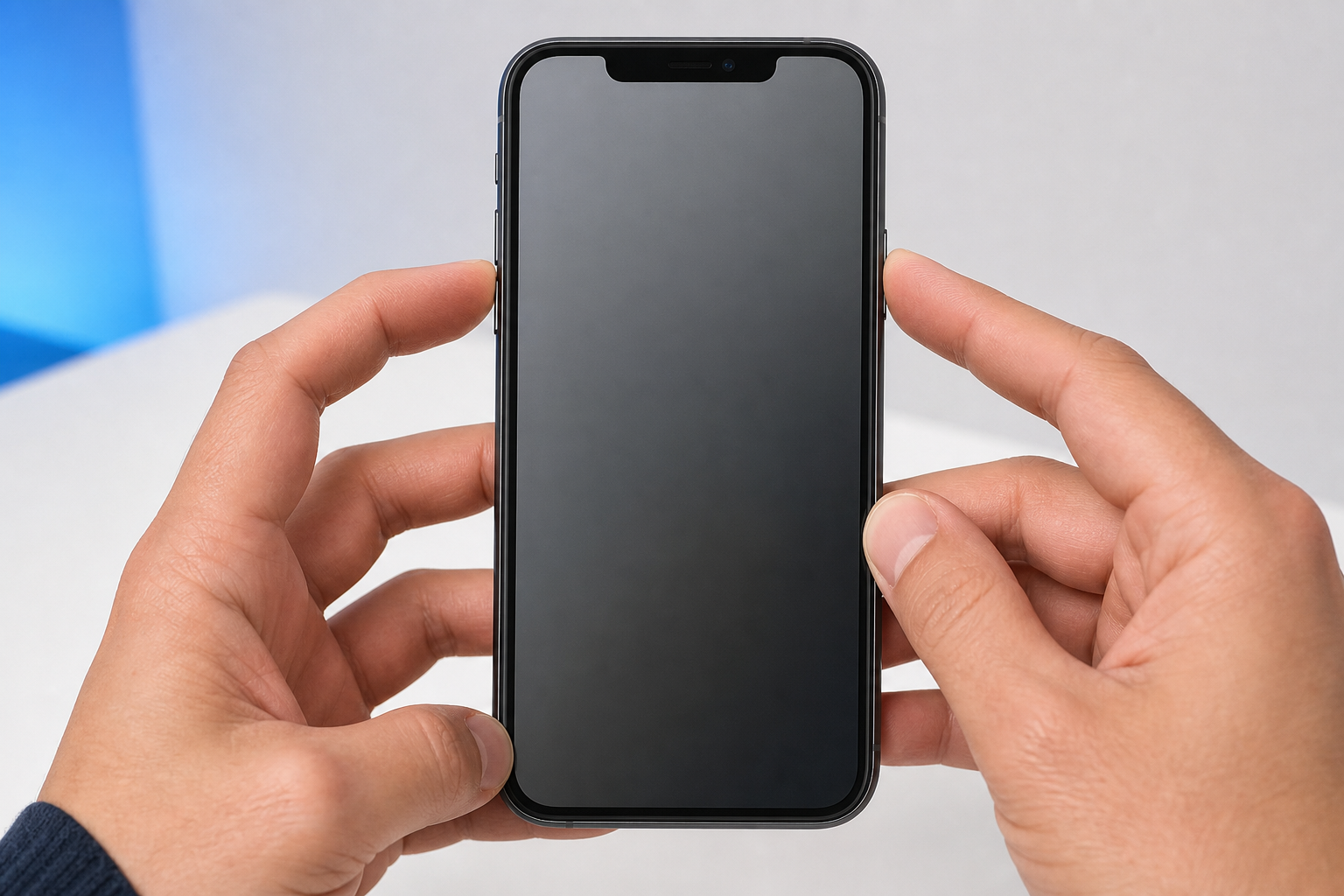
Turn off an iPhone with Face ID (iPhone X, 11 and later)
-
1
Press the right buttons
Firmly press and hold the side button on the right and either volume button on the left at the same time.
-
2
Wait for the power off screen
Keep holding until the slider appears at the top of the screen after one to two seconds.
-
3
Confirm
Drag the slider labelled 'slide to power off' all the way to the right of the screen.
Let go of the buttons as soon as the screen with the slider appears. If you hold them too long, you'll accidentally trigger Emergency SOS and your iPhone will automatically call the emergency services. Use the volume up button if volume down feels stiff; both volume buttons work exactly the same for this. Turning off an iPhone with Face ID is designed this way on purpose, so you don't accidentally switch off your phone in a tight trouser pocket.
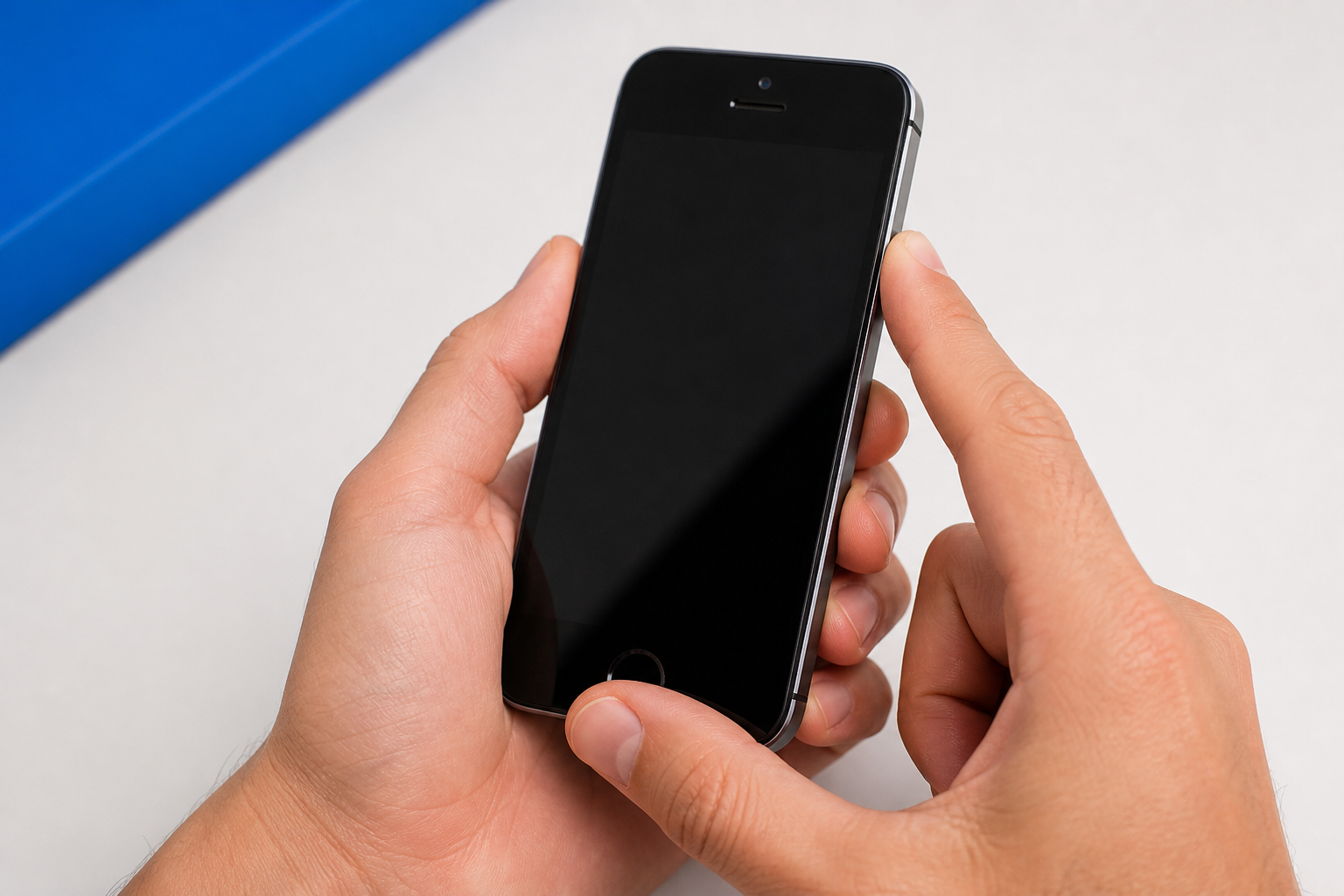
How to shut down an iPhone with a Home button (iPhone SE, 8 and earlier)
On an iPhone with a Home button, you only need one button to turn it off.
-
1
Find the power button
Find the side button on the right (iPhone 6, 7, 8, SE 2nd/3rd generation) or the button on top (iPhone 5s, SE 1st generation).
-
2
Press and hold the button
Hold it down for a few seconds without touching any other buttons at the same time.
-
3
Use the touchscreen
Swipe the slider on the display to the right to power off.
On these classic models there's no need to press the volume buttons, because the side button doesn't yet double as a voice assistant button. Turning off an iPhone with a Home button takes fewer steps, but on older devices the physical button is more prone to mechanical wear.
Button not working right away? Take off your case for a moment, as thick edges often block pressure on older buttons. If you're buying a new case, check that the cut-outs leave the speaker, microphone and charging port fully clear. If those openings are misaligned, the case usually won't fit well around the buttons either.
How to turn off iPhone without buttons: 2 handy alternatives
You don't always need the physical buttons, thanks to built-in features in iOS 18 and earlier versions. As hardware wears out, a side button can stop working or feel spongy when you press it. Dust build-up or drop damage can then make it impossible to switch off your phone with the buttons.
Fortunately, Apple has built-in accessibility options that make shutting down much safer and more reliable. They bypass the mechanical parts completely. Besides Settings and Siri, in iOS 18 you can also turn off your iPhone from Control Centre, which has a power icon in the top right. If your phone is still on an older version of iOS, that button isn't there and Settings and Siri remain your options.
These software options are ideal if your phone is in a heavy, waterproof case where the buttons are hard to reach. We see plenty of users also use these alternatives to avoid further damage to a button that's already playing up. Go for a software method if you notice you have to press unusually hard to get any response.
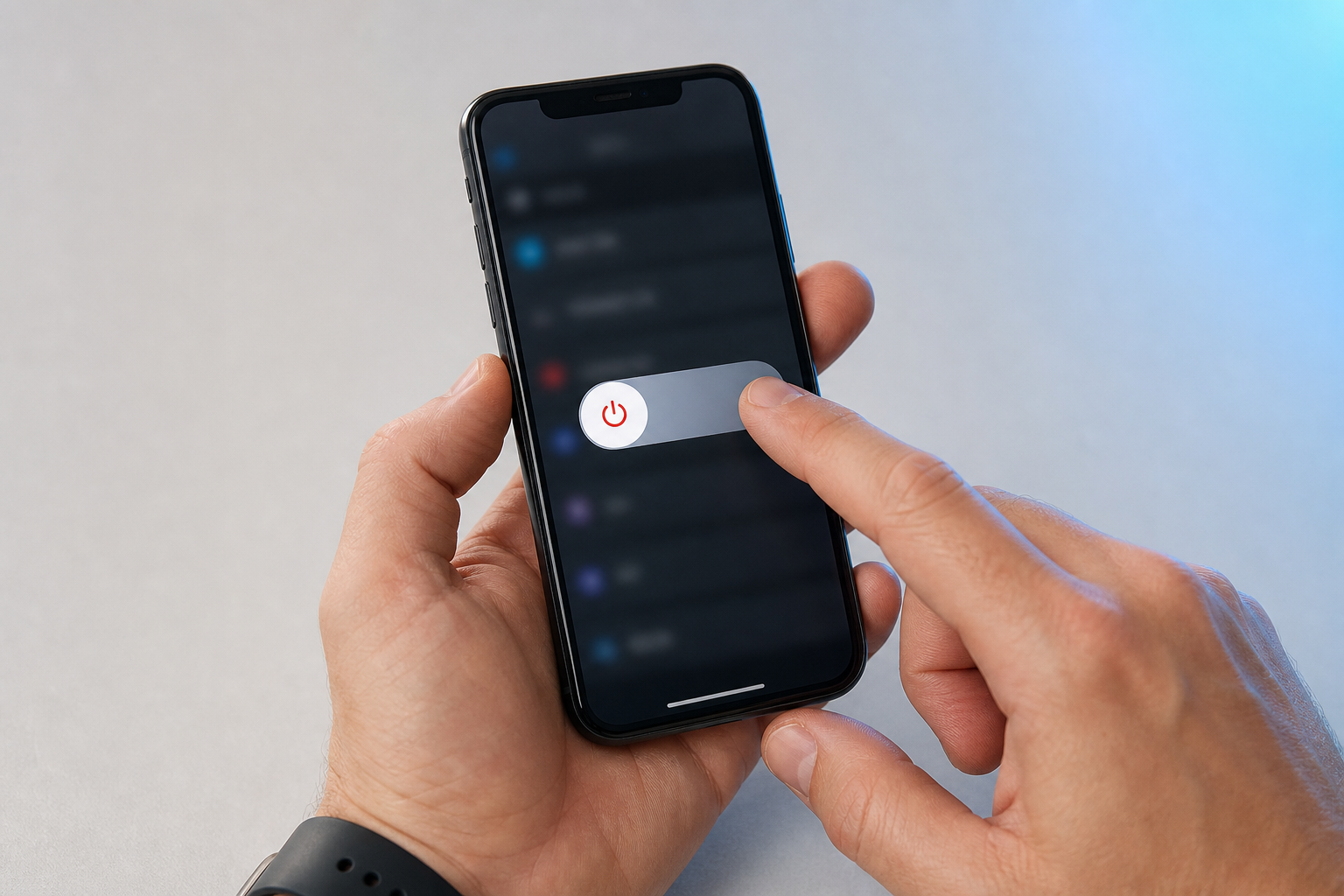
Turn off iPhone via Settings
-
1
Open the Settings menu
Go to the Settings app on your Home Screen and tap 'General'.
-
2
Find the shut down option
Scroll all the way down this menu and tap the blue 'Shut Down' text.
-
3
Power off your iPhone
Drag the on-screen slider that now appears to the right.
Turning off your iPhone via Settings is the most reliable fallback when the physical buttons fail. You get the same slider as with the button method, just without pressing anything. Bear in mind: to turn your iPhone back on afterwards, you'll still need a working side button, or you'll have to connect it to a charger with a cable. So mainly use this option if you're putting your phone on charge straight away or you're sure starting it up again won't be a problem.
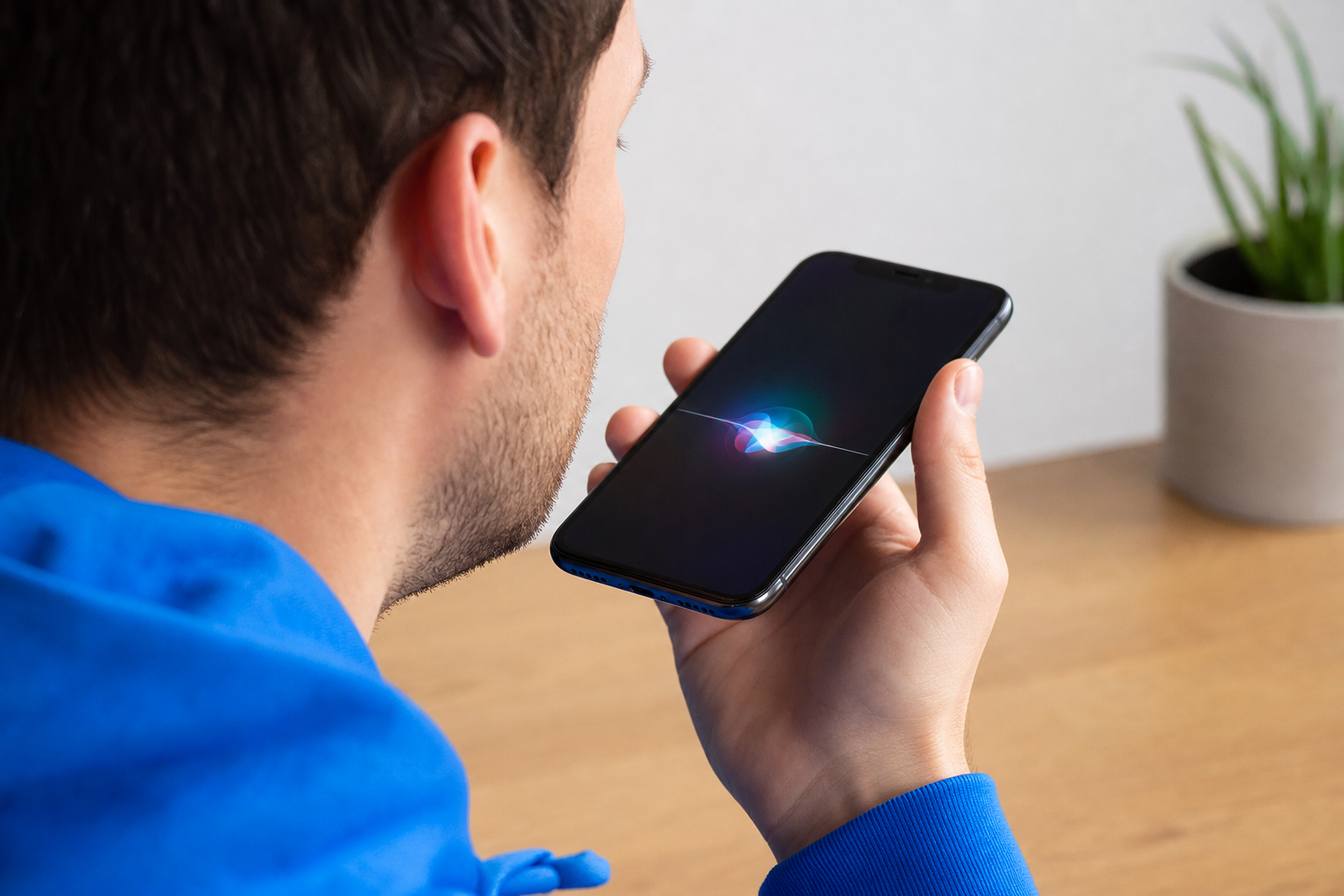
Switch off your iPhone with Siri
Siri can turn off your iPhone with a single voice command, without you having to press a combination of buttons first.
-
1
Activate the voice assistant
Say 'Hey Siri' loudly and clearly, or press and hold just the side button (on models with a Home button, the Home button) until the Siri icon appears at the bottom of the screen. If you hold the side button together with a volume button, you won't get Siri but the power off slider straight away.
-
2
Give the voice command
Say exactly: 'Turn off my iPhone' or 'Switch off my phone'.
-
3
Confirm
Tap the confirm button on the screen, or confirm out loud when Siri asks if you're sure you want to shut down.
According to Apple, switching off your iPhone with Siri works on supported models, but it isn't equally handy on every device or in every situation. It's a useful option when your hands are dirty from cooking or DIY and you don't want to touch the screen. Avoid it in noisy or very windy places, as the microphones often mishear the command. Also make sure the voice assistant is set up correctly in your settings beforehand.
Frozen screen? Force your iPhone to power off
Only do a hard reset when the touchscreen is completely frozen.
Try the normal method first: Check that the screen really doesn't respond to the normal slider before you take more drastic steps.
Quickly press volume up: Press the volume up button for a split second and release it straight away.
Quickly press volume down: Right after that, press the volume down button and release it straight away too.
Press and hold the side button: Press the side button firmly and keep holding it, even when the screen goes black, until the Apple logo appears.
Release at the logo: As soon as the white logo is on screen, your iPhone will restart safely.
Forcing your iPhone to power off is fundamentally different from switching it off normally. A force restart uses a different button combination from the regular slider and is meant as an emergency procedure, not as a way to turn off your phone every day. It's purely a hardware override for devices that have frozen.
Still not working? There may be a faulty logic board or a completely flat battery. In that case, put your phone on charge first and then try the steps again. If the screen stays black, contact Apple.
FAQs about turning off your iPhone
How do I turn off my iPhone?
On an iPhone with Face ID, press and hold the side button and either volume button at the same time until the slider appears. Slide it to the right and your iPhone will power off. If your model has a Home button, just hold the side button or the top button.
Which button do I use on an old iPhone?
On the 2016 iPhone SE and older models such as the iPhone 5, the power button is on top of the phone. Hold that button until the slider appears on screen. So if you're looking for it on the side, you won't find it.
Why doesn't the slider appear straight away?
The slider only appears after you've held the buttons for one to a few seconds. Lots of people let go too quickly and think it isn't working. Just keep pressing a little longer.
How long does it take for an iPhone to fully turn off?
After you slide to power off, an iPhone needs about another 30 seconds to switch off completely. The screen goes black straight away, but in the background iOS is still closing apps and connections. Don't press any buttons during that half minute.
How do I turn off an iPhone without buttons?
Without buttons, you turn off your iPhone via Settings > General > Shut Down, then slide the slider to the right. This works on all recent iPhones. Handy if your side button is broken or stiff.
Can I turn off my iPhone from Control Centre?
From iOS 18, there's a power icon in the top right of Control Centre that brings up the power off slider. Many people confuse this with Airplane Mode, but that only cuts your connections and doesn't turn off your iPhone. If you have an older version of iOS, use the buttons, Siri or Settings.
Can I turn off my iPhone with Siri?
With Siri, you say "Turn off my iPhone" and then confirm when Siri asks. This works on supported models. In a busy, noisy place, it's often quicker via Settings.
What should I do if my iPhone is frozen?
If your iPhone is frozen, do a force restart: quickly press volume up, quickly press volume down, then hold the side button until the Apple logo appears. This applies to Face ID models and the iPhone 8 and SE (2nd/3rd generation). You won't lose any photos, apps or other data.
What if the power off slider doesn't respond at all?
If the slider doesn't respond to your finger, the screen is frozen and you'll need to force your iPhone to power off. Clean the screen as well. Moisture or dirt on the glass often stops swipes from registering.
What's the difference between turning off and force restarting?
Turning off shuts down your iPhone properly using the slider, whereas a force restart hard-reboots the device. Only use a force restart if your iPhone is stuck. If the screen is working normally, use the normal method.
Why does my iPhone turn back on right after I switch it off?
Usually you've accidentally done a force restart instead of turning off your iPhone normally. That button combination turns the phone straight back on. If you really want it off, use the slider.
How do I turn my iPhone back on?
To turn your iPhone back on, hold the side button (or the top button on older models) until the Apple logo appears. Just make sure it's fully off before you do.
Can a case make it harder to turn off my iPhone?
A case with poorly fitting button cut-outs makes the side button and volume buttons stiffer. Check that the cut-outs line up exactly with the buttons. Dirt around that area makes it worse, so wipe them clean now and then with a slightly damp cloth.
Do you often put your switched-off iPhone face down on the table? Then choose a phone case with a raised edge, which protects the screen when you lay it display-side down. A raised camera lip stops the camera lenses from touching the surface directly. On directcases.com you can see for each case what material and edges it has.