There are two ways to hide your number on an iPhone. For a single call, type #31# before the number, for example #31#0612345678. If you always want to make anonymous calls, turn off Show My Caller ID in Settings > Apps > Phone.
If you often call one particular contact without showing your number, add #31# in front of their saved number in your contacts. It saves you typing it every time.
Sometimes you want to call someone but would rather your mobile number didn't pop up on their screen straight away. With so many people rejecting unknown callers these days, controlling your own caller ID matters for your privacy. If it doesn't work straight away over the network, the cause is often your carrier's settings.
Hiding your caller ID only hides your number on your own outgoing calls. It won't keep your number off spam or call lists.
How do I hide my number on my iPhone?
iOS gives you two ways to manage your privacy on calls. You choose between a one-off action per call or a permanent change for all your outgoing calls. For a single call, you use special codes that you type straight into the keypad. This is the quickest method if you only want to hide your identity from the person you're calling now and then.
Want to stop your number showing on every call? Then use the Settings app on your phone. There you'll find the Show My Caller ID option, which hides your number on all future outgoing calls with a single tap. The difference between the two methods comes down to how often you want to hide your number. If the person you call can still see your number after you've hidden it, the cause may be your carrier's settings.
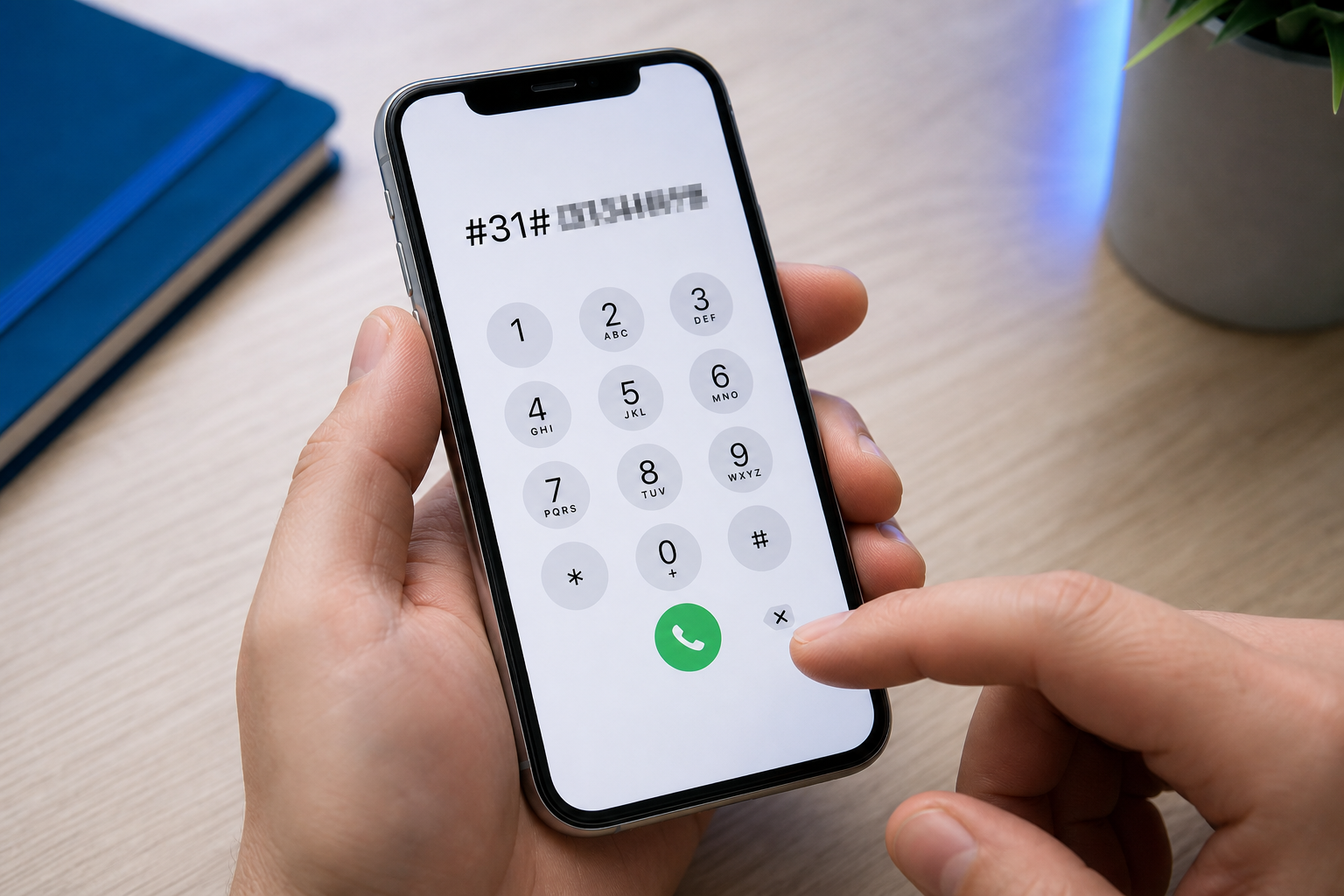
Hide your number for a single call (#31#)
To quickly hide your number for one call, you use a network code. Follow these steps to make an anonymous call on your iPhone:
-
1
Open the Phone app
Unlock your iPhone, open the Phone app and go to the Keypad tab.
-
2
Enter the code
Type the code #31#. This is the standard code for blocking caller ID on a single call.
-
3
Type the phone number
Enter the number you want to call straight after the code, without any spaces (for example #31#0612345678).
-
4
Start the call
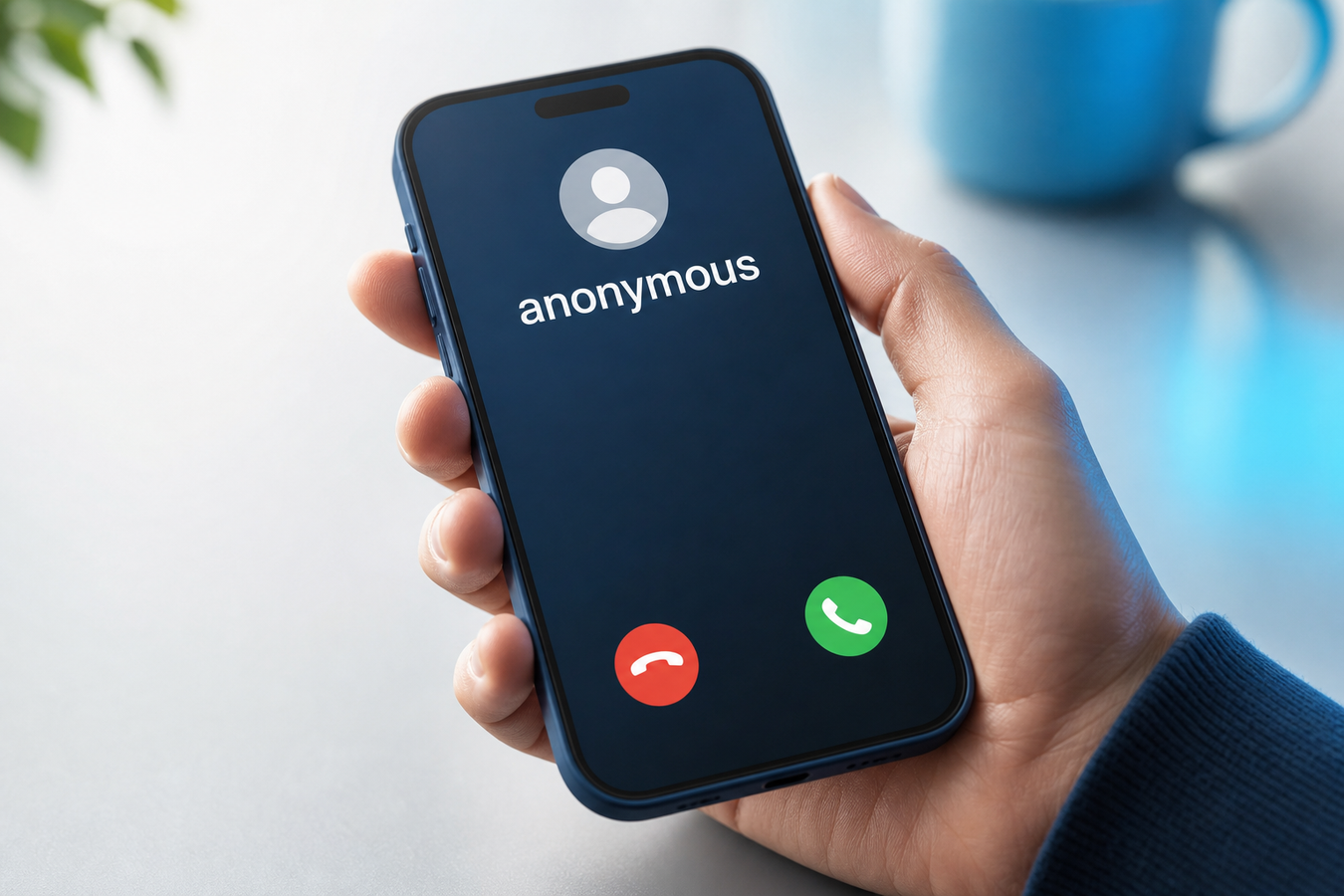
Tap the green call button. The person you're calling will now see "No Caller ID" or a similar unknown caller message on their screen.
Turn off caller ID by default
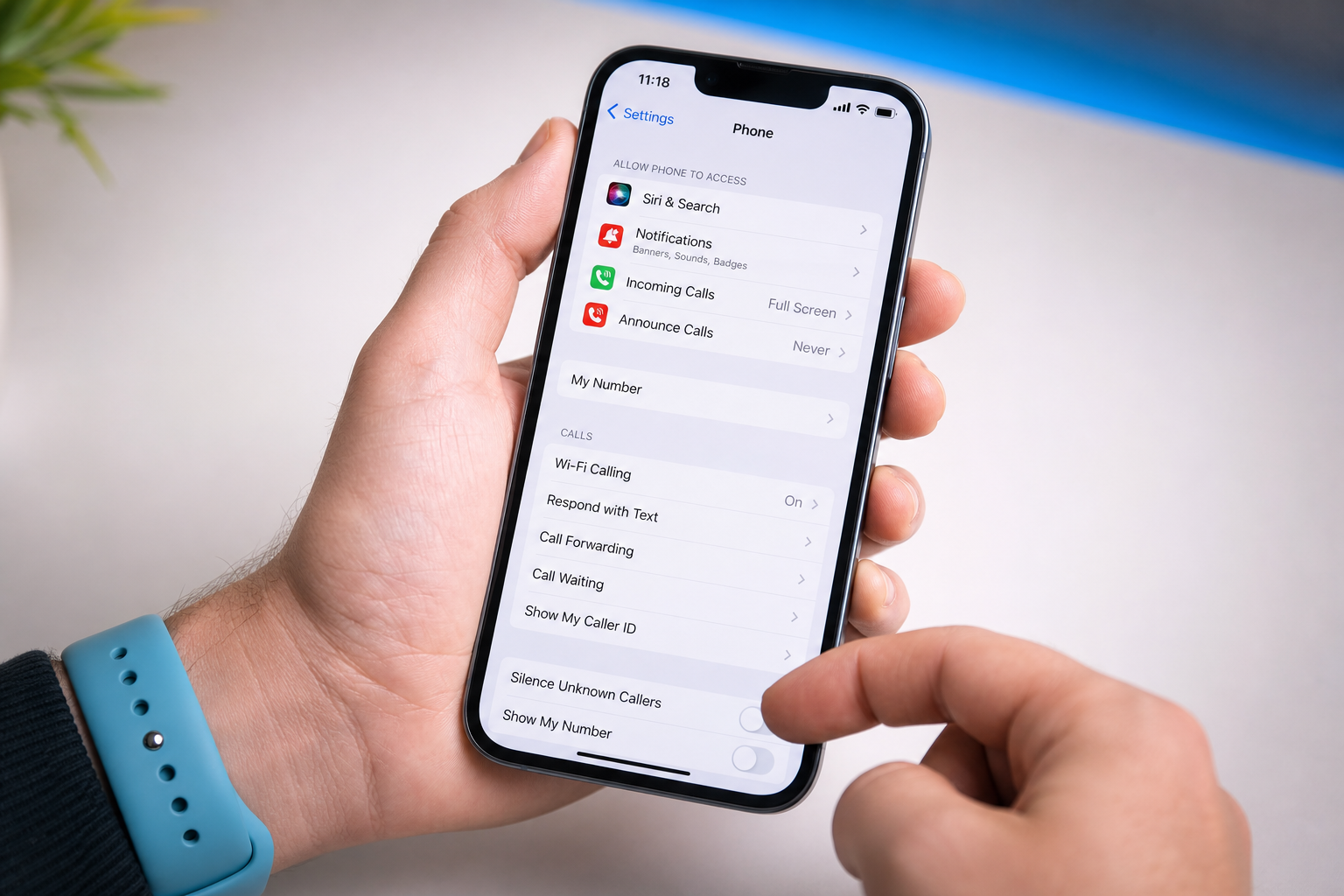
If you want to make private calls by default, change this permanently in your iOS settings. That way, you don't have to enter a code for every call:
-
1
Open Settings
Open the Settings app on your iPhone's Home Screen
-
2
Go to the call options
Scroll down the list of apps and tap Phone.
-
3
Change the display setting
In the next menu, choose Show My Caller ID. Can't see that name? Look for something similar like Caller ID, as the name varies depending on your iOS version, carrier and language.
-
4
Turn off the switch
Tap the green switch so it turns grey. From now on, your number is hidden by default on every call you make.
Always call a specific contact anonymously
Sometimes you want to always call one particular person or organisation anonymously without changing your general settings. You can set this up easily in your contacts:
Find the contact: Open the Phone app, go to Contacts and tap the name of the person or business.
Start editing: Tap Edit in the top-right corner of the contact card.
Change the number: Tap the existing phone number and put the code #31# directly in front of it.
Check the format: Make sure there are no spaces between the code and the number (for example, make it #31#0201234567).
Save the change: Tap Done in the top-right corner. You'll now always call this contact anonymously, while your number stays visible to everyone else in your contacts.
Hiding vs. showing your number (comparison)
Hiding your number directly affects how people respond to your call. Many smartphone users are wary of unknown callers, which affects your chances of getting through. Weigh up the pros and cons before you make a final choice.
Feature |
Anonymous call |
Showing your number |
|---|---|---|
Privacy |
Maximum protection for your personal mobile number. |
Your number is visible straight away and can be saved. |
Chance of being answered |
Low. People are less likely to answer unknown or withheld numbers. |
High. A visible number builds trust with the person you're calling straight away. |
Calling back |
Not possible. The person you call won't see a number in their call history, so they can't call you back. |
Easy. Missed calls often lead to an automatic callback. |
Spam risk |
Lower. The business you call can't see your number, so it can't save it from that call. Your number can still end up on lists in other ways. |
Businesses can save your number in their databases. |
Call screening |
Often blocked automatically by active call screening. |
If your number is in the recipient's contacts, you'll get past Silence Unknown Callers. If it isn't, you'll be silenced just the same. |
Choose to hide your number when you're making a one-off call to a business, organisation or client from your personal phone and don't want them to save your number in their system. Choose to show your number when you're calling friends, family or business contacts and need them to be able to reach you. Avoid anonymous calls if you need an urgent response, as many people now ignore unknown callers by default.
Why isn't hiding my number working?
Followed the steps but your number still shows up on the other person's screen? That's usually down to your carrier or a typo. Check the following points to fix the problem:
Carrier restrictions: Your carrier blocks number withholding at network level. Contact your carrier's customer service to check whether this feature is enabled on your plan.
Looking for Show My Caller ID and can't find it? The name varies by software version and carrier, so you might see Caller ID instead. On newer iPhones, the option is under Settings > Apps > Phone.
Entering the code incorrectly: A common mistake is adding spaces to the #31# code or forgetting the last hash. The code only works when it's attached directly to the phone number, so type #31#0612345678, not #31# 06 12 34 56 78.
If the other person doesn't pick up, it's not always down to your setting. If they have Silence Unknown Callers turned on, their iPhone silences your anonymous call, so it won't ring audibly on their end. That feature only silences the call, only affects incoming calls and has nothing to do with hiding your number.
Always test it with a call to a friend or family member. If your setting is right, the code is attached properly and your number still shows? Then your carrier is the first place to check.
FAQs about anonymous calls
Can you call back anonymous callers on an iPhone?
No, the caller's carrier blocks this at a technical level. Because the carrier withholds the number at network level, your iPhone simply never receives that information. Without a number, there's nothing to call back.
Can I hide my number for just one call?
Yes, you do this by entering the code #31#. Type it directly in front of the number you want to call. This temporarily overrides your default settings for that one call only, and your next calls go through as normal.
How can I block unknown callers or spam?
Turn on Silence Unknown Callers in Settings > Phone. This sends incoming calls from numbers that aren't in your contacts straight to voicemail. You can also turn on call screening through your carrier's apps or third-party spam filters from the App Store.
Does call screening work against withheld numbers?
Yes, modern call screening recognises calls with no caller ID and can reject them proactively. Many people use call screening to keep out pushy telemarketers. If you call someone anonymously and they have call screening turned on, there's a good chance your call will be cut off straight away.
Does hiding your number work on FaceTime?
Don't count on it: the #31# code and the Show My Caller ID setting are designed for regular phone calls through your carrier. FaceTime runs through your Apple Account, not your carrier's phone network. Want to be sure your number is hidden? Call through the Phone app with #31# before the number.
You now know how to protect your privacy when making calls. Whether you go for the quick #31# code or the permanent iOS setting, you decide who sees your number. Bear in mind that people are less and less willing to answer unknown callers as spam filters and call screening become more common. Try the #31# code today by calling a friend or family member and check that your number is hidden.