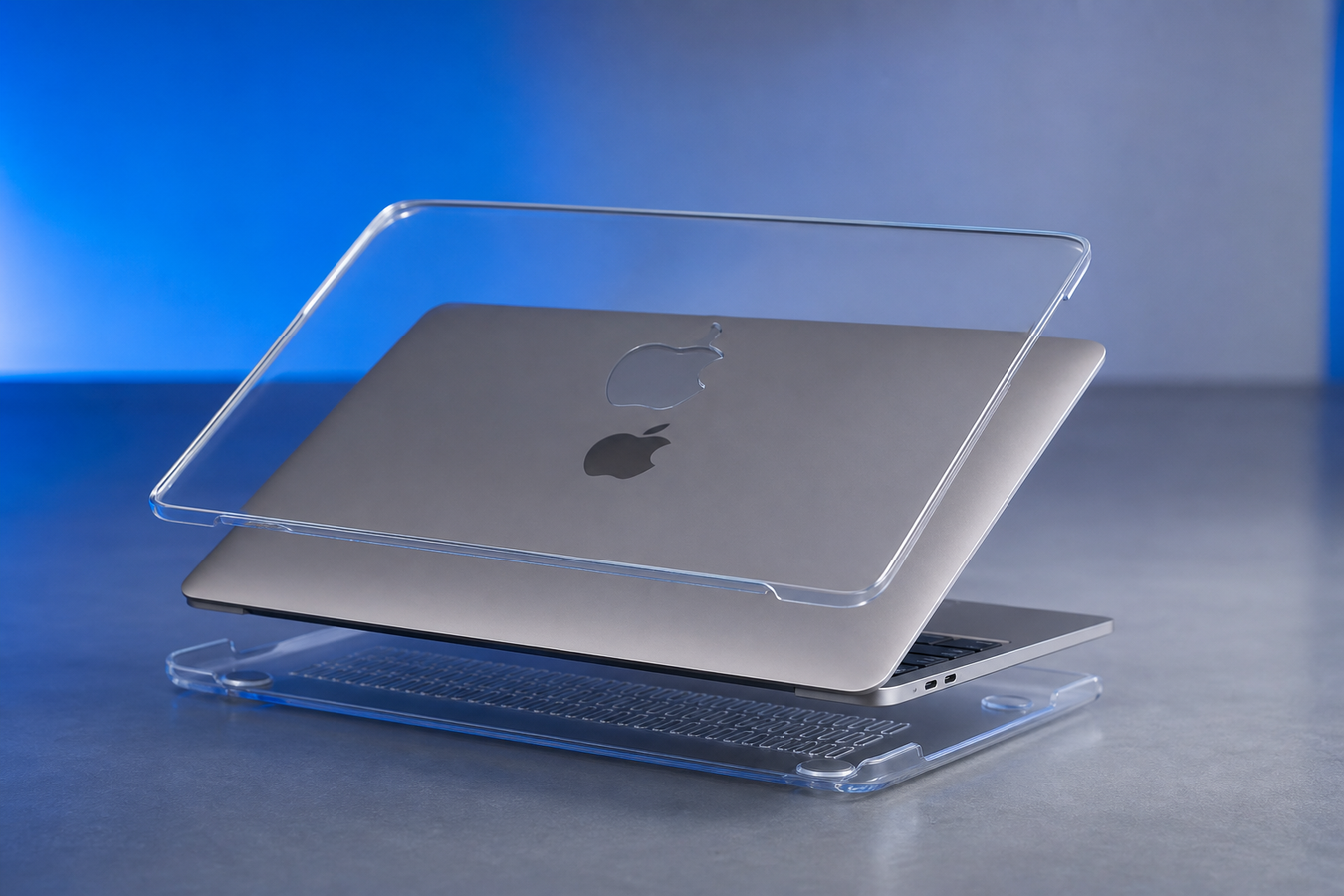
You've invested in a beautiful new Apple MacBook and naturally want to keep it free of scratches, but putting on a MacBook case that sits crooked or keeps coming loose is incredibly frustrating. In practice, we often see expensive laptops still getting damaged simply because a cover was fitted incorrectly. Here you'll learn exactly how to put on a MacBook case properly, which specific model you need and how the snap-on system works for optimal protection. With the right preparation, you'll have the shell clicked firmly into place within a few minutes. That way you avoid scratches, broken clips and a poor fit.
Preparation: Which MacBook do I have?
A flawless installation starts with ruling out the most common mistake: forcing the wrong size onto your laptop. Identifying your MacBook model is the absolute basis before you start fitting anything.
Check the A number on the bottom of your laptop to identify the exact model: Turn your laptop over and look for the small print on the bottom plate. There you'll find a model number that always starts with an 'A', followed by four digits (for example A2338 or A2442).
Check the screen size (for example 13, 14, 15 or 16 inches) and the year: Dimensions vary drastically from one generation to the next. A 13-inch model from 2020 has a completely different body and port layout than a 13-inch model from 2017.
Make sure you have a clean, dust-free workspace and keep a microfibre cloth to hand: Clear a desk so you can work safely. Dirt on your work surface will scratch the aluminium body as soon as you turn the laptop over and press it down.
How do I put a hard shell case on my MacBook?
In the video below, we show you how to put the MacBook case on your MacBook. Below the video you'll also find a step-by-step guide, so you can read through the steps again at your own pace.
Step-by-step guide: how to install a MacBook case
A snug fit takes a methodical approach without using brute force. Here's how to put on a MacBook case in a few controlled steps.
-
1
First, clean the entire MacBook thoroughly, so it goes into the case clean.
-
2
Start with the piece that goes on the top of the MacBook. To do this, place the MacBook bottom down on the table and open it halfway. On the inside of the case you'll find small clips that let you snap the case onto the MacBook. First click the clips around the edge where the screen joins the rest of the MacBook, then move the other side of the case towards the top of the screen. Check that the clips at the back are still firmly in place, then gently press the clips at the top around the edge of the MacBook's screen until you hear them click.
-
3
Now close the MacBook and turn it over so it's lying with the Apple logo on the table.
-
4
Now fit the bottom piece of the MacBook case. Again, start with the clips on the side of the MacBook where the screen is attached to the rest of the laptop, then lower the other side of the case onto the MacBook. Check again that the clips at the back are still hooked on properly, then press the clips at the front of the case around the front edge of the MacBook's base.
-
5
Turn the MacBook back over and open it, so you can check that all the clips have clicked into place properly. If they haven't, you can still snap them in.
Once all the clips are secured and the case fits snugly around your MacBook, the case installation is complete and your MacBook is fully protected.
How do you take a MacBook cover off safely?
Removing a tight-fitting cover takes care to avoid broken clips and scratched edges.
Never use sharp objects to prise the case off: Don't wedge screwdrivers, knives or hard plastic cards between the cover and the laptop. This damages the soft aluminium straight away and breaks the thin plastic of the case.
Gently unclip the corners one at a time with your fingertips: Hold the laptop in place with the heel of your hand and use your fingertips to bend the edge of the case slightly outwards.
Start at the front of the laptop and work slowly towards the hinge to avoid damage: Always start removing the case at the front corners on the trackpad side. This method gradually releases the tension from the shell.
Frequently asked questions about protecting your laptop
Does every case fit every model?
No, dimensions vary a lot by generation and version. A case for an M1 model will almost never fit an M2 or M3 version, even if the screen size is exactly the same. That's why protecting your MacBook always starts with checking the specific A number on the bottom plate before you buy.
What should I do if the case doesn't click?
Remove it completely and realign it. A missing click means the clips aren't gripping the edge of the aluminium body. Trying to secure a MacBook case by simply pressing harder will inevitably lead to cracked corners or serious pressure damage to your screen.
Can dirt under the case cause scratches?
Yes, which is why regular cleaning is essential. Sand and hard dust particles act like sandpaper when they get trapped between the hard cover and the laptop. Take the case off every two to three months and clean both the inside of the plastic and the laptop itself with a microfibre cloth to prevent damage from friction.
You now know exactly which model you have and how to put on a MacBook case successfully with the right step-by-step guide. A correctly fitted cover significantly extends the lifespan of your device and helps it hold its high resale value. By deliberately choosing the right protection and taking care when you install and remove it, you'll avoid unnecessary scratches and knocks. Check the A number on the bottom of your MacBook now and order a perfectly fitting MacBook case today for optimal protection.
Order the perfectly fitting MacBook case
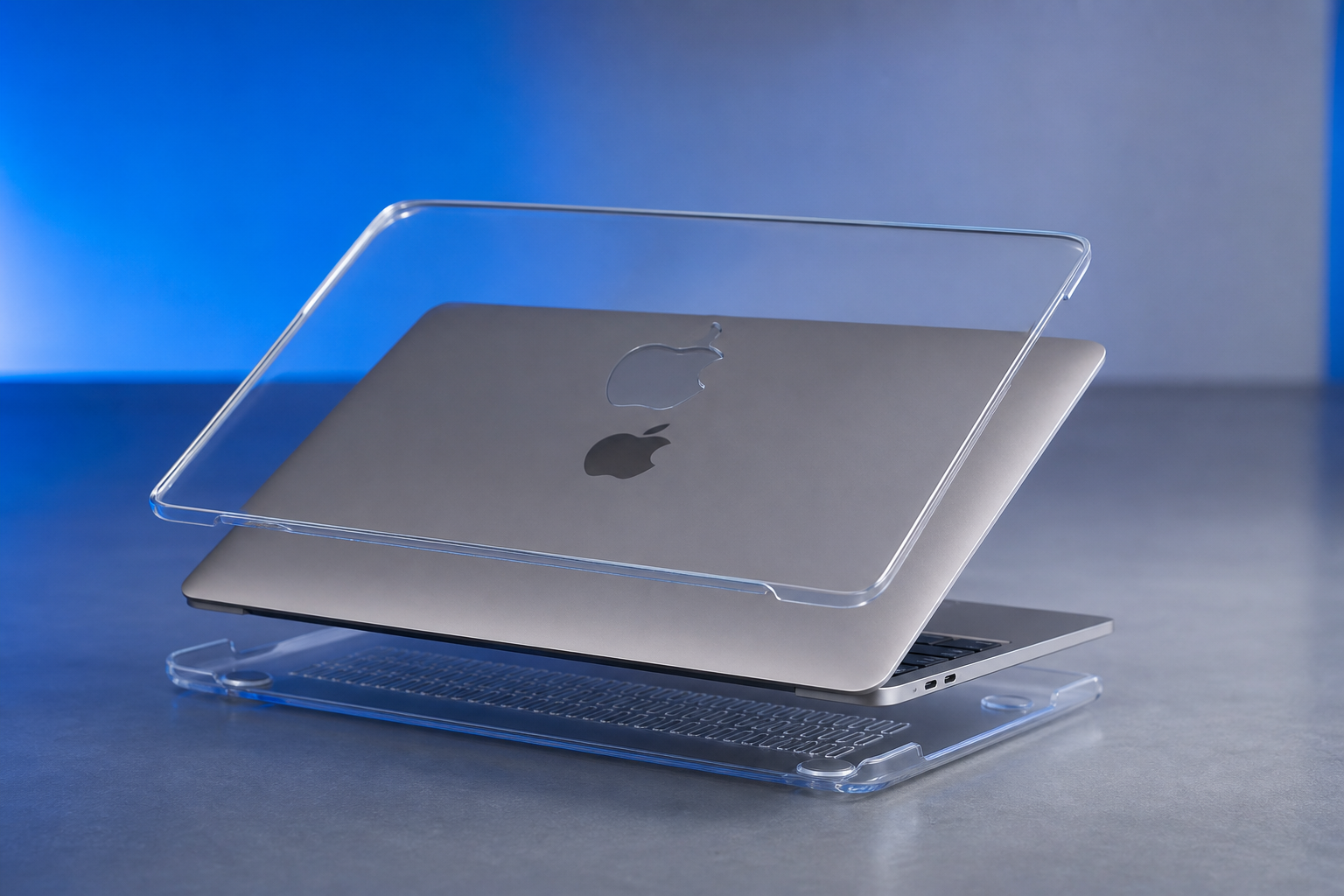
Still looking for a case for your MacBook, but not sure exactly which version of the MacBook you have? Check here exactly which MacBook version you have and browse the range of cases and accessories that will fit your MacBook perfectly.