Want to change the SIM PIN on your iPhone? Follow the steps below. If your SIM is already locked, skip to the section on the PUK code.
Why you should change the default SIM PIN straight away
Many people keep the PIN supplied by their carrier. This can put their personal information and mobile credit at risk if they lose their phone.
Predictable codes: Carriers nearly always set the default SIM PIN to 0000 or 1234. Someone trying to use a SIM they found is likely to try those numbers first.
Risk of theft: Someone can remove an unprotected physical SIM from a stolen iPhone and put it in another phone. They can then make calls, send texts and use mobile data at your expense.
Risk of identity theft: Without a strong SIM PIN, someone can put your SIM in their phone and receive verification texts, such as a WhatsApp activation code or a login code from your bank.
PIN length: A four-digit PIN has 10,000 possible combinations. A six-digit PIN has a million, making it much harder to guess by trying combinations.
Change the default SIM PIN as soon as you put a new SIM in your phone.
How to change the SIM PIN on your iPhone
On iOS 12 and later, you can change your SIM PIN in your mobile network settings. Follow the steps below.
-
1
Open Settings
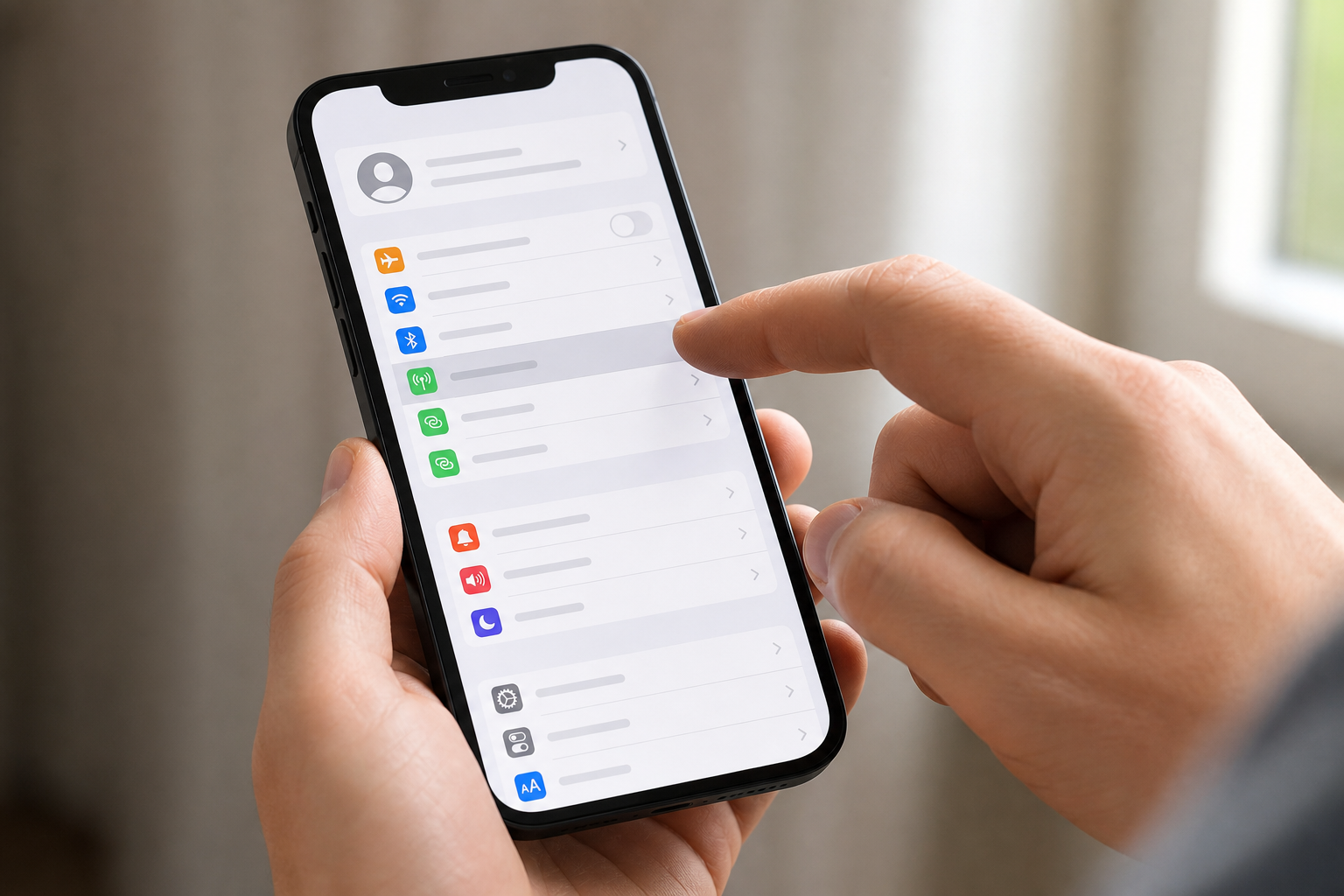
On your iPhone or iPad, tap the gear icon to open Settings.
-
2
Find your mobile network settings
TapCellular in Settings. On iOS 11 and earlier, look underPhone.
-
3
Open the SIM PIN settings
Scroll down and tapSIM PIN. If the switch is off, turn it on first to enable SIM protection.
-
4
Start changing your PIN
TapChange PIN to open the screen where you can enter your code.
-
5
Enter your current PIN
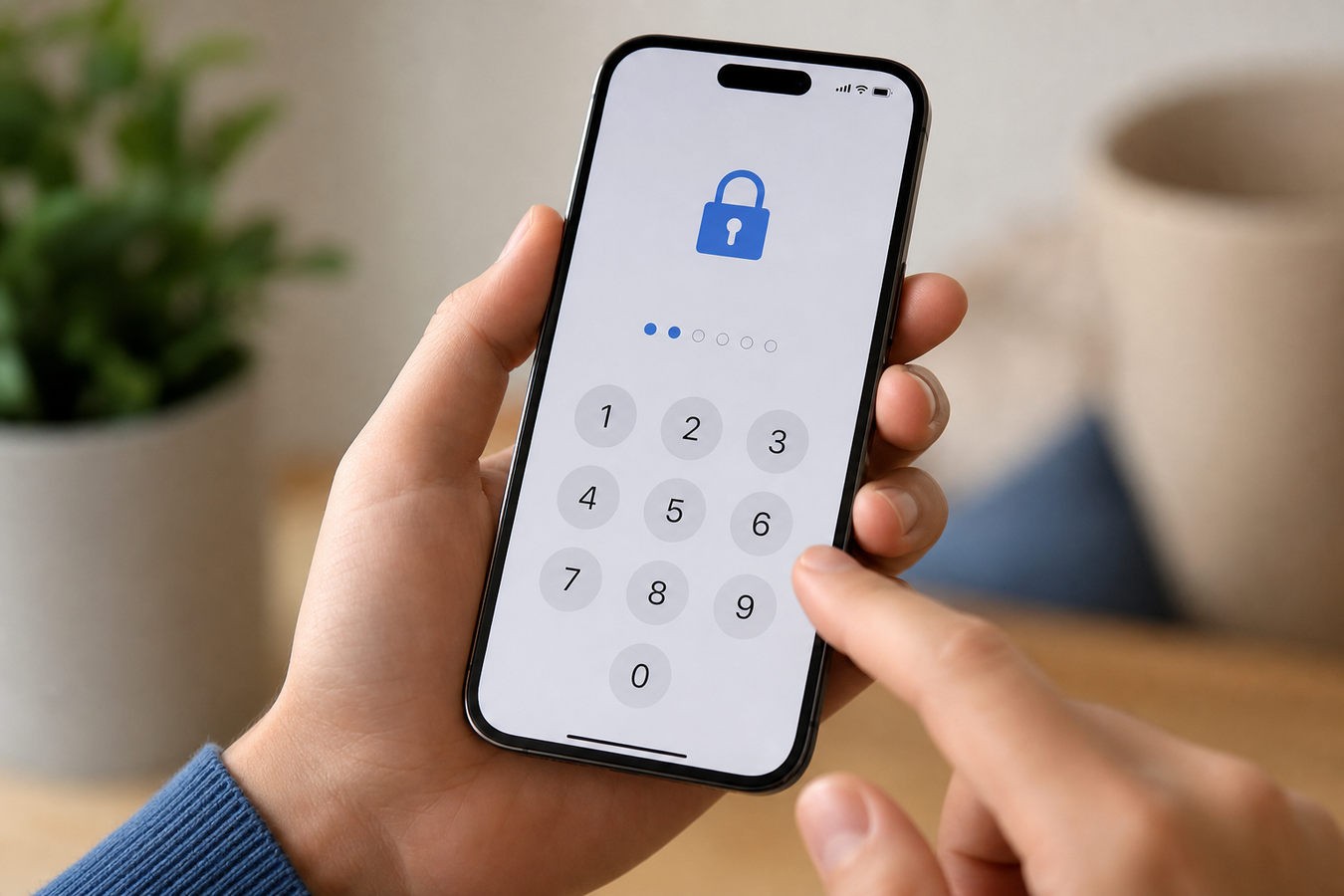
Enter your current or default SIM PIN and tapDone in the top right. Three incorrect attempts lock the SIM.
-
6
Choose a new PIN
Choose a PIN with four to six digits. Avoid obvious numbers such as your birth year or your device passcode. TapDone again.
-
7
Confirm your new PIN
Enter the new SIM PIN again and tapDone.
Your iPhone will ask for your new SIM PIN the next time you restart it. Save it in your password manager.
Changing a SIM PIN on a dual-SIM iPhone
If you use a physical SIM and an eSIM, or have two active lines, Settings lists both lines under Cellular.
Select the line you want to update first. For example, choose your Personal or Business line before tapping SIM PIN. That way you change the PIN on the intended line.
Each SIM has its own PIN. We recommend choosing a different PIN for each line so you can tell which one you are unlocking after a restart.
Should you turn off your SIM PIN or keep it on?
Entering a second code alongside your device passcode can feel inconvenient. Keeping your SIM PIN on gives you more privacy if your phone goes missing.
| Option | Benefits | Drawbacks and risks |
|---|---|---|
| Keep the SIM PIN on | Protects your phone number, mobile credit and incoming verification texts if your phone is lost or stolen. | You need to remember your SIM PIN as well as your passcode and enter it each time you restart your iPhone. |
| Turn the SIM PIN off | You can start using your iPhone sooner and avoid locking the SIM by forgetting its PIN. | Someone can put the SIM in another phone and use it at your expense. |
Without a SIM PIN, someone can use your physical SIM as soon as they remove it from your iPhone.
Consider turning off the SIM PIN if you are using a temporary prepaid SIM for a short trip and it is not linked to important accounts or payment details.
Keep the SIM PIN on if you use this number to sign in to your bank, WhatsApp or DigiD. Keeping it on is the safer choice for the phone you use every day.
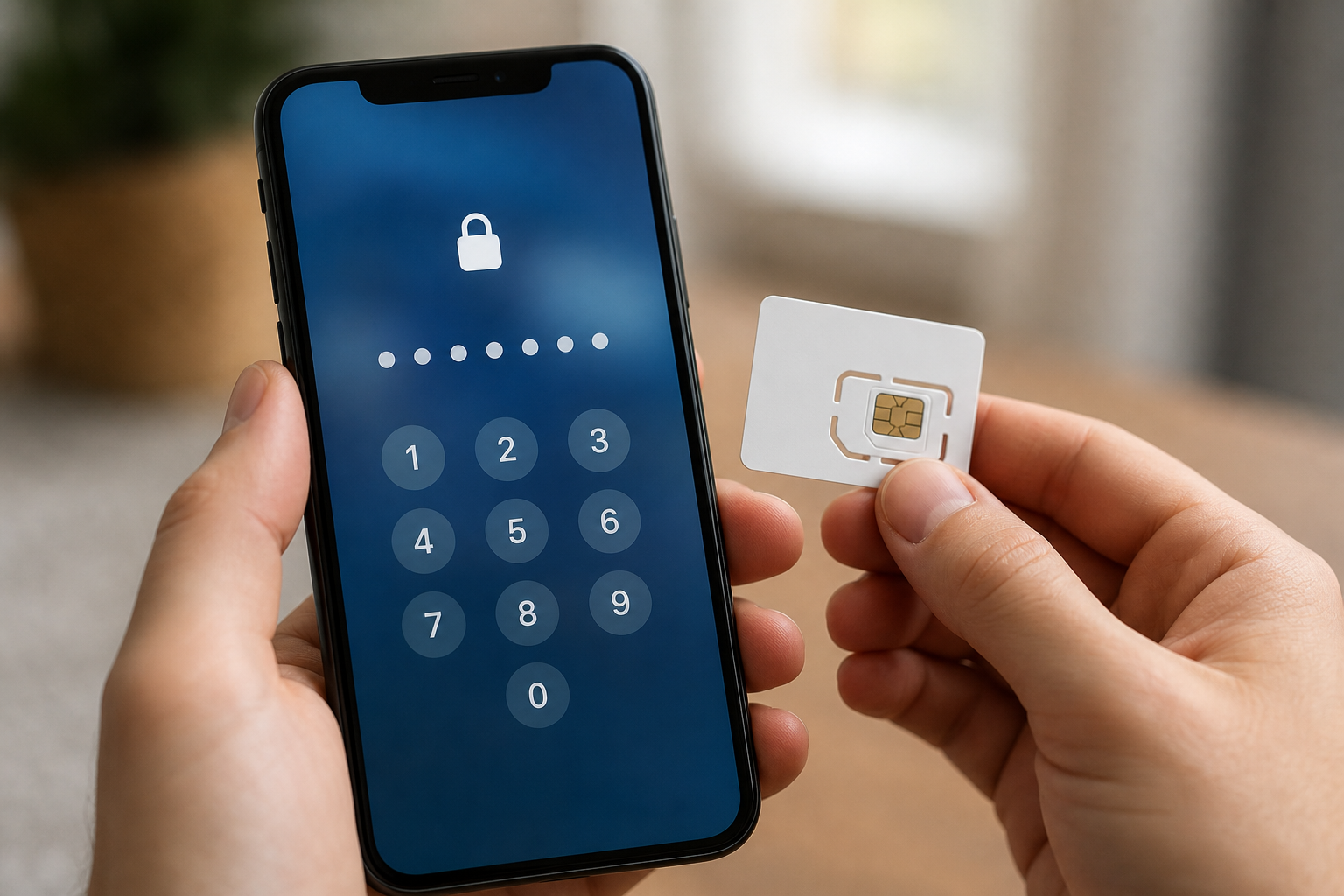
SIM locked? How to unlock it with a PUK code
If you enter the wrong SIM PIN three times in Settings, your carrier locks the SIM and blocks access to its mobile network.
Stop guessing: After the third incorrect attempt, your iPhone asks for a personal unblocking key (PUK). Entering your old SIM PIN again will not unlock it.
Find your PUK code: Look for the eight-digit code on the plastic holder your SIM came in. You can also check your carrier’s app or sign in to your account online.
Enter the PUK code: Carefully enter all eight digits on the screen where your iPhone asks for the code.
Set a new SIM PIN: After you enter the correct PUK code, your iPhone asks you to choose a new four- to six-digit SIM PIN. You cannot reuse the old PIN.
Keep track of your attempts: Entering the wrong PUK code nine times permanently locks the SIM. You will need to pay your carrier for a replacement SIM.
Frequently asked questions about the iPhone SIM PIN
What is my carrier’s default SIM PIN?
Nearly all Dutch carriers use 0000 or 1234 as the default SIM PIN. Check the letter or plastic holder that came with the SIM to confirm the code. Change it once you activate the SIM to help prevent misuse.
How many digits can a new SIM PIN have?
A SIM PIN must have at least four digits and no more than six. A six-digit PIN has a million possible combinations, compared with 10,000 for a four-digit PIN. Avoid consecutive numbers and your usual device passcode.
Where can I find my PUK code if I have lost it?
You can find the eight-digit PUK code in your carrier’s app or online account. It is also printed on the plastic holder your SIM came in. If you cannot find it there, your carrier’s support team can give you the code after verifying your identity.
Can I use a SIM PIN with an eSIM?
Yes. You can protect an eSIM with a SIM PIN in Settings. The PIN stops someone from using your mobile service after restarting your iPhone without your permission. Follow the same steps as on a dual-SIM iPhone with a physical SIM.
Changing your SIM PIN in Settings helps protect access to your mobile service and personal information. Open Cellular on your iPhone and replace the default 0000 with a PIN you choose.