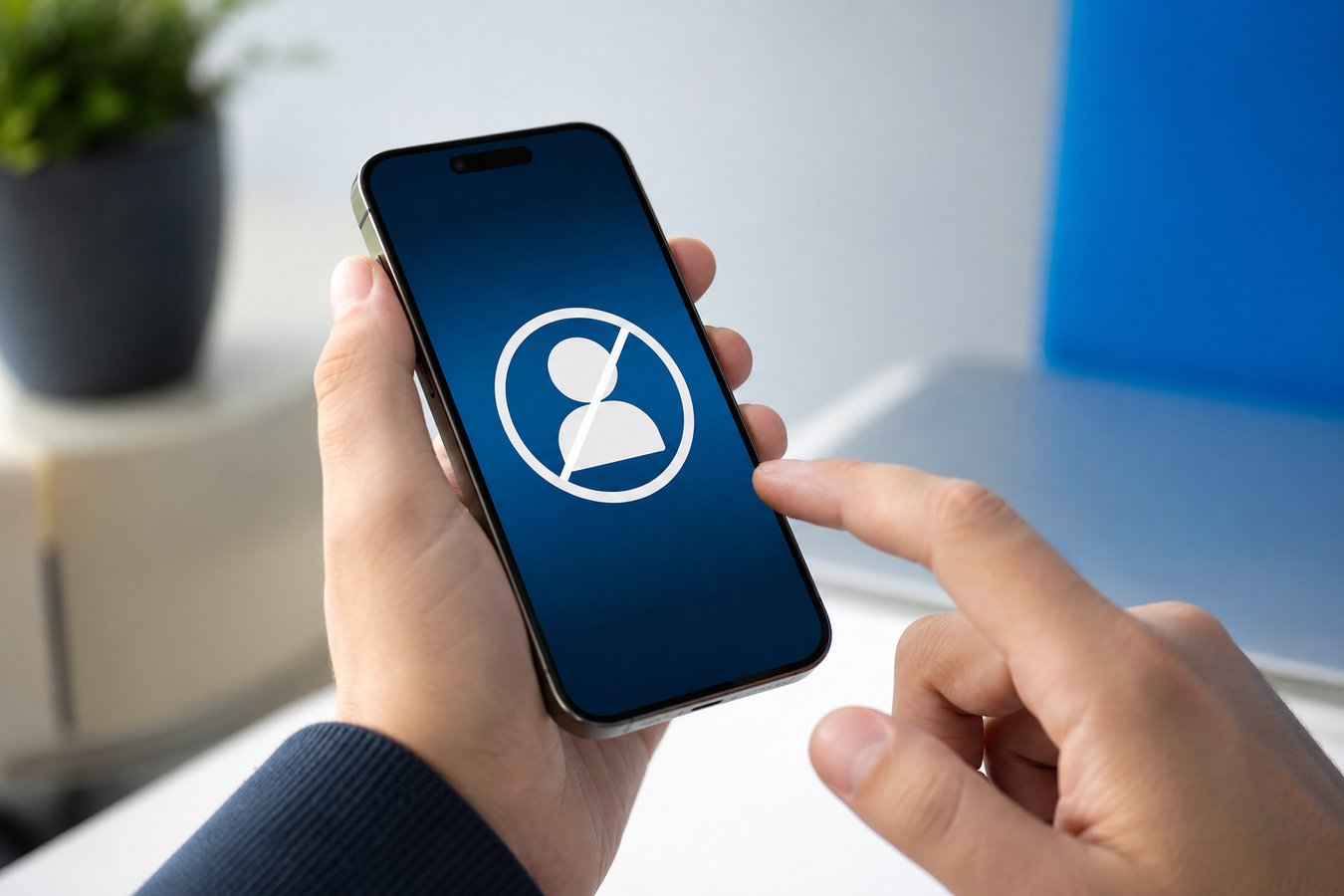
Here's how to block a number on iPhone: open the Phone app, tap Recents, tap the i icon next to the number and choose Block Caller. It takes a few seconds. After that, the number can't call, text or FaceTime you any more.
Constantly bothered by spam or unwanted callers? Time to take back control of your iPhone. Few things are as annoying as your phone ringing for a pushy sales pitch you never asked for.
In this guide, you'll learn exactly how to block phone numbers, anonymous callers and spam through the Phone, Messages and FaceTime apps, and how to unblock them again.
How to block a phone number on iPhone: the basics
Apple has built standard features into iOS that keep unwanted callers out straight away, with no third-party software needed. As soon as you block a phone number, a system-wide block kicks in on your device. That means the person behind that number can no longer reach you through Apple's standard apps. You can set up a block from Recents or Contacts in the Phone app, but you can also do it from the Messages app and the FaceTime app.
Blocking a phone number applies to all the main ways your mobile phone communicates. Blocked numbers can't call you, can't send you texts and can't reach you through the FaceTime app. In practice, you won't notice a thing, because their calls and messages simply don't come through any more. Keep in mind: a block applies per number or address, so if someone FaceTimes you from an email address, block that address too. All your blocks end up in one central list, which you'll find in iOS 26 under Settings > Privacy & Security > Blocked Contacts.
Go for this system-wide approach when you're sure you want to cut all ties with a specific number. Avoid this permanent option if you just don't want to be disturbed for a while, say during a meeting. In that case, use the Do Not Disturb Focus mode in iOS instead, so important contacts can still get through in an emergency.

Block a saved contact
Sometimes the person you want to ignore is already saved in your contacts. In that case, you can block a contact straight from their contact card in the Phone app, without waiting for them to call.
-
1
Open the Phone app and go to Contacts
Tap the middle tab at the bottom of your screen to open your full contact list. It works exactly the same way in the separate Contacts app.
-
2
Find and select the person
Use the search bar at the top or scroll through the alphabetical list and tap the name of the contact you want to block.
-
3
Scroll all the way down the contact card
At the bottom of the profile, past the email addresses and ringtones, you'll find the settings for this contact.
-
4
Tap 'Block Caller'
Confirm your choice in the pop-up by tapping the red text again. The block applies straight away to every number and email address on that card, including in Messages and FaceTime.
-
5
Check the result
In iOS 26, the list is under Settings > Privacy & Security > Blocked Contacts.
Use this method if the person bothering you is already saved by name on your phone. Note: blocking a contact in iOS doesn't stop messages through third-party apps like WhatsApp or Telegram; you'll need to set that up separately in each of those apps.

Block an unknown number from your call history
Just had a call from a strange number that isn't in your contacts? The quickest way to block an unknown number is straight from your recent calls in the Phone app.
-
1
Go to the Phone app and open Recents
Tap the clock icon at the bottom left to see your full call history.
-
2
Find the unknown number
Look through the list for the phone number that just called you and make a note of it.
-
3
Tap the blue i icon
This info icon sits on the far right of the screen, right next to the time of the call in your call history.
-
4
Choose 'Block Caller' at the bottom
Scroll down the info page that opens and confirm your choice to stop the spam number straight away.
Always use this route if you've just been bothered by a telemarketer or a suspicious overseas number. It literally takes ten seconds and stops the same call centre from trying again.
The difference between blocking unknown and anonymous callers
Before you change any settings, it helps to know the technical difference between a number you don't recognise and a caller who deliberately hides their caller ID.
Kenmerk |
Unknown numbers |
Anonymous numbers |
|---|---|---|
Visibility |
The phone number is fully visible in your call history. |
The screen shows 'No Caller ID', 'Unknown' or 'Private Number'. |
Contact list |
Simply not saved in your contacts. |
The caller has deliberately turned off caller ID with their network provider. |
Cause |
New acquaintances, delivery drivers or visible spam numbers. |
Often pushy telemarketers, debt collectors or automated spam. |
Best approach |
Block the unknown number straight away using the i icon. |
Turn on automatic silencing in the general iOS settings. |
Block a phone number manually if the digits show up in your call history and you're sure it's spam. Don't bother blocking anonymous callers manually, simply because without a visible number your iPhone can't add a specific caller to your block list.
Automatically silence anonymous callers in iOS
Since you can't select a hidden number individually, Apple offers a filter that ignores these calls automatically without your phone ringing.
Go to Settings: Open the Settings app on your iPhone and tap 'Phone' in the main menu.
Find the filter option: Scroll a fair way down and look for the 'Silence Unknown Callers' option.
Turn on the toggle: Switch the toggle to green (on) to activate the feature for all future calls.
Check your voicemail: Note that calls from people who aren't in your contacts now go straight to voicemail, so check your messages regularly.
Turn this feature on if you're regularly bothered by anonymous callers or robocalls. Switch the filter off temporarily if you're expecting an important call from, for example, a hospital or an organisation that isn't in your contacts, because that call will also go straight to voicemail without ringing.
Block a contact in the Messages and FaceTime apps
Spam and unwanted contact aren't limited to phone calls; texts and video calls in the Messages and FaceTime apps can be just as much of a nuisance.
Messages app: Open an unwanted conversation in the Messages app. Tap the profile icon or the sender's phone number at the very top of the screen. Then choose 'Info' and select 'Block Caller' at the bottom. This immediately stops all incoming texts and iMessages in the Messages app.
FaceTime app: Open the FaceTime app and find the unwanted video or audio call in your recent list. Tap the blue i icon next to the call. Scroll down the info page and choose to block. This stops the person from video calling you uninvited.
Linked across apps: Apple uses a single block list for all its services. Blocks you set up in the Messages app automatically apply to the other apps too. If you block an unknown number in the Messages app, that person can no longer call you through the regular Phone app either.
Block straight from the Messages app if you receive phishing texts with suspicious links to fake parcel delivery services. Dealing with it at the source in the Messages app stops you from accidentally tapping harmful content when you're in a hurry.
Unblock a blocked contact
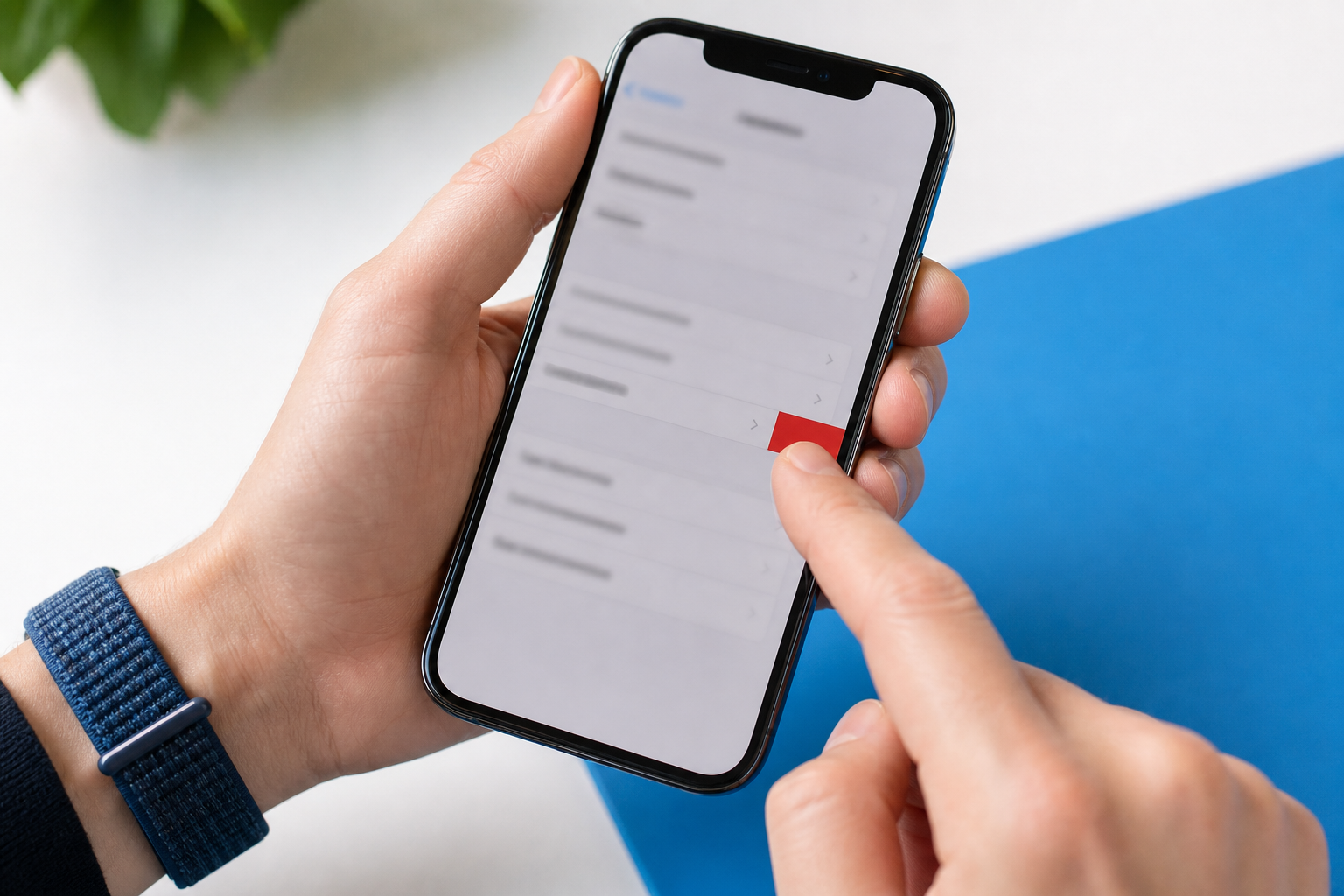
Blocked the wrong person in the heat of the moment? Luckily, unblocking a blocked contact is just as easy as setting up the block in the first place.
-
1
Go to Settings on your iPhone and select Phone
In the latest iOS versions, you'll also find this under the 'Privacy & Security' menu.
-
2
Tap 'Blocked Contacts'
Here you'll see the full block list with every phone number and email address you've blocked in the past.
-
3
Swipe left on the phone number or contact
Find the person you want to let back in and swipe from right to left across their name.
-
4
Tap the red 'Unblock' button
Tapping this immediately lets the person reach you again through calls, the Messages app and the FaceTime app.
Check this list in Settings straight away if you notice you keep missing texts or calls from people you know. In practice, we often see that an accidentally blocked number is behind unexplained problems with being reachable.
FAQs about blocking numbers on iPhone
How do I block a phone number on my iPhone?
The quickest way to block a phone number is in the Phone app: open Recents, tap the blue i icon next to the number and choose 'Block Caller'. Then confirm your choice. It takes a few seconds.
What does someone see if you block their number on an iPhone?
Nothing. A blocked caller doesn't get a notification that you've blocked them. If they call you, the call goes to voicemail without your iPhone ringing. Messages appear sent to the sender, but never arrive on your iPhone.
Can you block anonymous callers on iPhone?
You can't block anonymous callers individually on iPhone, because there's no number in your call history to add to your block list. You can stop them, though, using the Silence Unknown Callers feature in the Phone app settings. The downside: callers who aren't in your contacts, like a delivery driver or your GP, will also go straight to voicemail.
How do I unblock a number on my iPhone?
You unblock a number from the Blocked Contacts list in Settings. In iOS 26, you'll find it under Privacy & Security > Blocked Contacts. Swipe left on the number and tap 'Unblock', or use 'Edit'.
Where can I find my blocked numbers on iPhone?
All your blocked numbers are in one list: Settings > Privacy & Security > Blocked Contacts. On older iOS versions, the list is under the Phone settings. Check the list quickly after blocking so you know for sure the right number is on it.
Does blocking also apply to messages and FaceTime?
Yes, a block on iPhone applies to calls, texts, iMessage and FaceTime all at once. It doesn't matter which app you block someone in, because everything goes into the same list. So you don't need to block them again in each app.
Can I block a number that isn't in my contacts?
Yes, you can block an unknown number from Recents in the Phone app, even if it isn't in your contacts. Has the number only sent you a text? Then block it from the conversation in the Messages app: tap the number at the top and choose 'Block Caller'.
Can I also block an email address on iPhone?
Yes, as well as phone numbers, your iPhone can block email addresses someone uses for Messages, FaceTime or Mail. Handy if someone contacts you on iMessage using an email address instead of a number. Note: if that person calls from a different number, you'll need to block that number separately.
What's the difference between blocking and silencing unknown callers?
Blocking stops one specific number for good, while silencing sends all callers outside your contacts to voicemail at once. Choose blocking if you know who's bothering you. Choose silencing if you keep getting calls from different spam numbers and don't fancy blocking them one by one.
You now know exactly how to keep unwanted, unknown and anonymous callers off your Apple device. Whether it's a pushy telemarketer in your call history or a persistent spam text in your Messages app, you now decide who can reach you. Head into your Phone app settings and block that annoying spam number for a bit more peace and quiet.