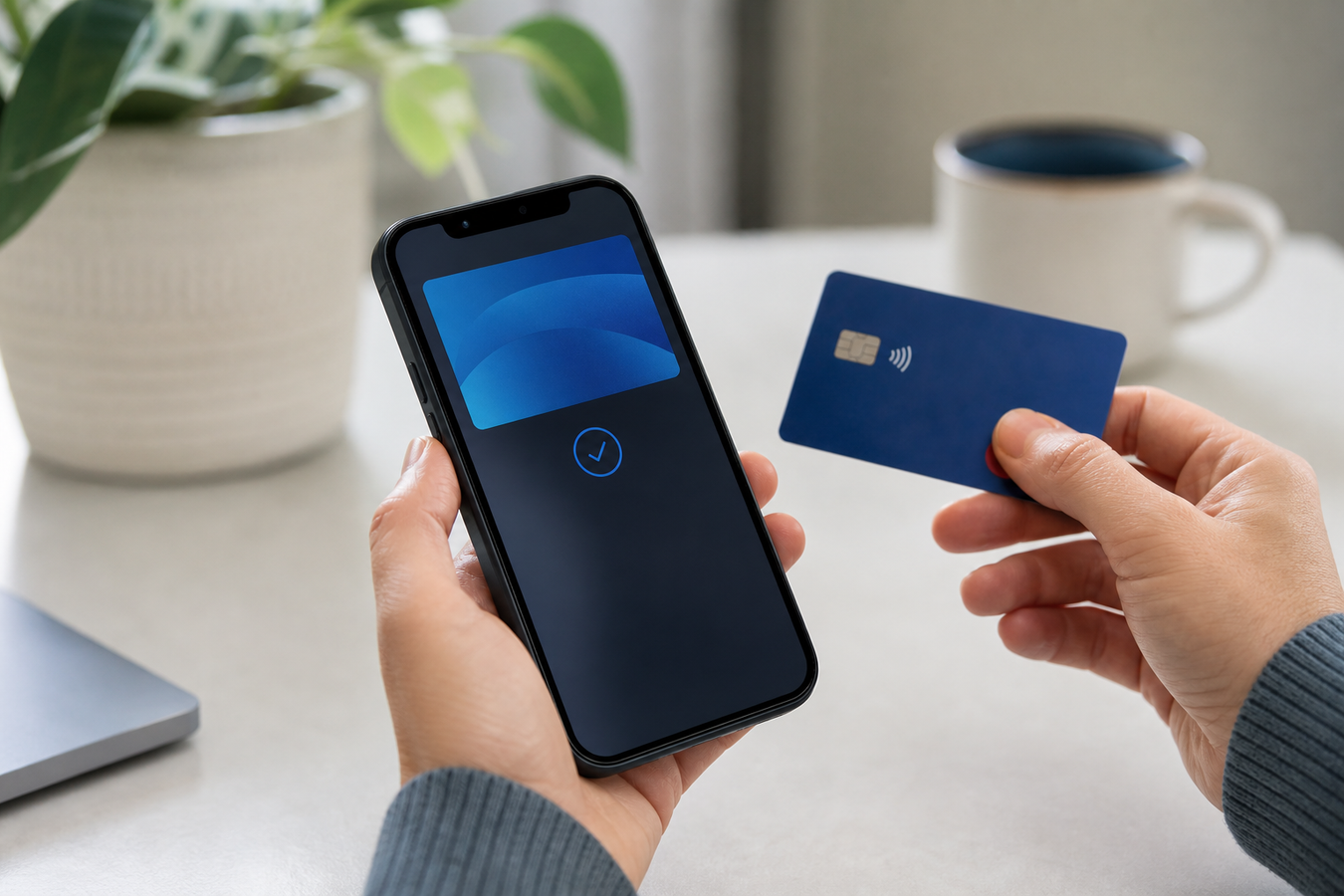
Wondering how to add a card to Apple Wallet? You set up your credit card and Apple Pay on your iPhone directly in the built-in Apple Wallet app. Tap the 'Add Card' button, scan your card with the camera and, once your bank has verified it, you can pay contactless.
Sometimes an outdated iOS version or a missed bank verification blocks the process. Once those settings are right, you can pay securely with your smartphone and leave the physical card at home.
What's the difference between Wallet and Apple Pay?
Why do these two terms keep getting mixed up when you want to pay with your mobile phone?
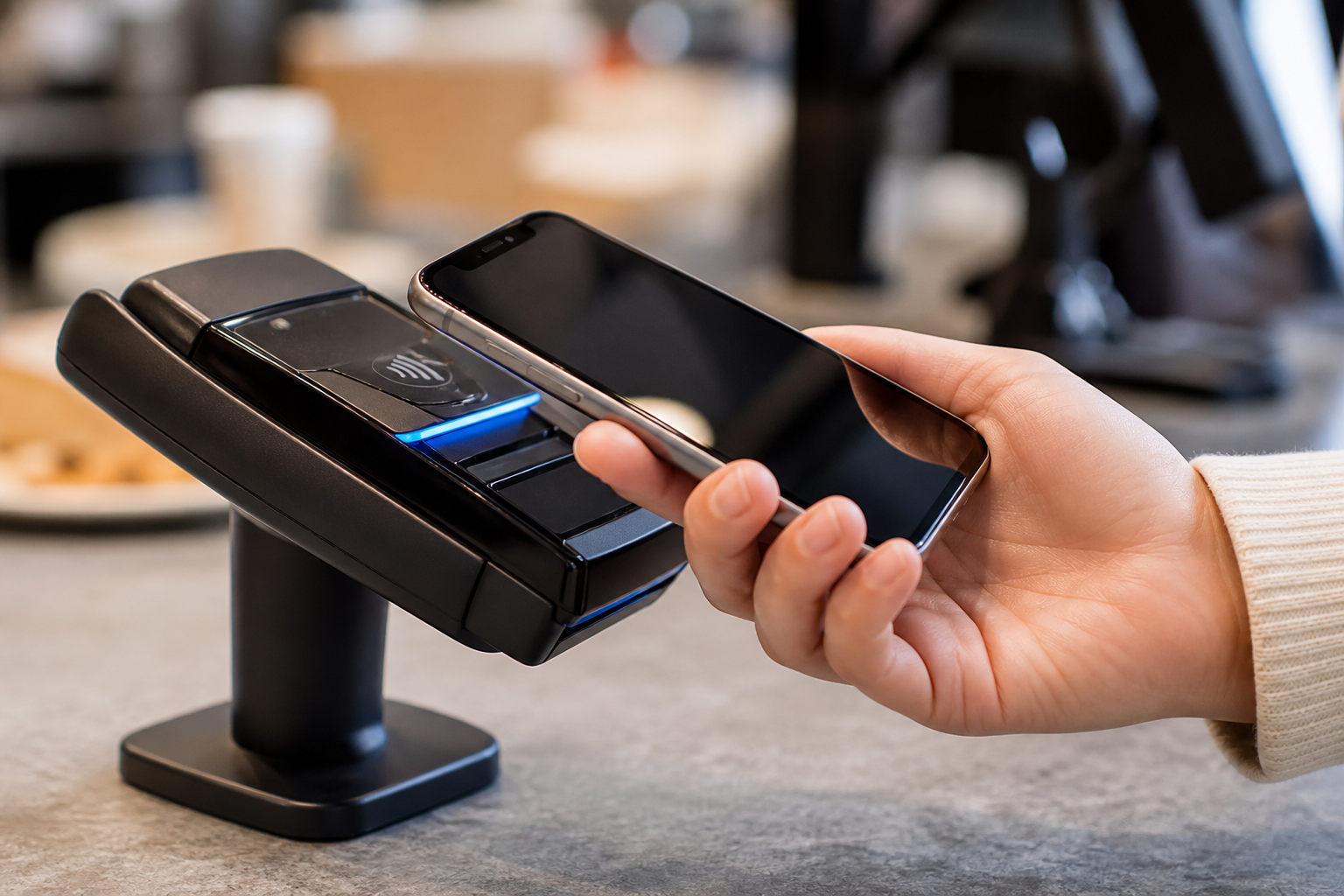
The split is simple. The Apple Wallet app is the digital vault on your iPhone. It's where you securely store the details of your payment cards. Apple Pay is the actual contactless NFC payment method that kicks in as soon as you hold your device near the payment terminal. So you keep the card in Wallet, and you pay with Apple Pay.
This system is a lot more secure than a regular wallet. A physical credit card can fall out of your pocket or get stolen, and whoever finds it can make contactless payments straight away. When you use a credit card in Apple Pay, every iPhone payment first needs approval via Face ID or Touch ID. Without your face or fingerprint, nothing happens. On top of that, the software hides your details through tokenisation. The till only receives a temporary code, so your real card number is never shared with the shop or left lying around.
Is paying with Apple Pay safe compared to a physical credit card? Yes, because the security asks for Face ID or Touch ID with every payment and doesn't share your card number with the payment terminal. Choose Apple Pay if you want to reach for your physical credit card less often; your Wallet app stores the payment card, and Apple Pay only uses it when you pay.
How do I add a credit card to Apple Pay?
Paying by mobile phone is completely normal across Europe these days. There are two simple ways to add a credit card to your iPhone: enter the details in the Wallet app, or link the card directly from your own bank's app.
Choose the Wallet app if you have the physical payment card to hand or if your bank app doesn't show an Apple Pay button. The camera can usually scan your card number and expiry date. If it can't read the card properly, you can add the details manually. The card issuer will then ask for verification, usually with a text message code or a confirmation in the bank app.
Choose the bank route if you're already logged in and see an option such as 'Add to Apple Wallet'. Your card details then go straight to Apple Wallet, so there's very little to type. Almost all major banks in Europe and international players such as bunq support this quick method.
Which route you pick mainly depends on what you have to hand: your physical credit card or access to your bank app. Make sure you're ready before you set up Apple Pay. Put your physical credit card on the table in front of you. Going for the bank route? Check that you have your bank app login details to hand. That way you won't be searching halfway through, and your card will be active sooner.
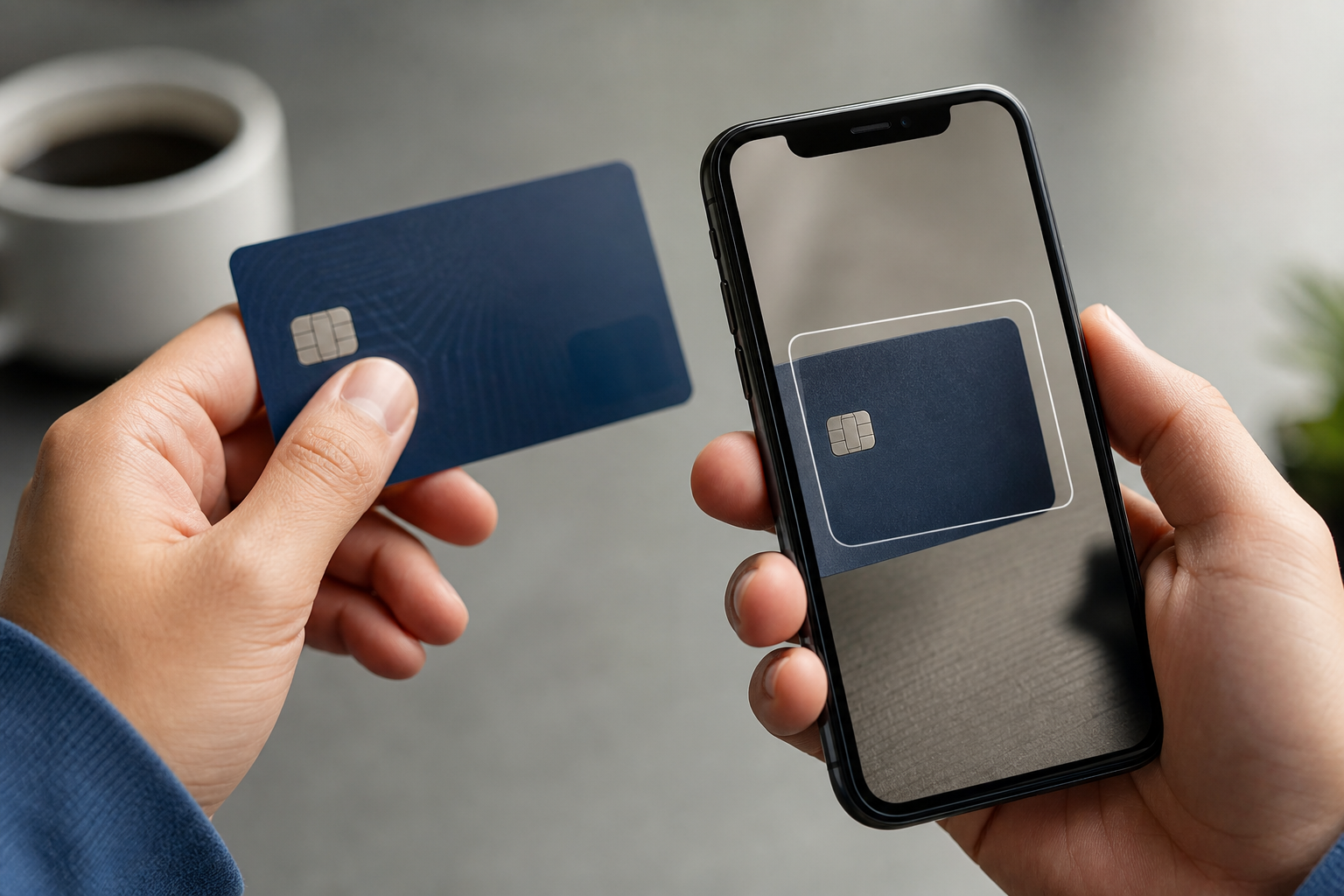
Add a credit card to Apple Wallet via the Wallet app
You've just pulled your new payment card out of the envelope and want to use it straight away for a booking. You can add the card on your mobile phone as soon as you're able to enter the card details and complete your bank's verification.
-
1
Open the app
Open the built-in Wallet app on your iPhone and tap the 'Add Card' button (+) in the top right.
-
2
Scan your card
Choose 'Debit or Credit Card' and tap 'Continue'. Use the camera to capture the card number, name and expiry date in one go. Then check that the details on the screen match those on your payment card.
-
3
Enter details manually
Can't the camera read the physical card properly because of poor lighting or a dark print? Tap 'Enter Card Details Manually' and type in the number, expiry date and security code (CVC) yourself. This option is also handy if you don't have your physical card to hand but can view the details securely.
-
4
Check the terms
Read through your card issuer's information and accept the terms for Apple Pay. If you have several cards in the Wallet app, you can also set this credit card as your default card right away.
-
5
Verify with your bank
Always complete the required verification with your card issuer to rule out fraud. Enter the text message code you receive or give approval in your own bank app. After that, the card is fully activated and ready to use. When you pay with your iPhone, you then confirm the payment with Face ID, Touch ID or your passcode.

Set up Apple Pay via your bank's app
Activate Apple Pay directly from your bank's app by opening your credit card there and choosing the 'Add to Apple Wallet' or 'Set Up Apple Pay' option.
Take the quickest route and add your credit card straight from the trusted environment of your own bank app.
-
1
Open your bank's or credit card issuer's app on your iPhone and log in.
-
2
Go to your card settings and tap the 'Add to Apple Wallet' button or something similar.
-
3
Follow the on-screen steps. The app sends your card details to Wallet, so you hardly need to type anything.
-
4
Complete the process with in-app verification to confirm your identity. The credit card will then appear in your Apple Wallet straight away.
Can't add a card to Apple Wallet? Why Apple Pay setup fails
Is adding your credit card to Apple Pay getting stuck? Go through these points one by one before you try adding the card again.
First, check that your iPhone has the latest available iOS update. An outdated iOS version can block you from adding a card. Always keep your iPhone updated.
Unexpectedly stuck at bank verification? If your card issuer offers it, choose approval in the bank app instead of a text message code. Verification by text or bank app is needed to confirm that you're the rightful cardholder. Only request a new code after that.
Incorrect region settings often throw a spanner in the works if your phone thinks you're in an unsupported country. Make sure your iPhone's language and region are set correctly (Settings > General > Language & Region > Netherlands). If the Netherlands is already set, close the Wallet app completely and try adding the credit card again.
Check with your bank whether they've enabled that specific credit card for Apple Pay. Sometimes the card isn't supported yet, especially certain business cards. A bank may offer Apple Pay while a particular card type still falls outside that support.
Does Apple Pay work when my iPhone is in a case?
Does a phone case actually block contactless payments? The NFC chip in the iPhone handles the payment at the terminal. In practice, Apple Pay works through almost any material. So protection and NFC compatibility usually go hand in hand: a back cover, wallet case or thicker protective case doesn't have to get in the way of Apple Pay. Do make sure the fit matches your iPhone model exactly, and only use a case that doesn't block the camera.
Avoid metal parts around the NFC area, though, as they can interfere with wireless payments.
Take care with wallet cases or a phone case with card holder. Is there already another NFC-sensitive card in it, such as a public transport card or an office access pass? That can cause interference at the payment terminal. Take these cards out when you pay, or use a standard back cover to prevent interference straight away. Don't stack cards too thickly either.
Want to carry your cards separately? Choose a MagSafe card holder for iPhone 12 and later. Check that the holder fits up to three cards, has a shielding layer to protect payment cards and uses a strong magnetic attachment. Also check that the holder doesn't interfere with Apple Pay. Go for microtwill or leather if you want a soft, hard-wearing finish. Preferably don't keep an NFC card in that card holder while you pay.
Look after the card holder with a dry microfibre cloth and clean it without harsh cleaning products. Don't let moisture sit in the card holder for long, and always keep cards straight and snug in the holder.
Frequently asked questions
How do you set up Apple Pay on iPhone?
Open the Wallet app on your iPhone, tap the plus icon in the top right and choose a debit or credit card. Scan the card with the camera or enter the details manually, then activate the card with a verification code from your bank.
Why can't I add my credit card to Apple Wallet?
This is often due to an outdated iOS version or an incorrect region setting on your mobile phone. Check that your device is up to date, make sure the region is set to the Netherlands and verify that your bank supports your specific card.
Is Apple Pay the same as iDEAL?
No. iDEAL is a direct transfer from your bank account. Apple Pay uses a linked debit or credit card to pay contactless via the NFC chip in your smartphone.
Do I always have to use Face ID or Touch ID?
Almost always. You approve a payment with Face ID, Touch ID or your passcode. One exception is Express Mode for public transport: you can tap in without unlocking your iPhone first.
Does paying with Apple Pay cost extra?
Apple doesn't charge anything for Apple Pay. Whether your bank charges fees, for example abroad, is set out in your card's terms and conditions.
Does my credit card work with Apple Pay abroad?
Yes, at payment terminals that accept contactless payments. Ask your bank whether there are any fees for paying abroad.
Does a phone case block Apple Pay payments?
The NFC chip in your iPhone is strong enough to work through almost any case. Just be careful with wallet cases that hold cards: if there's a public transport card or another NFC card in there, it can confuse the terminal.
You now know exactly how to add your credit card to Apple Pay quickly and securely via the Wallet app or your bank app. To be safe, first check that your device has the latest iOS version. Grab your iPhone, open 'Software Update' in Settings, then add your card straight away for the easiest way to pay.