Is your SIM card locked and your phone asking for a PUK code? Get the code from your carrier and enter it to unlock your SIM card. If your SIM is permanently blocked, ask your carrier for a replacement SIM card or eSIM.
What happens if you enter the wrong SIM PIN three times?
Why does your phone lose cellular service after the third incorrect attempt? It’s a security feature. Your SIM card locks after you enter the wrong PIN three times.
The PIN in question protects your SIM card. Your iPhone or Android screen lock uses a separate passcode. The SIM PIN helps stop someone from making calls on your account if your phone is stolen or left behind. The lock is a security feature built into the SIM card.
If your phone says the SIM PIN is blocked, stop trying codes. Restarting the phone, turning on airplane mode, or changing settings won’t unlock the SIM. You’ll need the PUK code.
You lose access to your carrier’s cellular network. Regular calls, text messages, and cellular data are unavailable, but you can still use other features on your phone.
The lock affects access to your carrier’s cellular network. Features that work independently of the SIM card and the cellular network may still be available.
You’ll notice this most when you’re away from Wi-Fi. An iPhone or Android phone can still receive messages through Wi-Fi apps, but cellular data and regular SMS won’t work.
Once you’ve used up your PIN attempts, the screen stops accepting the regular four-digit PIN. You’ll need the PUK, or Personal Unlock Key. It’s an eight-digit code specific to your SIM card.
Use that code to unlock your SIM and restore service. Don’t guess it. After ten incorrect PUK attempts, your SIM is permanently blocked and you’ll need a replacement from your carrier.
Can you unblock a locked SIM card?
Yes. You can unblock your SIM card yourself by entering the correct eight-digit PUK code on your phone.
If you don’t have the code, check your carrier’s website or app. It’s usually listed with your SIM card details in your account.
Look up the code before you try to unlock your SIM. Don’t guess. As with your PIN, you get a limited number of attempts to enter the PUK.
Ten incorrect attempts will permanently block the SIM. Keep the correct code handy on paper or on a screen. After entering it, you can set a new SIM PIN and use your phone as usual.
Where can I find my PUK code?
If your phone is asking for a PUK and you haven’t written it down, look for the eight-digit code that unlocks your SIM card. There are three places to try:
Sign in to your carrier’s website or app. Most carriers list the code in your account settings or under your SIM details, as Mijn Odido does. If you’re connected to Wi-Fi, you can usually do this on your own phone.
Find the original plastic holder the SIM card came in. The eight-digit code is often printed on the holder.
Contact your carrier if you can’t find the code online or on the holder. Use the chat on your carrier’s website or call customer support from another phone.

How do I unblock my SIM card?
Have your PUK code ready and follow these steps to restore access to your carrier’s network. You can unlock an eSIM with a PUK code in the same way.
-
1
Look up your PUK code
Get your PUK code from your carrier. Then follow the instructions on your screen. If you’re unsure of the code, don’t try to guess it.
-
2
Enter the PUK code
Enter the eight-digit PUK code in the field without spaces. Check the digits on the screen before you continue. If you mistype a digit, delete it and try again. Press ‘OK’ or the Enter key to confirm.
-
3
Choose a new SIM PIN
Your phone will prompt you to set a new SIM PIN. Choose four digits you can remember and that someone else would have a hard time guessing. Instead of using a birth year, you could use part of an old phone number or ZIP code. Enter the four digits.
-
4
Confirm the new PIN if your phone asks you to
If prompted, enter the new digits again to make sure you typed them correctly. Press the confirmation button. The lock screen closes and your SIM is unlocked, so you can make calls and use cellular data again.
-
5
Restart your phone and check your service
Once you’ve unlocked your SIM, restart your phone. Check that you can make calls, send texts, and use the internet.
What if my SIM card is permanently blocked?
Guessing the PUK code can permanently block your SIM card. The card has built-in protection against theft and fraud. You have more PUK attempts than the three you get for the SIM PIN, but there’s still a limit.
Warning: Ten incorrect PUK attempts will permanently block your SIM card. If the code fails once, stop and look it up in your account on your carrier’s website or app, such as Mijn Odido.
After the tenth incorrect attempt, the SIM card stops working and you lose access to the cellular network.
Ask your carrier for a replacement SIM card or an eSIM if it offers one. Check which option works with your plan and phone, and ask whether you can keep your number on the replacement SIM. In the meantime, you can connect to the internet over Wi-Fi.
Depending on your phone, you may be able to switch straight to an eSIM. You can activate this digital SIM through your carrier’s app or online account.
How do I replace a physical SIM card?
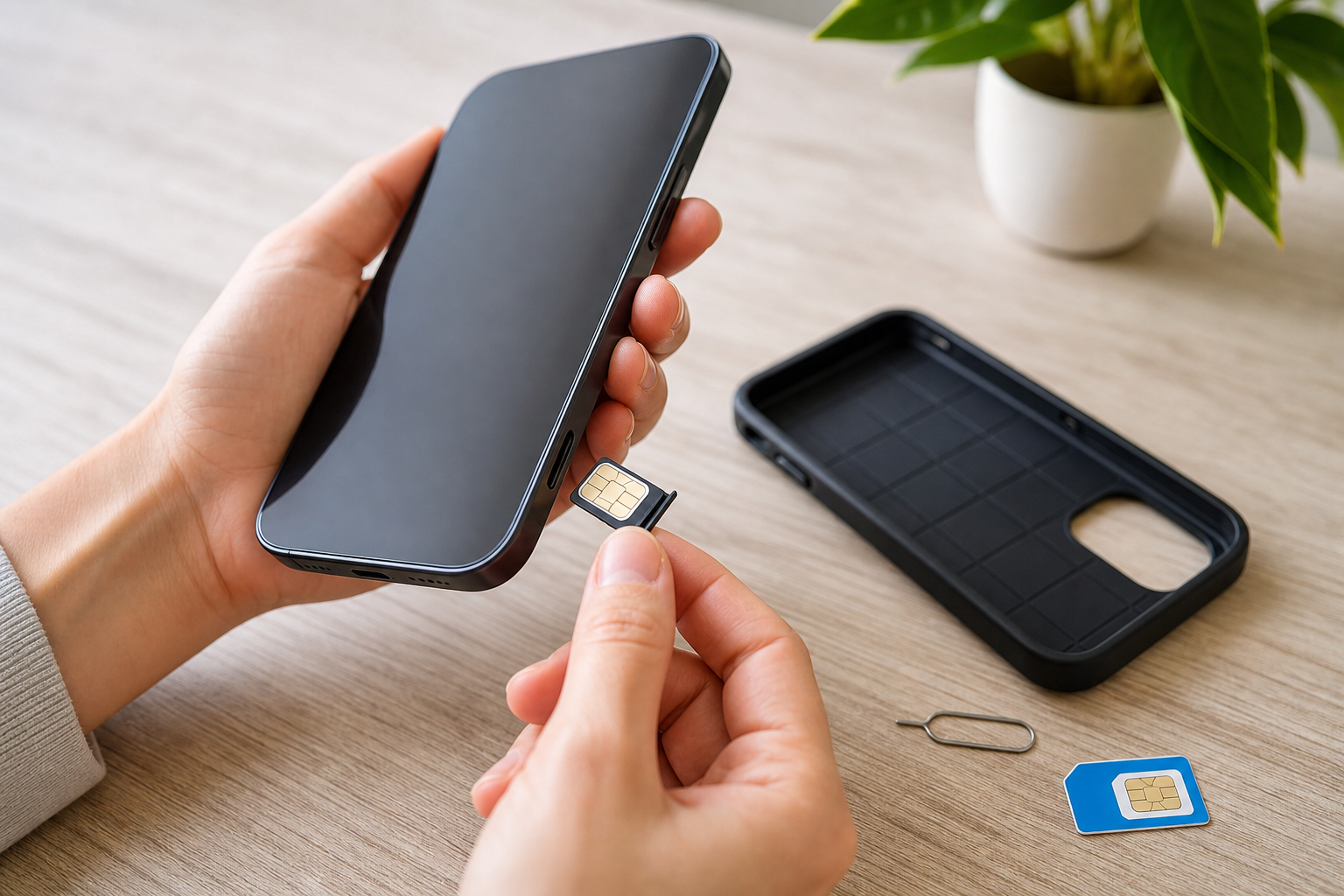
Once you have your replacement SIM card, switch off your phone before taking out the old card. Then follow these four steps to fit the new one.
-
1
Remove the phone case
Carefully remove the case from your phone. If it’s a snug case, such as a thick Otterbox or Mobigear case, ease it off around the edges. This gives you access to the SIM tray on the side of your phone.
Set the case and the phone on a flat surface. Work your way around the edge as you remove the case, easing it off without pulling hard on any one corner.
-
2
Open the tray with the SIM eject tool
Get the small metal tool that came with your phone. Insert it into the small hole next to the SIM tray on the side or top of your phone. Press gently until the tray pops out.
Make sure you’re using the hole for the SIM tray, since there may be other small openings in the housing. Hold the tool straight and press gently without forcing it.
-
3
Swap the old SIM card for the new one
Pull the SIM tray out completely and remove the blocked SIM card. Check the new card for damage and gently wipe it with a dry cloth. Fit it into the tray, lining up the cut corner so it sits the right way round.
Check that the card sits flat in the tray. If an edge sticks up, take the card out and fit it again.
-
4
Put the tray and case back
Gently slide the tray back into your phone until it sits flush with the housing. Put the phone case back on securely to protect your phone.
If you feel resistance as you slide the tray in, pull it out. Check the position of the SIM card and try again without flipping the tray or forcing it.
Turn your phone back on and enter the default SIM PIN your carrier supplied with the new card. Your carrier automatically links your plan to the replacement SIM.
If you have no signal or the SIM isn’t making proper contact, switch your phone off and reseat the card in the tray. Ask your carrier whether your current number is linked to the replacement SIM.
Frequently asked questions
My SIM card is locked. How do I unlock it?
Enter the eight-digit PUK code on your phone to unlock your SIM card. You can find it in your carrier’s online account settings or on the original plastic SIM holder. Then set a new SIM PIN to regain access to the cellular network.
What happens if you enter the wrong SIM PIN three times?
After three failed attempts, your SIM automatically locks as a security measure. You can’t use your phone for regular calls or access the internet over 4G or 5G. Your phone displays a message asking for the PUK code to unlock the SIM.
Can you unblock a locked SIM card?
Yes. You can unlock your SIM yourself with the correct PUK code. Avoid entering numbers at random. If you enter the wrong PUK ten times in a row, the SIM is permanently blocked. Ask your carrier for a replacement SIM card or eSIM.
Look up the PUK code in your carrier’s online account to unlock your SIM card. If you need to replace a permanently blocked physical SIM, use a SIM eject tool. Sign in to your carrier account to find your PUK, or browse accessories and phone cases for your device on directcases.com.