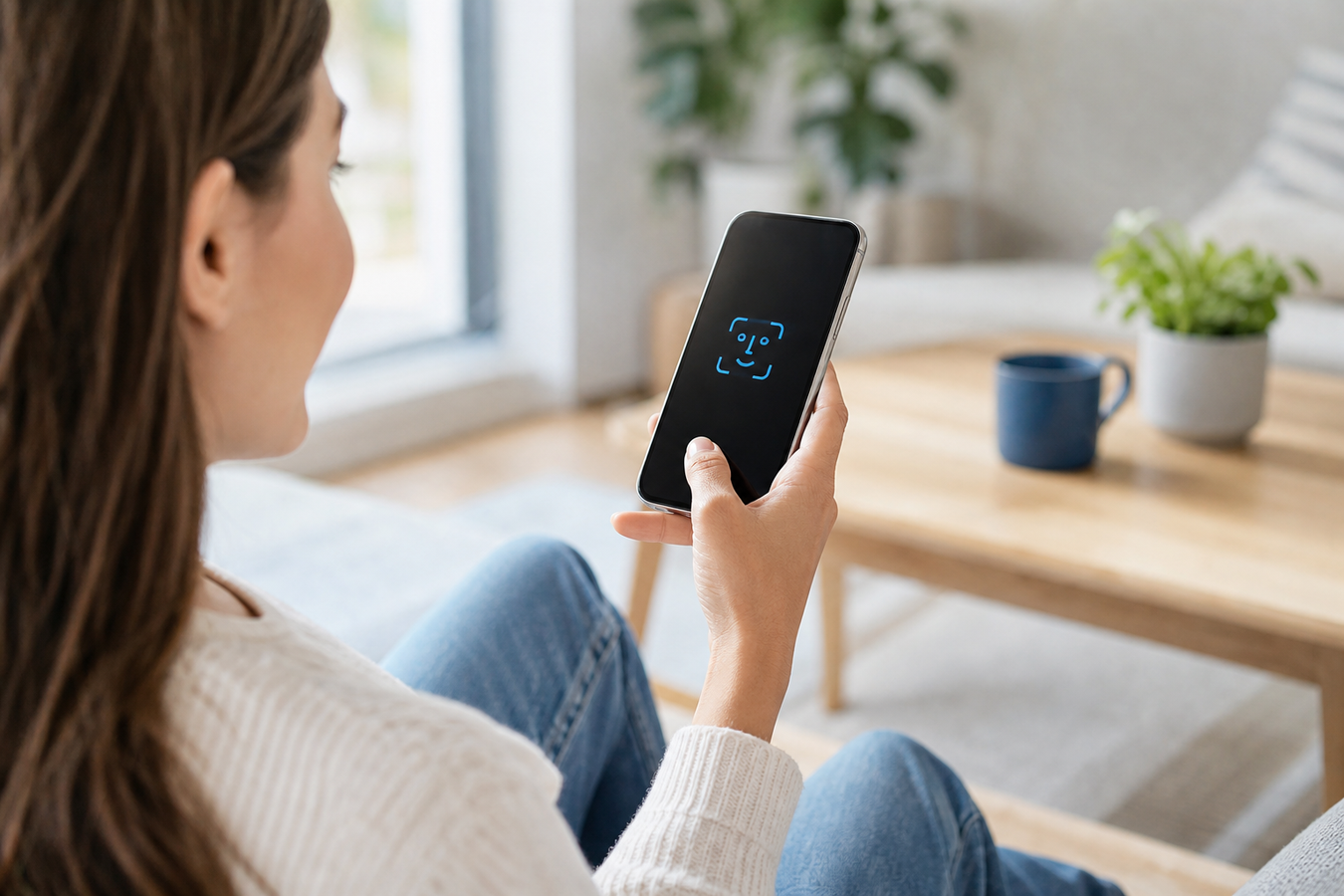
Want to know how to lock WhatsApp? Turn on 'App Lock' in the app's privacy settings and you can secure WhatsApp with Touch ID or Face ID. You'll then need a biometric scan to open your chats, even when your mobile phone is already unlocked.
Maybe you sometimes hand your phone to a colleague or family member but don't want them reading your chats. Below you'll find step-by-step instructions to lock WhatsApp with Face ID, Touch ID or your fingerprint, and to hide individual chats.
How do I set up a WhatsApp screen lock?
You set up a WhatsApp screen lock through App Lock under Privacy in WhatsApp.
Your phone's regular screen lock protects the whole device. App Lock in WhatsApp protects only the chat app. Showing a colleague a photo on your unlocked phone? They still can't open WhatsApp without your face or fingerprint.
| Operating system | Biometric app lock |
|---|---|
| iPhone | Face ID or Touch ID |
| Android | Fingerprint lock or face unlock |
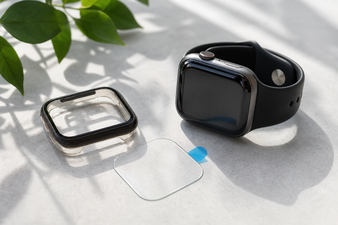
This biometric lock stops anyone else from opening the app. But what about when you're messaging on a packed train? Once the app is open, the software lock no longer does anything. Don't want other passengers reading over your shoulder? A privacy screen protector can help. It can limit how much of your screen people can see from the side, so your chat stays private while you type.
How do I lock WhatsApp with Face ID on iPhone?
On an iPhone, you link WhatsApp to your face or fingerprint. You set this up in the app's own menu:
-
1
Open WhatsApp on your iPhone and tap Settings in the bottom right.
-
2
Tap Privacy and scroll all the way down until you see App Lock.
-
3
Turn on the toggle next to Require Face ID. Got an older iPhone with a physical Home button? Then choose Require Touch ID instead.
-
4
Next, choose the auto-lock time. This sets whether WhatsApp locks again 'Immediately', 'After 1 minute', 'After 15 minutes' or only 'After 1 hour' once you close it.
Face scan not working, say because you're wearing big sunglasses or a hat? You'll never be locked out: WhatsApp will ask for your iPhone passcode instead. So make sure that passcode is strong and that nobody else knows it.
How do I lock WhatsApp with fingerprint on Android?
On Android, turn on App Lock via WhatsApp > Settings > Privacy to lock your WhatsApp chats with your fingerprint.
Here's how to set up fingerprint lock on an Android device:
-
1
Open WhatsApp on your Android phone and tap the three dots in the top right to go to Settings.
-
2
Select Privacy and scroll all the way down until you see App Lock (sometimes called Fingerprint lock).
-
3
Turn on the toggle next to 'Unlock with fingerprint' and confirm by placing your finger on the sensor.
-
4
Here too, set the auto-lock time to suit you, for example 'Immediately' or after one minute.
Tip: Sensor not recognizing your finger, for example because of sweat or raindrops? Dry your finger and try again. It's also worth adding a second fingerprint in your phone's settings, so you can always use another finger.
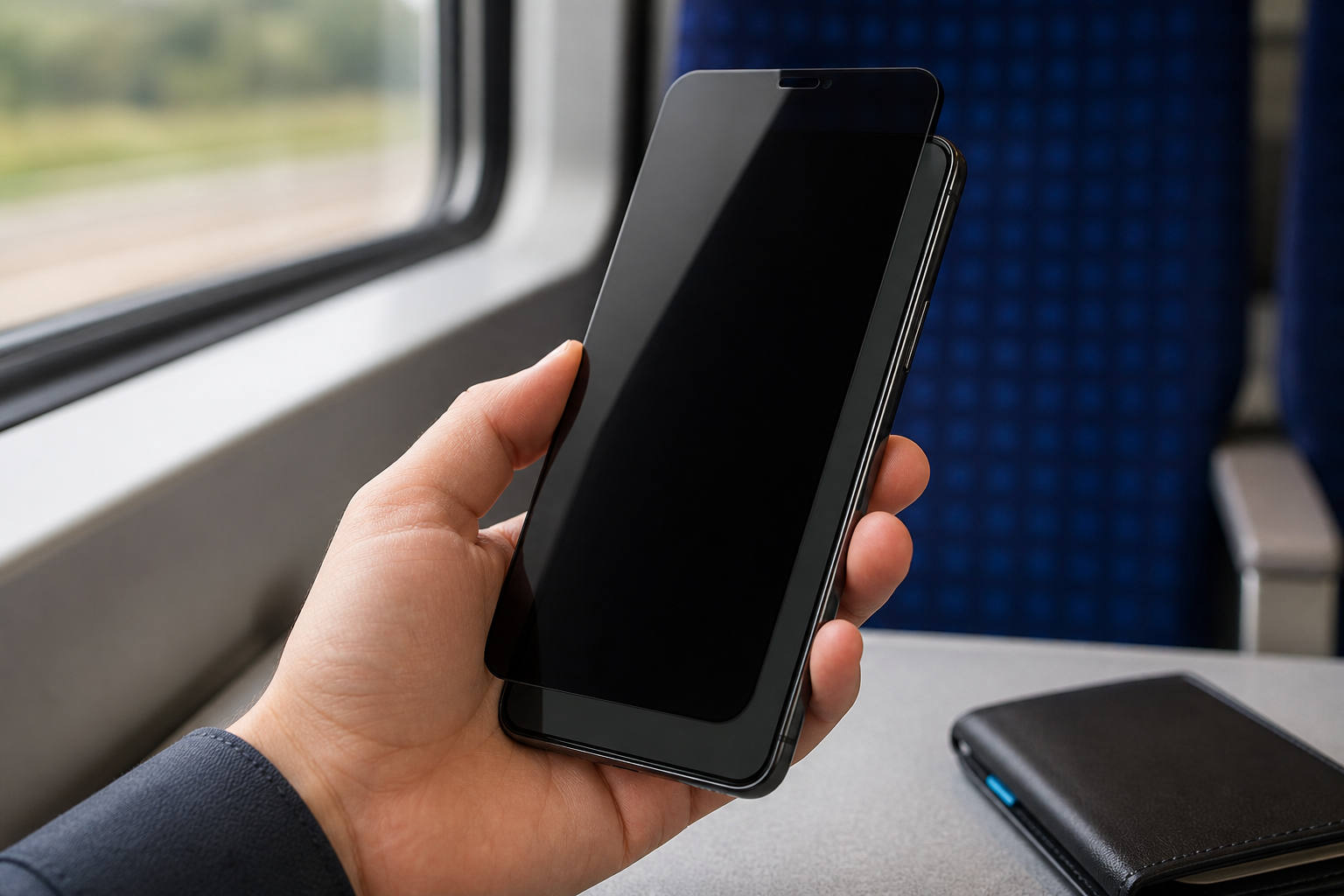
The privacy screen protector
Apply a privacy screen protector to your phone to limit people physically looking at your screen. Locking WhatsApp with Face ID or Touch ID is a great first step, because it stops anyone else from opening the app. But what happens when you open a chat yourself on a busy train or in the office? The person next to you can read along with no effort at all.
This is where you back up the app settings with physical hardware. A privacy screen protector contains tiny louvers, a bit like mini blinds. Look at the screen straight on and you'll see all your conversations clearly. If someone looks at your phone from an angle, the screen becomes hard or impossible to read from the side. People next to you see much less of your active screen.
It's ideal if you often chat about work or money in public places. That way you combine a locked app with a screen that's less tempting to read over your shoulder. You'll find these privacy screen protectors for your device in the range at directcases.com.
How can I lock individual chats in WhatsApp?
Use Chat lock in WhatsApp to hide a single sensitive conversation and protect it with biometrics. For sensitive matters like medical appointments or planning a surprise, use the Chat lock feature in WhatsApp.
It only takes a few quick steps:
Open the specific chat you want to lock.
Tap the name of the person or group at the top of the screen.
Scroll down, tap Chat lock and turn the feature on.
Confirm your choice with a quick fingerprint or face scan.
The chat disappears from your normal chat list straight away. WhatsApp moves it to a special hidden folder at the top of your chat list. You'll only see this folder when you pull the screen down slightly, and it only opens after another biometric scan. That way, that one conversation stays secure, even if someone else has your app open.
Frequently asked questions
Are my incoming messages still visible on the lock screen?
Check your phone's notification settings if you don't want WhatsApp message content to show on your lock screen. You'll still get a notification, but the message text won't be visible on your screen.
Why isn't Face ID working with WhatsApp?
This usually happens because WhatsApp hasn't yet been given permission to use this feature in your iPhone settings. Go to the main iOS Settings on your device, scroll to 'WhatsApp' and check that the Face ID toggle is on. Once it's on, the app will pick up your face scan straight away.
What happens if face recognition or the fingerprint sensor doesn't work?
On an iPhone, WhatsApp will ask for your phone's passcode instead, so you can still get to your messages. Keep that passcode to yourself: anyone who knows it can open your chats too. On Android, the lock works with your fingerprint. If the scan fails, wipe your finger dry and try again.
You now know exactly how to set up WhatsApp App Lock on iOS and Android, how Chat lock works and what to do if the scan doesn't work. Protect your screen as well as your software. Order a privacy screen protector from directcases.com today and stop people reading over your shoulder.