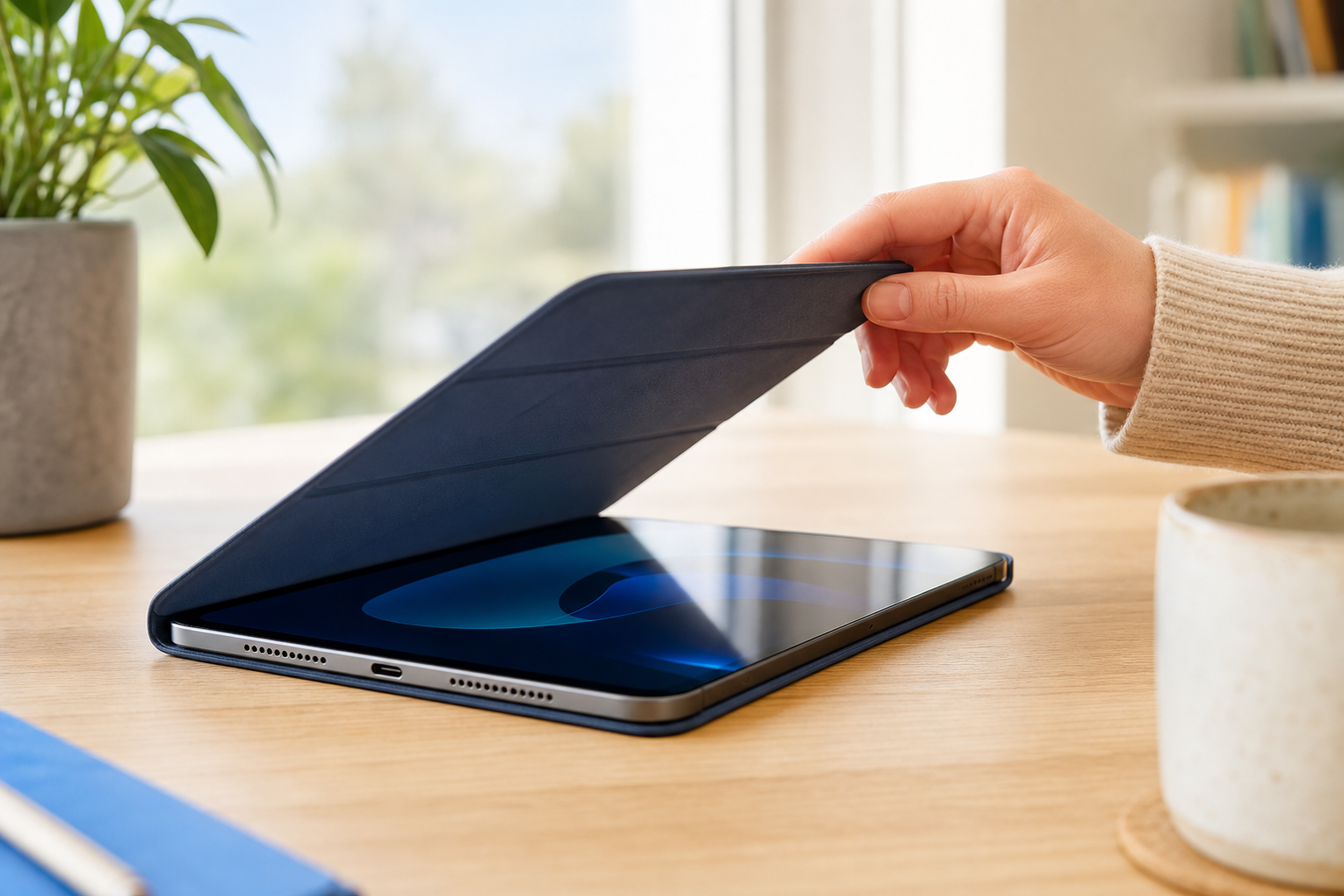
An iPad case with auto wake turns your screen on as soon as you open the cover, as long as the cover has special sleep/wake magnets and the Lock/Unlock option is switched on. A sensor in the tablet detects the magnet and wakes the display straight away.
A wallet case with a flap protects the front from scratches and gives extra protection when you're carrying it around. You flip the cover open and the tablet is ready to use. No buttons to press, you can get started right away. This works well, as long as iPadOS is set up correctly. If the screen stays black or won't turn off when you close the cover, it's usually down to a worn case or a setting that's switched off.
What is the auto wake function on a case?
The auto wake or auto sleep/wake function makes your iPad wake up or lock as soon as you open or close the case. It works with hidden magnets, and it's now standard on many cases. A sensor in your iPad detects the magnet in the cover.
When you close the case with its magnetic closure, the magnetic field changes. The sensor picks this up and puts the iPad to sleep straight away. Flip the flap open again and the contact is broken, so your screen turns on. That means you no longer need to use the physical power button.
That's very convenient, but the biggest benefit is battery life. Because the screen goes black as soon as you close the cover, it never stays on unnecessarily on your desk or in your bag.
How do I make my iPad turn on when I open the case?
How do you set your iPad screen to turn on automatically when you open the case? You need to switch on the Lock/Unlock option. You'll find this iPad setting in Settings, under Display & Brightness.
-
1
Unlock your iPad and tap the gear icon to open Settings.
-
2
In the left-hand menu, choose Display & Brightness.
-
3
Scroll down on the right-hand side and find the Lock/Unlock option.
-
4
Turn the switch green (on). Your screen will now wake straight away when you use a compatible wallet case.
Why doesn't my iPad turn off when I close the case?
You close the cover and slip the tablet into your bag, but a few hours later the battery is half empty. The screen has been on the whole time. What should you do if the sleep/wake function isn't working? Before you think about a repair, check these causes first:
The function is switched off. Go to Settings, then Display & Brightness, and check that the Lock/Unlock switch is on (green).
You're using an iPad case without built-in magnets. Not every case supports this technology. Check the product specifications to see whether a case supports auto wake.
There's a fit problem. Did you buy a case for a different iPad model? Even if the tablet fits reasonably well, the magnets in the flap won't line up exactly with your iPad's sensors.
With an old or heavily used case, wear can make the flap a bit looser so it shifts. The magnetic field then just misses the sensor, so the screen stays on.
Is the tablet still not responding even though the settings and the case are right? Try switching Lock/Unlock off and on again.
How do I stop my iPad from turning off when I close the cover?
Don't like your screen turning on and off by itself? Then switch the function off. With an auto wake case, your iPad locks as soon as the flap touches the screen. That's often handy, but it can be pretty annoying if the cover flops shut while you're reading a long text.
You turn the function off in the same place you turn it on. Go to 'Display & Brightness' in your settings and switch off 'Lock/Unlock'. The switch turns grey. From then on, the tablet completely ignores the magnets in your case, and the flap simply acts as a screen cover.
Keep a close eye on your battery after that, though. Because the screen no longer turns off when you close the cover, you'll always have to lock your iPad manually with the power button. Forget to do that and the screen stays on, quietly draining the battery in your bag.
Which types of iPad cases support auto wake?
Without built-in magnets in the front flap, your iPad's auto wake function does nothing at all. So the type of case you choose directly determines whether your screen wakes up by itself.
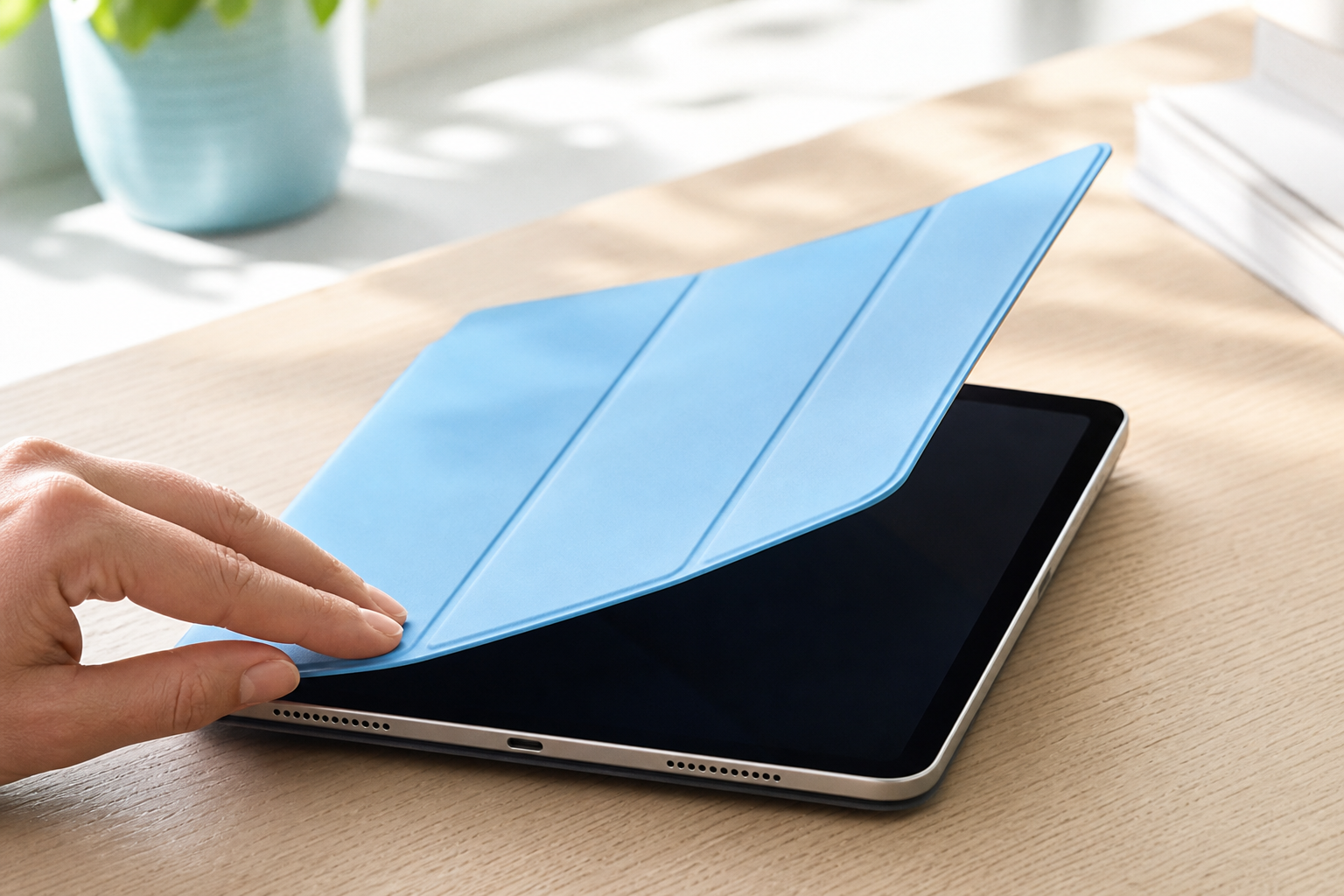
Tri-fold covers: These are the popular cases with a folding flap, similar to the original Apple Smart Cover. These slim stand covers almost always have the right magnets built in.
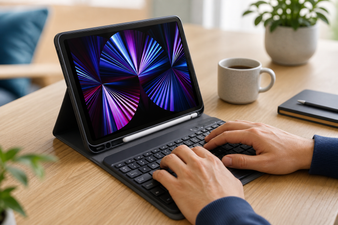
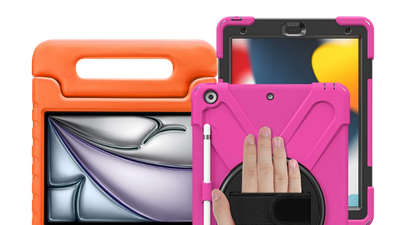
Wallet cases: Not every wallet case has this function. Basic folio cases without magnets won't turn the screen on automatically, so always check the description for terms like 'auto wake' or 'sleep/wake'. These models often offer more protection: a harder outer shell helps against scratches and minor knocks, and a magnetic closure keeps the flap neatly shut when you're on the move.
Going for a back cover without a front flap? Then you won't get this function. Without a magnetic flap, there's simply nothing for the sensors to detect. A raised edge helps protect the screen when you lay it flat, but the screen won't turn on by itself.
In our range of cases you'll find cases from brands like Mobigear and Mobilize. Check the product description to see if auto wake is listed. When you order, make sure you pick the exact case for your iPad model. Not working with your new case? Often the case turns out to be made for a slightly different iPad version, so the magnets just miss the sensors.
The auto wake function saves a good amount of battery and spares you the hassle of pressing buttons. Has your current case stopped cooperating, or is the flap worn out? Head to directcases.com for a new model that fits.