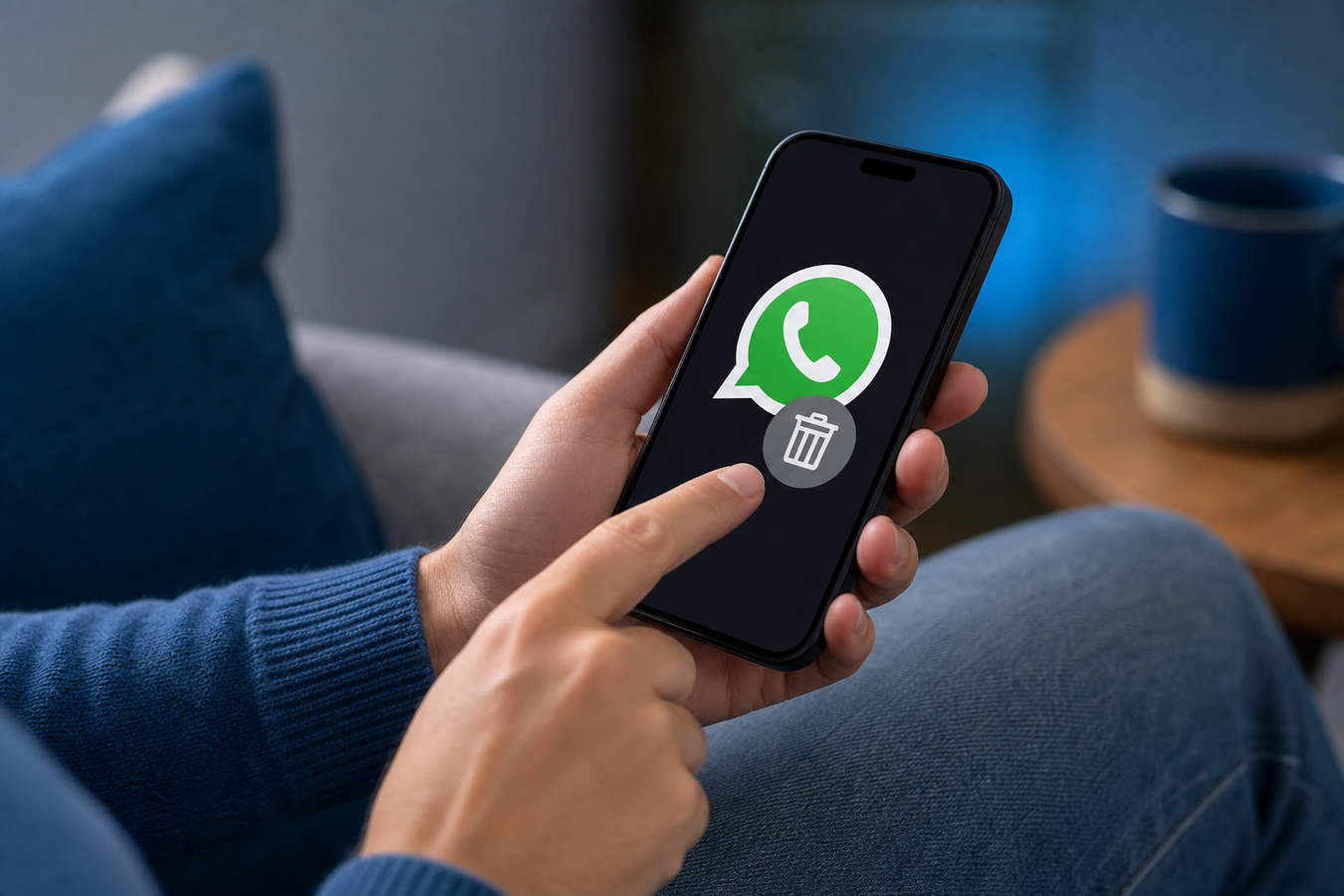
Did you send a message to the wrong person or spot an embarrassing typo in a group chat? Here’s how to delete a WhatsApp message for yourself or for everyone, how long you have, and what the recipient sees.
Deleting a WhatsApp message for everyone or just for yourself
WhatsApp gives you two options: remove the message from your own chat or take it back for everyone. Choosing the right option matters, because deleting it locally can leave you unable to remove it for others.
Option |
What happens in WhatsApp? |
What the recipient sees |
|---|---|---|
Delete for everyone |
The message disappears for all participants, in both individual and group chats. |
The recipient sees “This message was deleted” in place of the original text or photo. |
Delete for me |
The item is removed from the chat on your mobile phone only. |
The recipient can still read the original message. They won’t see that you deleted it from your chat. |
It’s easy to tap too quickly when you spot a mistake. If you delete the message from your own chat, you lose access to the original and can no longer select it to delete it for everyone.
Choose “Delete for everyone” if you made an embarrassing typo, sent the wrong attachment, or messaged the wrong person.
Choose “Delete for me” if you only want to tidy up your own chat or free up storage space without affecting anyone else.
How to delete a WhatsApp message step by step
On any device, start by selecting the message and finding the delete option. The buttons are in different places depending on whether you’re using a mobile device, a computer, or a tablet.
Take a moment to read the options when the menu opens. If you tap too quickly, you might only remove the photo or text from your own chat.
How to delete a WhatsApp message on iPhone
Follow these steps to delete a sent WhatsApp message on your iPhone:
-
1
Open the WhatsApp chat:
Go to the chat containing the typo or the attachment you sent by mistake.
-
2
Select the message:
Press and hold the message bubble until a menu appears.
-
3
Choose the first option:
Tap “Delete” in the menu. You can select multiple items using the checkboxes on the left.
-
4
Find the icon:
Tap the trash can icon at the bottom left of the navigation bar.
-
5
Choose who to delete it for:
Tap “Delete for everyone” to remove the message from the recipient’s chat.
On iPhone, the options sometimes appear in a horizontal menu. If you don’t see the delete option straight away, swipe right in the black pop-up menu.
How to delete a WhatsApp message on Android
On Android, the icons appear at the top of the screen. Here’s how to delete a message:
-
1
Open the app:
Open WhatsApp and go to the chat containing the message you want to remove.
-
2
Select the message:
Press and hold the message. The screen turns light blue and a green check mark appears next to the selected message.
-
3
Tap the trash can:
Tap the trash can icon in the menu bar at the top of the screen.
-
4
Unsend the message:
Tap “Delete for everyone” in the dialog that opens from the bottom of the screen.
-
5
Confirm the action:
The first time you do this, WhatsApp may display a warning about who can see the message. Tap “OK” to confirm.
On Android, the copy button sits next to the trash can. Make sure you tap the trash can to bring up the delete options.
WhatsApp Web and Desktop
On a laptop or desktop computer, use the mouse to bring up the menu for the message you want to delete.
-
1
Hover over the message:
Move your pointer over the message bubble in the chat.
-
2
Open the menu:
Click the small downward arrow or chevron at the top right of the message bubble.
-
3
Choose the option:
Select “Delete message” from the drop-down menu.
-
4
Finish:
Click “Delete for everyone” in the pop-up. The recipient will see that the WhatsApp message was deleted.
The desktop app has no keyboard shortcut for this action. Open the arrow menu to delete the message from the recipient’s chat.
How long do you have to unsend a WhatsApp message?
The time limit starts when you send the message. If you want to delete it for everyone, you need to act within that window.
The limit is two days: You have up to two days to select “Delete for everyone.”
Afterward, you can only delete it for yourself: Once the two-day window ends, you can only remove the message from your own chat.
The deletion leaves a notice: After a successful deletion, the recipient sees “This message was deleted” in the chat where the original content appeared.
The recipient may already have seen a notification: They might have read the message on their lock screen before you deleted it, even if you acted quickly.
After deleting the message, check that the notice appears in italics. It indicates that the message was removed from the recipient’s chat.
Alternatives to deleting a message: Edit it or clear the chat
If you only need to fix a typo or change your wording, WhatsApp offers alternatives that draw less attention in the chat.
Alternative |
When to use it |
Time limit and effect |
|---|---|---|
Edit a WhatsApp message |
Use this to fix a typo without showing the recipient a deletion notice. |
Up to 15 minutes after sending. The recipient sees the “Edited” label and can only read the updated text. |
Clear an entire WhatsApp chat |
Use this to tidy up your own mobile phone or free up storage space. |
There’s no time limit. Clearing the chat only removes the conversation on your side. The recipient keeps the full chat history. |
Restore a cloud backup |
Use this if you accidentally deleted important information from your own device and want to recover it. |
This only works if you uninstall the app and restore a recent backup before a new one is created. |
Edit a WhatsApp message if you spot a typo quickly and want to keep the conversation professional. Clearing the entire conversation only affects your copy, so the recipient can still see the original message.
Frequently asked questions about unsending WhatsApp messages
Here are answers to common questions about taking back a sent message on WhatsApp.
Does the other person get a notification if I delete a message?
WhatsApp doesn’t send a push notification or make the recipient’s mobile phone vibrate when you delete a message. When they open the app, they can see an italicized notice in the chat.
Can I delete a WhatsApp message for everyone after deleting it for myself?
Once the message is gone from your own chat, you can no longer select it to delete it for the recipient. Choose the delete option carefully when you spot a typo.
Is deleting a contact the same as deleting a WhatsApp chat?
Contacts and chats are managed separately. WhatsApp syncs contacts from your mobile phone’s address book. Deleting a chat only removes the conversation history, and the person stays in your contacts. If you delete the contact, your old conversation remains in WhatsApp.
You have about two days to delete a sent WhatsApp message for everyone. Open WhatsApp, check how long ago you sent it, and follow the steps above to delete or edit it.