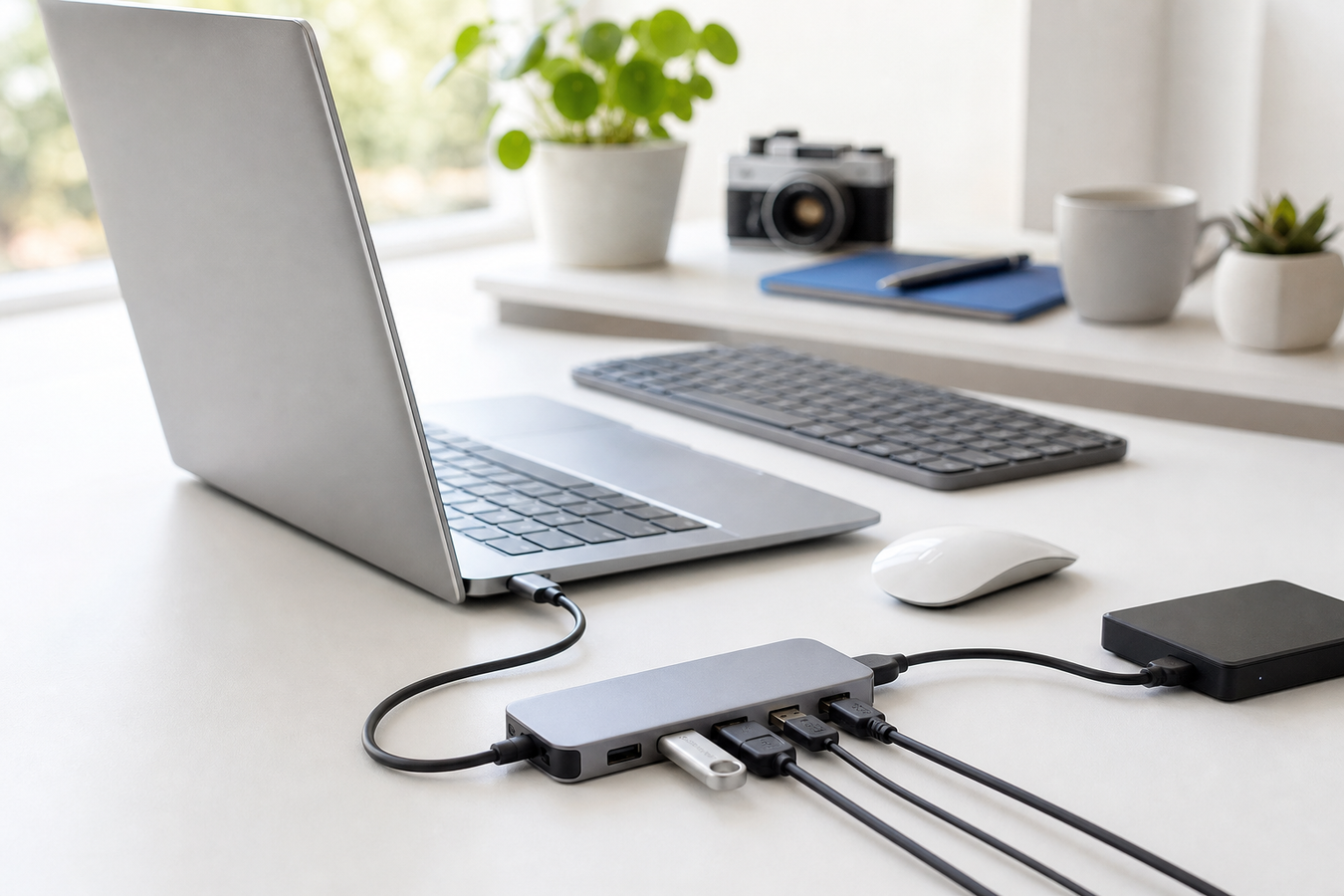
Why use a USB hub? It gives your laptop or desktop more connections when you're short of ports. A hub turns one port into several, so you can plug in a mouse, keyboard and external drive at the same time without constantly swapping cables.
See what else a hub can do and decide whether your peripherals need a lightweight model or one with its own power supply from directcases.com.
What is a USB hub and what does it do?
Does your new laptop have too few ports for the devices you use?
Modern laptops and desktops are getting thinner. That means less weight in your bag, but it also means manufacturers leave out some standard ports. A USB hub expands the number of ports on your device. Plug it in and you can connect several devices straight away. Most USB hubs are plug-and-play, so you don't need to install extra software.
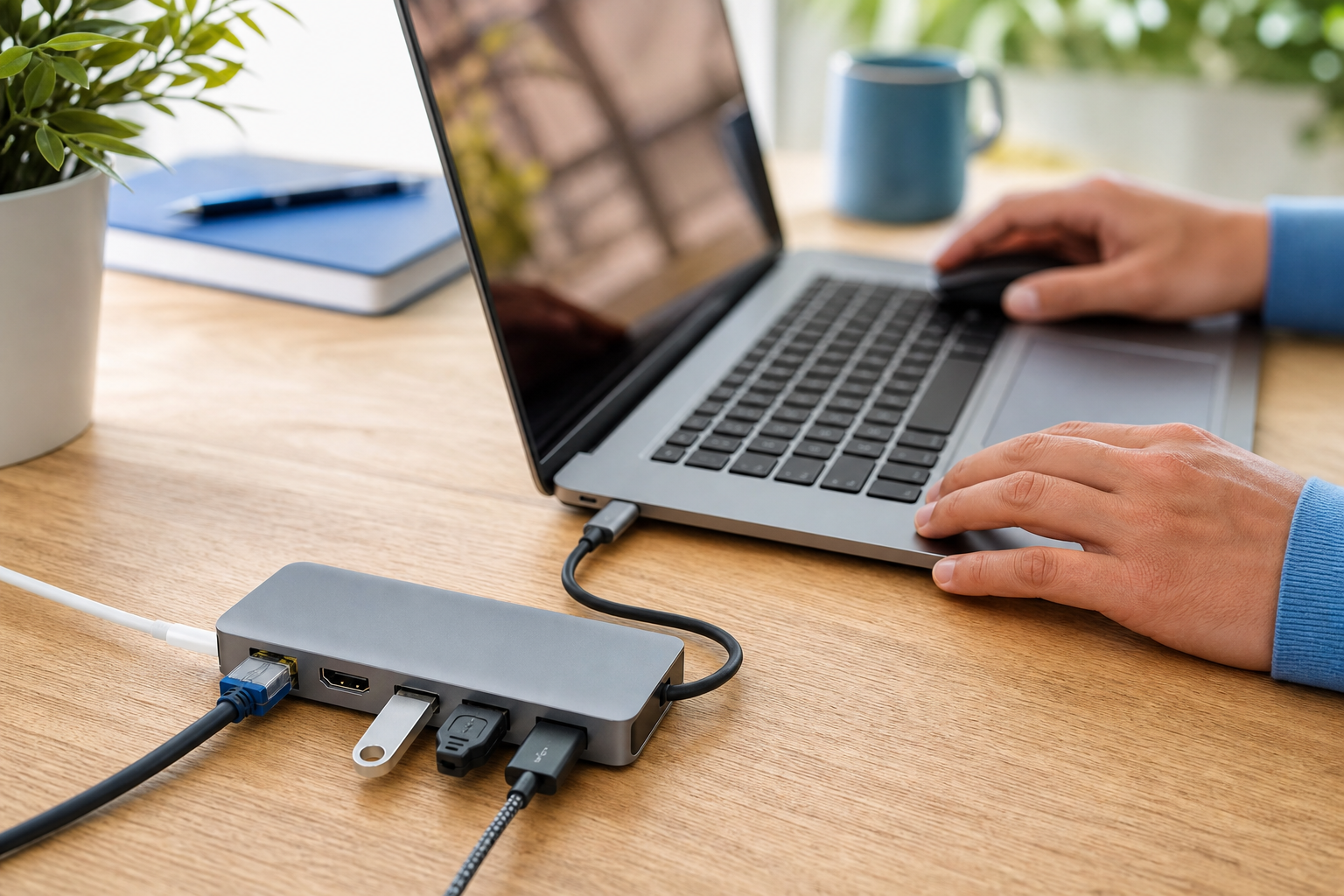
What you can connect depends on the hub. A basic data hub simply adds USB ports for a mouse, keyboard or flash drive. Many people now choose multiport models, often USB-C hubs. As well as transferring files, these models can provide an HDMI connection for an external monitor and an Ethernet port for wired internet. That gives a slim laptop the connections you need at your desk.
What are the benefits of using a USB hub?
You get more ports for the devices you use together. Connect a mouse, keyboard and external hard drive at the same time without having to pick which one to plug in.
You can keep cables tidy. Plug your accessories into the hub and run a single cable to your laptop.
You can reduce wear on your device's built-in ports. Leaving peripherals plugged into the hub means you swap cables at the laptop less often.
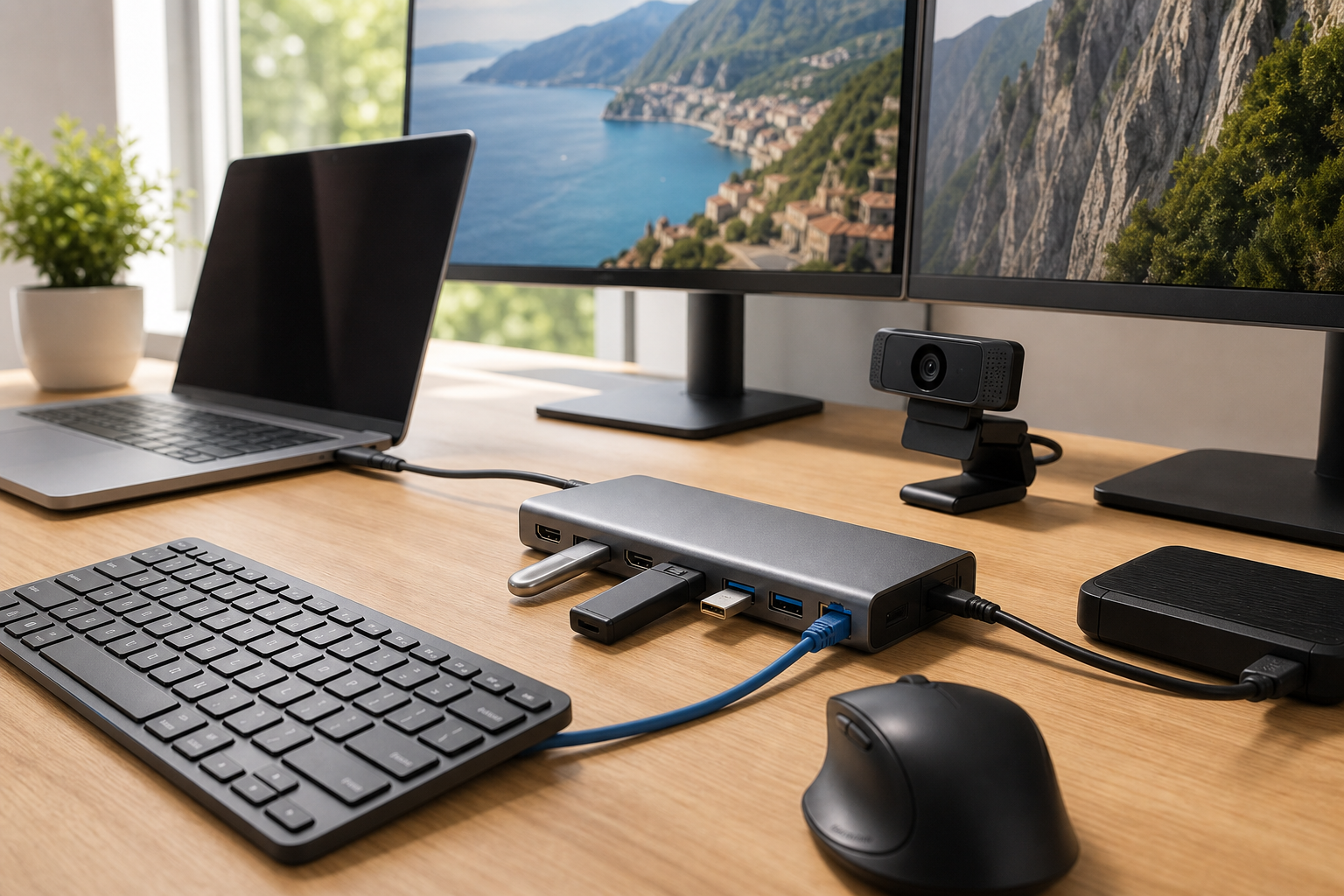
What devices can you connect to a USB hub?
If you want to plug your laptop in at your desk and get straight to work, check which devices you can connect through your hub:
Everyday peripherals: Plug your mouse, keyboard and webcam into the standard USB ports. These accessories work straight away and don't draw much power.
Storage: Connect fast USB flash drives and external hard drives for backups. Mechanical drives with higher power requirements often need a hub with its own power adapter.
Monitors and internet: Use HDMI to connect external monitors and plug a network cable into the Ethernet port for a stable wired connection when Wi-Fi is unreliable.
Small accessories: Use a built-in card reader for your camera's SD cards, or plug your wireless earbuds' charging cable into a spare port to top them up between uses.
What is the difference between a powered and an unpowered USB hub?
Check how much power your devices draw before choosing a hub. The hub's power supply determines which devices can keep running reliably.
If you connect several devices that draw a lot of power at once, a hub without its own adapter may not suit your setup. A powered hub often makes more sense for external drives, multiple monitors or frequent charging.
Using just one external drive? Check the power requirements in the specifications for both the drive and the hub.
Type of USB hub |
How it gets power |
When to choose it |
|---|---|---|
Bus-powered (no adapter) |
Draws all the power it needs from your laptop's USB port. |
Works with low-power accessories such as a mouse, keyboard or USB flash drive. It's a lightweight option for travel. |
Self-powered |
Uses its own power adapter, which plugs into a wall outlet. |
Useful for multiple external drives, a permanent desk setup or several devices that draw power at once. Check that the adapter has an EU plug and supports 220–230 V. |
Power Delivery (PD) |
Passes power from an external charger through the hub to the host device. |
Choose this feature if you want to charge your laptop or smartphone through the same cable. Check that both your laptop and the USB-C hub support Power Delivery. |
Choose a bus-powered USB hub for use on the train or at school. For a permanent desk setup, choose a powered hub if you use several devices at once, or Power Delivery if you also want to charge through the same cable.
What is the difference between a hub and a docking station?
A traditional USB hub is designed to go with you, while a docking station usually stays on your desk. A basic hub mainly adds ports for data transfer and fits easily in your bag.
A docking station is designed for a permanent desk setup. Connect one cable to your laptop and, if both devices support it, you can use HDMI for a display, Ethernet for wired internet and a power connection. Many modern USB-C hubs also work as compact docking stations. They combine HDMI, data and power in a small unit that's easy to carry between work locations.
Feature |
USB hub |
Docking station |
|---|---|---|
Main purpose |
Portable connections and fast data transfer. |
A complete, permanent desk setup. |
Power supply |
Usually draws power from the laptop (bus-powered). |
Often uses its own power adapter, especially for charging or when many devices are connected. |
Connections |
Mainly extra USB ports and SD card readers. |
Can provide HDMI, Ethernet and other connections for a permanent desk setup. |
Choose a docking station if you have a permanent setup at home with multiple monitors and network cables. Choose a USB-C hub if you often switch between the office, the kitchen table and meetings away from your desk.
Popular USB Hubs
What should you look for in a USB hub?
How do you narrow down your options and find a hub that suits your workspace?
-
1
Start with the port on your laptop or desktop. Check whether you need a traditional USB-A plug or an oval USB-C connector. With USB-C, check what the port supports: some USB-C ports can't output video via HDMI. Make sure the USB plug fits securely, since a loose connection can interrupt data transfer or charging.
-
2
Consider how fast you need to transfer data. Speed matters little for a mouse or keyboard, but for fast transfers to an external drive, choose USB 3.0 or later. USB 3.0/3.2 Gen 1 supports speeds up to 5 Gbps, but actual performance also depends on the hub, laptop and connected device. Check the specifications of both your hub and laptop.
-
3
Check for Power Delivery support. You'll need it if you want to power your laptop through the USB-C hub or charge power-hungry devices. If you're connecting several external drives, choose a powered hub over a bus-powered model.
-
4
Count the devices you use now and allow for extra ports. Choose a hub with some room to spare so you don't run out of ports next year. If you need wired internet or an external monitor, check for Ethernet and HDMI as well.
-
5
Choose a sturdy housing for daily use. A case that dissipates heat well is a better choice if you leave the hub connected for long periods and transfer a lot of data. Clear dust from the ports and housing regularly, especially if the hub stays on your desk.
Frequently asked questions
What can you do with a USB hub?
You can add multiple ports to your laptop, connect peripherals and transfer files at 5 Gbps. It also saves you from constantly swapping cables.
What shouldn't you plug into a USB hub?
Avoid plugging power-hungry external hard drives into a basic bus-powered USB hub. These drives draw too much power, which can cause them to disconnect. Use a powered hub for high-power storage devices.
Can you use a USB hub to charge your devices?
Yes, if you choose a model with Power Delivery. You can power a smartphone or even your laptop through a single cable. Check first that your computer's USB port supports this specific charging feature.
A USB hub helps you set up your workspace with fewer cables. Connect your peripherals through a single cable. Browse the full range of USB hubs at directcases.com and choose an accessory that fits your setup.