To take a screenshot on your Windows PC, press the Windows key + Shift + S and select part of your screen or the whole screen. Paste the screenshot with Ctrl + V or open the Snipping Tool notification to edit the image.
How do you take a screenshot on your PC?
Do you want to share a specific error message or show your entire desktop?
Windows 10 and Windows 11 have several built-in ways to take screenshots, whether you use a laptop keyboard or a new keyboard from directcases.com. The basic methods and shortcuts work the same way in both versions. You don't need any additional software. Which keys you press depends on what you want to capture. Sometimes you need the whole screen, including the taskbar, and sometimes you only need a small detail.
To capture your whole Windows screen, press Print Screen. Depending on your Windows settings, the key opens Snipping Tool or copies the entire screen to the clipboard. If the image is on your clipboard, press Ctrl + V to paste it into an email, Paint, or Microsoft Word. To save a file right away, press the Windows key + Print Screen. Windows automatically saves the screenshot in Pictures > Screenshots.
The shortcut you choose determines whether Windows saves the screenshot as a file in a folder or copies it to the clipboard. From the clipboard, you can paste it directly into an email or text document.
What's the keyboard shortcut for a screenshot in Windows?
Windows 11 is now standard on most PCs in Europe. The three main shortcuts work the same way as in Windows 10. The right combination depends on what you want to do with the screenshot.
The Print Screen key, often labeled PrtScn or PrtSc, is usually near the top right of the keyboard. On a laptop, the label may differ or you might need to hold Fn.
To paste a screenshot directly into an email or Microsoft Word, choose a shortcut that copies to the clipboard. To keep the image for reference or as evidence, choose the shortcut that saves a file directly.
The clipboard stores the image temporarily. Press Ctrl + V to paste it into your email, Microsoft Word, or Paint. Until you paste and save it, you won't have a separate file. With the shortcut that saves directly, Windows creates a PNG file you can open later. Your screen may flash briefly after a successful capture.
Shortcut |
What it does |
Result |
|---|---|---|
Print Screen (PrtScn) |
Opens Snipping Tool or copies the whole screen, depending on your Windows settings. |
Choose what to capture in Snipping Tool. If the image is on your clipboard, paste it with Ctrl + V. |
Windows key + Print Screen |
Captures your whole screen and saves the screenshot immediately. |
Saved file. Windows saves a PNG file you can open later. |
Windows key + Shift + S |
Opens Snipping Tool so you can select an area and edit the screenshot right away. |
Clipboard. Select an area and paste the screenshot, or use the notification to edit it. |
How do you capture part of your screen?
You're placing an online order when an unfamiliar error message appears. To show support what happened, you can send an image of just the message and keep your other tabs private. Here's how to capture that part of the screen.
-
1
Start the capture
Press the Windows key + Shift + S together. Your screen dims and Snipping Tool opens.
-
2
Choose a capture mode
In the toolbar at the top of the screen, choose a rectangle, a freeform area, a window, or the full screen. A rectangle works well for a block of text or an error message.
Use window mode to capture one open app. Freeform mode suits irregular shapes, though a rectangle is usually easier to read.
-
3
Select the area
Drag the mouse over the area you want to capture. When you release the left mouse button, Windows copies the image to your clipboard.
-
4
Highlight important details
In Windows 11, click the notification in the lower-right corner to open Snipping Tool. Use the built-in highlighter to mark important details before sharing the image or saving it to your drive.
You can also annotate the screenshot with an arrow pointing to an error message or a brief note. Cover any private information before taking or sending the screenshot.
-
5
Paste or save the screenshot
Press Ctrl + V to paste the screenshot into an email, Microsoft Word, or Paint. To save a file, open the Snipping Tool notification and choose Save.
Where do you find your screenshots?
Think back to the shortcut you just used. Where Windows puts the screenshot depends on how you took it. Screenshots saved automatically with Windows + PrtScn are in Pictures > Screenshots.
Did Print Screen copy the screenshot to your clipboard? Press Ctrl + V to paste it into Paint or a blank document.
To find files saved automatically with Windows + PrtScn, open File Explorer and go to Pictures > Screenshots.
Windows creates the folder the first time you use that shortcut to save a screenshot.
With Snipping Tool, you can choose where the file goes. Open the notification and click Save as.
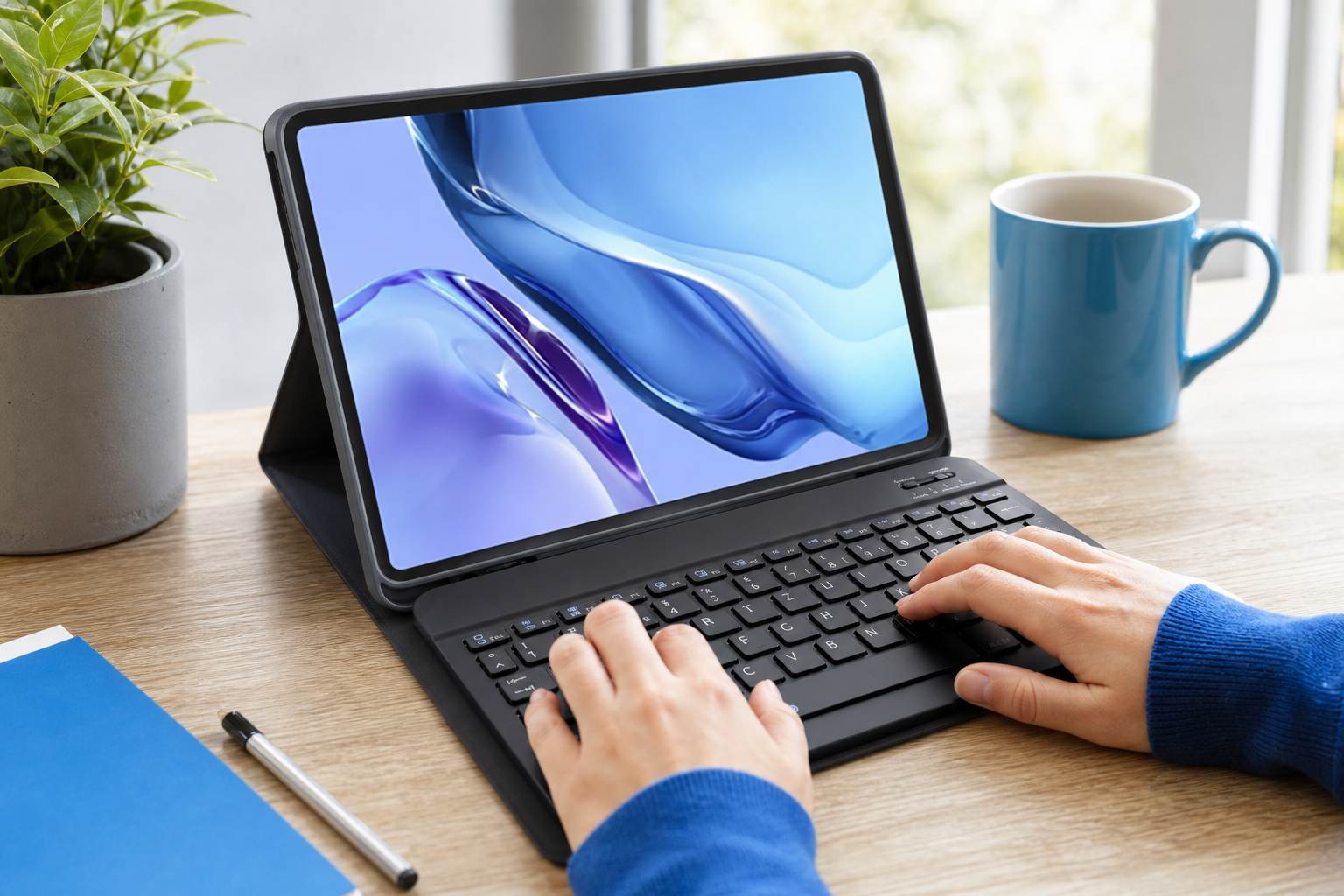
Taking screenshots with a compact keyboard
You can take a screenshot even if your compact keyboard has no physical Print Screen key. Try an Fn shortcut, the On-Screen Keyboard, or Snipping Tool. Many modern 60 percent keyboards or certain Mobigear or Mobilize keyboard cases omit this key to save desk space. Here are three ways to take a screenshot without it:
Look for a secondary Print Screen function: Check the labels on your keys. Find Fn and hold it while pressing the key marked with a small camera icon or PrtScn. The combination varies by keyboard, so check for small labels on the sides of the keys as well.
Open the On-Screen Keyboard: Search for On-Screen Keyboard in the Windows Start menu. When the virtual keyboard appears, click its Print Screen key with your mouse.
Open Snipping Tool from Windows Search: If none of the shortcuts work, open the app directly. You can use it to do everything from drawing a freeform selection to saving the screenshot.
Popular tablet keyboards
Frequently asked questions
Why does my Print Screen key seem to do nothing?
Depending on your Windows settings, Print Screen opens Snipping Tool or copies the entire screen to your clipboard. If no notification appears, try pressing Ctrl + V in Paint to paste the screenshot. You can then save it as a file.
How do I capture just the active window?
Click the window you want and press Alt + Print Screen. This leaves the rest of the desktop and background out of the screenshot. It saves you from cropping afterward and helps you avoid accidentally sharing private information from other open apps. Press Ctrl + V to paste the image into an app.
Can Snipping Tool record a video of my screen?
Yes. Since 2023, Snipping Tool in Windows 11 has included a video recording feature. Select the video icon in the app before choosing the area to record. You can use it to record an error that changes on screen or make a short tutorial for a colleague without installing extra software.
How do I take a screenshot without a Print Screen key?
Press Fn together with the key marked with a small camera icon or PrtScn. If nothing happens, press Windows + Shift + S to open the capture controls, regardless of the keyboard you use.
Why is the text in my screenshot blurry?
This can happen when you save the screenshot as a JPEG. Choose PNG when you save or export the image. PNG preserves image detail, keeping text and app windows sharp.
Try Windows + Shift + S now. Drag a rectangle over this article, click the notification in the lower-right corner, and highlight a detail before saving the image.