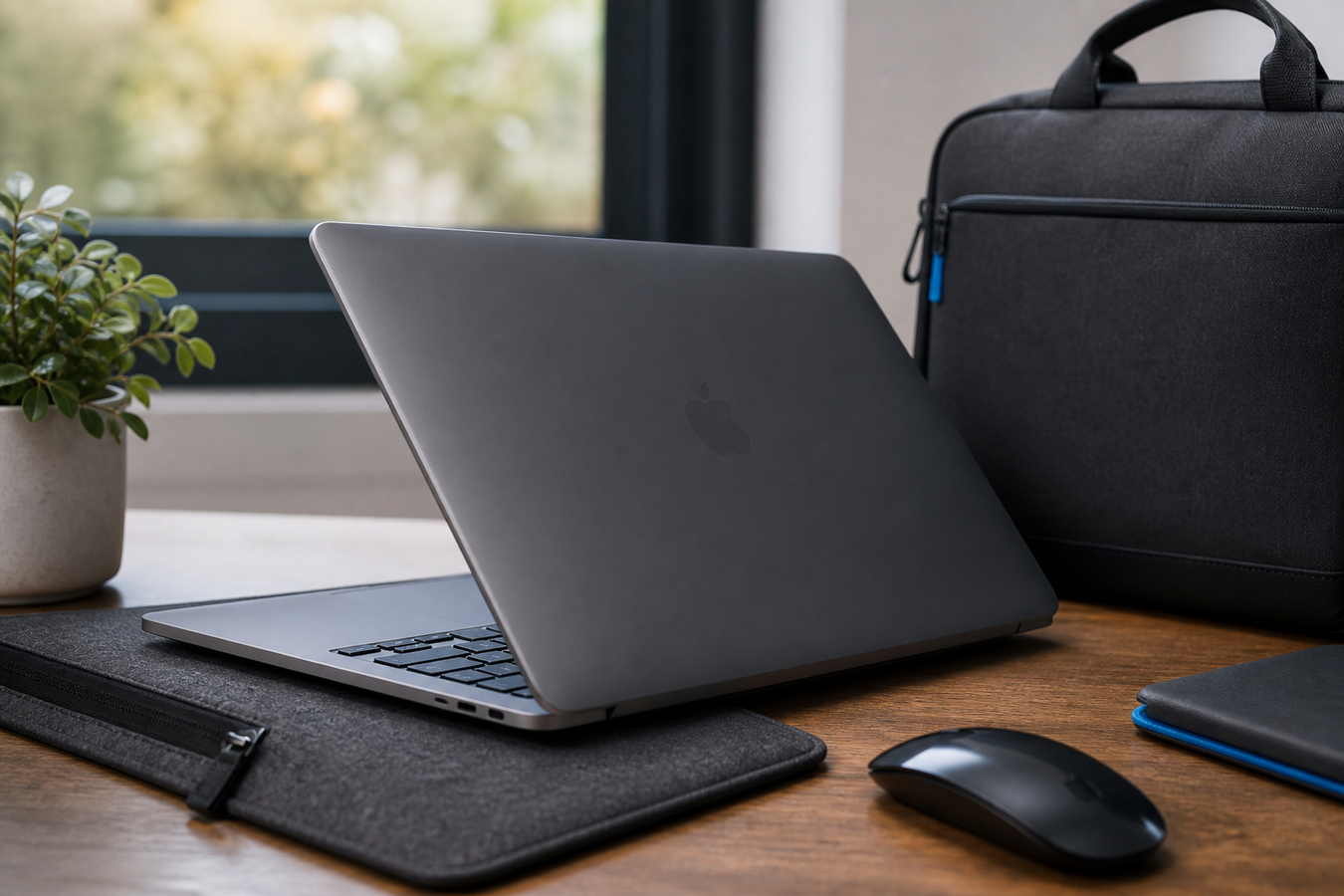
Need MacBook protection on the go? Choose a laptop sleeve that fits or a bag with a separate laptop compartment. To protect the exterior while you use your MacBook, look for a hardcase made for your model. Below, you’ll also find out how to set up updates and make backups.
Physical protection for your MacBook
A MacBook’s aluminum enclosure and Retina display are susceptible to scratches, dents, and dust. Choose accessories that fit properly so they leave room for ventilation and let the laptop close normally.
Hardcases
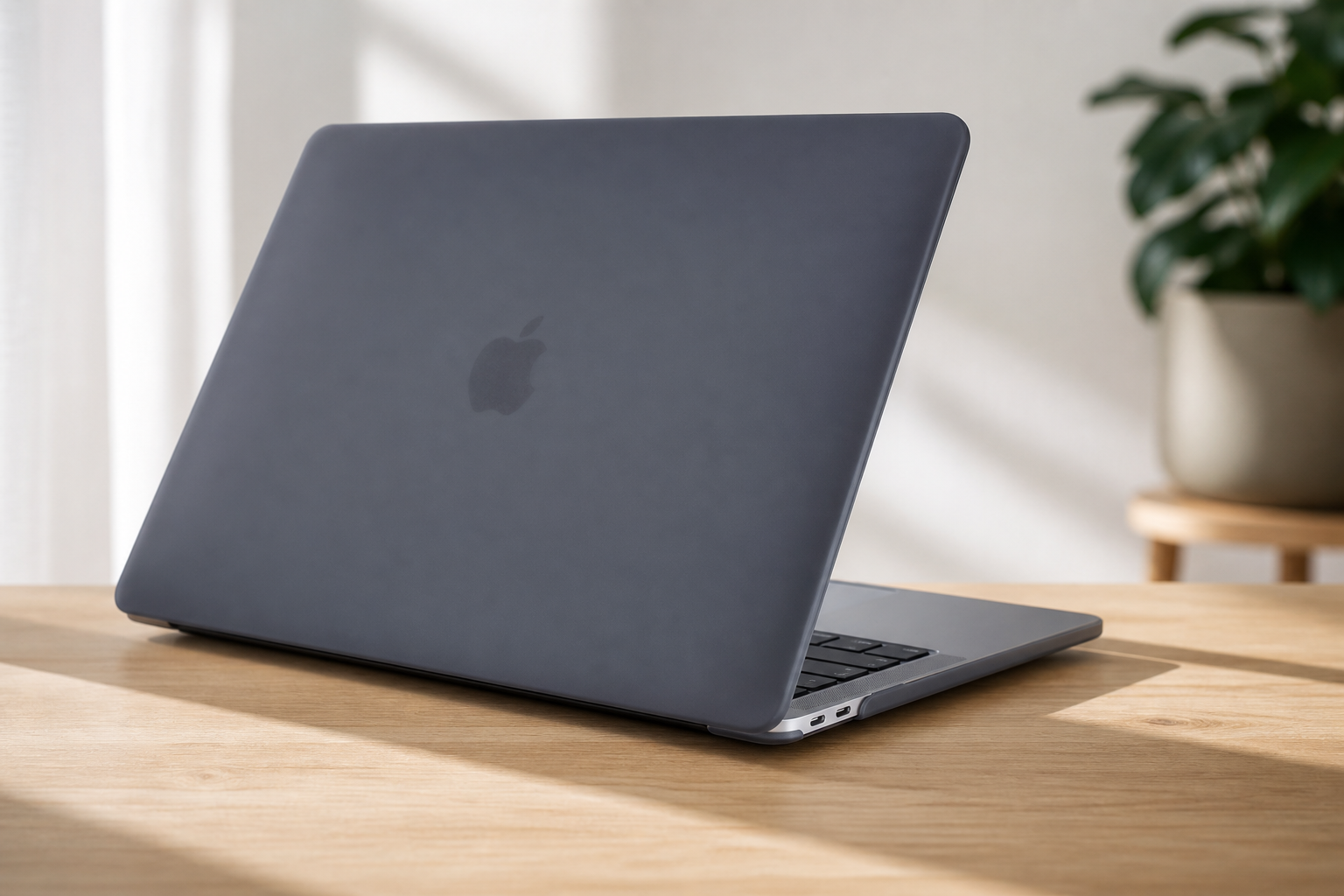
A snap-on hardcase stays on your laptop to protect against bumps and scratches during daily use. Brands such as Mobigear and Speck make cases designed to fit specific models and leave the vents clear. That allows heat to escape when your MacBook is under heavy load.
Consider a hardcase if you often work with the laptop open on a desk and carry it around your home or office. A bulky case may keep the laptop from fitting inside a snug sleeve. For travel, pair a slim case with a roomy laptop bag.
When installing the case, make sure the clips fit over the edges of the enclosure without touching the screen when you close it. A properly fitted case keeps dust from building up in the gaps.
Laptop sleeves
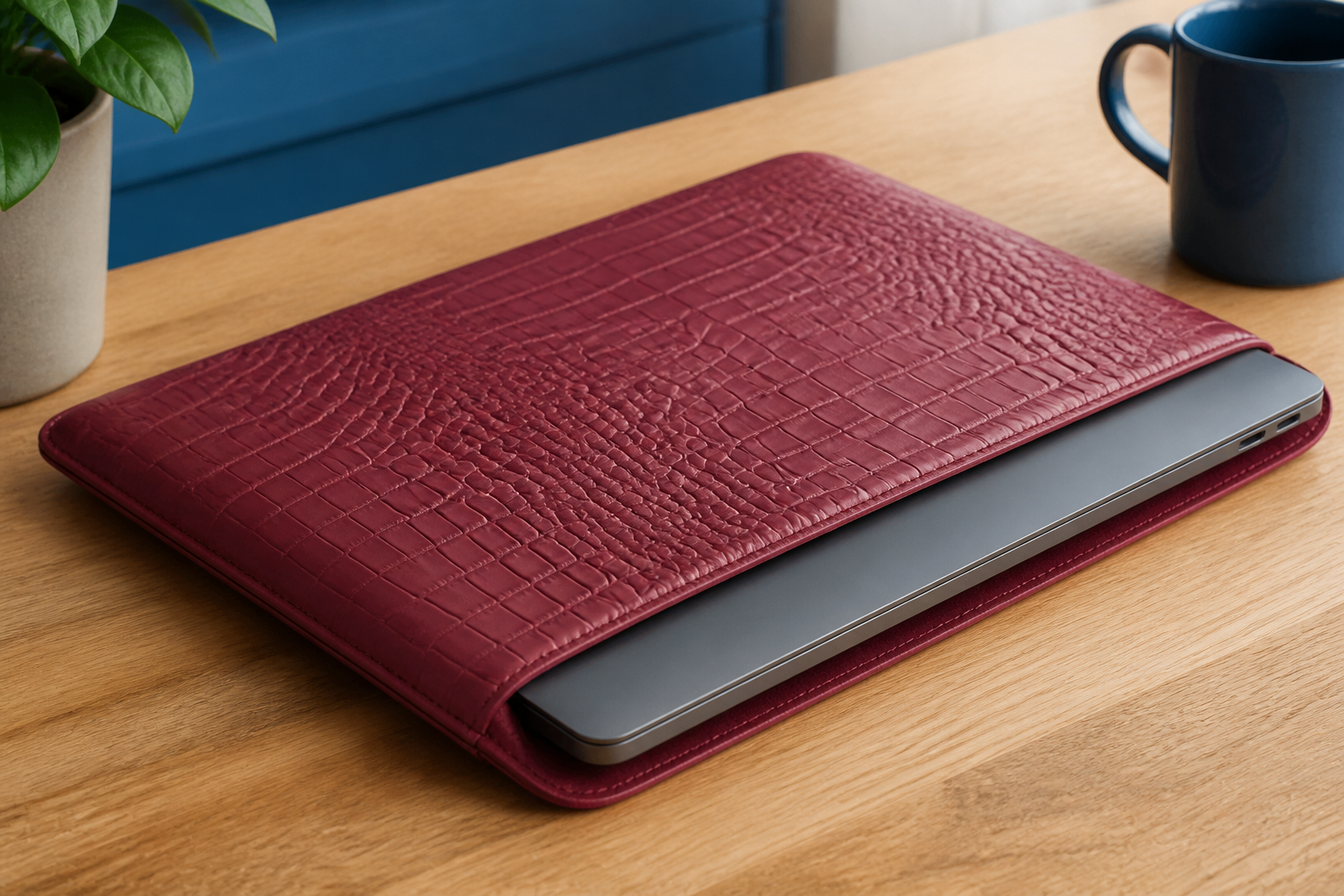
If you prefer to carry your laptop without a case attached, look for a laptop sleeve with a shock-absorbing lining from a brand such as Mobigear or Burga. Check the fit: if there’s too much room, your MacBook can slide around and is more likely to get knocked. A sleeve is a good fit if you mostly use your laptop at home and occasionally take it with you in a larger bag.
Laptop bags
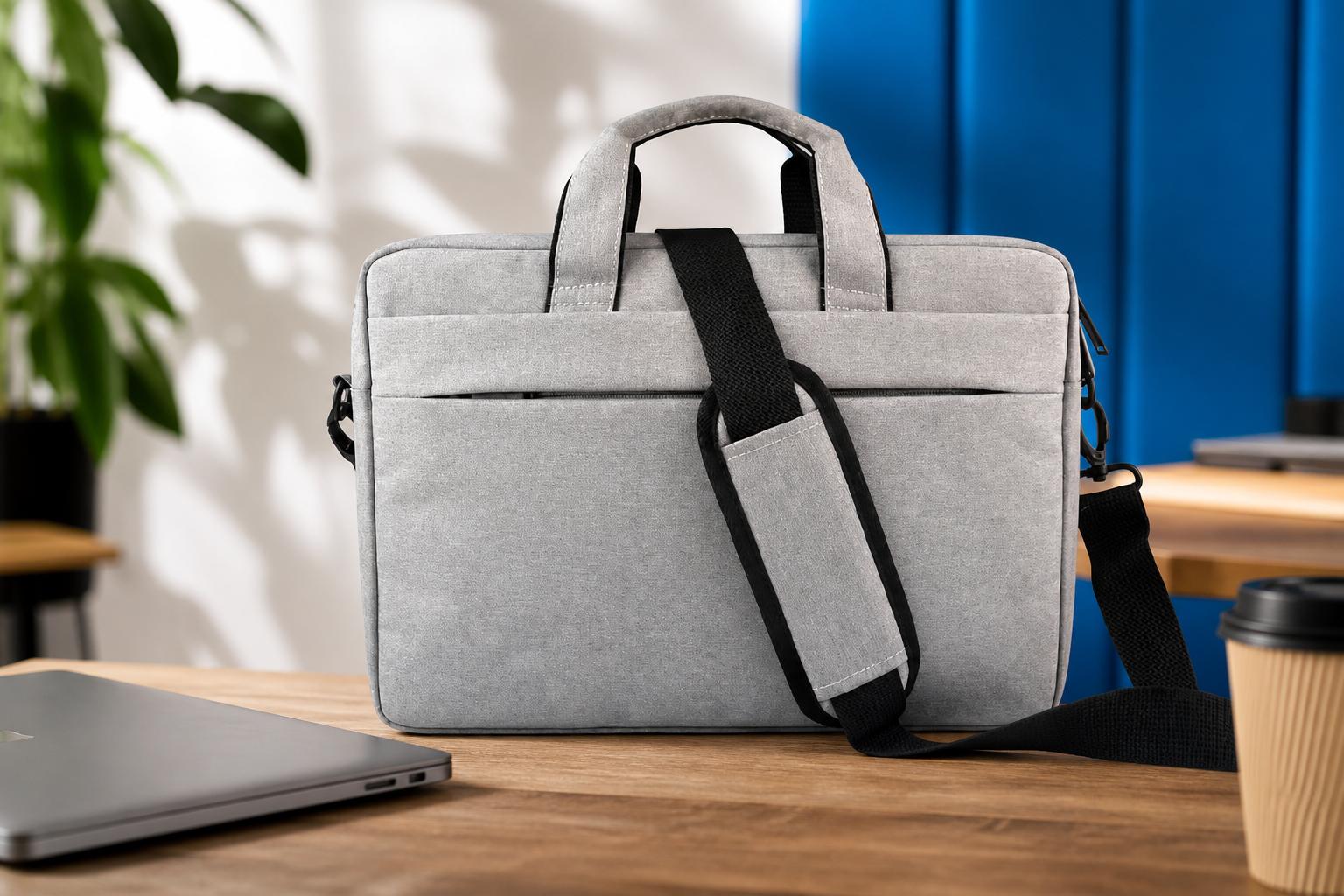
A sturdy laptop bag, such as one from Gaston Luga, is a practical choice if you commute daily and carry chargers and documents with you.
Look for a separate padded laptop compartment. It keeps loose pens and keys from rubbing against the aluminum enclosure.
Screen protectors
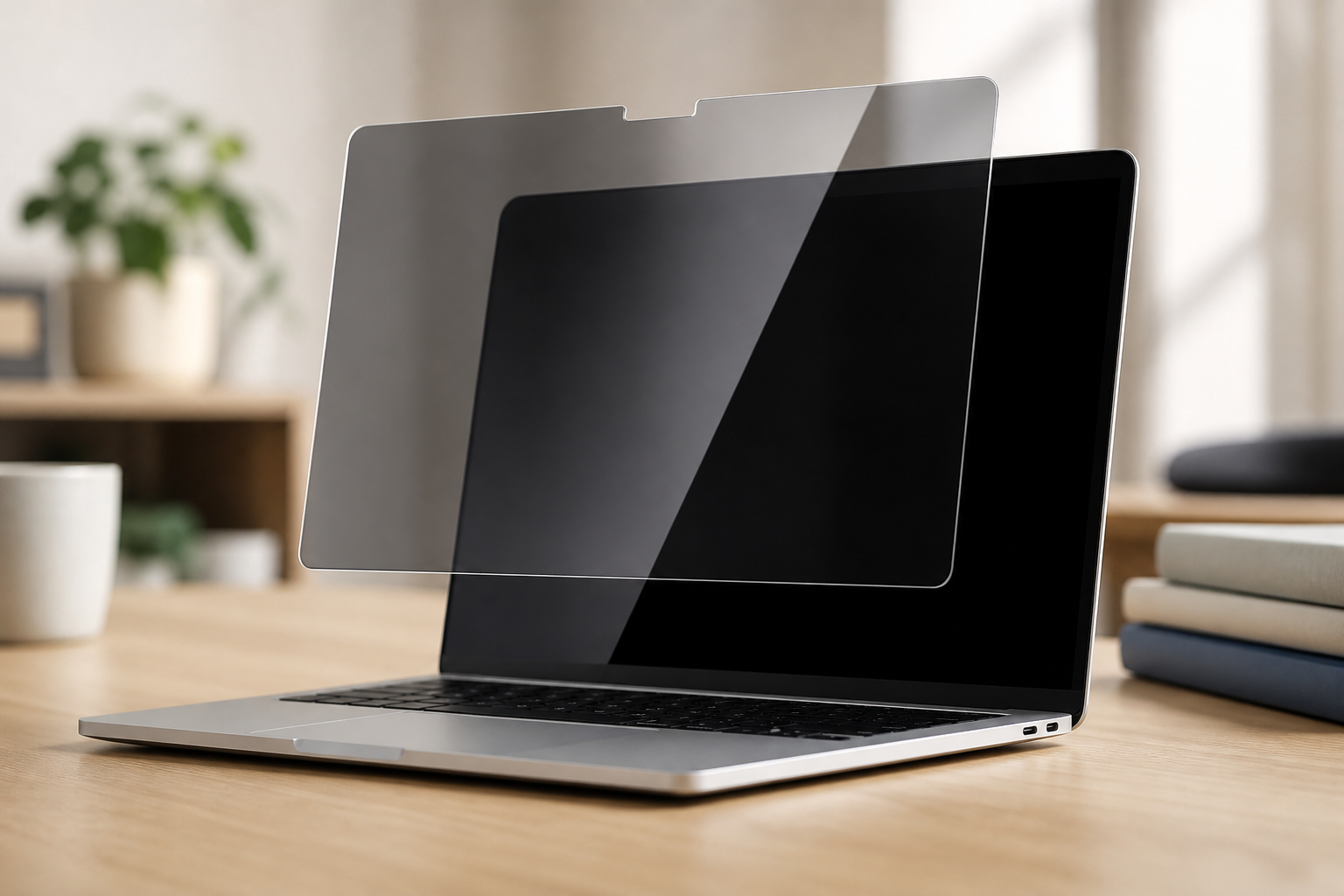
Your MacBook’s Retina display delivers a crisp image and can be damaged easily. Apple warns about leaving thick screen protectors installed because there’s very little clearance between the keyboard and the display when the lid is closed. Closing the lid over a thick layer of glass can crack the screen.
If you work in public and want to keep others from seeing your screen, consider an ultrathin film or a magnetic privacy filter from a brand such as GrizzlyCoat or Mobilize.
Digital security: How to protect your Mac from hackers
Your files need protection too. macOS includes security tools that help protect you from malware and phishing. Use this checklist to review your Mac’s security and privacy settings:
Set a strong password and enable Touch ID: Use a strong password of at least 12 characters in Touch ID & Password in System Settings to protect against unauthorized access. Add a fingerprint so you can sign in with Touch ID. This also helps keep people nearby from seeing you type your password.
Turn on FileVault: Go to Privacy & Security and turn on FileVault. It encrypts the entire drive with 256-bit AES encryption. Encryption keeps the data on the drive unreadable without your login credentials, which matters if your laptop is stolen.
Enable the built-in firewall: Go to Network and select Firewall. Turn it on to block unwanted incoming network connections, particularly when you use public Wi-Fi.
Make secure backups: Follow the 3-2-1 backup rule. Keep three copies of your data on two types of storage, with at least one copy off-site, such as in the cloud.
Software updates and two-factor authentication
Turn on automatic software updates in System Settings so your Mac can install Apple’s security fixes in the background. This helps you stay current without having to check for each update yourself. Keep your App Store apps up to date so you get their security fixes as well.
Enable two-factor authentication for your Apple ID and other important accounts. The extra verification code on your phone helps protect your iCloud data if someone gets hold of your password and tries to sign in on another device.
Be wary of cleanup programs such as MacKeeper that claim to speed up your Mac. Such tools can include malware or unnecessary software. Shut down your MacBook completely once a week so macOS can run its maintenance routines and clear memory.
Frequently asked questions about MacBook protection
Can a hardcase make my MacBook overheat?
A well-designed case with the right vent openings leaves room for heat to escape. Poorly designed cases can cover the vents and trap heat. The brands in our range design their cases around the airflow of the specific MacBook model.
How can I protect my MacBook from viruses?
Turn on automatic updates and enable the built-in firewall. Download apps from the official App Store and steer clear of suspicious websites to reduce your exposure to phishing and malware.
Is my Mac safe without antivirus software?
In most cases, keeping your Mac up to date lets you make the most of its built-in security and privacy features. The firewall, FileVault, and Apple’s controlled software ecosystem help protect against common threats.
How do I set up FileVault on my Mac?
Open System Settings, click Privacy & Security in the sidebar, and scroll down to FileVault. Click Turn On FileVault, enter your password, and follow the onscreen instructions to finish setting up disk encryption.
What should I do if my MacBook is stolen?
Open the Find My app on your iPhone or sign in at iCloud.com right away to lock your Mac. You can lock it remotely, display a message on the screen, or erase the device if necessary. FileVault helps keep your files out of the thief’s hands.
A sturdy case or laptop sleeve helps protect your MacBook, while FileVault and a strong password help protect your files. Combining physical protection with built-in security features can help your laptop last longer and keep private data safe. Browse the full range of MacBook accessories at directcases.com to protect your laptop from scratches, bumps, and dirt.