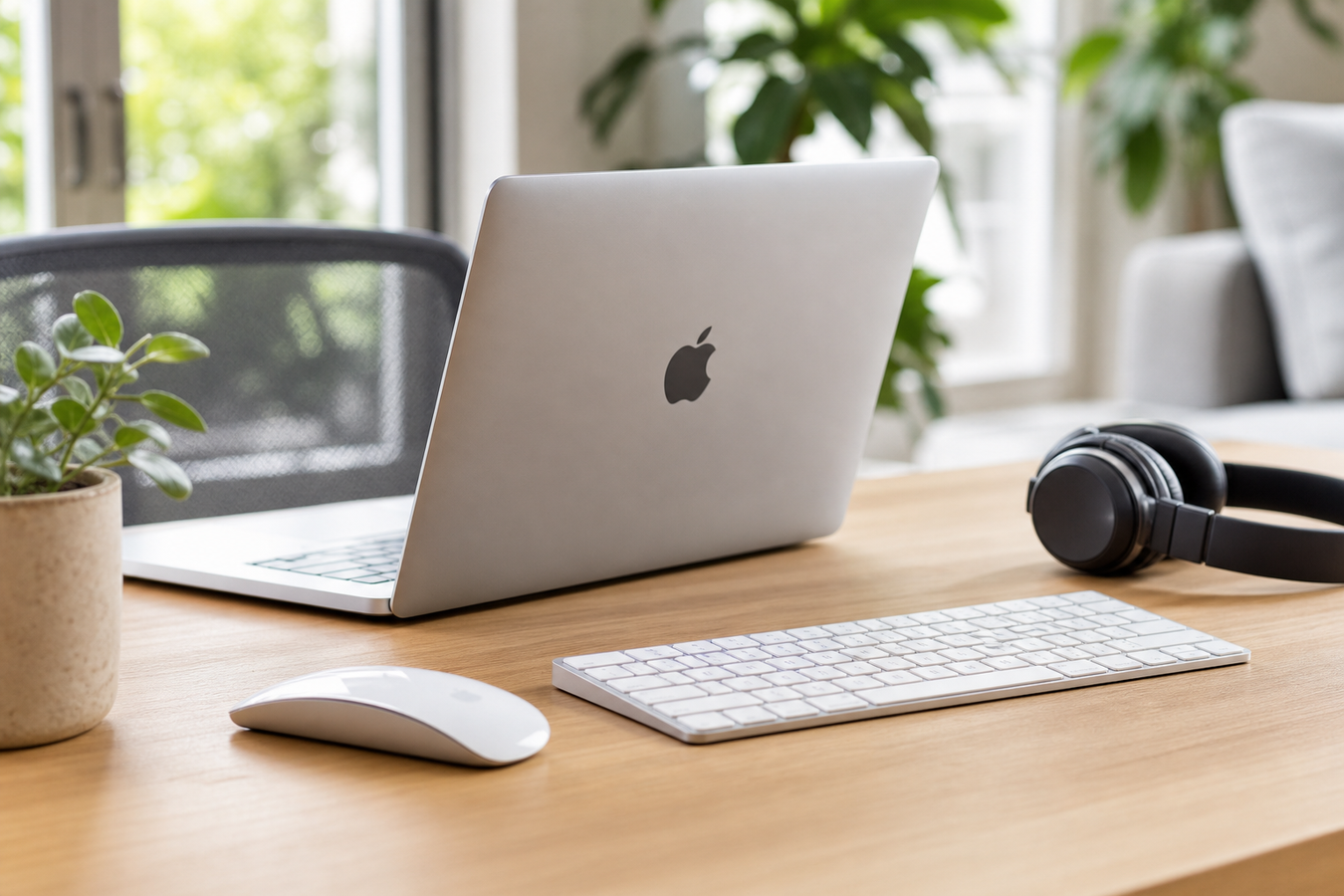
If your Mac Bluetooth is not working or you just want to switch it on, start with the Apple menu in the top-left corner of your screen. Click System Settings and open Bluetooth. Turn on the switch and your Mac immediately starts finding devices.
Bluetooth keeps your desk free of cables, although a new accessory sometimes won't pair straight away. Below, you'll find step-by-step instructions for turning on Bluetooth, pairing a mouse or keyboard and what to do if the connection fails.
How do I turn on Bluetooth on my Mac?
Where exactly do you find the settings for connecting your wireless accessories to macOS?
-
1
Click the Apple logo in the top-left corner of the menu bar. Choose System Settings from the drop-down menu. Using an older version of macOS? Click System Preferences instead.
-
2
Look for Bluetooth in the left-hand sidebar and click it. You'll now see the main screen for all your wireless connections.
-
3
Turn on the Bluetooth switch. The toggle turns blue and your Mac is immediately ready to search for devices. As long as you keep this window open, your computer keeps actively scanning for new accessories nearby.
Tip: you don't have to look up this menu every time. Add the Bluetooth icon straight to the menu bar at the top of your screen. Open Control Center (the icon with the two sliders in the top-right corner) and drag the Bluetooth symbol directly onto the menu bar. That way, you can turn Bluetooth on and off with a single click in future.
How do I turn on Bluetooth if my wireless mouse suddenly stops working?
A dead battery is a common cause of Bluetooth connection problems on a Mac. If your wireless mouse suddenly gives up while Bluetooth on your computer is off, you can't click anything. Fortunately, you can switch the connection on using just your keyboard.
Press Command (⌘) and the space bar at the same time to open Spotlight. Type 'Bluetooth File Exchange' and press Return. If Bluetooth is off, your Mac asks whether you want to turn it on. Press Return again and Bluetooth is on.
Does your keyboard use Bluetooth too? Then plug in a wired keyboard. You can also connect an Apple keyboard or Magic Mouse to your Mac using its charging cable.
Keep an eye on the battery level of your accessories. Make sure your MacBook accessories are always charged enough to prevent this kind of sudden dropout. Plug in the charging cable as soon as you see a battery warning, so your workspace keeps running without interruptions.
How do I pair a new Bluetooth device, such as a mouse or keyboard?
You take a new mouse out of the box, slide the switch on the bottom to 'on' and wait. Your Mac doesn't see a thing. That makes sense, because your new accessory isn't actively looking for a computer yet. For successful Bluetooth pairing, the devices first need to be visible to each other.
Start by making sure there's enough power. Check that the accessory, such as a new Mobigear mouse, is fully charged and actually switched on. Without power, there's nothing to connect.
Next, activate pairing mode on the device itself. You usually do this by holding down the Bluetooth button or power button for a few seconds. As soon as a light starts flashing quickly, the accessory is signaling that it's ready to pair.
On your Mac, go to your Bluetooth settings. Wait until the name of the new device appears in the list. Hover over the device and click 'Connect'.
Some devices need an extra step. When you pair a keyboard, your Mac sometimes shows numbers on the screen. Type those numbers on your new keyboard and press Return.
Once 'Connected' appears next to the device name, your accessory works straight away. Luckily, you only have to go through this whole process once. When you turn the mouse on again tomorrow, your Mac picks up the connection automatically.
Which accessories complete your MacBook workspace?
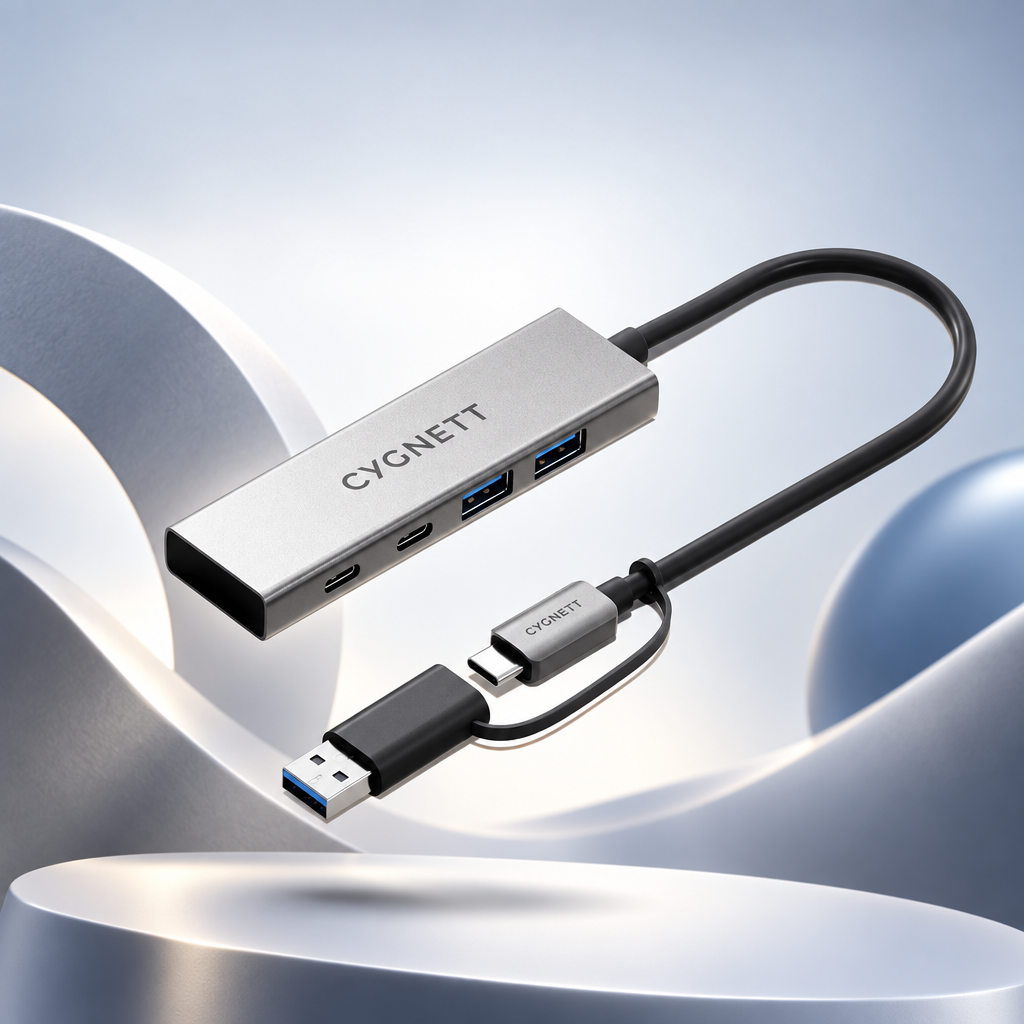
Choose accessories that suit how and where you work. A wireless mouse and keyboard give you plenty of freedom of movement. Although Bluetooth makes a lot of cables unnecessary, in practice you sometimes can't avoid a physical connection. That's why a compact USB-C hub from Cygnett or Mobigear, for example, is a smart choice. It's really handy for a stable wired network or when you work with external displays. You keep the benefits of a wireless setup, but have the right ports to hand.
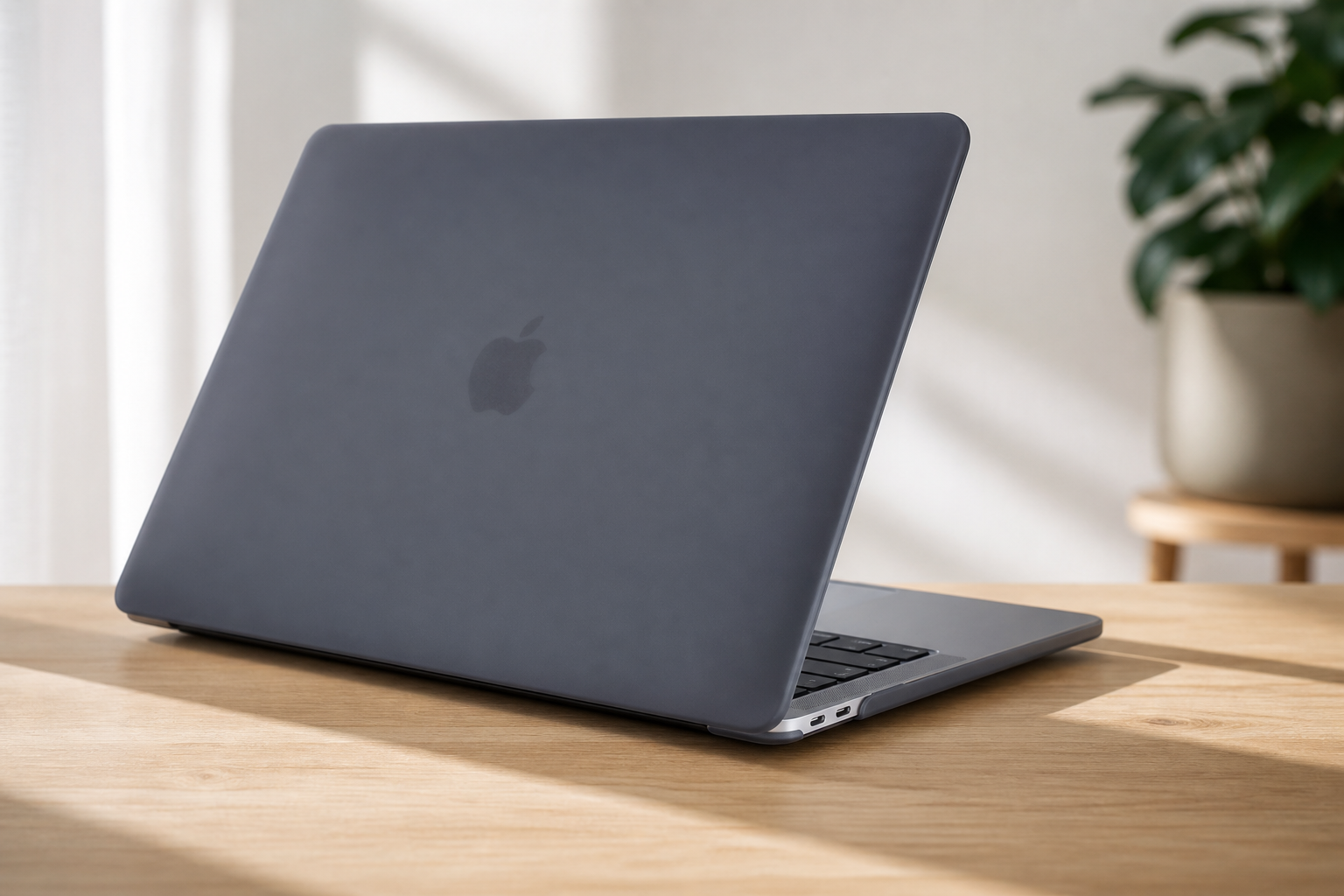
If you often work in different places, protect your hardware against damage right away. Clip a sturdy MacBook case from Mobigear or Burga around the casing. This hard shell absorbs the impact if you accidentally bump into a door frame. Also use a MacBook screen protector from GrizzlyCoat. It prevents ugly marks and permanent scratches on the glass when hard bits of grit get trapped between your screen and keyboard in your bag.
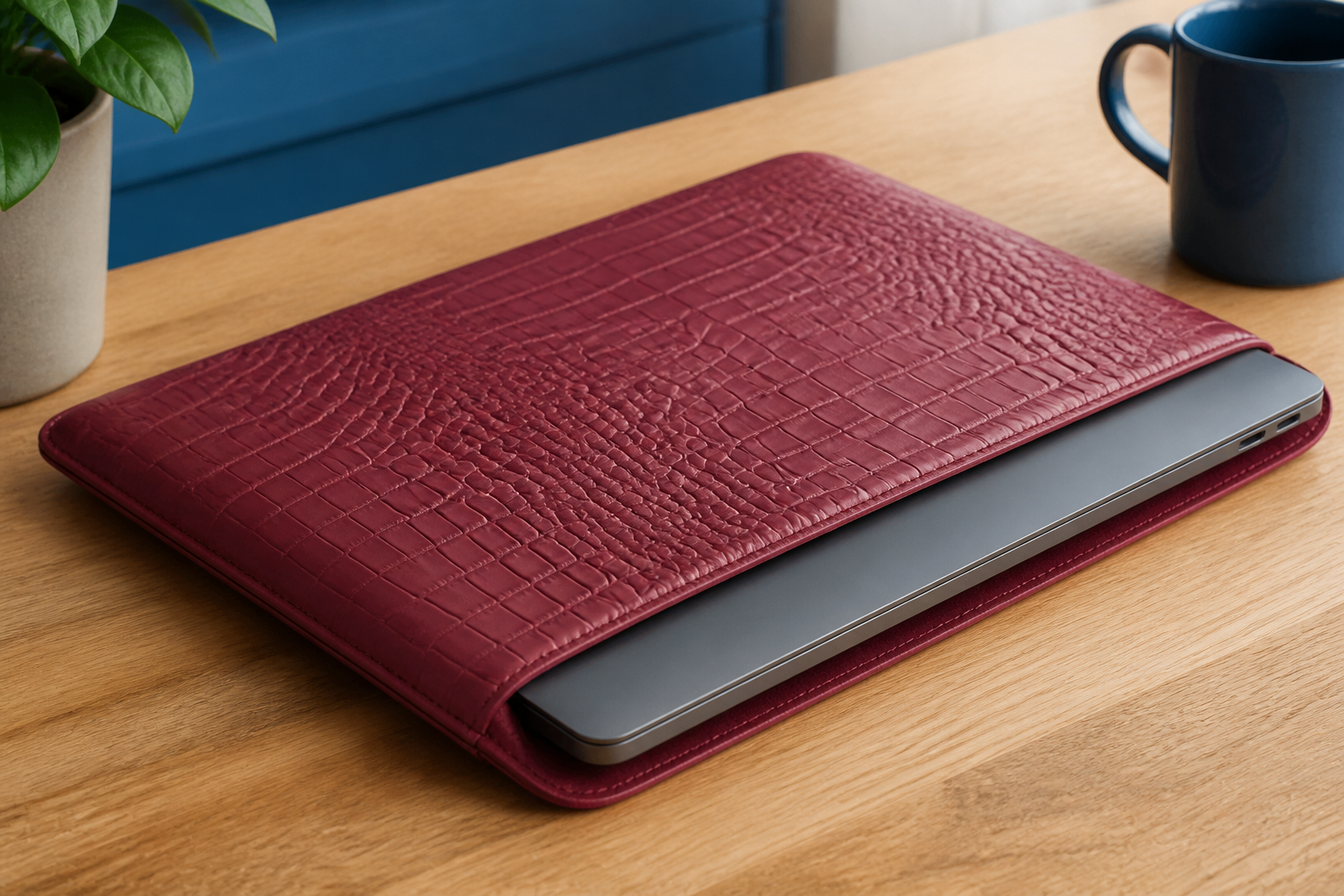
Always slip your laptop into a protective layer before you head out. Brands such as Mobigear and Gaston Luga make cases and laptop sleeves with soft linings and handy zip pockets. They have just enough room for your wireless mouse and USB-C hub alongside your Mac. When choosing on directcases.com, check carefully which size fits your specific laptop exactly. That way, your gear is stored safely and you can work anywhere just as comfortably as at your own desk.
Want to complete your MacBook setup? Discover all accessories
Everything you need to get the most out of your MacBook, from handy adapters to stylish accessories.
How do I fix Bluetooth not working on my Mac?
Troubleshooting Bluetooth starts with one simple truth: your Mac's hardware is rarely broken. Usually, a minor software glitch or a physical obstruction is disrupting the connection.
Check the battery first. A nearly dead battery is often the main reason connections drop. Even if the device is still on, a low battery can stop it from pairing properly or make it lose the connection.
Rule out interference by clearing your desk. Remove metal objects or thick folders between your Mac and the accessory, and simply keep the device close by. While you're at it, check that the accessory isn't secretly trying to connect to your mobile phone.
Is the connection stuck? In your Bluetooth settings, hold down Control, click the name of the accessory and choose 'Forget'. This forces macOS to discard the old data, after which you can pair the device again from scratch.
Sometimes the Bluetooth module simply freezes. Restart Bluetooth by turning it off in Control Center and straight back on again. If that doesn't help, fully restart both your MacBook and the wireless accessory.
Frequently asked questions
Why isn't my Bluetooth device showing up?
The accessory isn't in pairing mode or is already paired with another device nearby. A Mac only lists devices that are actively looking for a new connection. Disconnect the accessory from other devices before you try pairing again.
Why isn't my Mac connecting to my Bluetooth device?
This is usually caused by a glitch in previous connection data or a nearly dead battery. Remove the failed or old attempt from the list in your settings by forgetting the device. Charge your accessory for a while, just to be sure. Then try connecting the devices again right next to each other.
How do I put a Bluetooth device in pairing mode?
Hold down the power button or the dedicated Bluetooth button on your accessory for a few seconds until an indicator light starts flashing. The flashing light means the device is ready to pair with your Mac. On many mice and keyboards from brands such as Mobigear or Xccess, you'll find this button on the bottom of the casing.
With Bluetooth set up properly and the right accessories paired, you'll work a lot more efficiently and comfortably on your Mac. Wireless accessories can cut down on cables on your desk. Browse the full range of MacBook accessories on directcases.com and choose a model that suits the way you work.