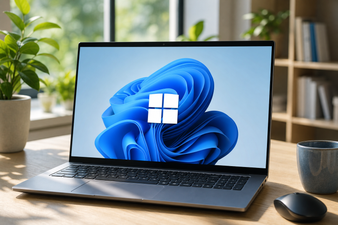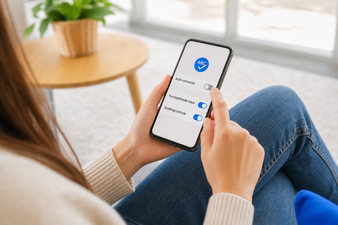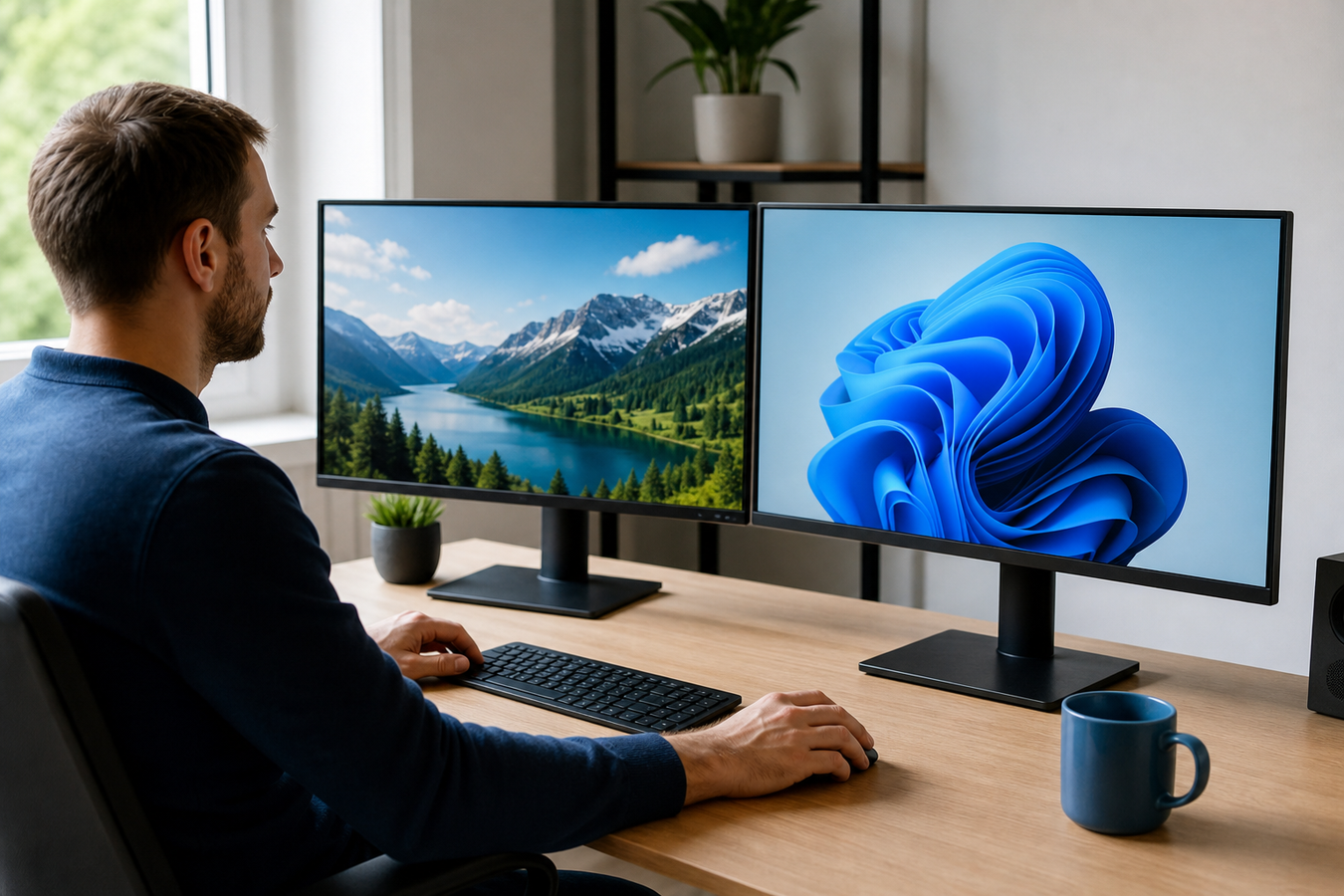
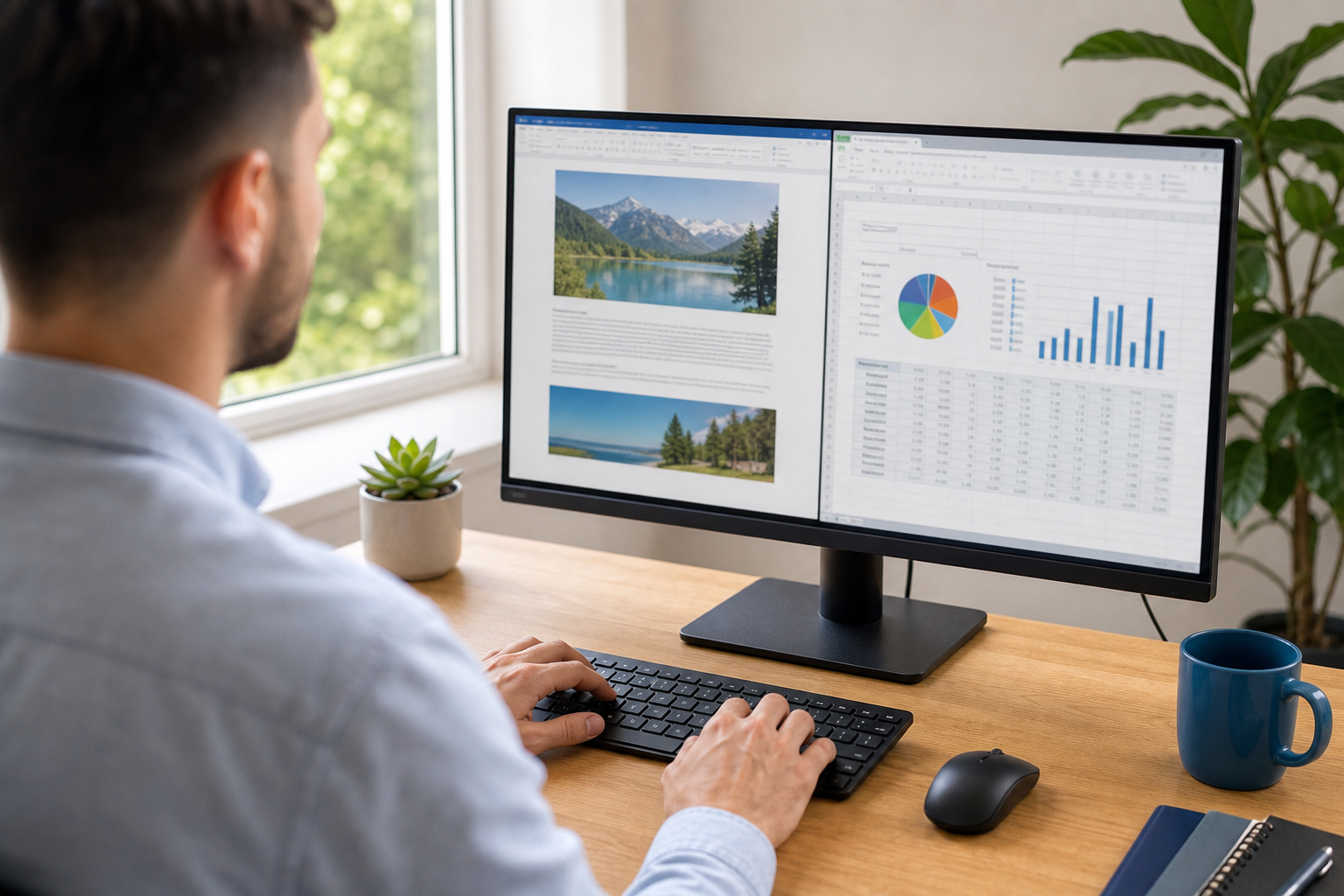
To split your screen in Windows and put two windows side by side, drag one window to the edge of the screen. Wait for a translucent outline to appear. Release the mouse button to snap the window into one half of the screen. Then select a second app for the other half.
Keyboard shortcuts and Snap Layouts in Windows 11 make arranging windows faster. Using two separate monitors? Follow the steps in “How do I set up two monitors?” later in this article.
How do I put two windows side by side?
Why switch back and forth between open apps when you can see both at once?
The Windows feature for this is called Snap. It lets you place a window in half or a quarter of your screen. That saves time when you copy data, compare documents, or take notes while you read. Keeping both windows in view makes it easier to work between them.
You can choose how to arrange your windows. Use your mouse, keyboard shortcuts, or the layout menus in recent versions of Windows.
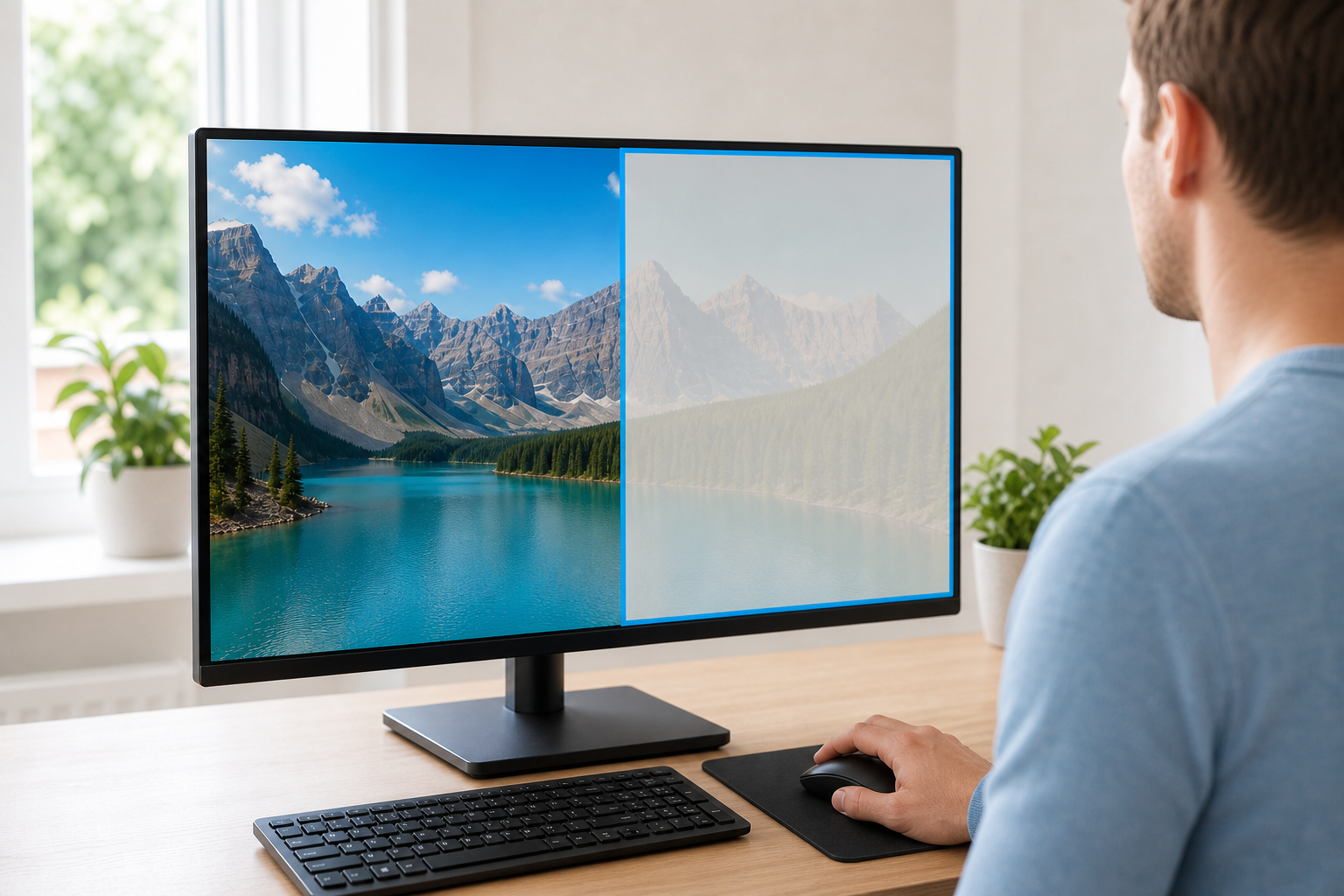
Method 1: Use the mouse
Windows 10 and 11 both let you divide your screen using the mouse.
-
1
Click and hold the title bar at the top of the open window.
-
2
Drag the window all the way to the left or right edge of your screen.
-
3
When the pointer reaches the edge, a translucent outline shows where the window will go.
-
4
Release the mouse button to snap the window to the left or right half of your screen.
-
5
Windows shows your other open apps in the remaining half. Select the app you want to use on that side.
Method 2: Use keyboard shortcuts
If you’re writing and want your reference material next to your draft, keyboard shortcuts let you arrange the windows without taking your hands off the keyboard.
Select the window you want to move and press the Windows key + Left arrow or Right arrow. The window snaps to that half of your screen.
To put the window in a corner, follow that shortcut with the Windows key + Up arrow or Down arrow. The window shrinks to fit in one of the four corners.
Repeat with the other open apps to fill all four quarters without dragging each window into place.
How do you split the screen in Windows 11?
Hover over the maximize button in the upper-right corner of an open window. The Windows 11 Snap Layouts menu appears. Choose a layout, such as two equal halves or a large area with two smaller ones beside it.
Click a spot to move the current window into it. Windows suggests open apps for the remaining spaces. Select the apps you want to fill the layout without dragging windows or memorizing shortcuts.
How do I set up two monitors?
A second monitor gives you more desktop space and lets you keep more apps in view.
-
1
Connect the monitor:
Connect the second monitor to your computer. Use a suitable HDMI or USB-C cable from directcases.com for a stable signal. Set the screens at the same height and angle them slightly toward you in a shallow V.
-
2
Open Settings:
In Windows, go to Settings > System > Display to see your connected displays.
-
3
Identify your displays:
Select Identify. A large number appears briefly on each monitor. Drag the displays left or right in Settings to match their positions on your desk. Your pointer will then move between them in the direction you expect.
-
4
Choose a display mode:
In the multiple-display settings, choose Extend to spread your desktop across both monitors. Choose Duplicate to show the same content on both, for example during a presentation. Press the Windows key + P to switch between display modes.
What if split screen doesn’t work?
If your windows won’t snap or your second monitor stays blank, try these checks.
Check multitasking settings: Go to Settings > System > Multitasking and turn on Snap windows. If it’s off, dragging a window to the edge won’t snap it into place.
Check the input source: If the monitor shows no picture, use its own controls to check that you’ve selected the correct input, such as HDMI 1 or USB-C.
Detect the monitor: If Windows doesn’t recognize your second monitor, open Settings > System > Display and select Detect. If that doesn’t help, unplug the video cable and reconnect it firmly.
Frequently asked questions
How can I use two monitors side by side?
Connect both monitors with video cables, open Display settings, and choose the option to extend your desktop. Windows 10 and 11 let you use both monitors as one extended desktop.
How do you use split screen in Windows?
With a window active, press the Windows key and the Left or Right arrow to snap it to that side. Then choose a second app for the other half of the screen.
How do I split my screen?
Drag a window to the edge of the screen to snap it into place, or use Snap Layouts in Windows 11. To choose a layout, hover over the maximize button in the upper-right corner of the window.
You can now arrange windows with your mouse or keyboard and set up a second monitor. Browse ergonomic laptop stands at directcases.com to finish setting up your workspace.